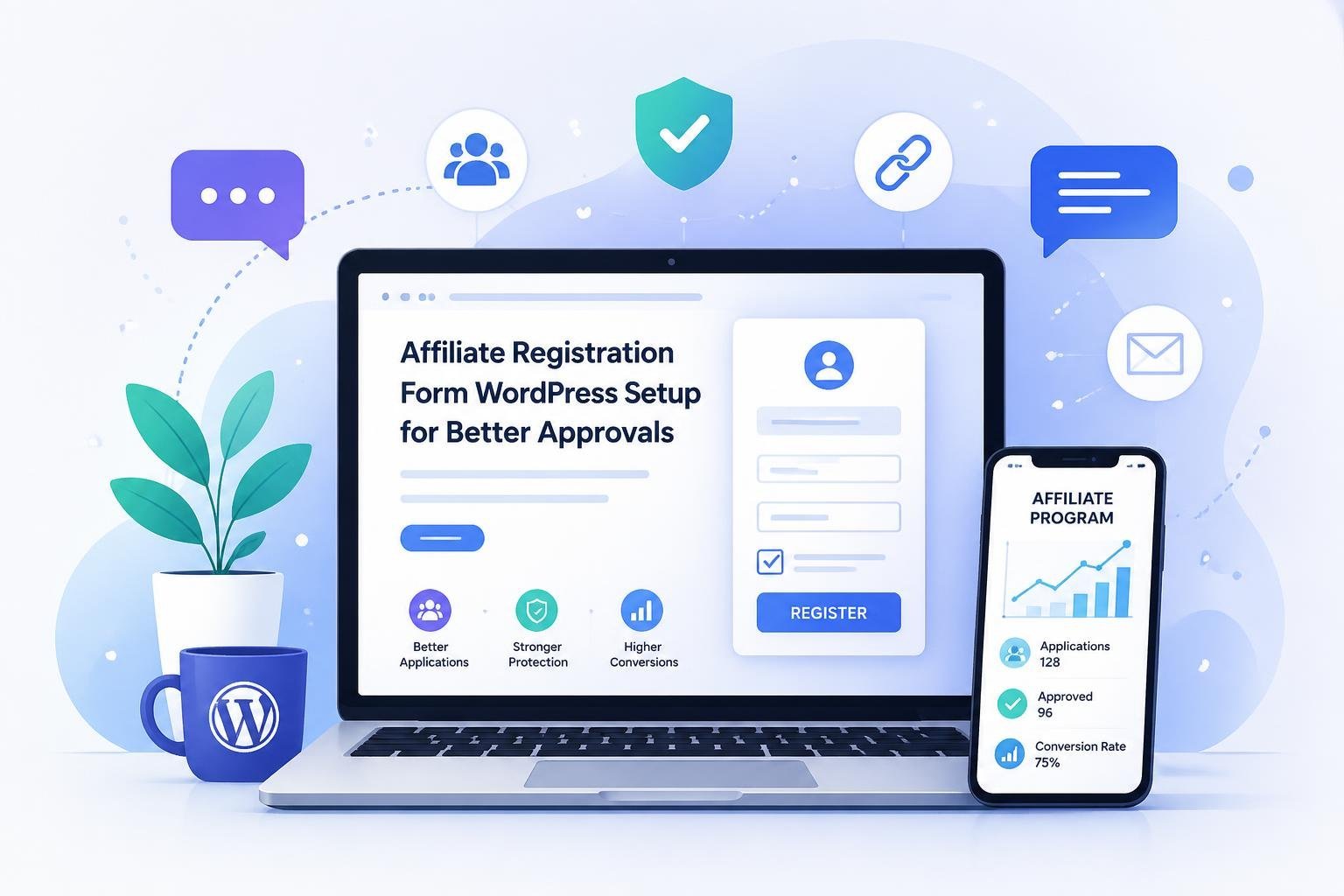
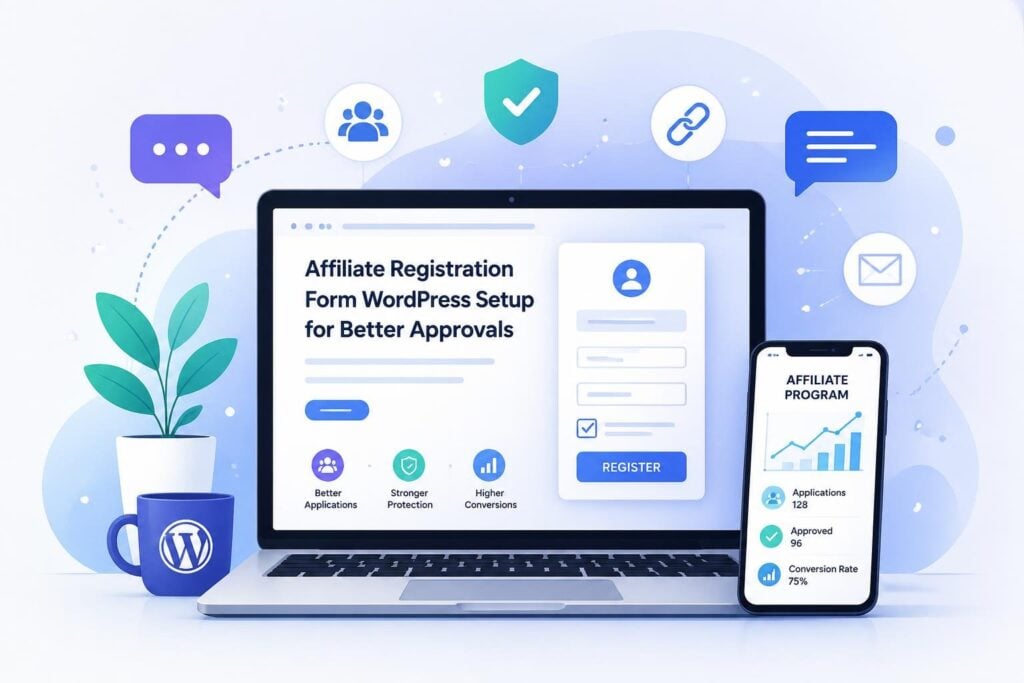
Your affiliate registration form is where quality control starts, and most programs get it wrong. You either ask too little and end up approving spammers, or you ask too much and lose real partners before they complete the form. Getting the structure right from the beginning saves you hours of manual review and protects your commissions from low-quality traffic. If you want to learn how to set up an affiliate registration form in WordPress that actually filters for the right people, the steps below will walk you through it, from choosing the right signup flow to connecting approvals to real commission tracking.
Choose the Right Signup Flow for Your Program
The signup flow you choose shapes how affiliates experience your program from day one. A dedicated registration page, a combined affiliate area, and your approval process all interact, so you need to align them before building anything.
When to Use a Dedicated Affiliate Registration Page
A standalone affiliate registration form page works best when you want to promote your program publicly, run paid traffic to it, or keep the signup process separate from your main site navigation. It gives you full control over the page layout, copy, and any pre-qualification messaging you want to show before the form loads.
If you are running a WooCommerce store with an existing customer base, a separate page also prevents confusion between customer account creation and affiliate signup.
When an Affiliate Area Page Makes More Sense
An affiliate area page combines registration and the affiliate dashboard into a single destination. Once approved, affiliates land on the same page to access their links, stats, and payouts. This approach is cleaner for smaller programs where simplicity matters more than segmentation.
Plugins like AffiliateWP automatically create this page using the affiliate area block in the WordPress block editor, so you are not building it from scratch.
How Approval Style Changes the Form You Need
If you use automatic approval, your form can stay short since you are not making a judgment call on each applicant. Manual approval justifies a longer form with more qualifying questions, because you need enough information to make a real decision without having to follow up with every applicant by email.
Match your form length to your approval workflow. A mismatch creates friction in the wrong place.
Build a Form That Filters for Quality, Not Just Volume
The default fields on most affiliate registration forms collect just enough information to create an account, not enough to tell you whether someone is worth approving. Adding the right fields, and making the right ones required, is what turns your form into a quality filter.
Core Fields Every Serious Program Should Collect
Beyond name and email, you should be collecting information that tells you how a person plans to promote your products. A basic set of fields for a serious program looks like this:
- Full name (required)
- Email address (required)
- Website URL or social profile link (required)
- Promotional method (dropdown: blog, social media, email list, paid ads, other)
- Audience size or niche description (short text or dropdown)
- PayPal email or payment details (can be collected post-approval instead)
- Tax information (W-9 field or tax ID, especially for US-based programs paying over $600)
Tax information is worth collecting upfront if you expect affiliates to earn meaningful commissions. It avoids a separate follow-up process later.
Which Questions Should Be Required
Make promotional method and website or social URL required. These two fields alone tell you more than any other combination. If someone cannot provide a URL or describe how they plan to promote your program, that is useful information on its own.
Avoid making payment details required at signup. Collecting them after approval reduces friction and means you are not storing sensitive data for affiliates who never get approved.
How to Use Custom Fields Without Adding Friction
Custom fields are valuable, but each additional required field has a completion cost. A good rule is to ask yourself whether you would actually reject an applicant based on a blank answer. If not, make it optional.
Use conditional logic where your plugin supports it. For example, show a “YouTube channel URL” field only when someone selects “video content” as their promotional method. This keeps the form short for most applicants while still collecting the right data for specific segments.
Set Up the Form in WordPress Without Creating a Mess
Placement and editor compatibility are where affiliate registration forms break down more often than you would expect. A form that works in the block editor may not behave the same way inside a page builder, and shortcode-based setups can get messy fast.
Blocks vs Shortcodes for Placement and Editing
The WordPress block editor gives you the cleanest setup if your affiliate plugin supports native blocks. AffiliateWP, for example, uses an affiliate registration form block that you drop onto any page and configure directly inside Gutenberg. You can adjust field visibility, labels, and order without touching code.
Shortcodes are the fallback. They work everywhere but give you less visual control during editing. If you are using a page builder like Elementor or a classic editor setup, shortcodes are often the only option. Plugins like SliceWP use the [slicewp_affiliate_registration] shortcode to render the affiliate registration form on any page you choose.
Use blocks when you can. Use shortcodes when you have to.
How to Adjust Labels, Order, and Visibility
Most affiliate plugins let you rename field labels, reorder fields, and toggle visibility from a settings panel. The field label is what your applicant sees, so “PayPal Email” is clearer than “Payment Email” or “Payout Method.”
When adjusting settings, always click save changes and then preview the form on the actual page. What looks correct in the admin panel does not always render exactly the same way on the front end, especially if your theme applies custom CSS to form elements.
Where WooCommerce-Specific Workflows Matter Most
If you are running a WooCommerce store, your affiliate registration form needs to connect to WooCommerce user data without forcing applicants to create a customer account first. The Affiliate for WooCommerce plugin handles this by keeping affiliate accounts separate from customer accounts, which prevents a common situation where affiliates accidentally get treated as regular customers in your order data.
For stores selling subscriptions, memberships, or multi-tier product lines, you need a plugin that maps commission rules to specific products or categories at the point of registration, not as an afterthought. This is where plugins built specifically for WooCommerce pull ahead of generic affiliate tools.
Protect Applications and Streamline Approvals
A form that is open to the public will attract spam. Getting approval workflows right from the start keeps your affiliate list clean and your admin time low.
Add Spam Protection With Google reCAPTCHA
Google reCAPTCHA is the most reliable way to reduce bot submissions on your affiliate registration form. Most established affiliate plugins include reCAPTCHA support in their settings, and enabling it takes less than five minutes once you have your site key and secret key from Google.
Do not rely on a honeypot field alone. reCAPTCHA combined with manual approval, gives you two layers of filtering for programs where quality control matters.
Decide Between Automatic and Manual Approval
Automatic approval makes sense if you are running a low-risk program, your commissions are modest, or you have no bandwidth for manual review. It also works well if you are using the form itself to pre-qualify applicants through required fields.
Manual approval is worth the extra step if you are offering high commissions, running a membership or subscription program, or selling to a specific niche where brand representation matters. With manual approval, you can review the applicant’s website, check their social presence, and decline anyone who is clearly a bad fit before they ever get an affiliate link.
Use Form Data to Review Applicants Faster
When you build your form with review efficiency in mind, you can scan applications quickly. A list view in your affiliate plugin that shows promotional method, website URL, and audience size alongside the applicant name lets you approve or decline in seconds rather than minutes.
Plugins that let you manage affiliates from a single admin screen, filter by status, and see custom field data without opening each record individually will save you significant time as your application volume grows.
Connect Registration to Tracking, Commissions, and Revenue
The affiliate registration form is the entry point, but what happens after approval determines whether your affiliate program actually drives revenue.
How New Affiliates Move From Signup to First Referral
After approval, affiliates need immediate access to their unique links, any assigned coupon codes, and enough dashboard information to start promoting. Delays in this handoff reduce activation rates. An automated welcome email with a direct link to the affiliate area and clear instructions on how to grab a referral link is a practical fix for most programs.
Programs that require affiliates to wait 24 to 48 hours after approval before accessing their links lose a meaningful share of motivated partners at the start.
What to Track After Approval
Once an affiliate is active, you should be tracking clicks, conversion rate by affiliate, order value, and commission earned per referral. If you are running a WooCommerce store with subscriptions or recurring products, you also need to track whether commissions apply to renewal payments, not just the initial transaction.
Most basic affiliate plugins track the first sale and stop. If recurring commissions are part of your program, confirm that your plugin tracks subscription renewals before you approve a single affiliate. Discovering that gap after paying out flat commissions on recurring revenue is a costly mistake.
Why Advanced Commission Rules Matter for WooCommerce and Memberships
Flat percentage commissions work for simple stores. They fall apart quickly when you have product tiers, membership levels, digital products, and upsells in the same catalog.
A plugin like Ultimate Affiliate Pro lets you set custom commission rules by product, category, or affiliate tier, which is essential for stores with mixed product types. You can assign higher commissions to specific affiliates, run time-limited bonus structures, and handle multi-level referral tracking without building separate programs for each product line. For WooCommerce stores selling subscriptions or course access alongside physical products, that level of granularity is not optional.
Frequently Asked Questions
How do you add an affiliate sign-up form to your WordPress site without forcing users to register as customers?
Use an affiliate plugin that creates a separate registration flow for affiliates, independent of the default WordPress or WooCommerce user registration. Plugins designed specifically for affiliate management keep affiliate accounts in their own database table, so applicants can sign up without being added to your customer list or triggering WooCommerce account creation.
Which plugin is the most reliable for handling affiliate applications and approvals on a WooCommerce store?
It depends on the complexity of your store. For basic WooCommerce setups, the Affiliate for WooCommerce plugin handles registration and approvals cleanly. For stores with subscriptions, membership levels, or multi-tier commission needs, a plugin with advanced commission rule support like Ultimate Affiliate Pro gives you more control without requiring custom development.
How do you customize the fields on your affiliate application form (tax info, website URL, social profiles)?
Most affiliate plugins include a custom fields section in their settings where you can add, rename, reorder, and mark fields as required or optional. For tax information, you typically add a text field labeled “Tax ID” or include a file upload field for W-9 documents. Some plugins, like SliceWP, offer a dedicated custom affiliate fields add-on for this purpose.
What shortcode should you use to display the affiliate registration form on a specific page?
The shortcode depends on your plugin. SliceWP uses [slicewp_affiliate_registration], AffiliateWP uses the Gutenberg block editor by default but also supports shortcodes for classic editor setups, and other plugins follow similar naming conventions. Check your plugin’s documentation for the exact shortcode, then paste it into any page or widget area where you want the form to appear.
How do you restrict the affiliate area so only approved affiliates can access their dashboard and links?
Your affiliate plugin should handle this automatically when manual approval is enabled. Affiliates with a pending or rejected status should see either a notice or a redirect rather than full dashboard access. Confirm this behavior after setup by creating a test account and checking what an unapproved applicant actually sees on the affiliate area page.
What’s the cleanest way to route new applicants to a thank-you page and notify you for manual approval?
Set a custom redirect URL in your affiliate plugin’s registration settings that points to a dedicated thank-you page after form submission. This page should confirm that the application was received and set expectations on review time. Most affiliate plugins also support email notifications to the admin on new registrations, which you can enable in the notification settings so you are alerted immediately without checking the dashboard manually.