When your affiliate program grows past a handful of partners, manually tracking who’s owed what and when becomes a real bottleneck. Without a structured affiliate payout request workflow in WordPress, you end up chasing spreadsheets, fielding payment questions from affiliates, and reconciling balances by hand. Setting up a proper request-and-approval flow solves all of that, and this guide walks you through exactly how to do it. If you’re looking for a plugin that handles this natively, Ultimate Affiliate Pro has a dedicated payout request module worth exploring.
How Affiliate Payout Requests Work
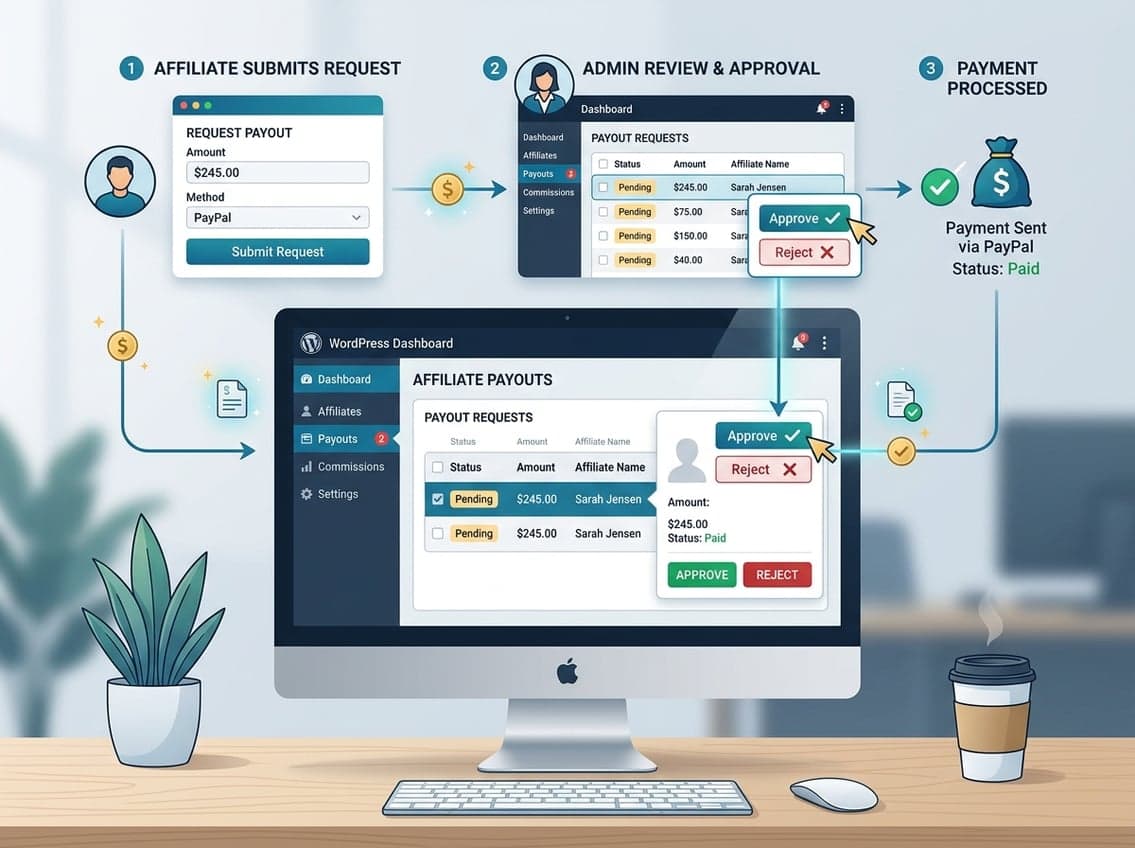
The payout request process sits between commission tracking and actual payment. Rather than paying affiliates on a fixed schedule you control entirely, a request-based system lets affiliates initiate the payment process when they’re ready, within the rules you define.
What Triggers a Payout Request
An affiliate logs into their portal, sees their unpaid balance, and submits a request to withdraw those earnings. The request only goes through if they meet your conditions, typically a minimum balance and a minimum age on their referrals.
The trigger is affiliate-initiated, which means you’re not running payouts blindly on a schedule. You’re responding to actual requests, which gives you a natural review window before any money moves.
Requested, Processed, and Paid Statuses
Most affiliate payout request WordPress setups track three core statuses:
- Requested: The affiliate submitted a withdrawal request. No payment has been made yet.
- Processed/In Review: You’ve reviewed the request and are preparing the payment.
- Paid: Payment has been sent and recorded.
These statuses matter for reconciliation. When an affiliate asks “did my payment go out?” you can point to a specific record rather than digging through PayPal history.
When Manual Review Makes More Sense Than Auto-Payouts
Auto-payouts work well for programs with tight fraud controls, verified affiliates, and consistent order quality. For most WordPress and WooCommerce stores, especially early on, manual review is the safer approach.
Manual review lets you catch issues before money leaves your account. A $400 commission tied to an order that’s still in its refund window shouldn’t be paid out automatically. With a request-based system, you review before you pay, not after.
Set Up the Feature in WordPress
Setting up affiliate payout requests in WordPress takes a few steps inside your plugin dashboard and affiliate account settings. The process in Ultimate Affiliate Pro is modular, meaning the feature comes as an add-on you activate separately.
Install the Add-On From the WordPress Admin
Go to Plugins > Add New in your WordPress admin, upload the Payout Request By Affiliate add-on zip file, and activate it. According to the official documentation, the module becomes available in the Ultimate Affiliate Pro plugin dashboard under the Extensions tab once the plugin is active.
Enable the Module in the Plugin Dashboard
After activation, open the Ultimate Affiliate Pro plugin dashboard and navigate to the Extensions tab. You’ll see the Payout Request By Affiliate module listed there. Enable it to unlock the configuration options.
This step is easy to miss. The feature does not turn on automatically when you install the add-on. You need to activate it inside the plugin dashboard explicitly.
Add the Request Payment Tab to the Account Page
Once the module is active, a new Payout Request tab appears inside the affiliate portal. Affiliates can see it when they log into their account page.
You don’t need to manually edit any page templates. The tab gets added to the existing affiliate account interface automatically. Verify it’s showing correctly by logging in as a test affiliate and confirming the tab is visible.
Configure Rules Affiliates Must Meet
The rules you set here are what prevent constant small payment requests and disputes over commissions that haven’t cleared yet. Getting these thresholds right matters more than most site owners realize.
Set a Minimum Withdrawal Amount
Inside the payout request settings, you can define a minimum withdrawal amount. This is the minimum unpaid balance an affiliate must have before they can submit a request.
A $50 minimum is a common starting point for digital product stores. For WooCommerce stores with higher average order values, a $100 threshold may make more sense. Setting this to zero means affiliates can request payment on any balance, which creates unnecessary admin overhead.
Use Referrals Older Than to Reduce Disputes
The Referrals Older Than setting is one of the most useful options in the payout request configuration. It lets you require that commissions are a certain number of days old before they can be included in a payout request.
Set this to match your refund or dispute window. If your WooCommerce store has a 30-day return policy, set referrals older than to 30 or 35 days. This way, commissions tied to orders that could still be reversed don’t get paid out before the risk window closes.
Choose Practical Payout Thresholds for Your Program
Beyond the minimum amount, think about what payout schedule fits your business. Many programs align payout requests with a monthly schedule, meaning affiliates can submit requests once per month.
You can reinforce this through your affiliate agreement and onboarding materials even if the plugin doesn’t enforce a calendar-based schedule natively. Pair a reasonable minimum threshold with a clear payout timeline, and you’ll cut most of the “when do I get paid?” support questions from affiliates.
If you’re ready to configure your payout rules and build a program that runs without constant manual work, see the Ultimate Affiliate Pro pricing page to find the right plan for your setup.
Manage Requests and Send Payments
Once affiliates start submitting requests, your job is to review, approve, and record each payment cleanly. Keeping this process organized from the start saves time as your affiliate count grows.
Review Payment Request by Affiliates in the Admin Area
In your WordPress admin, navigate to the Ultimate Affiliate Pro dashboard. All submitted payout requests appear there with the affiliate name, requested amount, and current status.
Review each request against your records. Check that the affiliate’s referred orders are complete, past the refund window, and that there are no open disputes on the account. This review step is where you catch problems before they become payment errors.
Proceed Payment and Record the Outcome
When you’re ready to pay, click Proceed Payment on the request. This marks the request as processed and allows you to record the payment method used, whether that’s PayPal, Stripe, a bank transfer, or another method.
Record what was paid and how it was paid at this step. Don’t rely on your PayPal or bank transaction history alone. Having the payment record inside your affiliate plugin makes reconciliation much easier when affiliates have questions later.
Track Payout History for Reconciliation
After payments go out, each completed request stays in your payout history inside the admin area. You can filter by affiliate, date range, or status to pull up a specific payment record.
This history log is useful at tax time, during audits, and whenever an affiliate claims they didn’t receive a payment. A clean payout history inside WordPress means fewer back-and-forth emails and faster resolution.
Improve the Affiliate Experience Without Losing Control
A smooth payout process keeps affiliates engaged and reduces the support load on your end. The goal is to make it easy for affiliates to understand and use the system, without creating workflow gaps that let problems slip through.
Make the Affiliate Portal Easy to Use
The affiliate portal is where your partners spend most of their time. A clean, well-organized portal with a visible payout request tab reduces confusion and builds trust in your program.
In Ultimate Affiliate Pro, the affiliate portal displays unpaid balances, commission history, and the payout request option all in one place. Affiliates can see exactly what they’ve earned and what they’re eligible to request without contacting you.
Show Clear Instructions Inside the Affiliate Account
Don’t assume affiliates understand how your payout rules work. Add a short note or instruction text near the payout request tab explaining your minimum threshold, your referral age requirement, and your typical processing time.
Even two or three sentences inside the account page can eliminate a large share of payout-related support tickets. Affiliates who understand the rules upfront are less likely to submit requests prematurely or complain about delays.
Use Thresholds and Notifications to Cut Support Requests
When affiliates don’t meet the minimum withdrawal amount, the request option should either be greyed out or show a clear message explaining why they can’t submit yet. This prevents incomplete requests from cluttering your admin queue.
Pair this with email notifications when a request is approved or paid. Affiliates who get a confirmation email when their payment goes out are less likely to follow up asking for status updates. Most affiliate payout request WordPress setups support basic notification emails out of the box.
Frequently Asked Questions
How do you enable affiliates to submit a payout request from the WordPress dashboard?
Install the Payout Request By Affiliate add-on for your affiliate plugin, then activate the module inside the plugin dashboard under the Extensions tab. Once enabled, a Payout Request tab will appear automatically in the affiliate account page so affiliates can submit withdrawal requests when their balance meets your minimum threshold.
How do you approve, reject, or partially pay an affiliate’s payout request in a typical affiliate plugin workflow?
In Ultimate Affiliate Pro, you review submitted requests from the WordPress admin area under the affiliate payout requests section. From there, you can click Proceed Payment to approve and record the payment, or leave the request in a pending state if you need to investigate further before paying.
Which payout methods can you use for affiliate commissions (PayPal, bank transfer, store credit), and what are the trade-offs?
Ultimate Affiliate Pro supports PayPal and Stripe for direct payouts, and you can also process manual payments via bank transfer or any method you prefer outside the platform. PayPal is fast and familiar to most affiliates, Stripe works well for direct bank deposits, and manual transfers give you the most flexibility but require more admin work to track.
How do you set a minimum payout threshold and payout schedule (weekly/monthly) to avoid constant small requests?
Set the minimum withdrawal amount inside the payout request configuration, for example $50 or $100 depending on your average commission size. Communicate your payout schedule clearly in your affiliate agreement and onboarding emails, even if the plugin doesn’t enforce a hard calendar restriction, so affiliates know when to expect payment.
How do you handle refunds, chargebacks, and canceled WooCommerce orders so commissions don’t get paid out incorrectly?
Use the Referrals Older Than setting to require that commissions are at least as old as your refund window before an affiliate can include them in a payout request. This means a commission tied to a 14-day-old order with a 30-day return policy won’t be eligible for withdrawal until the risk window has closed, reducing the chance of paying out on reversed transactions.
Why is an affiliate not seeing a payout request option or showing an incorrect unpaid balance, and how do you fix it?
The most common cause is that the Payout Request By Affiliate module wasn’t activated inside the plugin dashboard after installation, or the affiliate’s balance doesn’t meet the minimum withdrawal amount. Check the Extensions tab to confirm the module is enabled, verify the affiliate’s unpaid balance in the admin area, and confirm your minimum threshold isn’t set higher than their current earnings.