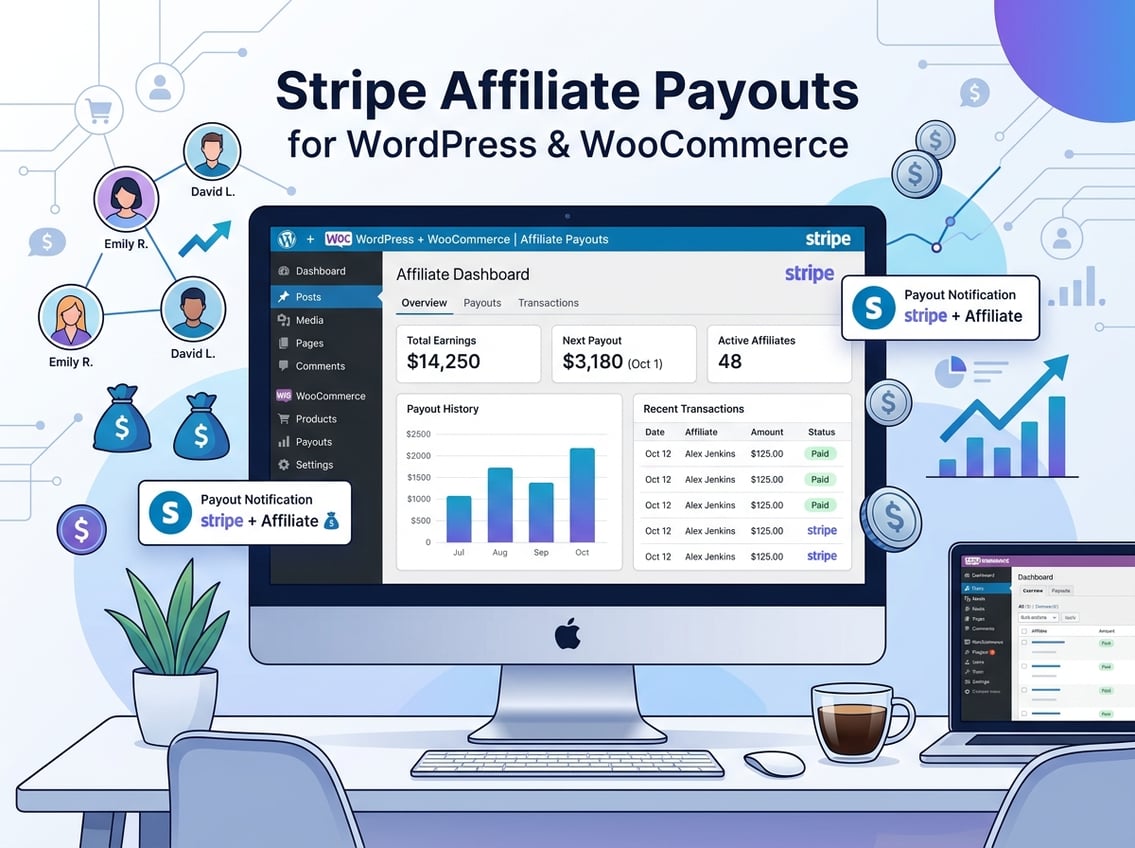
When you’re running an affiliate program and processing dozens of commissions every month, manually exporting CSVs and sending individual payments is a real bottleneck that stalls growth and frustrates affiliates. Stripe affiliate payouts solve that by connecting your payment processing directly to your affiliate tracking, so commissions move from your Stripe account balance to your affiliates’ bank accounts without the manual back-and-forth. If you’re running WordPress or WooCommerce and want to get this working properly, here’s exactly how it fits together.
How Stripe Affiliate Payouts Work
Stripe handles affiliate payouts through its Connect infrastructure, which lets you move funds from your Stripe account balance to external accounts. The mechanics are straightforward once you understand the flow, and knowing whether to use automated or manual runs will save you headaches later.
The Basic Flow From Referral to Bank Account
When an affiliate sends a referral that converts, your affiliate plugin records that commission. Once the commission is approved and meets your payout threshold, the plugin triggers a transfer to the affiliate’s connected Stripe account. From there, Stripe moves the funds to the affiliate’s linked bank account on its standard payout schedule.
The key thing to understand: the money moves from your Stripe account balance first, then out to the affiliate. Your balance needs to cover the payout before any transfer initiates.
What Stripe Connect Does in Affiliate Payouts
Stripe Connect is the backbone of this whole setup. It creates a secure link between your Stripe account and each affiliate’s personal Stripe account or bank details. Instead of collecting bank details yourself, affiliates authenticate through Stripe’s own onboarding flow, which handles verification and compliance.
This matters because it removes the liability of storing sensitive financial data on your end.
When To Use Automated vs Manual Payments
Automated payouts make sense when you have a steady volume of commissions and a predictable revenue cycle. You set a schedule (weekly, biweekly, or monthly) and commissions go out without you touching them.
Manual payouts are better when you’re just starting out, when commissions need individual review, or when you’re running irregular promotions. Many store owners start manual and switch to automated once the program is running smoothly.
Setup Requirements Before You Turn It On
Getting Stripe affiliate payouts configured correctly from the start prevents payment failures and data mismatches down the line. You’ll need the right credentials from Stripe and a properly configured webhook before any money moves.
Stripe Account and Connect Prerequisites
Your Stripe account must be fully verified and activated for payouts before you connect it to your affiliate plugin. You’ll also need to enable Stripe Connect within your Stripe dashboard, which requires creating a Connect platform. This is separate from your standard payment processing setup.
Check that your Stripe account supports payouts in the regions where your affiliates are located. Stripe supports payouts in many countries, but not all, so verify coverage before promising affiliates a specific payment method.
API Keys, Client ID, and OAuth Details
From your Stripe dashboard, you’ll need:
Publishable key (used on the front end)
Secret key (used server-side; keep this private)
Client ID (found in your Connect settings, starts with
ca_)OAuth redirect URL (your site’s callback endpoint for the Connect flow)
In Ultimate Affiliate Pro’s Stripe Payouts setup, these credentials go into the plugin’s payment settings. The secret key and client ID are the critical pieces that authorize the connection between your site and Stripe.
Webhook Configuration and Event Tracking
Webhooks let Stripe notify your site when key events happen, like a connected account completing verification or a payout failing. Set up a webhook endpoint in your Stripe dashboard pointing to your site’s webhook URL, and enable at minimum the account.updated and payout.failed events.
Your webhook signing secret validates that incoming requests are actually from Stripe, not spoofed. Add this to your plugin settings alongside your API keys.
Connecting Affiliates for Stripe Affiliate Payouts
Once your Stripe Connect setup is in place on the admin side, affiliates need to go through their own connection process before they can receive anything. This happens through the affiliate dashboard and uses Stripe’s hosted onboarding flow.
What Affiliates See in the Affiliate Area
In the affiliate dashboard, affiliates will see a payment settings section where they can choose their preferred payout method. If Stripe payouts are enabled, there will be an option to connect a Stripe account. Until they complete this step, their earnings will accumulate but no transfer will go out.
It’s worth mentioning this in your affiliate onboarding emails. Many affiliates won’t check their dashboard unprompted, so a direct reminder to complete payment setup reduces payout delays on your end.
Using the Stripe Onboarding Interface
When an affiliate clicks to connect their Stripe account, they’re redirected to Stripe’s hosted onboarding interface. This is a secure flow managed entirely by Stripe, not your site. Affiliates either sign into an existing Stripe account or create a new one, then link a bank account or debit card to receive funds.
Stripe handles identity verification as part of this process. Depending on the affiliate’s country and account type, they may be asked for a government ID or business details.
Account Verification and Connection Status
After an affiliate completes onboarding, their account shows as connected in your admin panel. You can see the connection status against each affiliate record, which lets you filter and identify who is payment-ready before running a payout batch.
If an affiliate’s Stripe verification is incomplete or their bank details change, transfers to that account will fail. Monitoring connection statuses before scheduled payout runs prevents failed transfer errors from piling up.
Managing Funds and Stripe Affiliate Payouts
With accounts connected and commissions approved, managing Stripe Affiliate Payouts is where everything comes together. How you structure your payout runs depends on your program size, frequency, and how much you want to automate.
One-Off Payments, Bulk Payments, and Scheduled Runs
One-off payments let you pay a single affiliate manually from the admin panel. This is useful for bonus commissions, dispute resolutions, or testing the integration with a real transfer before enabling automation.
Bulk payments let you select multiple affiliates and send all commissions in a single action. Most affiliate plugins with Stripe integration, including Ultimate Affiliate Pro, support one-click mass payouts that process the entire approved queue at once.
Scheduled runs automate the whole process. You define the frequency and minimum payout threshold, and the plugin handles the rest. Affiliates get paid consistently without you logging in to trigger anything.
Handling Balance, Top-Ups, and Failed Transfers
Your Stripe account balance needs to have sufficient funds before Stripe Affiliate Payouts run. If your balance is low, you can add funds through Stripe’s top-up feature, which pulls from a linked bank account. This is especially relevant if your affiliate payouts exceed your recent sales volume in Stripe.
When a transfer fails (wrong account details, unverified affiliate, insufficient balance), Stripe returns an error and the funds stay in your account. Your plugin should log these failures so you can address them without losing track of which affiliates are owed money.
When PayPal Payouts Still Make Sense
Stripe doesn’t support payouts in every country. If you have affiliates in regions where Stripe Affiliate Payouts aren’t available, offering PayPal as a parallel option avoids leaving those affiliates without a way to get paid. Running both payout methods side by side isn’t complicated; most mature affiliate plugins handle it natively.
Stripe is generally the better option for US, EU, UK, and Australian affiliates because of faster settlement and lower friction. PayPal fills the gap for everyone else.
Implementing Stripe Affiliate Payouts in WordPress and WooCommerce
Configuring Stripe affiliate payouts on a WordPress or WooCommerce site involves more than connecting an API. Getting commissions, tracking, and payout eligibility to work together cleanly takes some deliberate setup.
Choosing Rules for Commissions and Payout Eligibility
Set a minimum payout threshold to avoid sending micro-payments that eat into Stripe transfer margins. A $20 or $50 minimum is common. Pair this with a holding period (typically 14 to 30 days) that matches your refund window, so you’re not paying out commissions on orders that get refunded.
For WooCommerce stores, configure commissions at the product or category level if your margins vary. Paying a flat rate across all products ignores the reality that some items are low-margin and shouldn’t carry a high commission rate.
If you’re running a membership or subscription site, check that your plugin tracks recurring commissions correctly. Many basic plugins only track the initial purchase. Ultimate Affiliate Pro handles tiered commissions and recurring revenue tracking natively, which matters if your business model relies on subscriptions.
Using Coupons, Landing Pages, and Tracking Data Together
Giving affiliates custom coupon codes alongside tracking links improves attribution accuracy. Some customers share links but use coupon codes at checkout, and without coupon-based tracking, those conversions get missed.
Affiliate landing pages add another layer. When an affiliate directs traffic to a dedicated landing page, conversion rates tend to be higher because the page is tailored to match the affiliate’s audience. Connecting landing page data to your tracking dashboard helps you identify which affiliates and which pages are actually producing revenue, not just clicks.
Comparing Plugin Approaches Without Overcomplicating Setup
Basic affiliate plugins get you started but often lack the granularity needed for a serious program. Plugins like AffiliateWP have solid Stripe integration but require add-ons for features like multi-tier commissions or custom affiliate ranks. That add-on model adds cost and complexity as your program scales.
Ultimate Affiliate Pro bundles Stripe payouts, tiered commissions, custom coupon tracking, and affiliate landing pages into a single plugin. If you’re at the stage where you’re evaluating the pricing against your program’s needs, the all-in-one approach typically saves money compared to a base plugin plus multiple paid add-ons.
For WooCommerce stores specifically, the Stripe integration works alongside the existing WooCommerce payment flow, meaning your customers’ checkout experience is unaffected while commission tracking runs in the background.
Frequently Asked Questions
How do you pay affiliates through Stripe without forcing them to create a Stripe account?
Affiliates do need to go through Stripe’s Connect onboarding to receive direct bank transfers, which typically involves creating or linking a Stripe account. If requiring a Stripe account is a barrier for some affiliates, offering PayPal as an alternative payout method covers those who prefer not to use Stripe.
Which payout methods can you offer affiliates (bank transfer, debit card, or something else), and what countries are supported?
Through Stripe Connect, affiliates can receive funds to a linked bank account or eligible debit card. As noted in Stripe’s payout documentation, supported countries include the US, UK, most of the EU, Canada, Australia, and others, but coverage varies by region. Always verify Stripe’s current country support list before committing to Stripe-only payouts for an international affiliate base.
How long do affiliate payouts usually take to hit a bank account, and what delays should you expect?
Standard Stripe payouts take two business days for US bank accounts after the transfer is initiated. International transfers may take three to five business days depending on the destination country and local banking rails. New Stripe accounts typically have a seven-day rolling payout schedule initially, which Stripe adjusts over time based on account history.
What Stripe fees and payout costs should you budget for when sending a $100 affiliate commission?
Stripe charges a fee for payouts to external accounts via Connect, which varies by transfer type and destination. Domestic US transfers typically cost a small flat fee per transfer, while international payouts carry higher fees. Budget for these costs at the program level rather than deducting them from affiliate earnings, since unexpected fee deductions erode affiliate trust.
What’s the cleanest way to automate affiliate payouts from WooCommerce using Stripe’s payout APIs instead of manual exports?
The cleanest approach is to use an affiliate plugin with native Stripe Connect integration that handles the API calls internally. With Ultimate Affiliate Pro, you configure your payout schedule and threshold in the plugin settings, and it manages the Stripe API interaction automatically. There’s no need to export CSVs or manually trigger API calls from WooCommerce.
How do you handle refunds, chargebacks, and negative balances so you don’t overpay affiliates?
Set a commission holding period that matches your refund and chargeback window. When a refund or chargeback occurs before a commission is paid out, the plugin should automatically void or reverse the pending commission. If a payout has already been sent, most affiliate plugins let you manually adjust the affiliate’s balance to offset future earnings rather than clawing back the transfer directly.