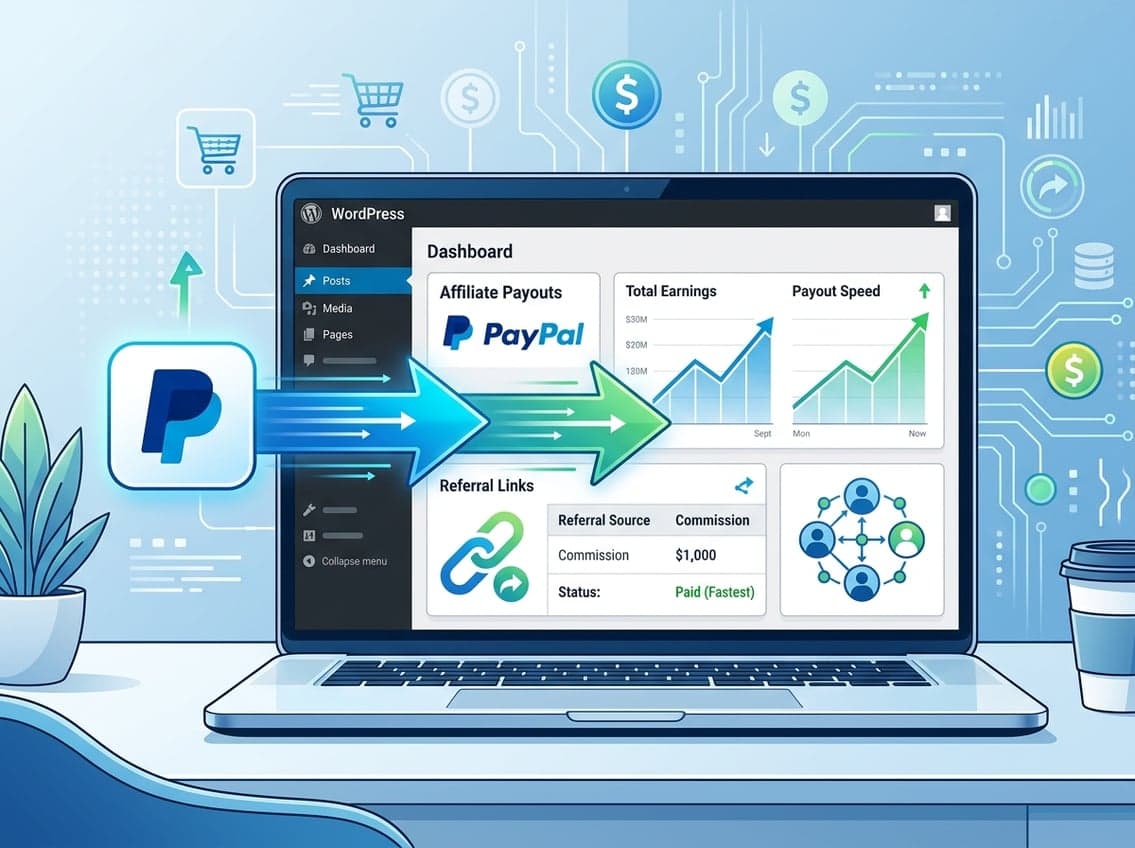
When your affiliate program grows past a handful of partners, manually sending individual payments becomes a real bottleneck. PayPal affiliate payouts solve this by letting you process commissions in bulk, directly from your WordPress dashboard, without exporting spreadsheets or logging into PayPal for each transaction. If you’re running a WooCommerce store, membership site, or course platform, getting this setup right early saves you significant admin time as your program scales.
If you want a WordPress affiliate plugin that handles PayPal integration without extra configuration overhead, Ultimate Affiliate Pro includes PayPal payout support alongside flexible commission structures, tiered affiliate ranks, and multi-level marketing capabilities.
How PayPal Payouts Fit Into an Affiliate Program
PayPal is one of the most practical payout methods for WordPress-based affiliate programs because most affiliates already have an account. It supports bulk payments, minimum thresholds, and API-based automation, which means you can keep payments running smoothly without touching each transaction manually.
When PayPal Makes Sense for WordPress and WooCommerce Stores
PayPal works well when your affiliates are based in countries where PayPal is supported and when commission amounts are modest enough that transaction fees don’t eat significantly into your margins. For WooCommerce stores selling physical products, digital downloads, or subscriptions, PayPal is a familiar payout method that affiliates trust.
If you’re paying affiliates internationally, be aware that PayPal charges the sender a percentage of each payment as a fee. This is worth factoring into your commission structure before you launch.
Bulk Payouts vs Individual Payments
Bulk PayPal affiliate payouts let you pay multiple affiliates in a single transaction batch. Instead of sending $47 to one affiliate, $22 to another, and $130 to a third as three separate actions, bulk payment consolidates them into one operation. This matters once you have 10 or more active affiliates.
Individual payments make sense when a specific affiliate reaches an exception, like a dispute, an early payout request, or a one-time bonus outside the normal cycle. Most affiliate management systems let you handle both scenarios from the same payouts page.
Manual Payouts vs Automated Affiliate Payouts
Manual payouts require you to log in, review pending commissions, and trigger the payment yourself. Automated affiliate payouts run on a schedule based on rules you set. Both have a place, but automated payouts are more reliable for programs with consistent traffic and regular commission accruals.
Many store owners start manual, then switch to automated once they’ve confirmed the commission data is clean and the payout rules match their refund policy.
Requirements for PayPal Affiliate Payouts
Before any PayPal payout can go through, a few things need to be in place on both the PayPal side and inside your affiliate management system. Getting these wrong is the most common reason payouts fail on the first attempt.
PayPal Business Account and Payout Approval Requirements
You need a PayPal business account, not a personal one. Personal accounts do not have access to the Payouts API. Once you have a business account, you need to apply for Payouts access separately. PayPal does not enable this by default.
According to the Ultimate Affiliate Pro documentation, this approval can take a few days, but it can sometimes be expedited by contacting PayPal support directly with a professional request explaining your use case.
Your PayPal balance also needs to cover the full payout batch. If your balance is insufficient, the entire payout will fail.
Affiliate Payment Details and Payout Rules
Each affiliate needs to have their PayPal email address stored in their profile. This is the address funds get sent to. If an affiliate hasn’t added their PayPal email yet, they’ll be skipped or flagged in the payout run.
You should also decide on:
- Minimum payout threshold: A $50 minimum is common and reduces the volume of small transactions. Using a $50 threshold is a practical way to cut unnecessary payment volume without frustrating affiliates.
- Payout frequency: Monthly is standard for most programs. Bi-weekly works for high-volume programs where affiliates are actively driving sales.
- Commission hold period: A 14 to 30-day hold after a sale closes gives you time to account for refunds before paying out.
Access Control for Account Admins
Only account admins with the right permissions should be able to trigger payouts. In most affiliate plugins, this is controlled through user role settings. Limit payout access to one or two trusted admins to avoid accidental duplicate payments.
Connecting the API for PayPal Affiliate Payouts
Connecting the PayPal API is where most people spend the most time on initial setup. The process is straightforward once you know where to look, but the PayPal Developer Dashboard has a lot of screens that aren’t relevant to this task.
Create App in the PayPal Developer Dashboard
Go to developer.paypal.com and log in with your business account. Navigate to My Apps & Credentials and click Create App under the REST API section. Name the app something identifiable, like “WordPress Affiliates,” and select Merchant as the app type.
This creates a dedicated API app for your affiliate program. You’ll use this to generate the credentials your affiliate plugin needs.
Add Client ID and API Credentials
Once the app is created, PayPal gives you a Client ID and a Secret Key. These are your PayPal API credentials. Copy both of these into your affiliate plugin’s PayPal settings page.
In Ultimate Affiliate Pro, this is done directly in the plugin settings under the PayPal payout configuration. The Ultimate Affiliate Pro features page shows that PayPal is one of the supported payment integrations alongside Stripe, and the setup process uses these same REST API credentials.
Keep your Secret Key private. Anyone with access to it can trigger payouts from your PayPal balance.
Use Sandbox Mode Before Going Live
The PayPal Developer Dashboard also provides sandbox credentials linked to a test environment. Use these first. Sandbox mode lets you run test PayPal affiliate payouts without moving real money, so you can confirm the integration is working correctly.
Switch to live credentials only after you’ve confirmed:
- Test payouts process without errors
- Affiliate email addresses are being matched correctly
- Commission amounts are calculating as expected
Skipping sandbox testing is the most avoidable mistake in this setup process.
Running Payouts Without Creating Admin Overhead
Once the API is connected, the day-to-day payout workflow should take 5 to 10 minutes per cycle, not an hour. The key is using the payouts page effectively instead of processing each affiliate manually.
Using the Payouts Page to Review Eligible Commissions
Your affiliate management system’s payouts page shows all pending commissions that have cleared the hold period and meet the minimum threshold. Review this list before triggering any payment. Look for unusual amounts, affiliates with missing PayPal emails, or commissions tied to orders that may still be within the refund window.
Ultimate Affiliate Pro gives you a clear view of affiliate activity and pending commissions from a central dashboard, which makes this review step faster than digging through raw order data.
How to Process Payouts in Bulk
With your review complete, bulk payout works by selecting all eligible affiliates and triggering the payment in one action. The plugin communicates with the PayPal Payouts API, which then distributes individual payments to each affiliate’s PayPal account.
The steps in most affiliate plugins follow this pattern:
- Navigate to the payouts section
- Filter by date range and minimum amount
- Select all eligible affiliates
- Confirm and send the bulk payout
PayPal processes each payment in the batch and updates the status in your affiliate dashboard. Affiliates typically receive payment within minutes to a few hours.
When to Use Pay Now for Single Affiliates
The “Pay Now” option for individual affiliates is useful for exceptions: a top performer who earned a bonus commission, an affiliate who missed the regular cycle, or a one-time payout outside your normal schedule. Using it for your regular payout cycle defeats the purpose of bulk processing.
Troubleshooting PayPal Affiliate Payouts
Even with a clean setup, payouts occasionally fail. Most failures fall into three predictable categories.
Missing Credentials and Authorization Errors
If your PayPal API credentials are wrong or expired, the connection will fail when you try to process payouts. Double-check that you’re using live credentials (not sandbox) when running real payments, and that the credentials belong to the correct business account.
Authorization errors also appear when your PayPal account hasn’t been approved for Payouts access. This is separate from having a business account. If you see an authorization error and your credentials look correct, check your Payouts feature status inside your PayPal account settings.
Pending Status, Balance Issues, and Payment Delays
A payout that shows “pending” in your affiliate dashboard usually means one of three things:
- Insufficient balance: Your PayPal account doesn’t have enough funds to cover the batch
- Unverified recipient: The affiliate’s PayPal email isn’t linked to a verified account
- PayPal review: Large or unusual payouts sometimes trigger a manual review on PayPal’s side
Keep enough balance in your PayPal account before triggering bulk payments. Running a payout batch when the balance is borderline leads to partial failures that are annoying to reconcile.
Testing Safely Before Live Payouts
Return to sandbox mode whenever you’re testing a new affiliate plugin configuration, changing commission rules, or updating API credentials. Running a live payout to test whether credentials are working is an easy mistake to make, but it sends real money to real people, which creates reconciliation problems.
Set up sandbox test accounts in the PayPal Developer Dashboard and use them every time something material changes in your setup.
Improving Payout Reliability as Your Program Grows
Once your program passes 20 to 30 active affiliates, the decisions you made early about thresholds, schedules, and PayPal affiliate payouts start to matter more.
Setting Thresholds and Schedules That Reduce Admin Work
A minimum payout threshold between $25 and $100 reduces the number of micro-payments you process each cycle. A $50 minimum is a reasonable starting point for most WooCommerce stores. Programs focused on high-ticket products may prefer $100.
As noted in an analysis of affiliate payment structures, using minimum payout thresholds is a common practice to reduce admin overhead, particularly in larger programs. Setting a monthly payout schedule with a 30-day commission hold covers most refund windows without creating a long wait for affiliates.
Automated affiliate payouts remove the need to remember to run payments. Once the schedule and rules are set, the system handles it. You review and confirm, rather than initiate from scratch each time.
Choosing Between PayPal, Stripe, and Manual Methods
PayPal works well for most programs, but it has limitations. Fees apply on each transaction, some countries have restricted access, and business account approval takes time. Stripe is a strong alternative with direct bank transfer support and generally cleaner API behavior.
Manual payouts via bank transfer make sense for a small number of high-value affiliates where the transaction fees on PayPal or Stripe would be disproportionate.
Ultimate Affiliate Pro supports both PayPal and Stripe as payout methods, which gives you flexibility to use whichever fits your affiliate base. If you’re running a multi-tiered or multi-level affiliate program, having both options available matters because different affiliates in different regions will prefer different methods.
If you want to see what the full feature set looks like before committing, the Ultimate Affiliate Pro pricing page lays out what’s included at each tier.
Using WooCommerce and WordPress Integrations to Support Scale
As your affiliate program grows, clean integration between your affiliate plugin and WooCommerce becomes essential. Refunds, partial orders, and subscription renewals all affect commission amounts, and a well-integrated plugin handles these automatically.
Ultimate Affiliate Pro integrates directly with WooCommerce, WooCommerce Subscriptions, Easy Digital Downloads, and several membership and LMS plugins. This means commissions get calculated based on actual settled revenue, not just initial order totals, which keeps your payout data accurate without manual adjustments.
Frequently Asked Questions
How do you automate affiliate commissions so each partner gets paid without manual spreadsheets?
Connect your affiliate plugin to the PayPal Payouts API and set a payout schedule with a minimum threshold. The plugin aggregates eligible commissions, filters by the rules you’ve set, and sends the payment batch to PayPal automatically. You confirm rather than build from scratch each cycle.
Which WooCommerce affiliate plugins can send scheduled payouts through PayPal and keep clean records?
Ultimate Affiliate Pro supports PayPal and Stripe payout integrations with a WooCommerce-native setup. Competitors like AffiliateWP and SliceWP offer similar functionality, but Ultimate Affiliate Pro’s multi-tier and MLM commission support gives it an edge for programs with more complex structures.
What fees and currency conversion costs should you expect when paying affiliates internationally?
PayPal charges a fee per payout transaction, and currency conversion adds additional cost when sending to affiliates in different countries. The exact fee structure depends on the countries involved and the transaction amounts. Review the PayPal Payouts FAQ for current rates before building your commission math.
How do you handle partial refunds, chargebacks, and canceled orders so affiliate balances stay accurate?
Set a commission hold period of 14 to 30 days after the original sale before marking commissions as payable. If a refund occurs within that window, the commission is reversed automatically by a well-configured affiliate plugin. For WooCommerce, choose a plugin that hooks into the order status system so refunds trigger commission adjustments without manual intervention.
What payout setup prevents “pending” or “on hold” payments when sending money to multiple affiliates?
Verify that every active affiliate has a confirmed PayPal email in their profile before running a payout. Maintain sufficient PayPal balance to cover the full batch. Test with sandbox credentials before switching to live, and make sure your PayPal business account is approved for Payouts access specifically, not just active as a business account.
How do you set payout thresholds (for example $50 minimum) and still stay on top of tax forms and reporting?
Set the minimum payout threshold in your affiliate plugin’s payment settings. A $50 minimum reduces transaction volume while keeping affiliates reasonably satisfied. For tax reporting, your affiliate plugin should track cumulative earnings per affiliate so you can pull accurate totals for year-end reporting. In the US, you’ll typically need to issue a 1099-NEC for affiliates who earn over $600 in a calendar year, so keeping clean records per affiliate from the start matters.