Ultimate Affiliate Pro records every commission in one currency, the one you choose in General Settings. For an affiliate multi-currency store, orders paid in other currencies are converted to that currency with a currency switcher or the Exchange Rate add-on, so affiliates see and receive all their earnings in a single currency.
This page shows how to set the affiliate currency and its format, how to add a currency that is not in the list, and how to handle stores that sell in several currencies. Payout methods are covered in Payout process.
Before you start
- Ultimate Affiliate Pro installed, with your license active.
- The currency you want to pay affiliates in, usually your store’s main currency.
Choose the affiliate currency #
Go to Ultimate Affiliate Pro›Settings›General Settings and scroll to Currency Settings.
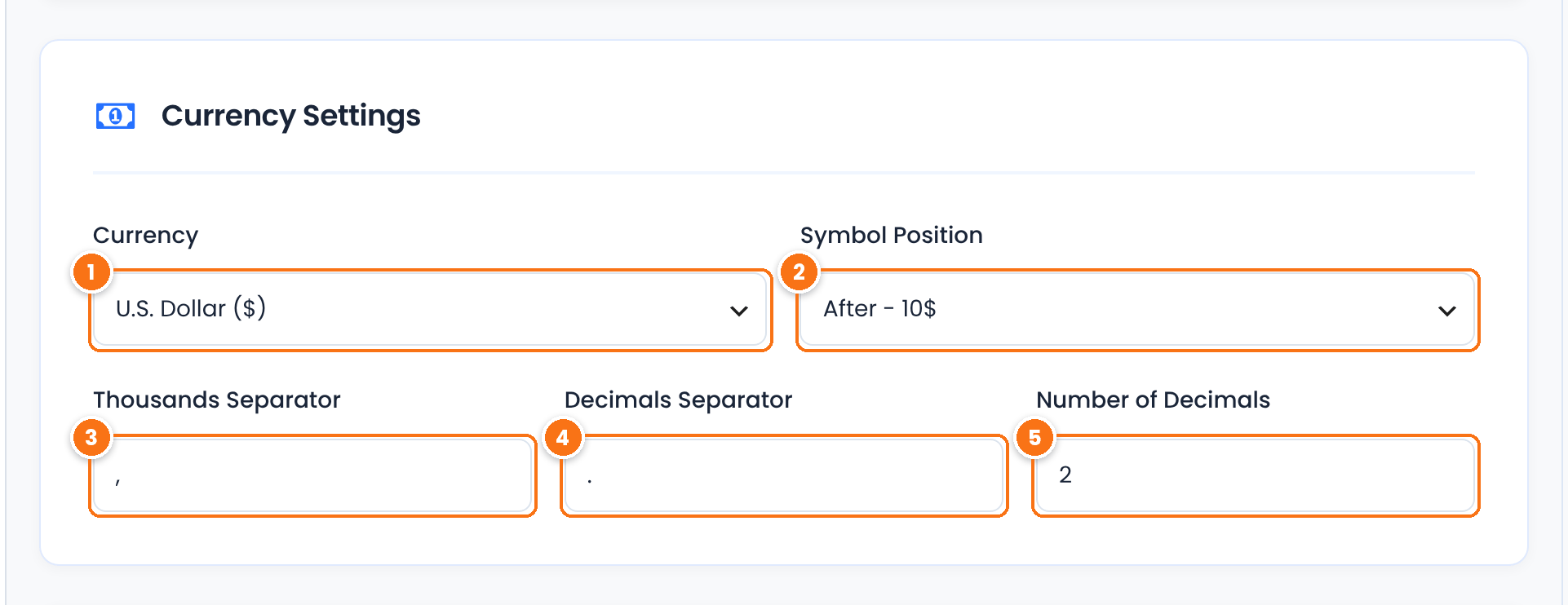
The currency of every referral, report and payout. The list has the main world currencies plus the custom currencies you add.
Default: U.S. Dollar ($)
Where the symbol appears: Before – $10, After – 10$, Before with space – $ 10 or After with space – 10 $.
Default: After – 10$
One character between thousands, for example , in 1,000 or . in 1.000.
Default: ,
One character before the decimals.
Default: .
How many decimals amounts show, from 0 to 5.
Default: 2
Click Save Changes at the bottom of the page.
Tip
Pick the currency before your program starts and keep it. Existing referrals keep the amount they were saved with, so a later change mixes amounts calculated in two currencies.
Add a currency that is not in the list #
Go to Ultimate Affiliate Pro›Modules and open Custom Currencies. The module is always available.
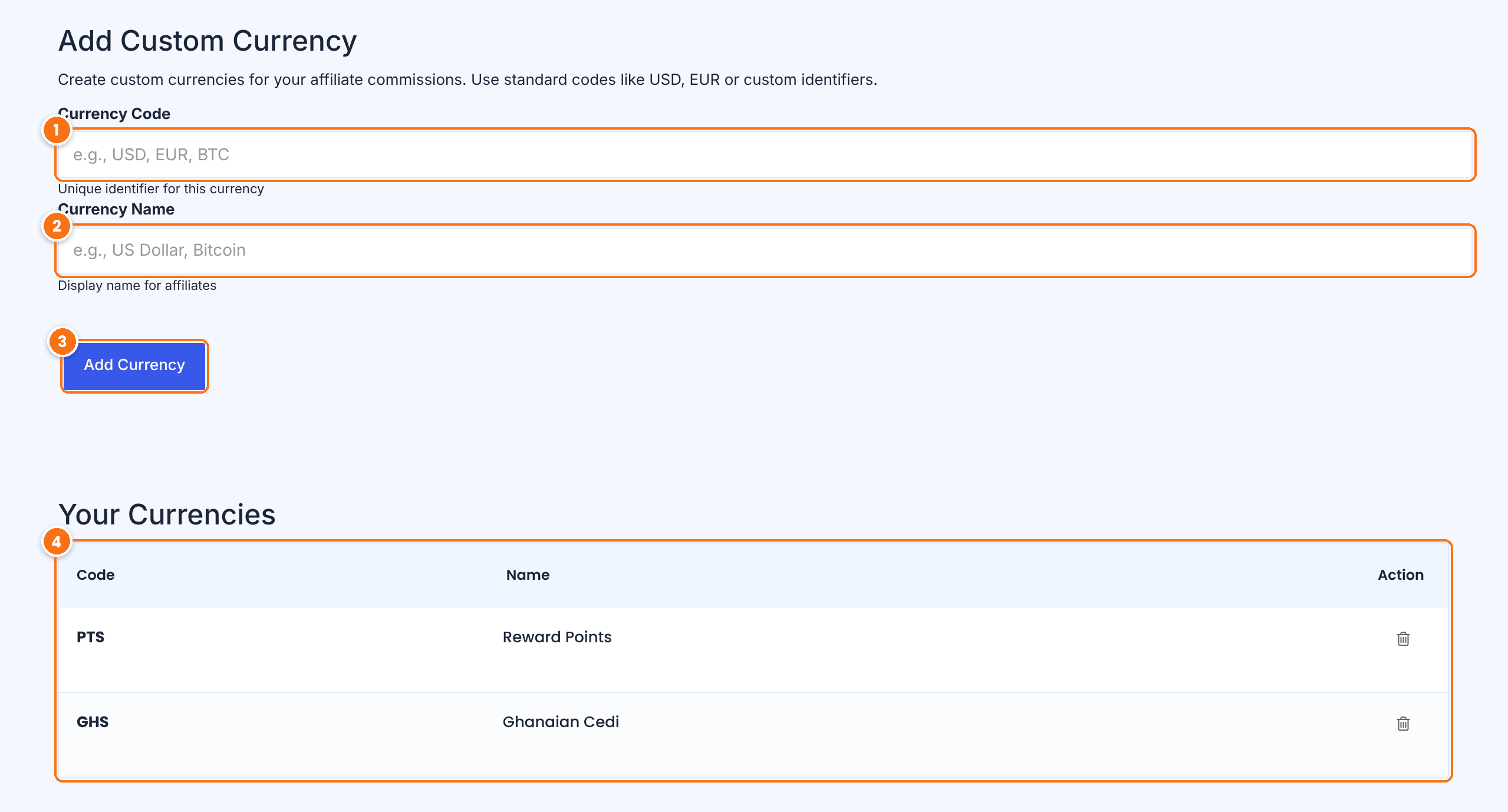
A unique code: the ISO code of a real currency, such as GHS, or your own, such as PTS for points.
The name affiliates see, for example Reward Points.
Adds the currency to the list.
The custom currencies you added. Remove one with its trash icon.
Then go back to General Settings and select the new currency in Currency.
Stores that sell in more than one currency #
Orders in other currencies are converted to the affiliate currency before the referral is saved, so totals and payouts stay consistent. Use the option that fits your store:
- Case
- Prices are shown in the visitor’s currency with the WOOCS (FOX) currency switcher
- What happens
- The commission is converted back to the store’s default currency automatically
- Case
- WooCommerce, Easy Digital Downloads or Ultimate Membership Pro sells in a currency other than the affiliate currency
- What to use
- The Exchange Rate add-on, with a rate for each currency pair
- Order total
- $100.00
- Commission in store currency
- $20.00
- Referral saved
- €18.40
Update the rates in the add-on when exchange rates change. They apply to referrals created after you save them.
Test it #
- Place a test order through a referral link.
- Open the referral in Ultimate Affiliate Pro›Referrals and check that the amount and the currency are right.
- Log in as the affiliate and check the amounts in the Affiliate Portal.
Frequently asked questions #
Can affiliates earn in different currencies?
All referrals and payouts use the currency set in General Settings. Orders in other currencies are converted to it with a currency switcher or the Exchange Rate add-on, so every affiliate sees one total.
My currency is not in the list. What do I do?
Add it in Modules, Custom Currencies with its code and name, then select it in General Settings, Currency.
Can I pay affiliates in points or credits?
Yes. Add a custom currency such as PTS (Reward Points) and use it as the affiliate currency. You can also pay commissions as store coupons with the Store Credit module.
How do I show amounts as €1.000,00?
Set Symbol Position to Before – $10, Thousands Separator to a dot, Decimals Separator to a comma and Number of Decimals to 2.


