There are several ways to email affiliates with Ultimate Affiliate Pro: write to one affiliate from the Affiliates list, export the addresses of all affiliates (or of one rank) for your email marketing tool, or add new affiliates to your mailing list automatically when they register.
Use the method that fits the message. For emails sent automatically, such as a welcome message or a payout confirmation, see email notifications. For announcements that every affiliate sees when they log in, use the Affiliate Portal content. See Affiliate Account Page.
Before you start
- Ultimate Affiliate Pro installed, with your license active.
- For newsletters: an account with an email marketing service, such as Mailchimp, ActiveCampaign or AWeber.
Email one affiliate #
Go to Ultimate Affiliate Pro›Affiliates. Find the affiliate with the search box or the rank filter, then click their email address.
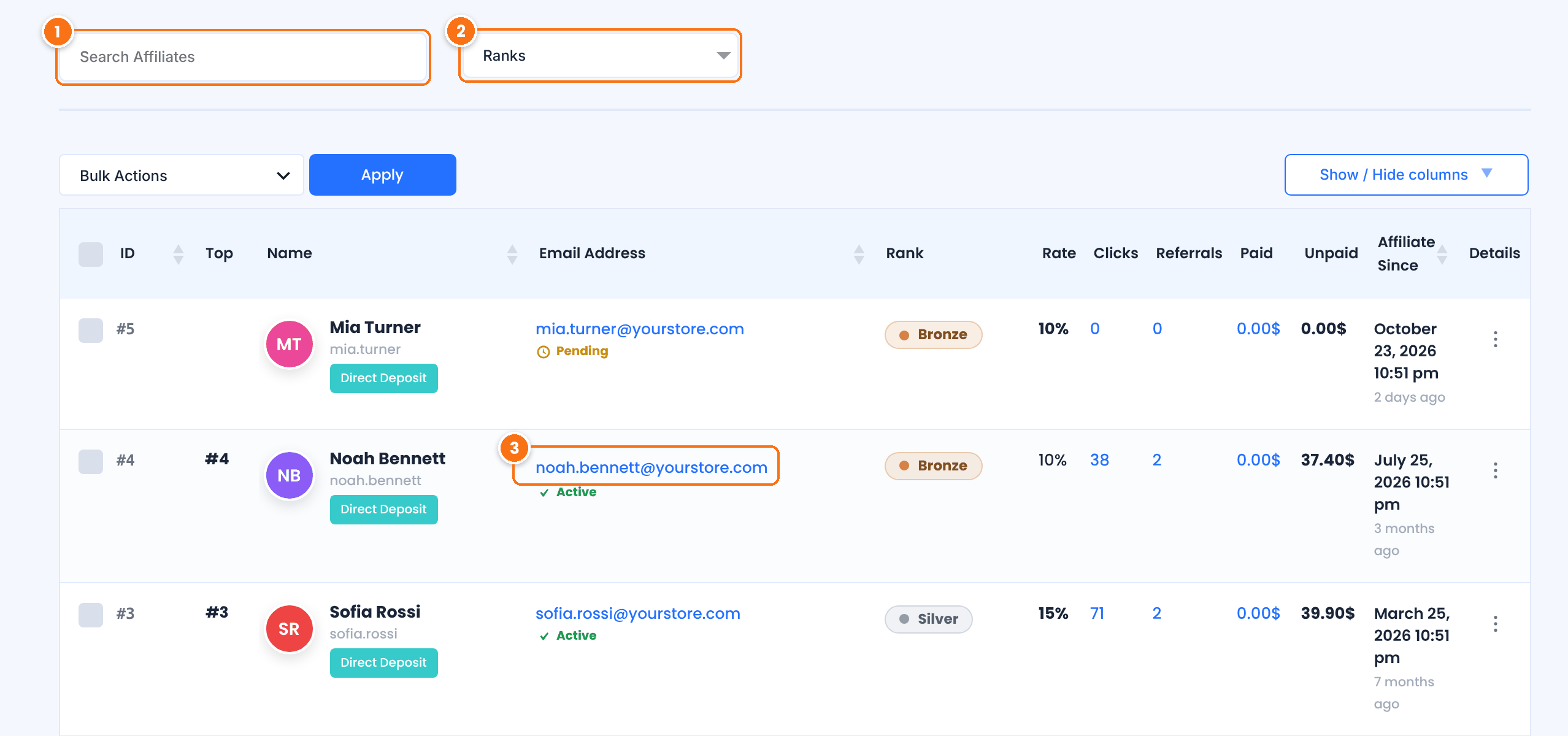
Finds an affiliate by name, username or email address.
Shows only the affiliates of the ranks you choose.
Opens a new message to the affiliate in your email app, with the address already filled in.
Tip
Before you write, check the affiliate’s numbers: the Clicks, Referrals and Unpaid columns, or Reports in the row menu. A message that mentions their results gets more attention.
Email affiliates in bulk or by rank #
To send a newsletter or an announcement to many affiliates, export their addresses and import them into your email marketing tool. Go to Ultimate Affiliate Pro›Export-Import. In the Affiliates section:
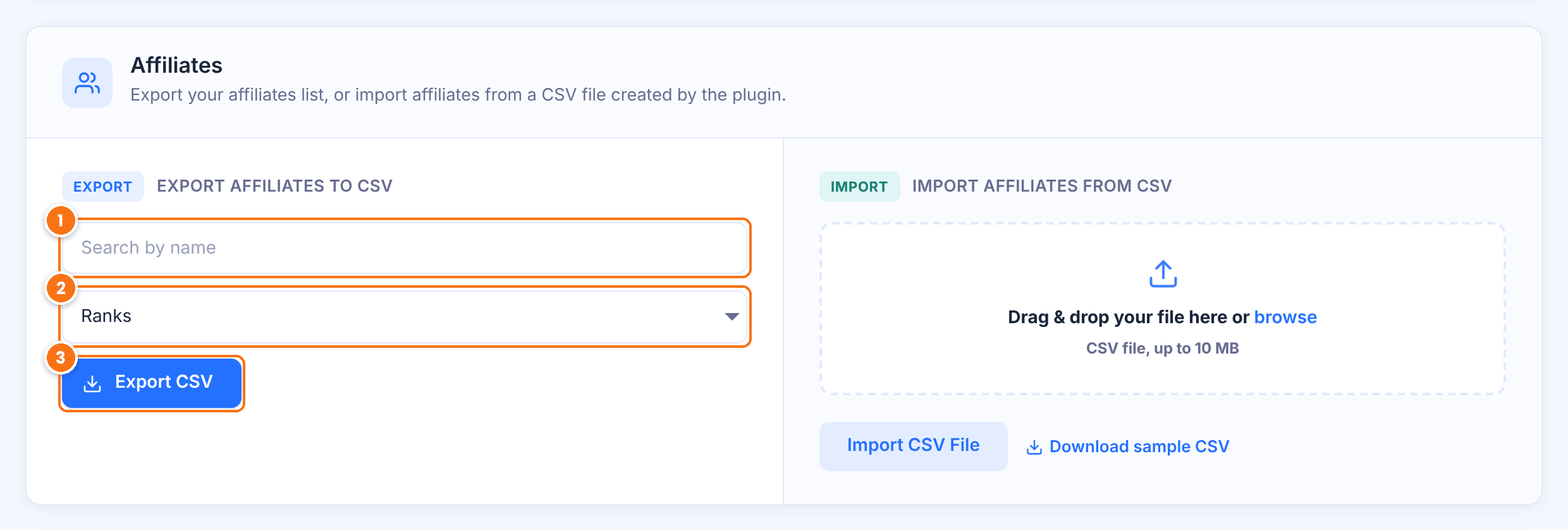
Exports only the affiliates whose name matches. Leave it empty to export everyone.
Exports only the affiliates of the ranks you select, for example to write to your Gold affiliates only.
Creates the CSV file and gives you a link to download it.
The file has one row per affiliate with Affiliate ID, Email, Username, Name, Rank, clicks, referrals, paid and unpaid earnings, WordPress role and join date. Import it into your email tool and use the Rank or earnings columns to segment the list.
Consent
Send newsletters only to affiliates who agreed to receive them, and include an unsubscribe link. Laws such as the EU GDPR and the US CAN-SPAM Act set rules for marketing emails. Your email marketing tool handles the unsubscribe link for you.
Add new affiliates to your mailing list automatically #
To keep your affiliate newsletter list up to date without exports, let Ultimate Affiliate Pro subscribe each new affiliate when they register. Go to Ultimate Affiliate Pro›Modules and open Opt-In Integrations.
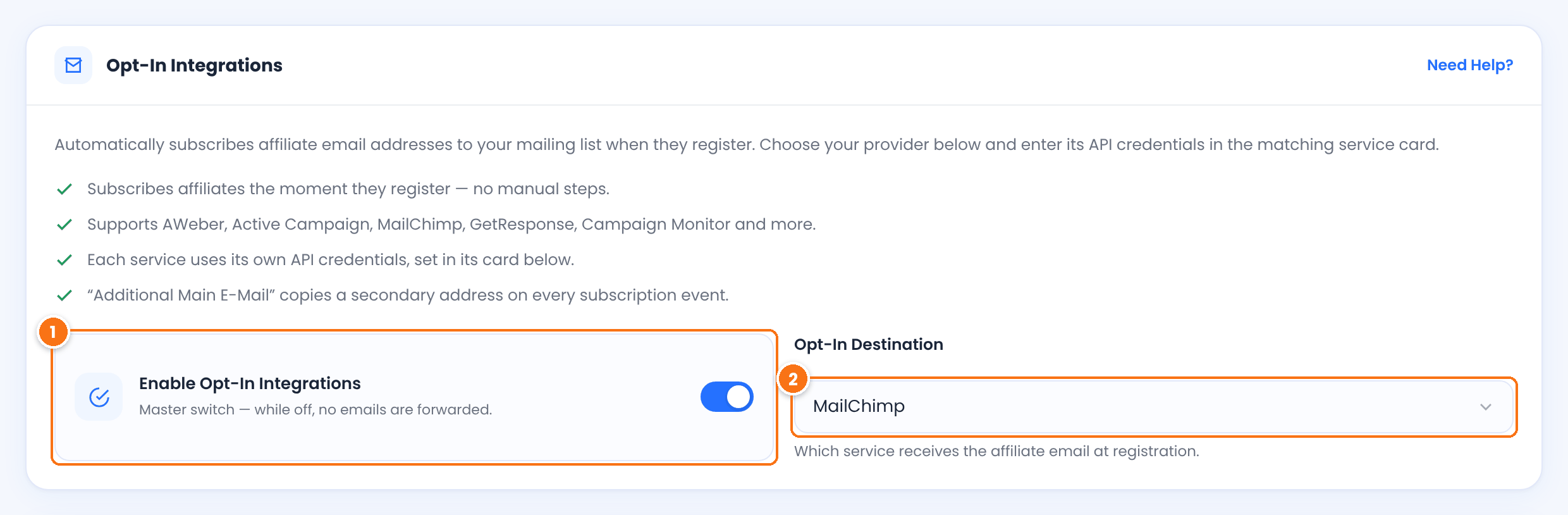
Turns automatic subscription on.
Default: Off
The service that receives the affiliate’s email address: AWeber, Active Campaign, CampaignMonitor, Constant Contact, GetResponse, IContact, Mad Mimi, MailChimp, Mailster (MyMail), Wysija, or E-mail List, which keeps the addresses in Ultimate Affiliate Pro.
Default: E-mail List
Then enter the API credentials of your service in its card below and click Save Changes. For each service and its fields, see collect opt-in subscribers.
Other ways to reach your affiliates #
Write announcements in the Dashboard content or the Bottom Message of Showcases›Affiliate Portal. Every affiliate sees them at their next login.
Edit the affiliate and pick a post or page in Custom Dashboard message. Only that affiliate sees it in their Dashboard. See manage affiliates.
Welcome, approval, rank and payout emails go out on their own. See email notifications and periodic reports.
Affiliates who use Pushover get alerts on their phone. See Pushover push notifications.
Frequently asked questions #
Can I send one email to all affiliates from WordPress?
Export the affiliates list from Export-Import, Affiliates, and send the message with your email marketing tool. It manages unsubscribes and delivery for large lists.
How do I email only one rank?
Select the rank in the Ranks filter of the Affiliates export, then export the CSV. The file contains only the affiliates of that rank.
Where do I find an affiliate’s email address?
In Ultimate Affiliate Pro, Affiliates, in the Email Address column. Click it to start a message in your email app.
Are existing affiliates added to my mailing list when I turn on Opt-In Integrations?
Opt-In Integrations subscribes affiliates when they register. To add the affiliates you already have, export their addresses and import them into your email service once.
Can affiliates contact me?
Add your support email or a contact form link to the Help tab or the Bottom Message of the Affiliate Portal, so affiliates always know where to write.


