This quick start shows you how to set up an affiliate program in WordPress with Ultimate Affiliate Pro, from the setup wizard to your first test referral. Follow the steps in order and your program is ready for affiliates in under an hour.
Each step links to a detailed guide if you want to go further. New to affiliate programs? Read how Ultimate Affiliate Pro works first.
Before you start
- Ultimate Affiliate Pro installed and activated, with your license active. See Install and activate Ultimate Affiliate Pro.
- The plugin that takes your orders or signups installed and active, for example WooCommerce.
- WordPress email working, so affiliates receive their notifications.
Run the setup wizard #
On a new site, the wizard opens the first time you visit Ultimate Affiliate Pro. If you skipped it, open the Ultimate Affiliate Pro›Dashboard and click Continue Setup in the Finish setting up your program box. The wizard has six steps:
Enter your Customer Name and License Key to activate the license. Skip this step if the license is already active.
Choose the WordPress role for new affiliates (Pending means you approve each one), whether new affiliates are logged in after they sign up, and whether all new users become affiliates. Set the currency, its position and the default country of the registration form, and choose whether to share anonymous usage data with us (Enable Anonymous Usage Tracking Data).
The Affiliate Link Variable (default ref), the Base Affiliate Link that each affiliate’s default link opens, and the link format: by affiliate ID or by username.
Create the first rank, which sets the commission rate. See the screenshot below.
The sender email address and name for every automated email, and which default notifications to turn on, such as New Affiliate account Registered and Payment Confirmation Notifications.
Links to your registration, Affiliate Portal and login pages, so you can check them right away.
Step 4 sets what your affiliates earn:
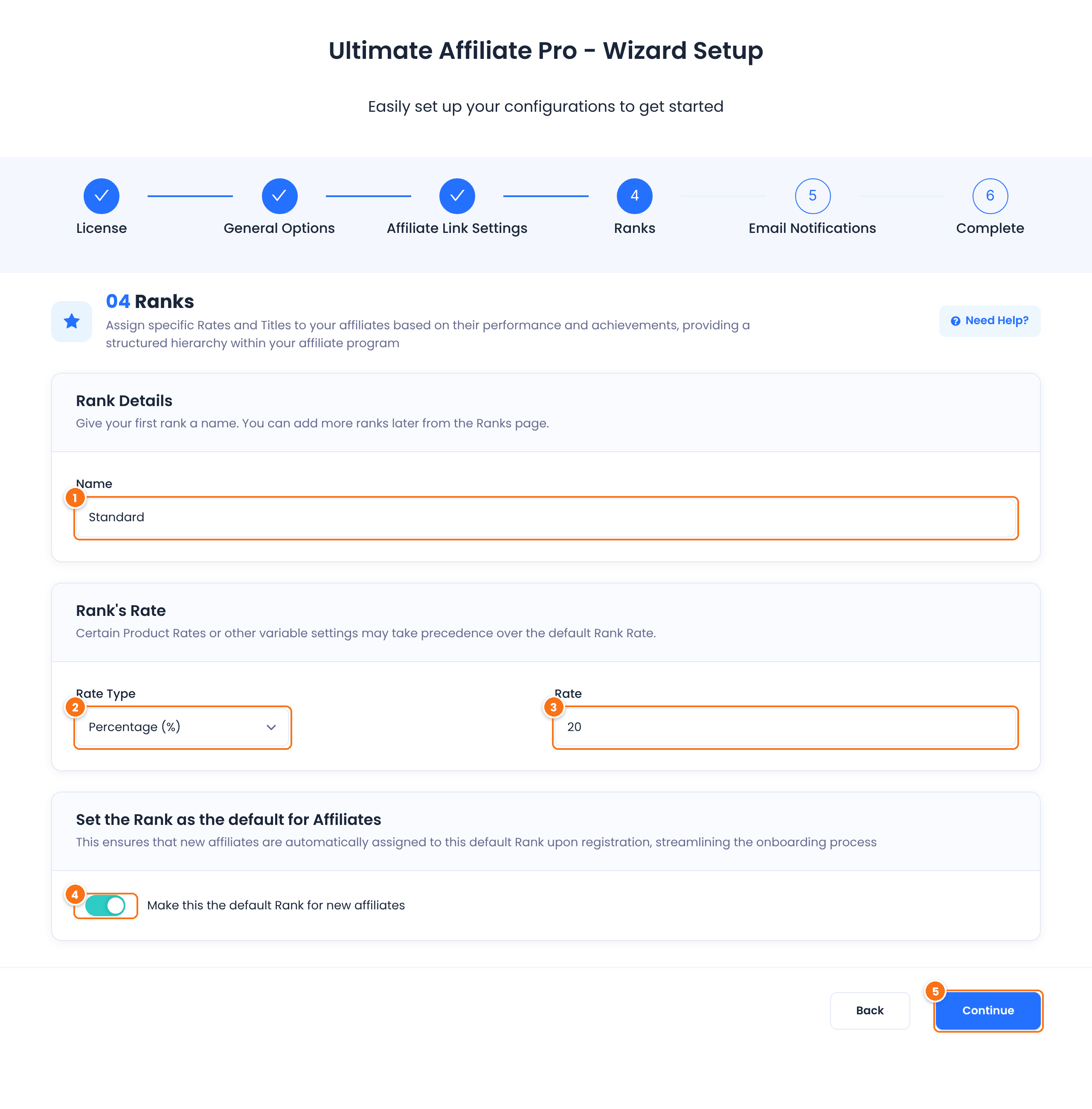
The rank name affiliates see, for example Standard. You can add more ranks later in Ranks.
Default: Percentage (%)
The commission value, for example 20 for 20% of each sale.
Default: 10
New affiliates get this rank automatically when they register.
Default: On
Saves the rank and opens the next step. Back returns to the previous step.
Tip
You can change every wizard setting later in Ultimate Affiliate Pro›Settings. To skip the wizard and set things up yourself, click Skip The Wizard and Setup Manually at the bottom of any step.
Connect the plugin that takes your orders #
Go to Ultimate Affiliate Pro›Integrations. Find your shop, membership, course or form plugin and turn on its switch. The status changes to Enabled and the change is saved right away. Plugins that are not installed on your site show Not Installed.
From now on, every order placed through a referral link creates a referral for the affiliate. With WooCommerce, see the WooCommerce affiliate program overview.
Check the affiliate pages #
When you activate the plugin, it creates five pages: Become an Affiliate, Affiliate Login, Affiliate Portal, Affiliate Reset Password and Affiliate Program Terms. Check them in Ultimate Affiliate Pro›Settings›Pages Setup.
- Open Affiliate Program Terms in Pages and write your terms: how much affiliates earn, when you pay, and what is not allowed, such as bidding on your brand name. The page is created empty.
- Add Become an Affiliate and Affiliate Login to your site menu or footer, so people can find your program.
- Open the Affiliate Portal page while logged in as a test affiliate to see what affiliates see. See Affiliate Portal settings.
Decide how affiliates join #
Choose one of these, depending on how open you want your program to be:
Set the role for new affiliates to Pending (wizard step 2). You approve each application in Ultimate Affiliate Pro›Affiliates. See Approve affiliates and verify their email.
Keep a role such as Subscriber, and new affiliates can promote you as soon as they register.
Turn on Auto-Enroll Users as Affiliates in Ultimate Affiliate Pro›Settings›General Settings. See Turn existing users into affiliates.
To ask for extra details, such as a website or a social profile, add fields to the form in Ultimate Affiliate Pro›Registration Form.
Choose how you pay affiliates #
Privacy tip: if your privacy policy requires it, turn on Disable IP Address Logging in Ultimate Affiliate Pro›Settings›Admin Workflow so visitor IP addresses are not saved with clicks.
Go to Ultimate Affiliate Pro›Settings›Payout Settings to choose the payout methods affiliates can pick in their Affiliate Portal: Wire Transfer, PayPal Payouts, Stripe Payouts or Store Credit. PayPal Payouts, Stripe Payouts and Store Credit are modules: turn them on in that screen or in Ultimate Affiliate Pro›Modules. See How affiliate payouts work.
Give affiliates something to share #
Upload banners and text links in Ultimate Affiliate Pro›Creatives. Affiliates copy them, with their referral link already in place, from Marketing›Creatives in the Affiliate Portal. Ready-made creatives help new affiliates start promoting on day one.
Test it #
- Create a test affiliate, or use your own affiliate account if you have one.
- Open the affiliate’s referral link in a private browser window, where you are not logged in.
- Check that the visit appears in Ultimate Affiliate Pro›Clicks.
- Place a test order in the same window, with a customer account that is not the affiliate.
- Check that the order appears in Ultimate Affiliate Pro›Referrals, credited to the affiliate.
For a complete checklist, including coupons and emails, see Test your affiliate program.
Invite your first affiliates #
Share the link to your Become an Affiliate page with your best customers, partners and content creators. You can also add affiliates yourself in Ultimate Affiliate Pro›Affiliates with Add new Affiliate.
New to affiliate marketing? The affiliate marketing glossary explains terms such as referral, commission and cookie.
Frequently asked questions #
Can I run the setup wizard again?
If you skipped the wizard, yes: click Continue Setup on the Ultimate Affiliate Pro dashboard. After you complete it, change the same options in Settings, Ranks and Email Notifications.
What commission rate should I start with?
Use a rate your margins can support for every sale. Many stores start with a percentage of the sale and create higher ranks for their best affiliates later. You can also set special rates per product in Product Rates.
Do affiliates need a WordPress account?
Yes. Every affiliate is a WordPress user. The registration form creates the account, and existing users can become affiliates without registering again.
Where do affiliates find their referral link?
In the Affiliate Portal, under Marketing, Affiliate Links. They can also create links to any page of your site there. See Affiliate referral links.
Do I have to pay affiliates through the plugin?
No. You can pay them any way you like, for example by bank transfer, and record the payout in Ultimate Affiliate Pro so referrals are marked as paid.


