This guide shows how to build an affiliate page with Elementor, Divi or the WordPress block editor: the registration form, the login form and the Affiliate Portal. Ultimate Affiliate Pro adds its own blocks and Elementor widgets, and every form is also available as a shortcode for any other page builder.
The plugin creates the affiliate pages for you when you activate it. Use this guide when you want to design those pages with your page builder, or add a form to another page. For the full list of pages, see Set up the registration, login and password pages.
Before you start
- Ultimate Affiliate Pro installed and active.
- Your page builder installed: the block editor is part of WordPress, Elementor and Divi are separate plugins or themes.
The forms you can add #
| Block or widget | Shortcode | What it shows |
|---|---|---|
| UAP – Register Form (Elementor: UAP – Register Page) | [uap-register] | The affiliate registration form. |
| UAP – Login Form (Elementor: UAP – Login Page) | [uap-login-form] | The affiliate login form. |
| UAP – Logout (Elementor: UAP – Logout Page) | [uap-logout] | A logout link for affiliates. |
| UAP – Reset Password | [uap-reset-password] | The password recovery form. |
| UAP – Account Page | [uap-account-page] | The Affiliate Portal, where affiliates see their links, referrals and earnings. |
You change the fields and the design of these forms in Ultimate Affiliate Pro, not in the page builder: the registration form in Showcases›Registration Form, the login form in Showcases›Login Form and the portal in Showcases›Affiliate Portal.
Add a form with the block editor #
Edit the page in Pages. Click the + (block inserter) button and search for UAP. The blocks are also in the Ultimate Affiliate Pro – Shortcodes category.
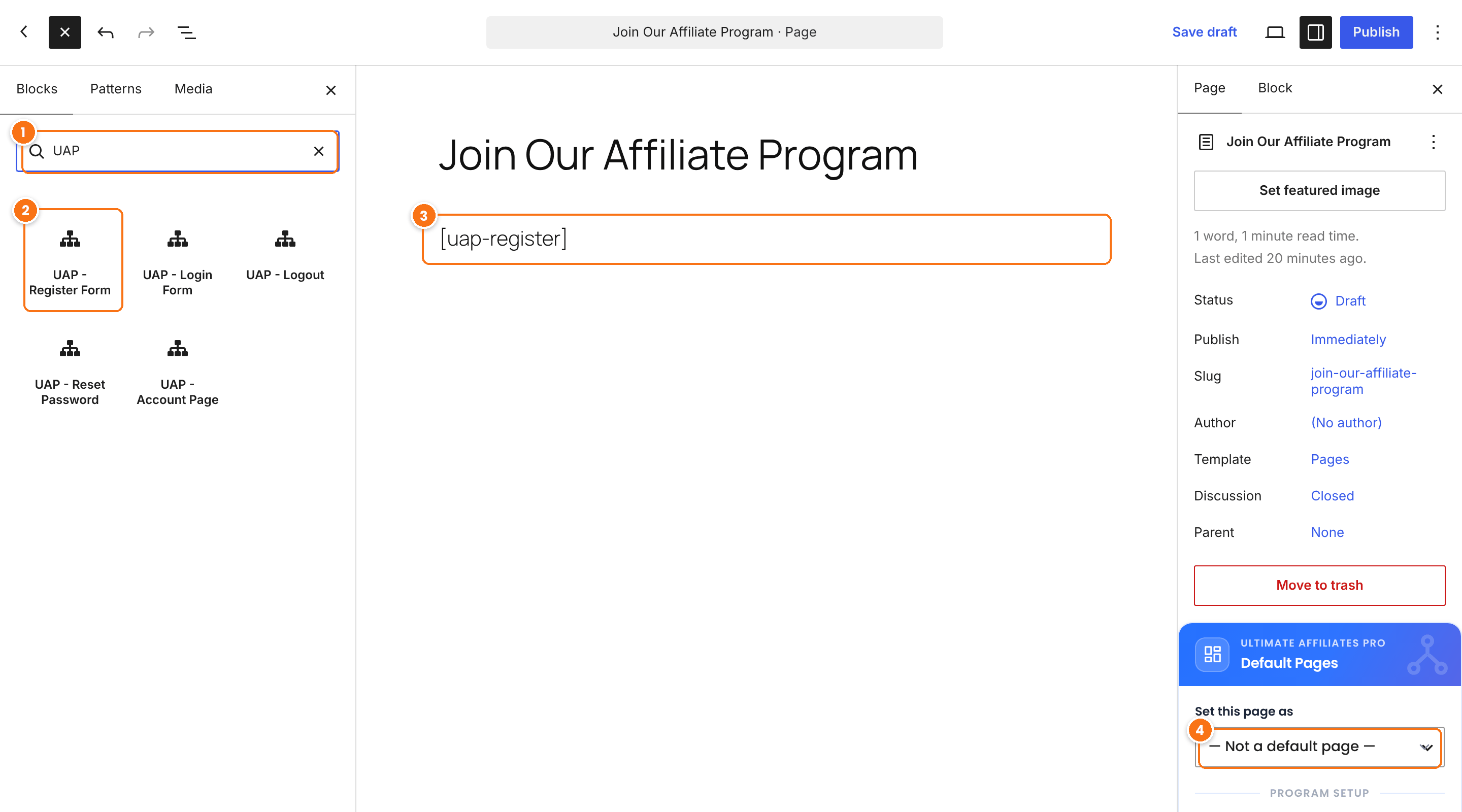
Type UAP to see the five blocks.
Click a block to add it to the page.
The block shows its shortcode in the editor, for example [uap-register]. Visitors see the form on the published page.
In the Default Pages box of the Page sidebar, choose the role of this page: Affiliate Registration Page, Affiliate Login Page, Lost Password Page, LogOut Page, Affiliate Portal Page or TOS Page.
Click Publish or Save. Setting the page role tells Ultimate Affiliate Pro where to send affiliates, for example after login or when they click a link in an email.
Tip
You can also add a Shortcode block and type the shortcode yourself. The result is the same.
Build an affiliate page with Elementor #
- Edit the page with Elementor.
- In the widgets panel, search for UAP. The widgets UAP – Register Page, UAP – Login Page, UAP – Logout Page, UAP – Reset Password and UAP – Account Page are in the General category.
- Drag the widget into a section. To control the width, place it in a container or column and set the width there.
- Click Publish and open the page to see the form.
You can also use the Elementor Shortcode widget with one of the shortcodes above. See Shortcode widget in the Elementor help center.
Add a form with Divi or another page builder #
Divi, Beaver Builder, WPBakery and other builders show any WordPress shortcode. In Divi:
- Edit the page with the Divi Builder.
- Add a Text or Code module where you want the form.
- Paste the shortcode, for example
[uap-account-page], and save the module. - Save the page and open it to see the form.
In the classic editor, the Affiliates ShortCodes button in the toolbar inserts the shortcodes for you. For all shortcodes and their options, see the Shortcodes reference.
Show content only to affiliates or referred visitors #
Wrap any content in these shortcodes, in any builder that supports shortcodes:
| Shortcode | Shows the content to |
|---|---|
[if_affiliate] … [/if_affiliate] | Logged-in affiliates. |
[if_not_affiliate] … [/if_not_affiliate] | Visitors and users who are not affiliates. |
[visitor_referred] … [/visitor_referred] | Visitors who came through an affiliate link. |
[visitor_not_referred] … [/visitor_not_referred] | Visitors who did not come through an affiliate link. |
For example, show a Become an Affiliate button to logged-in customers with [if_not_affiliate][uap-user-become-affiliate][/if_not_affiliate].
Test it #
- Open the page in a private browser window and check that the form is displayed.
- Register a test affiliate with the form, then log in and check that the Affiliate Portal opens.
- Check the page on a phone and on a desktop screen.
Frequently asked questions #
Why does the editor show the shortcode instead of the form?
The UAP blocks show the shortcode while you edit. The form is displayed on the published page and in the preview.
Can I change the fields of the registration form in Elementor?
No. The fields are managed in Ultimate Affiliate Pro, in Showcases, Registration Form. The page builder controls only the layout around the form.
Can I put the Affiliate Portal in WooCommerce My Account instead?
Yes. Turn on the WooCommerce Account Page Integration module. See Affiliate area in WooCommerce and BuddyPress accounts.
What happens if I delete the default affiliate pages?
Create new pages with the blocks or shortcodes, then set their role in the Default Pages box or in Settings, Pages Setup.


