Affiliate email reports keep your partners up to date without logging in. With the Periodic Reports module, Ultimate Affiliate Pro emails each affiliate a summary of their clicks, referrals and earnings, daily, weekly or monthly, as they choose. A separate module sends you a weekly summary of the whole program.
Reports bring affiliates back to your program: a short email with their latest earnings is a reminder to share their links again. For the emails sent when something happens, such as a new referral, see email notifications.
Before you start
- Ultimate Affiliate Pro installed, with your license active.
- The Notifications tab turned on in Showcases›Affiliate Portal, so affiliates can choose how often they get reports.
- Email that works on your site. Check it with Check Mail Server in Email Notifications.
Turn on affiliate email reports #
Go to Ultimate Affiliate Pro›Modules and open Periodic Reports.
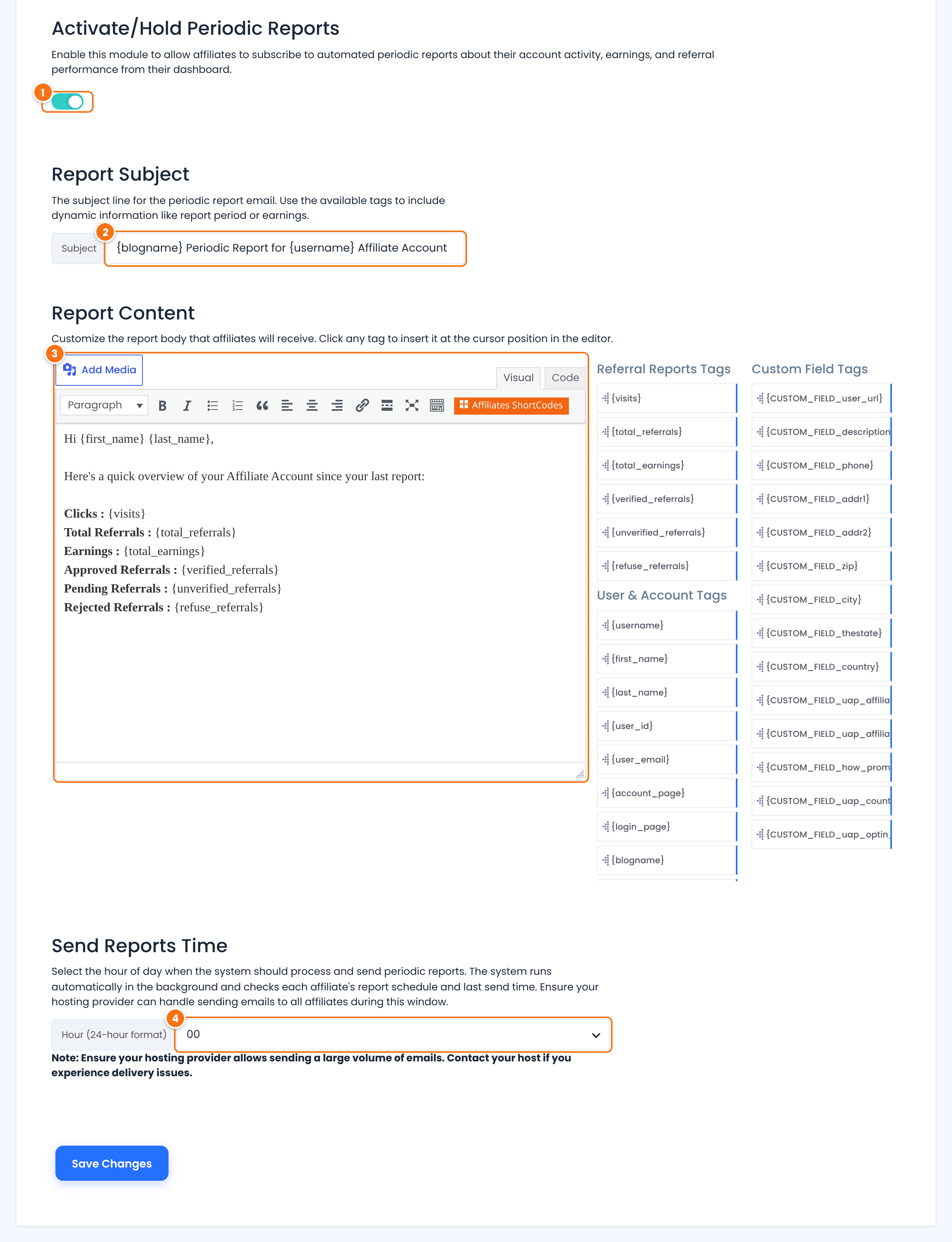
Turns the reports on. While it is off, no reports are sent, whatever the affiliates chose.
Default: Off
The subject of the report email.
Default: {blogname} Periodic Report for {username} Affiliate Account
The email body. Click a tag next to the editor to insert it. The Referral Reports Tags are filled with the affiliate’s numbers for the last day, week or month, depending on their interval:
{visits}: clicks on the affiliate’s links.{total_referrals}and{total_earnings}: referrals and earnings.{verified_referrals},{unverified_referrals}and{refuse_referrals}: approved, pending and rejected referrals.
The hour of the day, in 24-hour format (00 to 23), when Ultimate Affiliate Pro checks which affiliates are due a report and sends them.
Default: 00
The User & Account Tags (such as {first_name} or {account_page}) and your registration custom fields work in the report too. Add a link to the Affiliate Portal with {account_page}, so affiliates can see the details. The email template tags reference explains every tag. Click Save Changes.
Sending many emails
Reports go out at the same hour for every affiliate who is due one. With many affiliates, check that your host or email service allows that many emails at once, or use a dedicated email sending service.
Let affiliates choose how often #
Each affiliate picks their own report interval in the Affiliate Portal, in the Notifications tab.
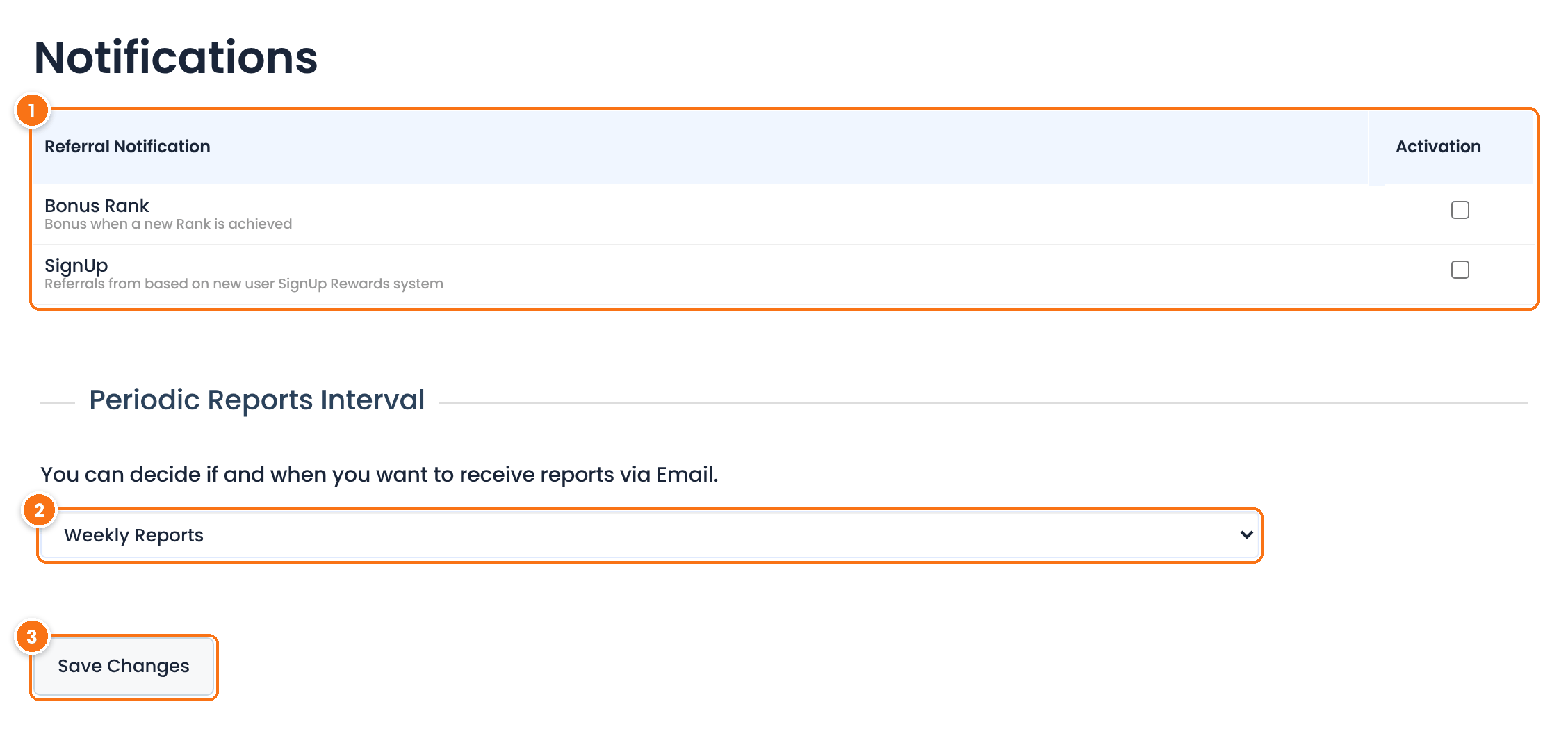
The referral types the affiliate wants an instant email for. It appears when the Referral Notifications module is on. See email notifications.
How often the affiliate receives the report:
- Never send Reports: no reports. This is the default, so affiliates opt in.
- Daily Reports, Weekly Reports or Monthly Reports: a report every 1, 7 or 30 days.
Saves the affiliate’s choice.
Tip
Tell affiliates about reports in your welcome email or in the Dashboard tab content, with a link to the Notifications tab, since reports are off until they choose an interval.
Get a weekly summary yourself #
The Weekly Email Summary module emails you a report on the whole program once a week. Go to Ultimate Affiliate Pro›Modules and open it.
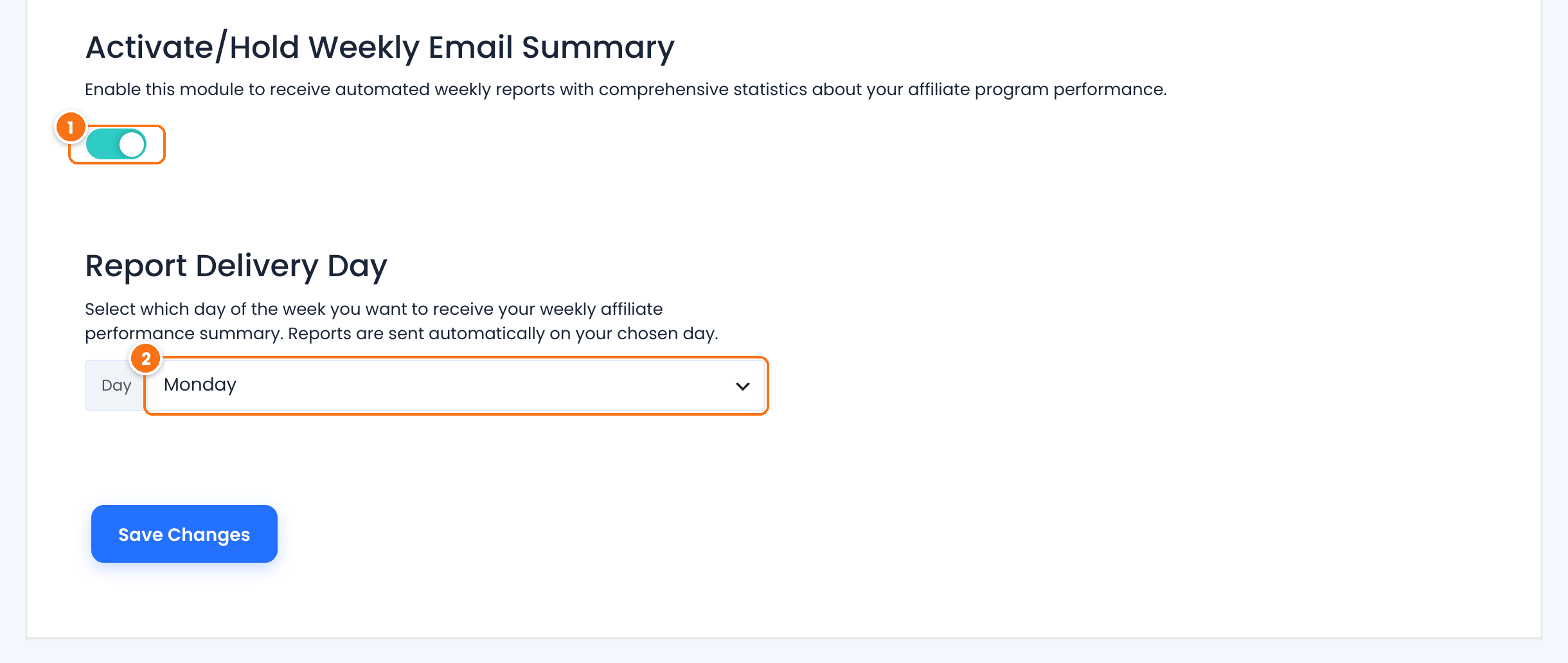
Turns the weekly summary on.
Default: Off
The day of the week you receive it.
Default: Monday
The summary covers the last full week, Monday to Sunday, compared with the week before: new affiliates, clicks, earnings, referrals, conversion rate and your top 5 earning affiliates. It goes to the Affiliate Manager Email Address set in Settings›Notifications Settings, or to the WordPress administration email when that field is empty.
Test it #
- Log in as a test affiliate, open Notifications in the Affiliate Portal and choose Daily Reports.
- Set Send Reports Time to the next hour and save.
- After that hour, check the affiliate’s inbox and Email Notifications›Notifications Logs.
Frequently asked questions #
Why didn’t an affiliate receive a report?
Check that the module is on, that the affiliate chose an interval other than Never send Reports, and that the interval has passed since their last report. Reports run with WP-Cron, which needs visits to your site to start. On low-traffic sites, set up a server cron job as WordPress explains in Hooking WP-Cron into the system task scheduler.
Can I choose the report interval for all affiliates?
No, each affiliate chooses it in the Notifications tab of the Affiliate Portal. Remind them in your welcome email to turn reports on.
What period does a report cover?
The last day, week or month before the report is sent, depending on the affiliate’s interval.
Can I change what the report says?
Yes. Edit Report Subject and Report Content in the Periodic Reports module, and use the tags to add the numbers you want.
Who receives the Weekly Email Summary?
The addresses in Affiliate Manager Email Address, in Settings, Notifications Settings. If it is empty, the WordPress administration email.


