A plugin conflict happens when another plugin or your theme changes something that Ultimate Affiliate Pro relies on, such as the login, the checkout or the scripts on a page. Safe Mode, built into Ultimate Affiliate Pro, tells you in a few minutes whether a conflict is the cause. This guide shows how to use it and how to find the exact plugin or theme.
WordPress sites combine many plugins, so a conflict can show up anywhere: a form that does not submit, a button that does nothing, a missing referral or a blank page. If you see a PHP error message, start with PHP errors. For tracking problems, check referrals or clicks are not recorded first.
Before you start
- A recent backup of your site, or a staging copy where you can test.
- The steps that reproduce the problem, for example “log in on the Affiliate Login page with a test affiliate”.
- A quiet time on your site. Safe Mode and theme tests are visible to visitors.
Test with Safe Mode #
Go to Ultimate Affiliate Pro›Settings›Developers.
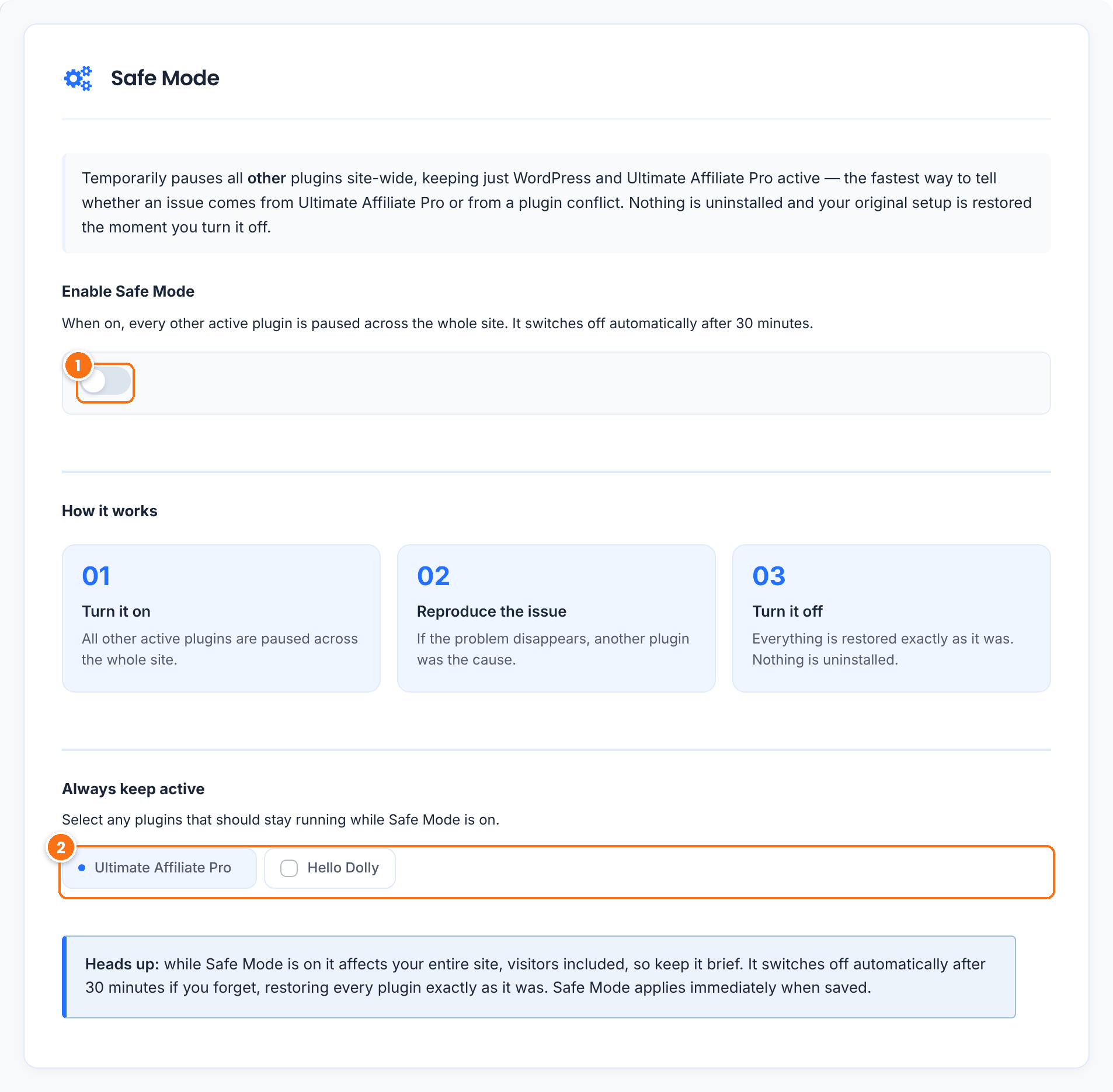
Pauses every other active plugin across the whole site, leaving WordPress, your theme and Ultimate Affiliate Pro running. Nothing is uninstalled and no settings change. It switches off automatically after 30 minutes.
Default: Off
Plugins that keep running while Safe Mode is on. Select the plugins the problem needs, such as your store plugin for a checkout issue, so you can still reproduce it.
- Turn on Enable Safe Mode, select the plugins to keep in Always keep active and click Save Changes. Safe Mode applies right away.
- Reproduce the problem, in a private window if it happens on the front end.
- Turn Safe Mode off and click Save Changes. Every plugin is restored as it was.
If the problem disappears in Safe Mode, another plugin causes it: find which one in the next step. If the problem is still there, test your theme.
Caution
Safe Mode affects the whole site, visitors included, so keep the test short. Features that come from the paused plugins, such as page builder layouts or payment gateways, are missing while it is on.
Find the plugin that causes it #
Narrow it down by testing plugins in groups:
- In Plugins › Installed Plugins, deactivate half of your other plugins.
- Reproduce the problem.
- If it is gone, the cause is in the half you deactivated. If it is still there, it is in the half that is active.
- Repeat with the half that contains the cause, until one plugin is left.
- Reactivate all the plugins you need.
To test without affecting visitors, use the Health Check & Troubleshooting plugin. Its troubleshooting mode disables plugins and switches the theme only for your own browser session, while visitors see the normal site.
Test your theme #
Switch to a default WordPress theme, such as Twenty Twenty-Five, in Appearance › Themes, and reproduce the problem. If it disappears, your theme or child theme causes it. Common causes are a theme login popup on the same page as the Ultimate Affiliate Pro login form, or custom code in functions.php. Switch back to your theme when you finish.
Fix the plugin conflict #
Once you know the cause, these fixes cover most cases:
Plugins that add two-factor login, hide the login URL or add their own captcha can block the Ultimate Affiliate Pro forms. Turn off their protection for the affiliate login and registration pages, or use the reCAPTCHA built into Ultimate Affiliate Pro. See registration and login problems.
Exclude referral links and affiliate pages from the cache, and Ultimate Affiliate Pro scripts from JavaScript delay or combine options. See cache plugins and host caching.
Two affiliate plugins that track the same orders can credit the same sale twice. Keep one of them active.
Forms or the Affiliate Portal placed in a popup, a tab or a template part can miss their styles and scripts. Turn off Optimize Assets Loading, as shown below.
Go to Ultimate Affiliate Pro›Settings›Public Workflow.
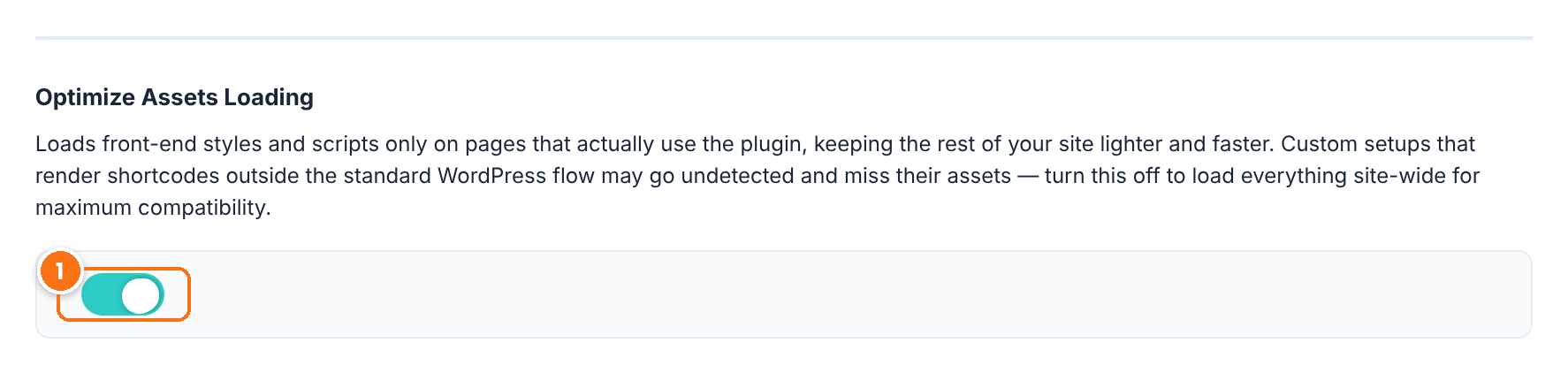
Loads the front-end styles and scripts only on pages that use the plugin. If a shortcode is rendered outside the standard WordPress flow, for example by a page builder template or a popup, turn it off so the assets load on every page.
Default: On
If you need both plugins, send the details to our support team and to the developer of the other plugin. Include the steps to reproduce and the plugin name and version. See before you contact support.
Test it #
- Reactivate all your plugins and your theme.
- Apply the fix for the plugin or theme you found.
- Reproduce the steps that caused the problem, in a private window.
- Check that it works, then clear your cache.
Frequently asked questions #
Does Safe Mode change my settings or delete anything?
No. It only pauses the other plugins for a short time. When you turn it off, or after 30 minutes, every plugin is active again with its settings.
Do visitors notice Safe Mode?
Yes. It applies to the whole site, so features from paused plugins are missing for everyone while it is on. Keep the test short, or use the Health Check troubleshooting mode, which affects only your browser session.
Why does a conflict appear only after an update?
An update can change a hook, a script or a page layout that another plugin also uses. Run the conflict test again after the update, and keep all plugins and your theme up to date.
Should I test on a staging site?
It is the safest option. Many hosts create a staging copy with one click. Test there, then apply the fix on the live site.


