The affiliate account page is the Affiliate Portal: the front-end dashboard where affiliates log in to get their links, see referrals and earnings, update their payout details and read your instructions. Ultimate Affiliate Pro builds it from one shortcode, and you choose its design, its tabs and its messages in the settings.
This guide shows how to set up the page, pick what affiliates see and add tabs of your own. For a tour of every tab from the affiliate’s side, see what affiliates see: stats and earnings.
Before you start
- Ultimate Affiliate Pro installed, with your license active.
- An approved test affiliate, so you can log in and check the result. See manage affiliates.
Check the Affiliate Portal page #
On activation, Ultimate Affiliate Pro creates a page named Affiliate Portal with the [uap-account-page] shortcode. Make sure it is the page set in Ultimate Affiliate Pro›Settings›Pages Setup, in the Affiliate Portal field.
To use another page, add the [uap-account-page] shortcode to it (a Shortcode block works in the block editor), publish it and select it in the same field. Visitors who are not logged in are sent to the page set in Affiliate Portal – Restricted, in Redirects Setup. See redirects for affiliates.
Tip
Add the Affiliate Portal and the login page to your site menu, so affiliates can find them. WordPress explains how in Menus.
Design the top section #
Go to Ultimate Affiliate Pro›Showcases›Affiliate Portal. The top section is the banner at the top of the portal, with the affiliate’s name and their main numbers.
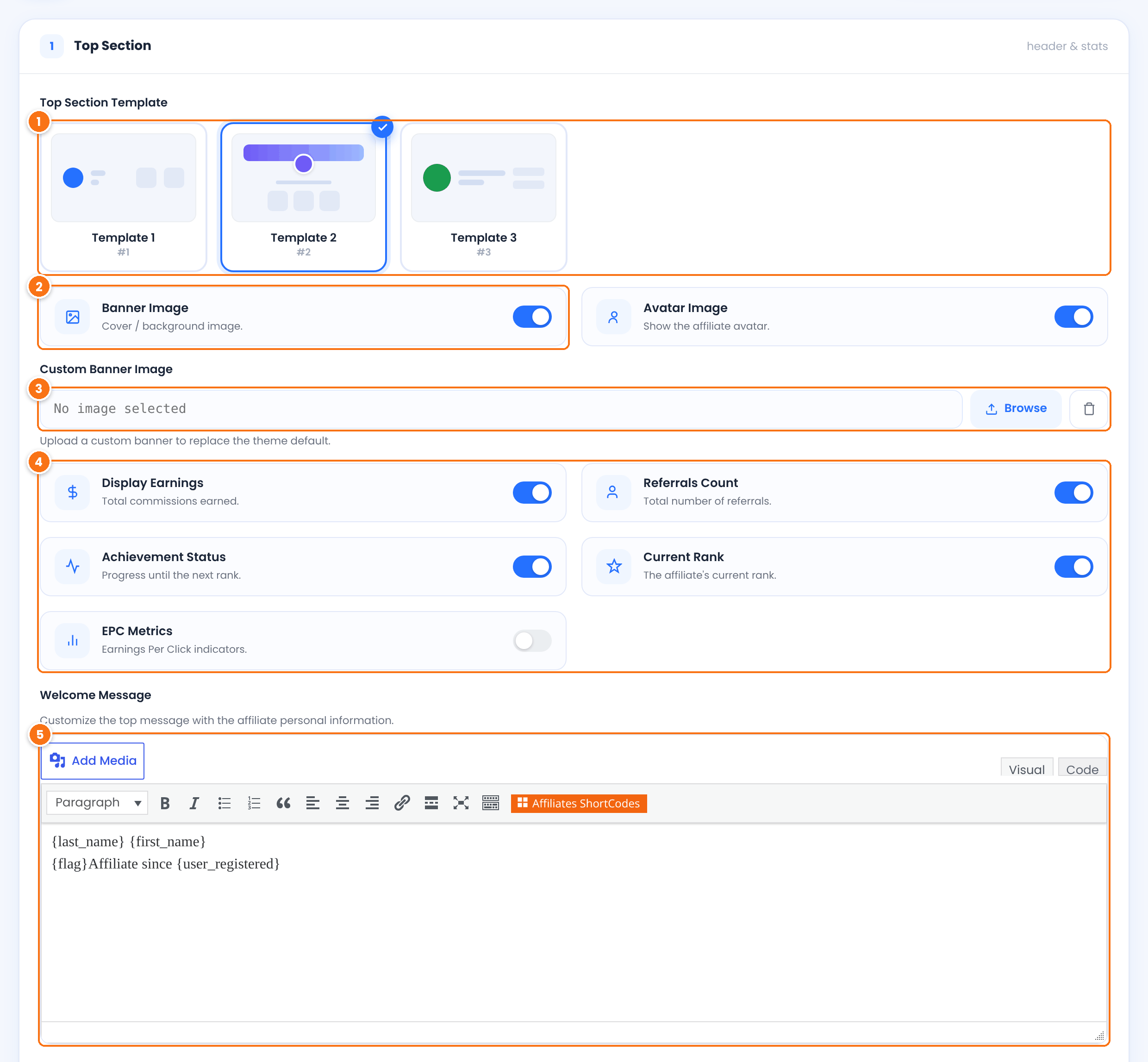
The layout of the banner: Template 1, 2 or 3. Click a card to select it.
Default: Template 2
Shows the cover image behind the affiliate’s name.
Default: On
Replaces the default cover with an image from your media library. Click Browse to choose one, or the trash icon to go back to the default.
Turn each item on or off:
- Display Earnings: total commissions earned. On by default.
- Referrals Count: total number of referrals. On by default.
- Achievement Status: progress toward the next rank. On by default.
- Current Rank: the affiliate’s rank. On by default.
- EPC Metrics: earnings per click for the last 7 days and 3 months. Off by default.
The text under the banner. Use the tags from the Insert tag panel below the editor to personalize it, for example {first_name}, {rank_name} or {user_registered}. Your registration custom fields are listed as tags too.
Default: the affiliate’s name, country flag and join date
Choose the portal tabs #
Scroll to Content Section, on the same screen. Every row is a tab of the portal menu.
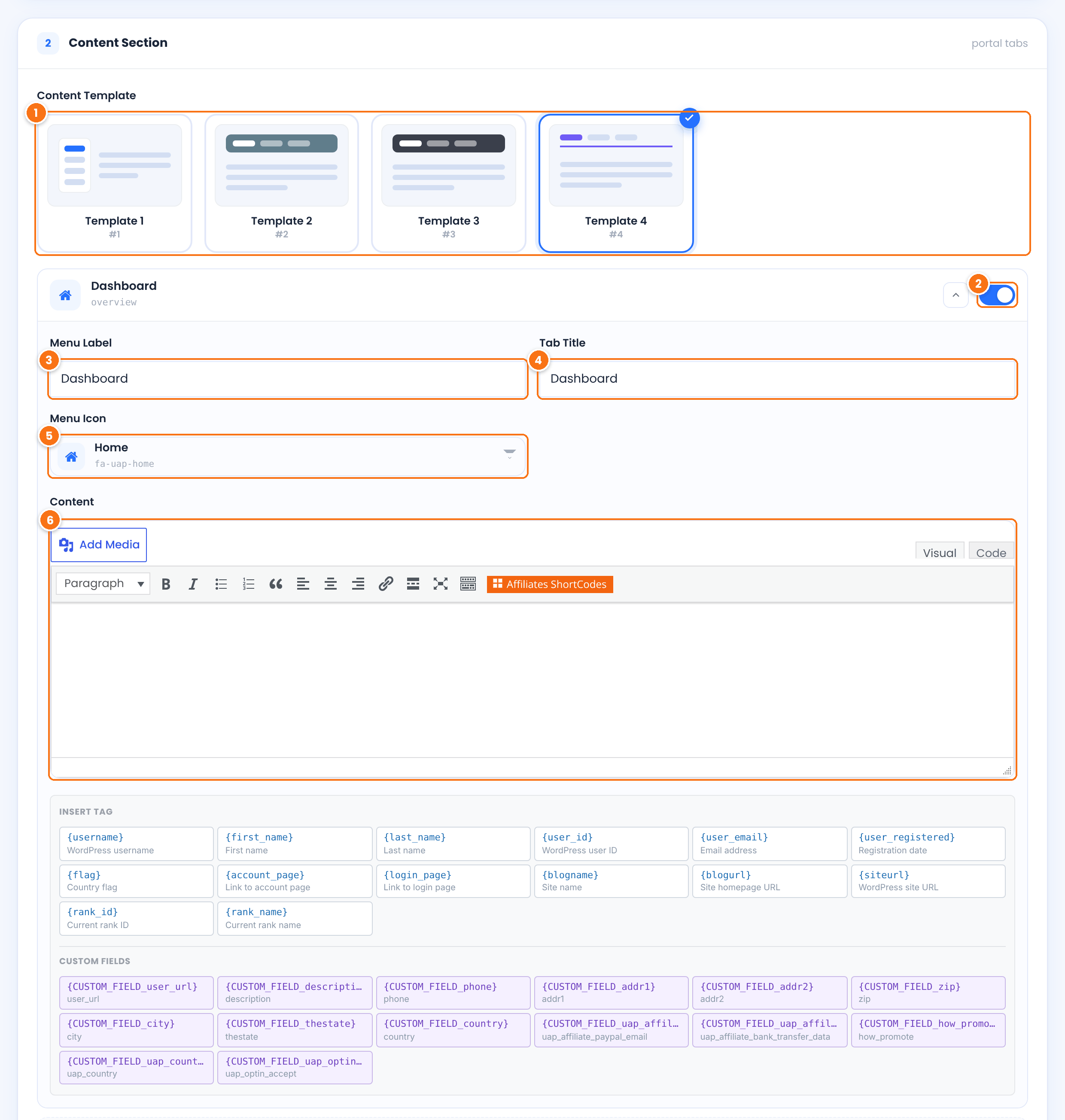
The style of the menu and the content area. Click one of the four cards to select it.
Default: Template 4
Shows or hides the tab. Rows marked Parent are menu groups (Profile, Marketing, Reports): they hold the sub-tabs listed under them and have no page of their own.
The name of the tab in the menu.
The heading at the top of the tab’s page.
The icon next to the menu label. Click it to search the icon list.
Text shown at the top of the tab’s page, above the built-in content. Use it for instructions, for example how to use creatives or when payouts are sent. The same tags as in the Welcome Message work here.
Click the arrow on a row to open its fields. Some tabs appear in the list only when their module is on in Ultimate Affiliate Pro›Modules, for example Coupons, Store Credit, Multi-Level Marketing, Referrer Links, Your Affiliate Slug, Landing pages and Notifications.
Tip
Keep Payout Details on. Affiliates use it to enter the email or bank details you pay them with. See how affiliate payouts work.
Add a bottom message and custom CSS #
- Bottom Message (Bottom Section): text shown under every tab, such as a support email or a link to your program terms. It accepts the same tags.
- Custom CSS: CSS rules that load on the Affiliate Portal only, for example to match your brand colors. To find the class of an element, right-click it on the portal page and choose Inspect. See customize templates and styles.
Click Save Changes at the bottom of the screen.
Add your own tabs #
With the Affiliate Area Tabs module, you add tabs with your own content, or menu items that link to another page. Go to Ultimate Affiliate Pro›Modules›Affiliate Area Tabs, turn on Activate/Hold Affiliate Area Tabs and click Save Changes.
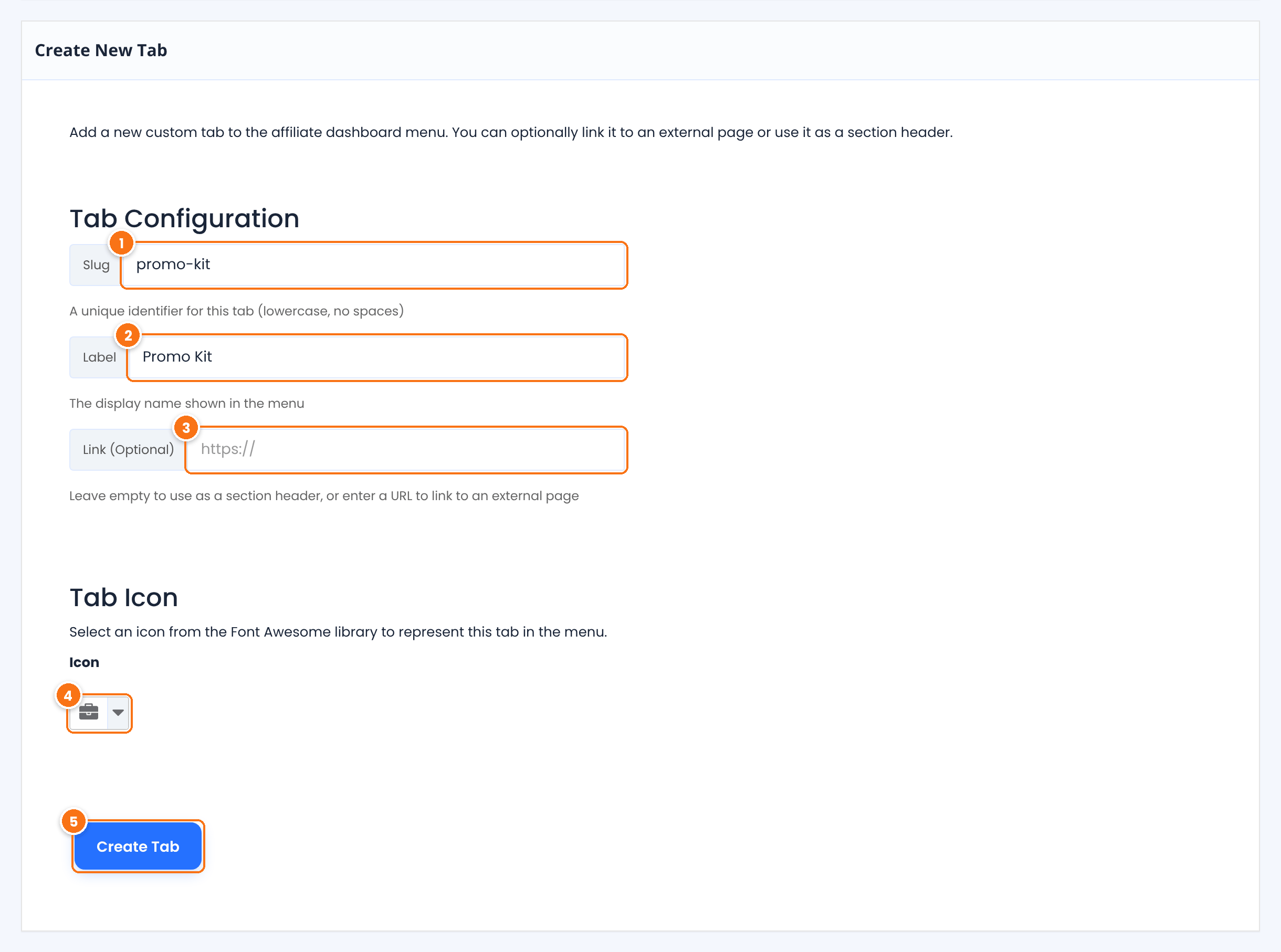
A unique ID for the tab, in lowercase with no spaces, for example promo-kit. It appears in the tab’s address and cannot be the name of a built-in tab.
The name shown in the menu. It is also used as the tab title, which you can change later.
Leave it empty to make a tab with its own content. Enter a URL to make a menu item that opens that address, such as a page with your brand assets or a community group.
The icon shown next to the label.
Adds the tab to the list at the bottom of the screen.
Then turn the new tab on:
- Go to Showcases›Affiliate Portal and find the tab in Content Section. New tabs are added to the end of the list.
- Turn its switch on, open the row and write the tab’s content in Content.
- Click Save Changes.
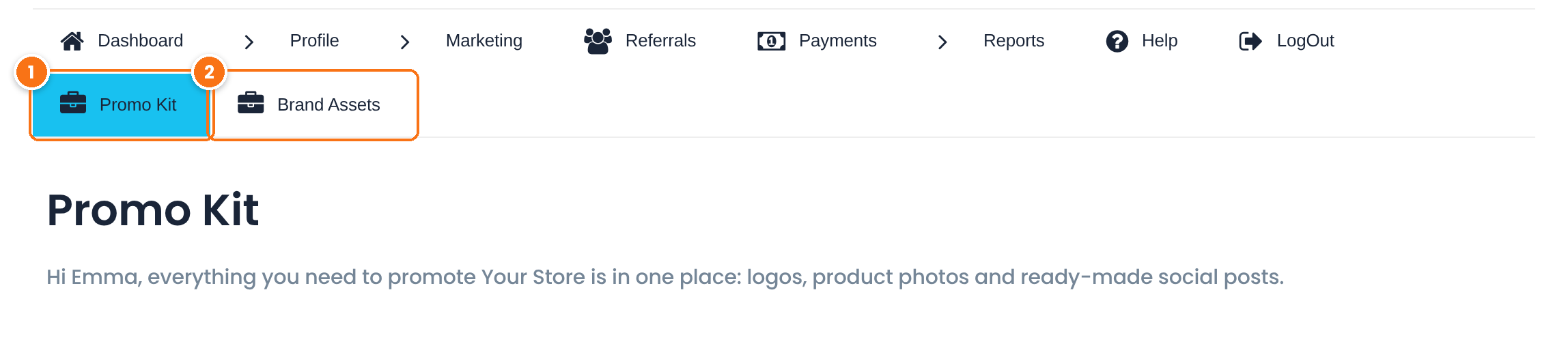
A custom tab without a link. It opens in the portal and shows the content you wrote for it.
A custom tab with a link. It opens the address you entered, for example your brand assets page.
To change the order of the menu, drag the rows of the tabs table on the Affiliate Area Tabs screen. The order saves automatically. Custom tabs have a delete link in the same table; built-in tabs can only be turned off.
Show a top affiliates leaderboard #
To reward your best partners in public, build a leaderboard: go to Ultimate Affiliate Pro›Showcases and open the Top Affiliates card. In the Shortcode Generator tab, choose how many affiliates to show, how to order them (earnings, referrals, visits and more), the fields to display, a theme and an optional slider. Copy the [uap-listing-affiliates] shortcode it creates into any page.
Test it #
- Open a private browser window and log in as a test affiliate.
- Open the Affiliate Portal page. Check the banner, the stats and the welcome message.
- Click every tab in the menu and check that the ones you turned off are gone.
- As administrator, you can also use Access Affiliate Portal in the row menu of Ultimate Affiliate Pro›Affiliates to see the portal of any affiliate.
Frequently asked questions #
What is the shortcode for the affiliate account page?
The shortcode is [uap-account-page]. Add it to any page and select that page in Ultimate Affiliate Pro, Settings, Pages Setup, Affiliate Portal.
Can I rename the tabs of the Affiliate Portal?
Yes. In Showcases, Affiliate Portal, open a tab row and change Menu Label and Tab Title. For texts that are not in the settings, see change texts, labels and messages.
Can I show the Affiliate Portal inside WooCommerce My Account?
Yes. The WooCommerce Account Page Integration module adds an Affiliate tab to My Account. See affiliate area in WooCommerce and BuddyPress accounts.
Can I show different dashboard content to one affiliate?
Yes. Edit the affiliate in Ultimate Affiliate Pro, Affiliates and choose a post or page in Custom Dashboard message. It replaces the Dashboard content for that affiliate only.
Why does a tab I turned on not show in the portal?
Tabs that belong to a module appear only while the module is on. Check Ultimate Affiliate Pro, Modules, then clear your cache plugin if you use one.


