Page caching makes your site fast, but it can hide referral visits from Ultimate Affiliate Pro. To make affiliate tracking and cache work together, in cache plugins, CDNs and host caching, you exclude a few URLs and pages from the cache. This guide lists exactly what to exclude and where to do it in the most common tools.
Ultimate Affiliate Pro records a visit on your server, at the moment a referral link loads: it saves the click, sets the uap_referral cookie and redirects to the clean URL. A cached page is served before WordPress runs, so none of that happens. The checkout still works, but the order has no affiliate to credit. See how affiliate tracking works for the full flow.
Before you start
- Administrator access to your cache plugin settings.
- Access to your hosting panel or CDN account, or the contact of your host.
- Your URL parameter names, from Ultimate Affiliate Pro›Settings›General Settings.
Find your URL parameters #
Go to Ultimate Affiliate Pro›Settings›General Settings. The two parameters below are the ones your cache must leave alone.
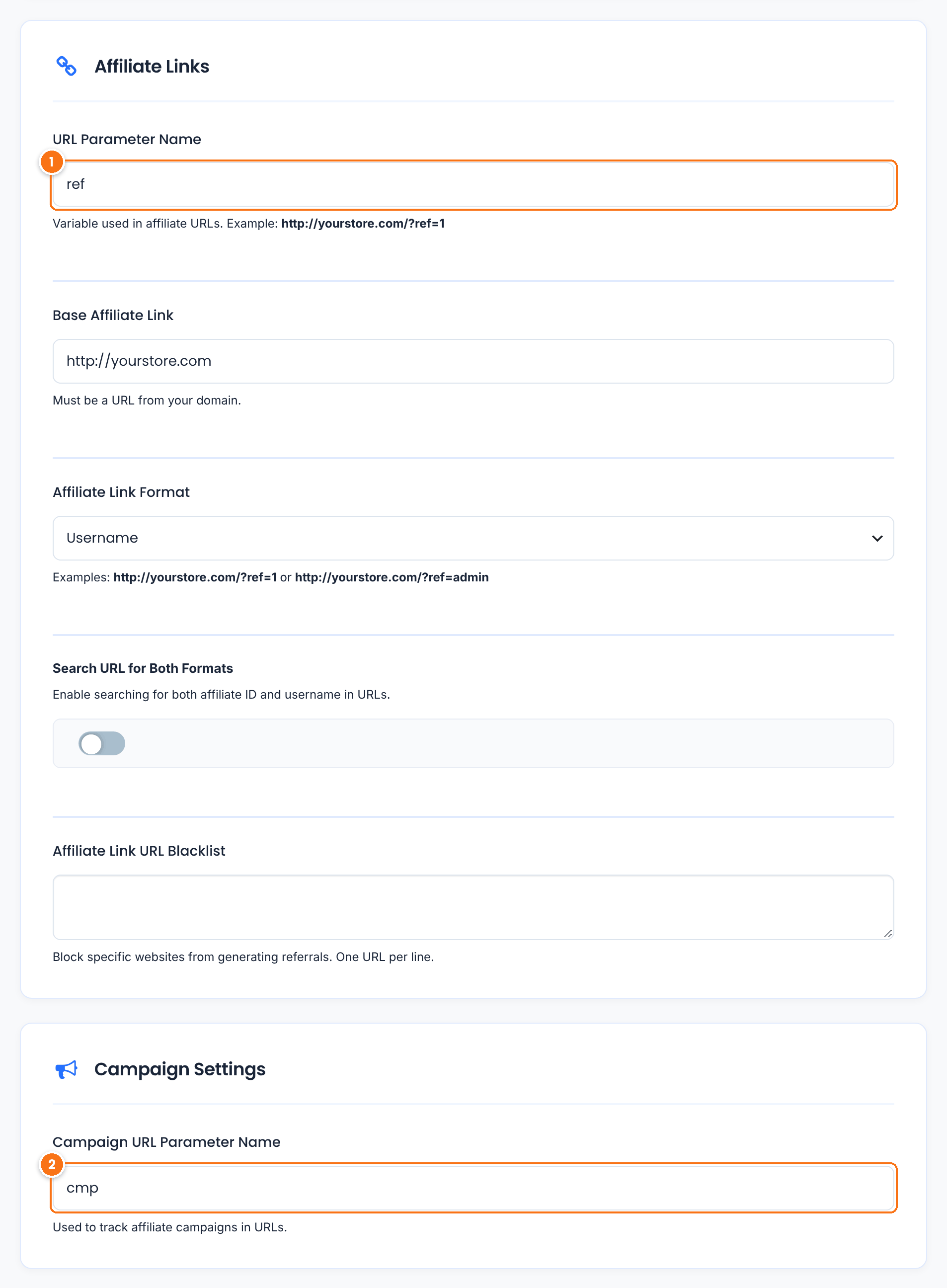
The tracking parameter in every referral link, as in ?ref=emma.collins. Friendly links use it as a path, as in /ref/emma.collins.
Default: ref
The campaign parameter affiliates can add to their links, as in &cmp=newsletter.
Default: cmp
Affiliate tracking and cache: what to exclude #
Add these rules to every cache layer of your site: the cache plugin, the host cache and the CDN.
Do not cache URLs whose query string contains your parameters, for example ref= and cmp=. Also make sure the cache does not ignore or strip these parameters, the way many caches do with utm_ parameters. If it does, the referral link gets the cached page.
If you use the Pretty Affiliate Links module, do not cache paths that contain /ref/, or your own parameter.
Exclude the pages set in Ultimate Affiliate Pro›Settings›Pages Setup: the Affiliate Portal, Login, Registration and Lost Password pages. A cached copy can show outdated forms and messages, the lost password form uses a security token that expires, and the Affiliate Portal shows each affiliate’s own data. If affiliates use the WooCommerce My Account page, keep it excluded too.
Your store pages that create orders, such as cart, checkout and my account, must never be cached. Most cache plugins exclude the WooCommerce pages automatically.
Serve uncached pages to logged-in users. This is the default in most cache plugins.
The Direct Link Tracking and Affiliate Landing Pages modules recognize the affiliate when the page loads, without a parameter in the URL. Exclude the landing pages you use with them. If you show content with the [visitor_referred] or [visitor_not_referred] shortcodes, also bypass the cache for visitors with the uap_referral cookie.
Set it up in your cache tool #
Menu names change between versions, so use these as a guide and check the documentation of your tool.
WP Rocket does not cache pages with unknown query strings, so ?ref= links are served fresh. Do not add ref to Cache Query String(s). For friendly links and affiliate pages, add them to Never Cache URL(s) in the Advanced Rules tab, for example /ref/(.*) and /affiliate-portal/. See caching query strings in the WP Rocket docs.
Go to LiteSpeed Cache › Cache › Excludes. Add ref and cmp to Do Not Cache Query Strings, and /ref/ and your affiliate page paths to Do Not Cache URIs.
In Performance › Page Cache, leave caching of URIs with query string variables off, and add /ref/ and the affiliate pages to the list of pages that are never cached.
Managed hosts such as Kinsta, WP Engine, SiteGround and Cloudways cache pages on the server, outside WordPress. Ask your host to bypass the cache for URLs with the ref and cmp parameters, for paths with /ref/ and for your affiliate pages. Some hosts also let you add these rules in their control panel.
If the CDN caches HTML pages, for example with Automatic Platform Optimization or a cache everything rule, create a rule that bypasses the cache when the query string contains ref= or cmp=, or the path contains /ref/. Add the affiliate pages to the same rule.
Tip
Options that minify, combine or delay JavaScript do not affect tracking, which runs on the server. If a form or the Affiliate Portal stops working after you turn one on, exclude the scripts in /wp-content/plugins/ultimate-affiliate-pro/ from that option.
Clear the cache and test it #
- Save the new rules and clear every cache: plugin, host and CDN.
- Open a referral link in a new private window.
- Check that the address bar shows the page without the tracking code, which means WordPress handled the visit. This works with Redirect Same Page Without URL Parameters on, the default.
- Go to Ultimate Affiliate Pro›Clicks and check that the visit appears. Open the same link a few times from new private windows: each visit should be recorded.
You can also check the response headers in the developer tools of your browser. On the referral link, headers such as x-cache, cf-cache-status or x-litespeed-cache should not show HIT.
Frequently asked questions #
Do I need to exclude the uap_referral cookie from the cache?
Not for tracking. The cookie is read at checkout, and checkout pages are not cached. Bypass the cache for the cookie only if you show different content to referred visitors, for example with the [visitor_referred] shortcode.
Does caching affect the referral amount?
No. Amounts are calculated when the order is placed, on the uncached checkout. Caching only affects whether the visit and the cookie are recorded.
Some clicks are recorded and others are not. Why?
A cache that is warm for one page and cold for another gives this pattern. The first visit to a page goes to WordPress and is tracked, later visits get the cached copy. Exclude the referral links as shown above.
Will excluding referral links slow down my site?
Only the first page a referred visitor opens is served uncached. After the redirect to the clean URL, the visitor gets cached pages as usual, with Redirect Same Page Without URL Parameters on, which is the default.


