An affiliate profile avatar is the picture that represents each affiliate in Ultimate Affiliate Pro: in the Affiliate Portal, in your Affiliates list and in the top affiliates leaderboard. Affiliates upload it themselves from the registration form or the portal, and you can upload it for them.
The avatar is a field of the registration form, named uap_avatar. You decide where the field appears, and the Affiliate Portal shows the picture in its top section. To set up the portal itself, see Affiliate Account Page.
Before you start
- Ultimate Affiliate Pro installed, with your license active.
- The Affiliate Portal set up, with at least one approved test affiliate.
Choose where affiliates can upload an avatar #
Go to Ultimate Affiliate Pro›Showcases›Registration Form›Custom Fields and find the Avatar row (uap_avatar, type File Upload).
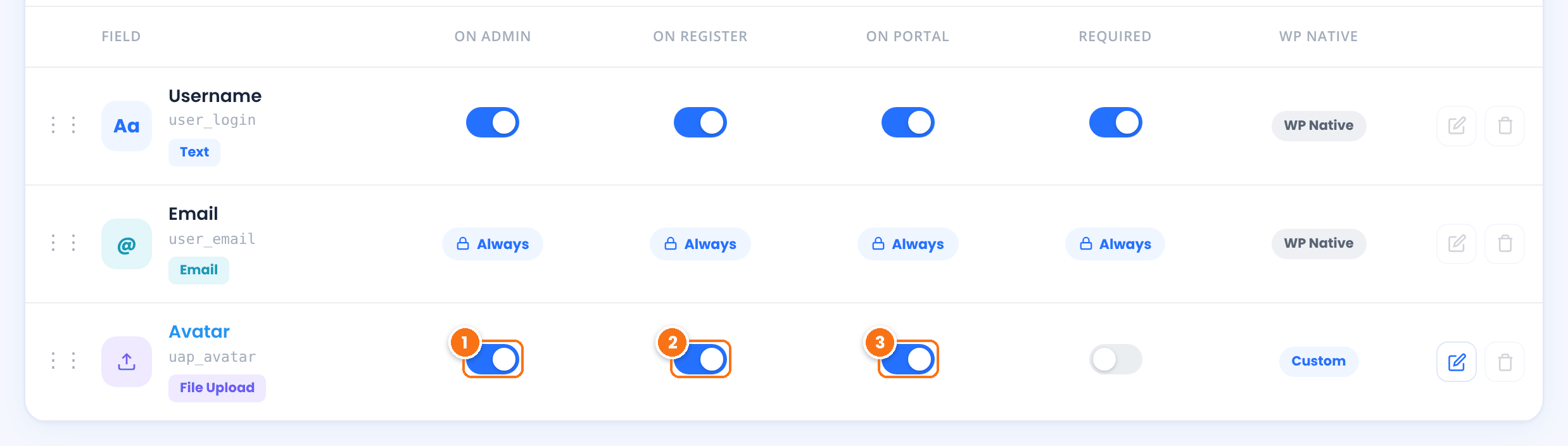
Shows the avatar upload in the affiliate form in Ultimate Affiliate Pro›Affiliates, so you can add or change the picture for an affiliate.
Default: On
Adds the upload to the registration form, so new affiliates can add a picture when they sign up.
Default: Off
Adds the upload to Edit Your Account in the Affiliate Portal, so affiliates can add or change their picture later.
Default: On
Leave Required off unless every affiliate must have a picture. Click Save Changes.
To rename the field, for example to Profile photo, click its edit icon and change Field Label. See customize the affiliate registration form.
Accepted image files #
The avatar accepts JPG, PNG and GIF images. After the affiliate picks a file, they can adjust the crop before saving, so the picture fits the round and square frames of the portal.
Tip
Ask affiliates for a square picture of at least 300 × 300 pixels. It looks sharp in the portal and in the leaderboard.
How affiliates add their avatar #
Affiliates open Profile›Edit Your Account in the Affiliate Portal and scroll to the Avatar field.

- The affiliate clicks Upload and chooses an image from their computer or phone.
- They adjust the crop and confirm it. The new picture replaces the placeholder.
- They click Save Changes at the bottom of the form. Remove deletes the picture.
Where the affiliate profile avatar appears #
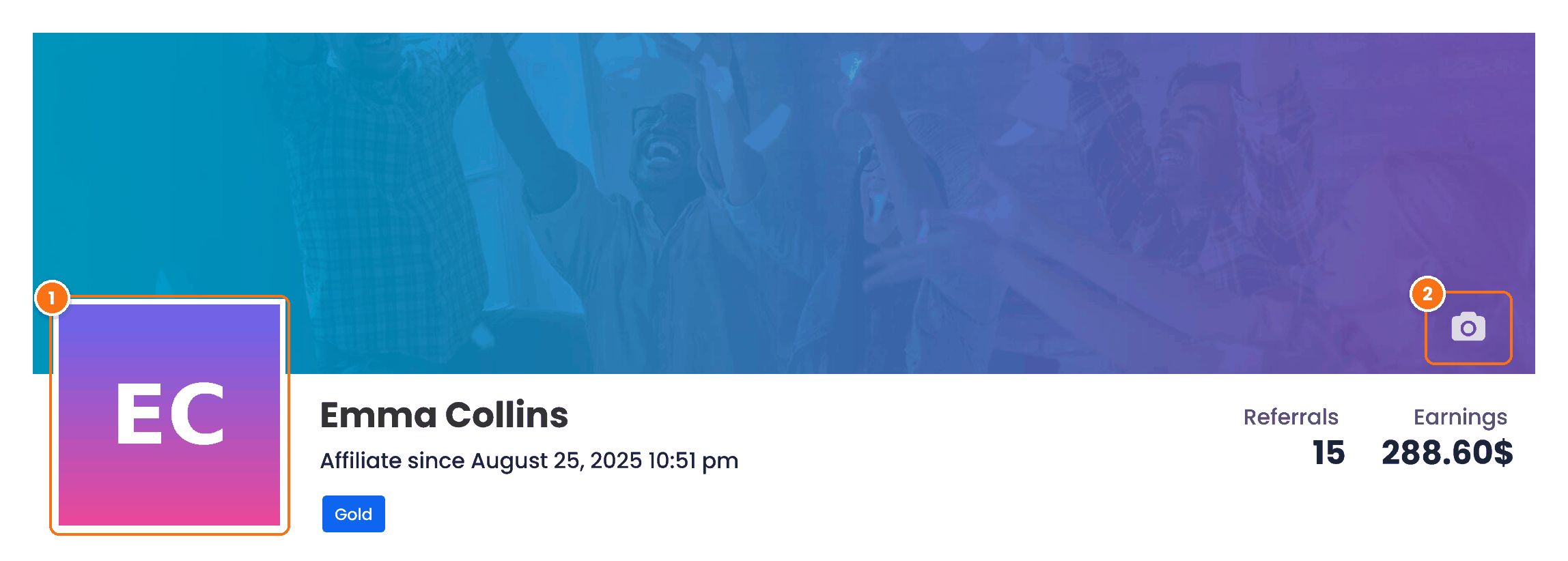
Shown next to the affiliate’s name in the top section of the Affiliate Portal. Affiliates without a picture see a placeholder.
With Banner Image on in Showcases›Affiliate Portal, affiliates can also click the camera icon to upload their own cover image. It replaces the default banner for that affiliate only.
The avatar also appears in:
- The Affiliates list and the Affiliate Profile page in your dashboard. Affiliates without a picture show their initials there.
- The top affiliates leaderboard, when Avatar is ticked in Displayed User Fields of the Top Affiliates shortcode generator.
- The MLM tree, when you use Multi-Level Marketing. See show the MLM tree to affiliates.
Test it #
- Log in as a test affiliate and upload a picture in Edit Your Account.
- Open the Dashboard tab and check the picture in the top section.
- As administrator, check the picture in Ultimate Affiliate Pro›Affiliates.
Frequently asked questions #
Does the affiliate avatar replace the WordPress profile picture?
Yes. Once an affiliate uploads an avatar, WordPress shows it wherever it shows their profile picture, such as comments and author boxes, as well as in the Affiliate Portal and your affiliate screens. Users without an uploaded avatar keep their Gravatar.
Can I upload an avatar for an affiliate?
Yes. With On Admin turned on for the Avatar field, edit the affiliate in Ultimate Affiliate Pro, Affiliates and use the Avatar upload in the form.
Which image formats can affiliates upload?
JPG, PNG and GIF.
How do I hide the Avatar field from the registration form?
Turn off On Register for the Avatar row in Showcases, Registration Form, Custom Fields. Affiliates can still add a picture later from the portal if On Portal is on.
The upload doesn’t finish. What do I check?
Check that the file is a JPG, PNG or GIF and not larger than the upload limit of your server. If it still fails, test for a conflict with another plugin or the theme. See plugin and theme conflicts.


