When an affiliate leaves your program or asks you to delete affiliate data, Ultimate Affiliate Pro can remove the affiliate together with their referrals, clicks and payouts in one action. This page explains what each delete option removes, how to export an affiliate’s data on request and which settings help with affiliate GDPR requests.
Privacy laws such as the GDPR give people the right to get a copy of their personal data and to have it erased. Ultimate Affiliate Pro stores data about affiliates and about the visits they send, and gives you the tools to export and delete it. For the cookie and the consent banner, see Cookie consent and affiliate tracking. This page explains the tools; it is not legal advice.
Before you start
- Ultimate Affiliate Pro installed, with your license active.
- An administrator account.
- An export of the records you must keep for accounting, made in Ultimate Affiliate Pro›Export-Import. Deleting cannot be undone. See Import and export data.
Affiliate GDPR: what Ultimate Affiliate Pro stores #
| Data | What it holds | Where you see it |
|---|---|---|
| Affiliate account | Rank, join date, status and the WordPress user it belongs to | Affiliates |
| Profile fields | Answers from the registration form, such as payout details, PayPal email, phone or website | Affiliates, Edit |
| Referrals | Commission amount, order reference, source and, for logged-in customers, their user ID | Referrals |
| Clicks | Landing page, referring URL, browser, device, date and the visitor IP address | Clicks |
| Payouts | Amounts paid, payout method and transaction details | Payouts |
| Other records | Campaigns, affiliate coupons, MLM relations, customers linked for LifeTime Commissions, rank history and report settings | The related modules |
Delete an affiliate and their account #
Go to Ultimate Affiliate Pro›Affiliates.
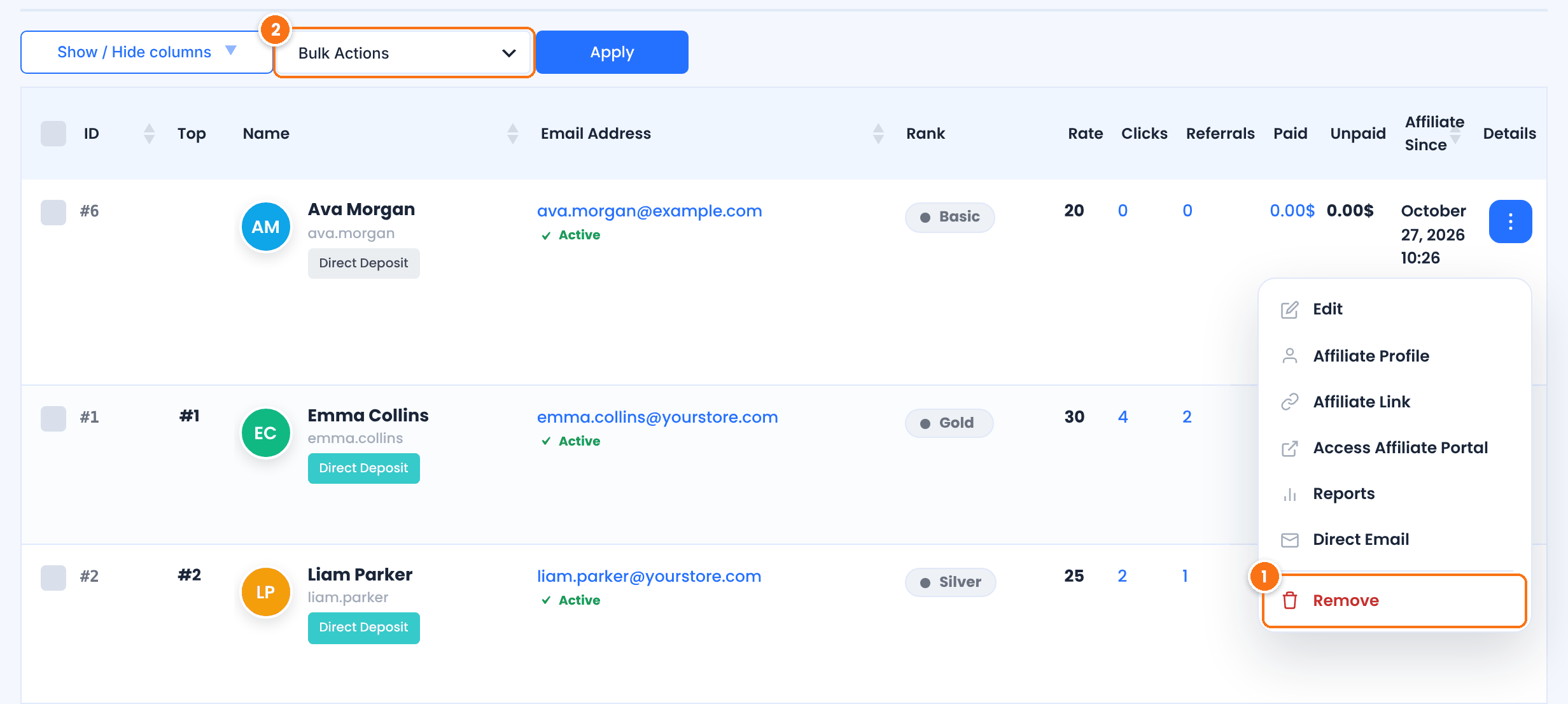
Open the ⋮ menu at the end of the row and choose Remove. Confirm with OK.
Tick several affiliates, choose Remove and click Apply.
Remove deletes all of this at once:
- The WordPress user account of the affiliate. Posts written by that user are deleted by WordPress too.
- The affiliate record, profile fields and payout details.
- All referrals, clicks and payouts of the affiliate.
- Campaigns, affiliate coupon assignments, product rates assigned to the affiliate, rank history and report settings.
- MLM relations: the affiliate leaves the network, and affiliates they recruited no longer have a parent.
- Customers linked to the affiliate for LifeTime Commissions.
If the Affiliate Account Deletion Notification is active in Ultimate Affiliate Pro›Email Notifications, the affiliate receives it before the account is deleted.
Deleting cannot be undone
- Referrals and payouts are deleted with the affiliate, and your reports change. Export them first if you need them for accounting. To stop an affiliate from logging in without deleting anything, change their WordPress role to Pending instead.
Remove the affiliate role but keep the user #
Use this when the person is also a customer and should keep their account and orders. Go to Users›All Users, open the user and scroll to the Ultimate Affiliate Pro section.
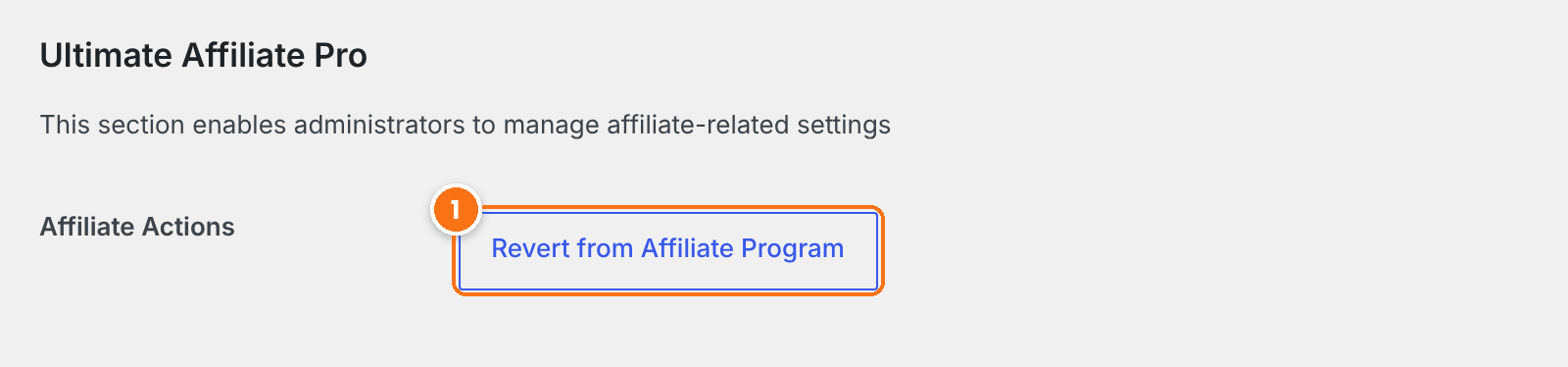
Deletes the affiliate record and the same affiliate data as Remove: referrals, clicks, payouts, campaigns, coupons and MLM relations. The WordPress account, its role and the customer’s orders stay, and so do the profile and payout fields, because they are saved with the WordPress account. The button then changes to Convert to Affiliate.
Deleting a user in Users›All Users also deletes their affiliate data.
Delete referrals and clicks #
To remove single records, for example when a customer asks you to delete the data about their visit:
- Referrals: in Ultimate Affiliate Pro›Referrals, hover a referral and click Remove, or select several and choose Remove in Bulk Actions. The click linked to the referral is deleted with it.
- Clicks: in Ultimate Affiliate Pro›Clicks, select the clicks and choose Remove in Bulk Actions. Use this also to delete old clicks you no longer need.
The Reference column of a referral shows the order it came from, so you can find the records of one customer. See Manage referrals.
Export an affiliate’s personal data #
WordPress has its own privacy tools. When an affiliate asks for a copy of their data, go to Tools›Export Personal Data, enter their email address and click Send Request. After the person confirms the request, download the file.
For affiliates, the export includes an Ultimate Affiliate Pro part with these groups, when they have data: Affiliate User Metas (profile and payout fields), Affiliate Account, Affiliate Offers, Affiliate Campaigns, Affiliate Payments, Rank History, Affiliate Coupons, Affiliate Reports and Referral Links. See Tools Export Personal Data screen on wordpress.org.
To remove an affiliate together with their referrals and clicks, use Remove (step 1) or Revert from Affiliate Program (step 2). For data that WordPress itself stores, such as comments, see Tools›Erase Personal Data.
Stop storing visitor IP addresses #
Go to Ultimate Affiliate Pro›Settings›Admin Workflow and scroll to Privacy & Data.
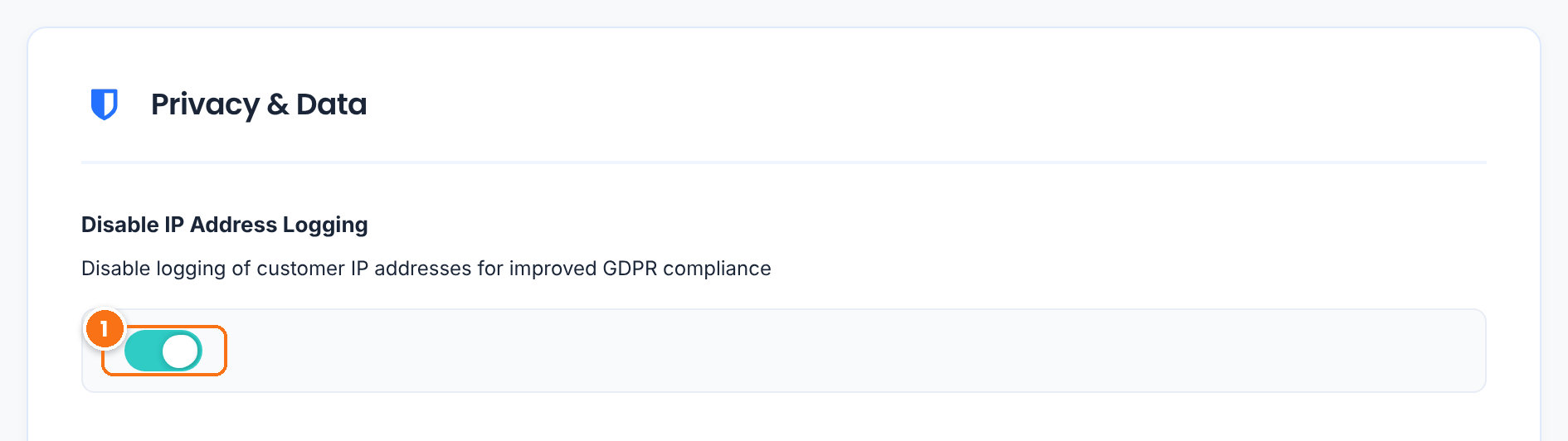
New clicks are saved with a dash instead of the visitor IP address. Tracking and commissions work the same. Clicks already saved keep their IP address until you delete them. Fraud Protection compares IP addresses, so leave logging on if you rely on it.
Default: Off
Click Save Changes. Then describe the affiliate program in your privacy policy, in Settings›Privacy: the referral cookie, the click data you store, the data affiliates give you when they register and how long you keep it. Cookie consent and affiliate tracking has a sample paragraph.
Handling an erasure request
- Confirm who is asking, export the data if they also want a copy, then delete it. Some records, such as commissions you paid, may have to be kept for tax or accounting. Read the right to be forgotten on gdpr.eu, and check your obligations with a legal advisor.
Test it #
- Create a test affiliate and open their referral link once, so a click is saved.
- Export their data in Tools›Export Personal Data and check the Ultimate Affiliate Pro groups in the file.
- Remove the test affiliate in Ultimate Affiliate Pro›Affiliates.
- Check that the user is gone from Users›All Users and the click is gone from Ultimate Affiliate Pro›Clicks.
Frequently asked questions #
Does removing an affiliate delete the WordPress user?
Yes. Remove in Ultimate Affiliate Pro, Affiliates deletes the WordPress user account together with all affiliate data. To keep the user, use Revert from Affiliate Program on the Edit User screen.
What happens to the referrals and payouts of a deleted affiliate?
They are deleted, together with the affiliate’s clicks, campaigns, coupons, MLM relations and rank history. Export them first if you need them for accounting.
How do I delete the affiliate data but keep the WordPress user?
Open the user in Users, All Users and click Revert from Affiliate Program. The affiliate record, referrals, clicks and payouts are deleted, and the WordPress account stays with its profile fields.
Can I export an affiliate’s data for a GDPR request?
Yes. Use Tools, Export Personal Data in WordPress. For affiliates, the file includes an Ultimate Affiliate Pro part with their account, profile fields, payments, campaigns, coupons and other records.
Can I stop storing visitor IP addresses?
Yes. Turn on Disable IP Address Logging in Ultimate Affiliate Pro, Settings, Admin Workflow. New clicks are saved without an IP address.
How do I delete old clicks?
In Ultimate Affiliate Pro, Clicks, select the clicks and choose Remove in Bulk Actions.


