Affiliate visits tracking records every click that brings a visitor to your site through an affiliate: the landing page, the referring website, the browser and whether the visit turned into a referral. You see all visits in Clicks, affiliates see their own in the Affiliate Portal, and the Source Details for Affiliates module shows them who bought.
Visits are recorded automatically, with no setup. They are also the quickest way to check that affiliate tracking works on your site.
Before you start
- Ultimate Affiliate Pro installed, with your license active.
- Some visits through affiliate referral links. Open a test link in a private window to create one.
How affiliate visits tracking works #
A visit, or click, is recorded when a visitor arrives through an affiliate and receives the tracking cookie: a referral link, a pretty link, a campaign link or an approved direct link. By default, Ultimate Affiliate Pro records one click per visitor, so returning visits from the same browser do not inflate the numbers. When the visitor later buys, the visit is linked to the referral and its status changes from Just Visit to Converted.
Review visits in Clicks #
Go to Ultimate Affiliate Pro›Clicks.
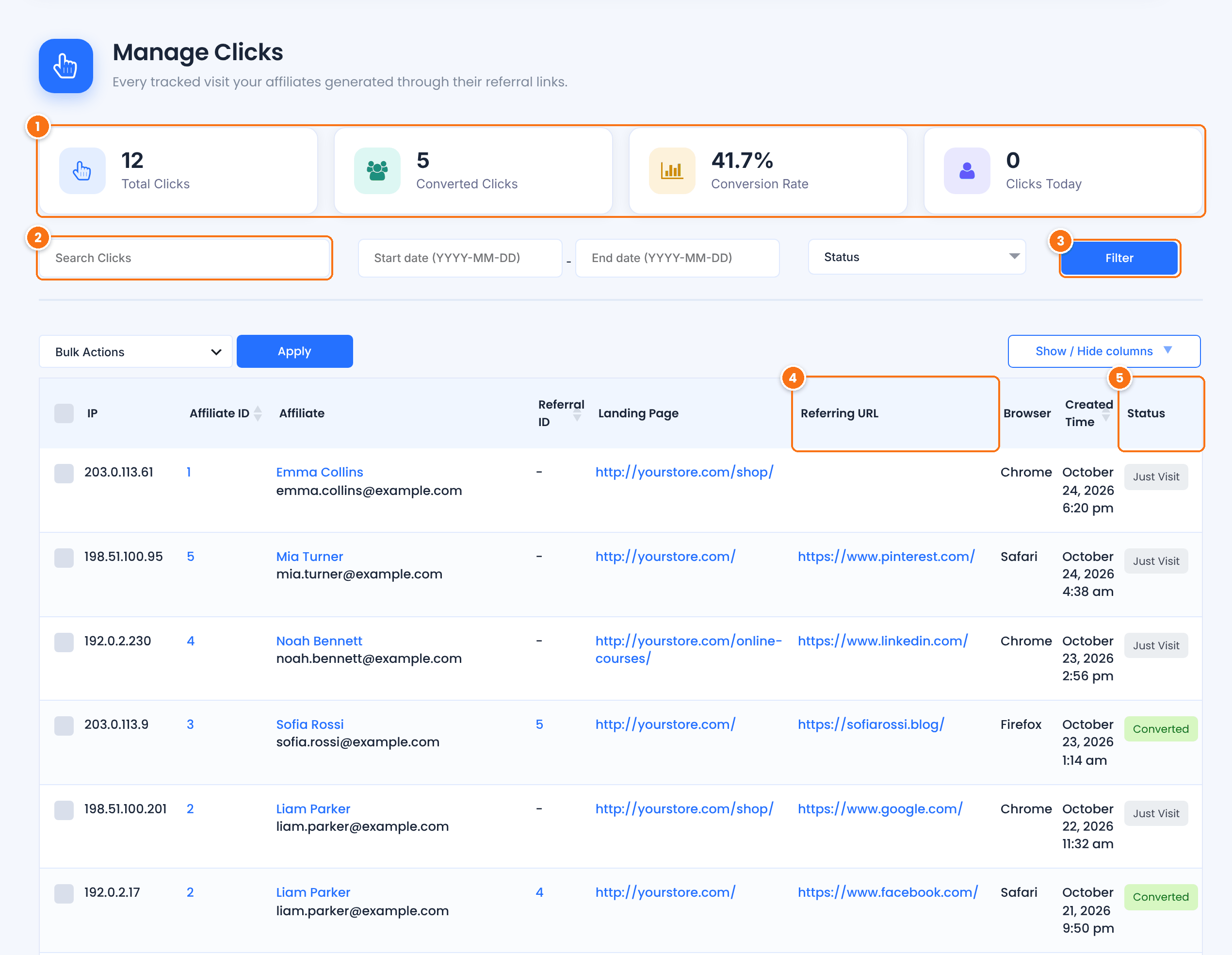
Total Clicks, Converted Clicks, Conversion Rate (converted clicks divided by total clicks) and Clicks Today.
Finds clicks by the affiliate’s username, the landing page or the referring URL.
Applies the start and end dates and the Status filter (Just Visit or Converted).
The website the visitor came from, as sent by the browser. Empty when the visitor typed the link or opened it from an app or email client that sends no referrer.
Converted when the visit led to a referral. The Referral ID column links to that referral.
Other columns show the visitor’s IP, the Affiliate (click the name to open their profile), the Landing Page, the Browser and the Created Time. Use Show / Hide columns to add the Device column (web or mobile). To delete clicks, select them and choose Remove in Bulk Actions.
Privacy
To stop storing visitors’ IP addresses, turn on Disable IP Address Logging in Ultimate Affiliate Pro›Settings›Admin Workflow, section Privacy & Data. New clicks then show a dash instead of the IP. See cookie consent and affiliate tracking.
What affiliates see in the Traffic Log #
Each affiliate sees their own clicks in the Affiliate Portal, under Reports›Traffic Log.
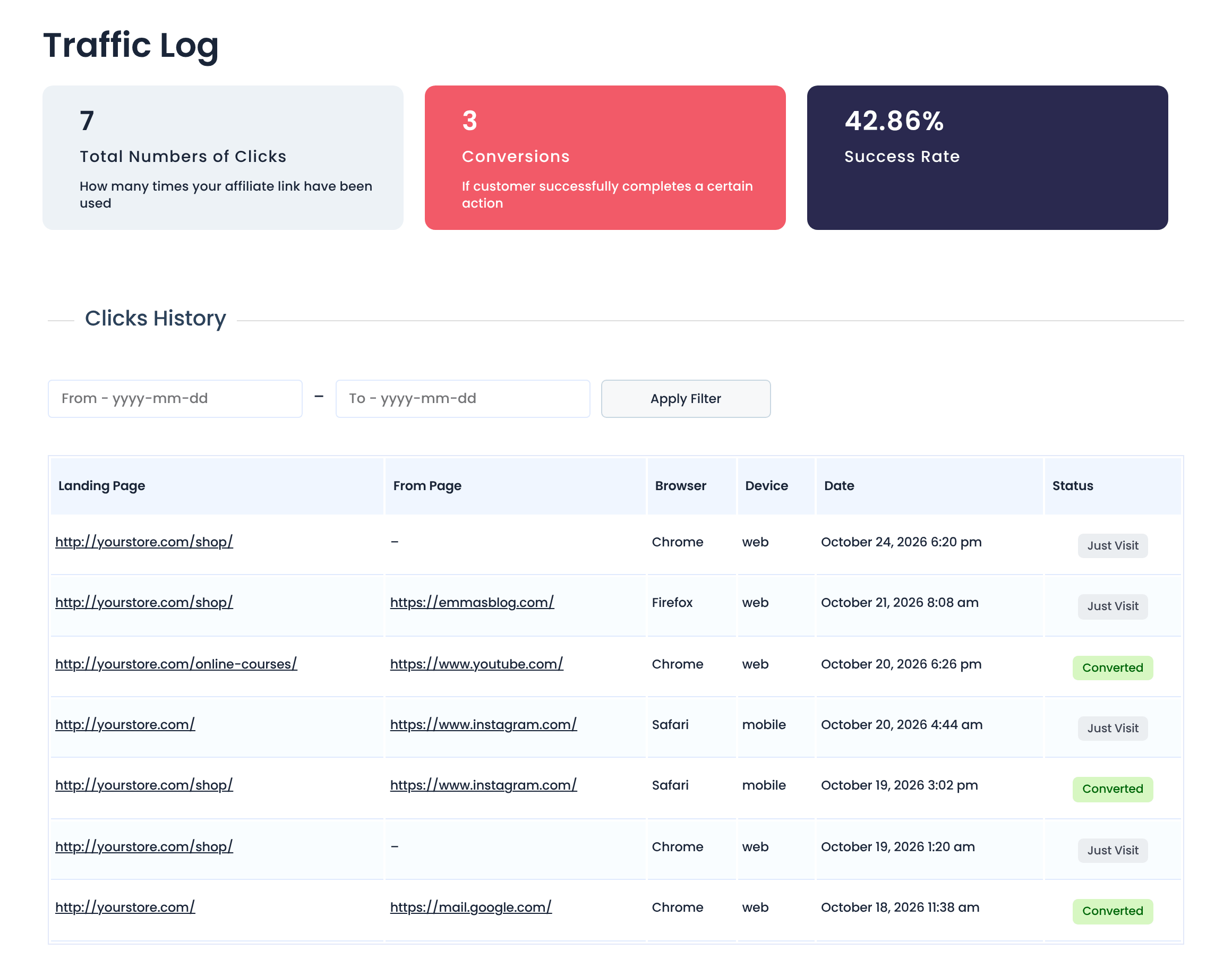
The top cards show the affiliate’s total clicks, conversions and success rate. The Clicks History table lists the landing page, the page the visitor came from, the browser, the device, the date and the status. Affiliates can filter it by date. Visitor IP addresses are never shown to affiliates.
Show source details to affiliates #
Affiliates often want to know which order or customer a referral came from. The Source Details for Affiliates module lets you choose which order details they see. Go to Ultimate Affiliate Pro›Modules, open Source Details for Affiliates, turn on Activate/Hold Source Details for Affiliates and save.
Below the activation box there is one box for each source: WooCommerce, Easy Digital Downloads, Ultimate Membership Pro and Sign-Up referrals. Each box appears when that integration, or the SignUp Referrals (CPL) module for sign-ups, is active.
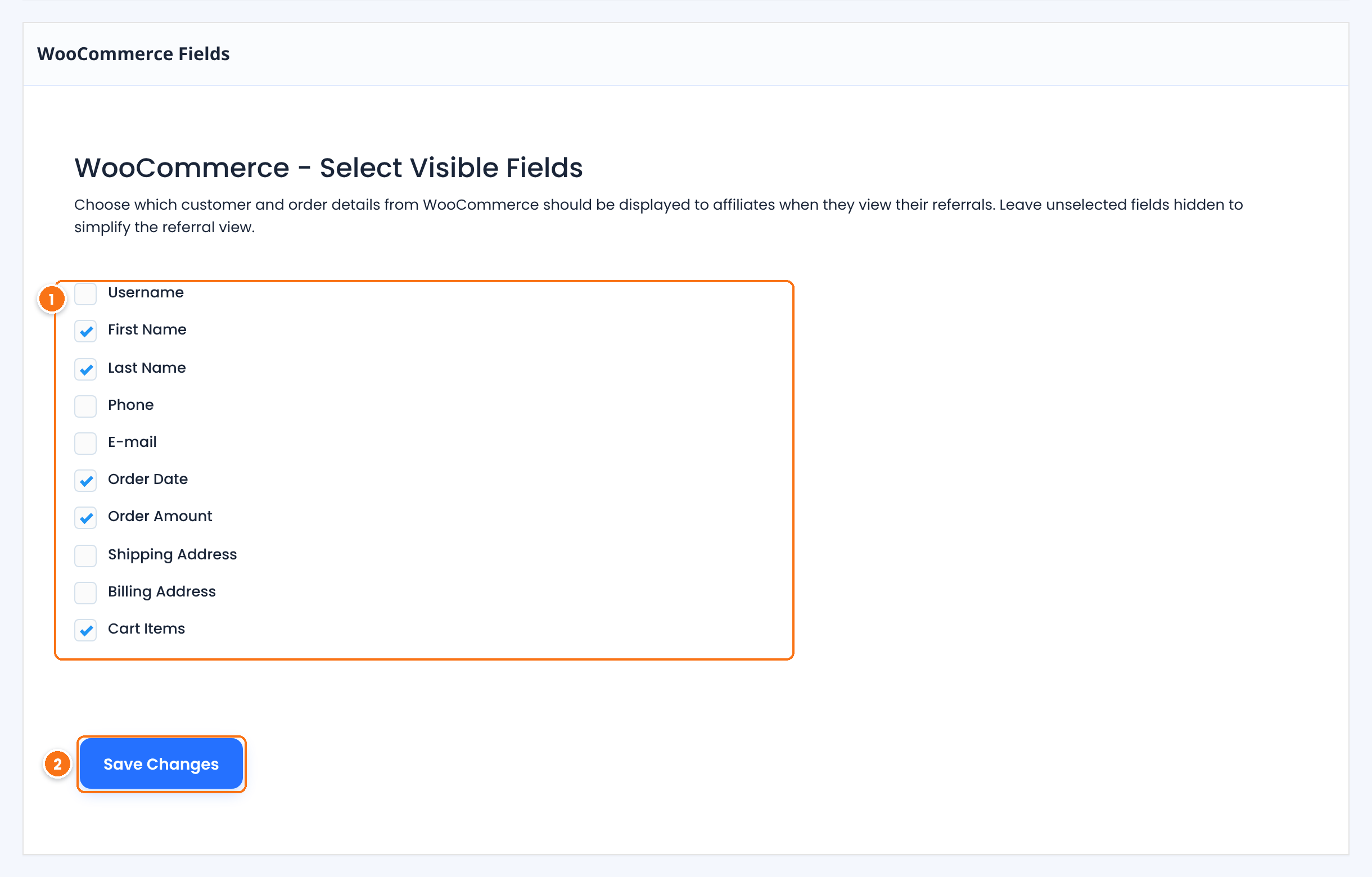
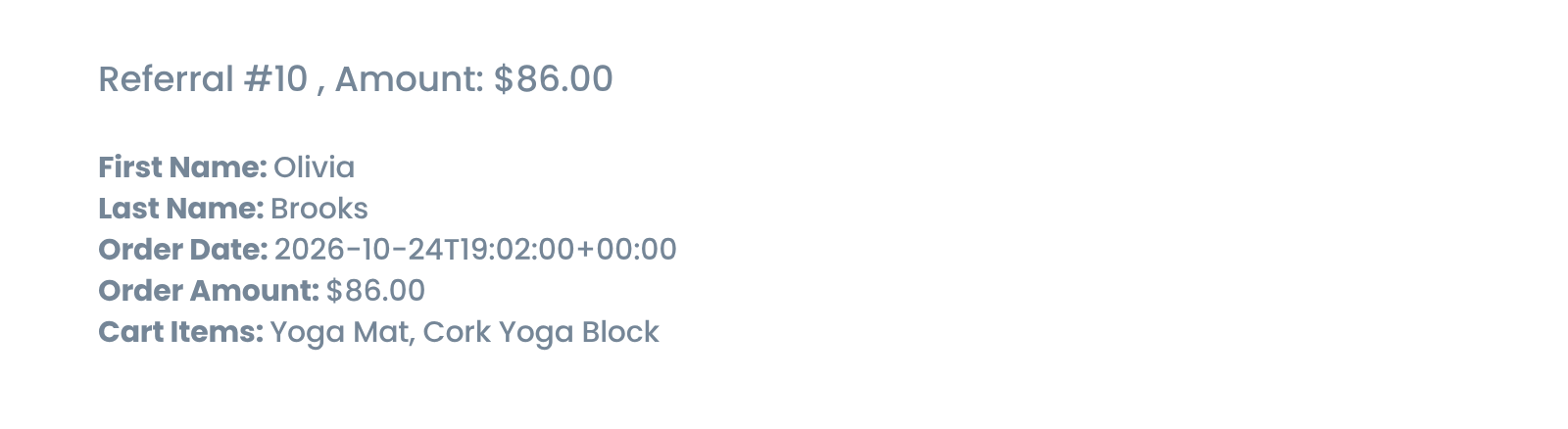
- Check the fields affiliates may see: Username, First Name, Last Name, Phone, E-mail, Order Date, Order Amount, Shipping Address, Billing Address and Cart Items.
- Click Save Changes in that box. Repeat for the other sources you use.
Share only what affiliates need
Customer names, emails, phone numbers and addresses are personal data. Order Date, Order Amount and Cart Items are usually enough for affiliates to match a sale. Show contact details only if your privacy policy and your agreement with affiliates allow it.
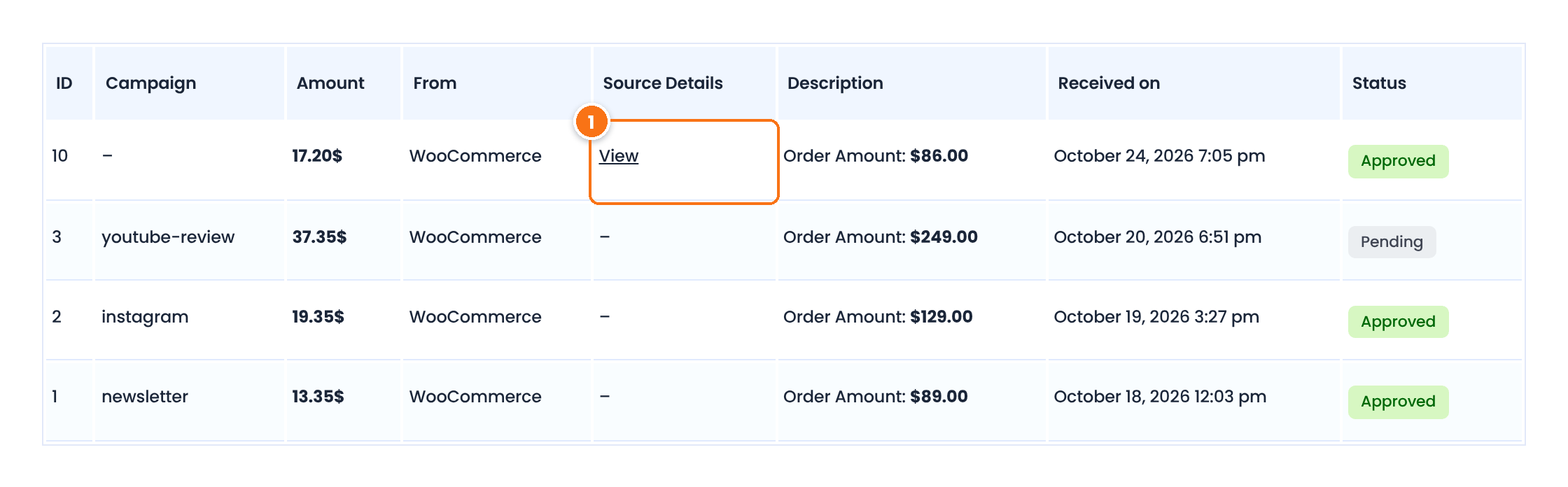
In the Affiliate Portal, the Referrals tab now has a Source Details column. The affiliate clicks View next to a referral to open its details.
Test it #
- Open a test affiliate’s referral link in a private browser window.
- In Clicks, check that a new row appears with status Just Visit.
- Place a test order in the same window. The row changes to Converted and shows the referral ID.
- Log in as the affiliate and check the Traffic Log and the View link in Referrals.
Frequently asked questions #
Why does a visitor who clicked several times show only one click?
By default, Ultimate Affiliate Pro records the visit that sets the tracking cookie. Later clicks from the same browser, while the cookie is active, are the same visitor and are not counted again.
Why is the Referring URL empty for some clicks?
The browser sends no referring address when the visitor types the link, opens it from an email client or an app, or comes from a site that hides its address. The click is still recorded and credited.
Can affiliates see their visitors’ IP addresses?
No. The Traffic Log shows landing page, referring page, browser, device, date and status, never the IP address. Only admins see IPs in Clicks.
Which customer details can affiliates see?
Only the fields you select in the Source Details for Affiliates module, separately for each source. With the module off, affiliates see no customer details.
Can I delete clicks?
Yes. In Clicks, select the rows and choose Remove in Bulk Actions, then click Apply.


