Affiliate registration reCAPTCHA stops bots from creating fake affiliate accounts. Ultimate Affiliate Pro supports Google reCAPTCHA v2, the “I’m not a robot” checkbox, and reCAPTCHA v3, which runs invisibly. You can protect the registration form, the login form or both.
Setup takes three parts: create keys in your Google account, paste them in Ultimate Affiliate Pro, then turn reCAPTCHA on for each form. To review real applicants by hand as well, see Approve affiliates and verify their email.
Before you start
- Ultimate Affiliate Pro installed, with your license active.
- A Google account, to create the reCAPTCHA keys.
- Your registration and login pages set up. See Set up the registration, login and password pages.
Which version to choose #
- reCAPTCHA v2 – “I’m not a robot”
- A checkbox the applicant ticks, sometimes followed by an image challenge.
- reCAPTCHA v3 – Invisible
- No checkbox. Google checks the visitor in the background.
Keys created for one version do not work with the other. For the differences, see Google’s reCAPTCHA versions guide.
Create your reCAPTCHA keys #
- Open the Google reCAPTCHA Admin Console and sign in with your Google account.
- Create a new site. Choose the version you want: v2 with the “I’m not a robot” Checkbox, or v3.
- Add your domain, for example
yourstore.com, and accept the terms. - Copy the Site Key and the Secret Key.
Add the keys to Ultimate Affiliate Pro #
Go to Ultimate Affiliate Pro›Settings›reCaptcha Setup.
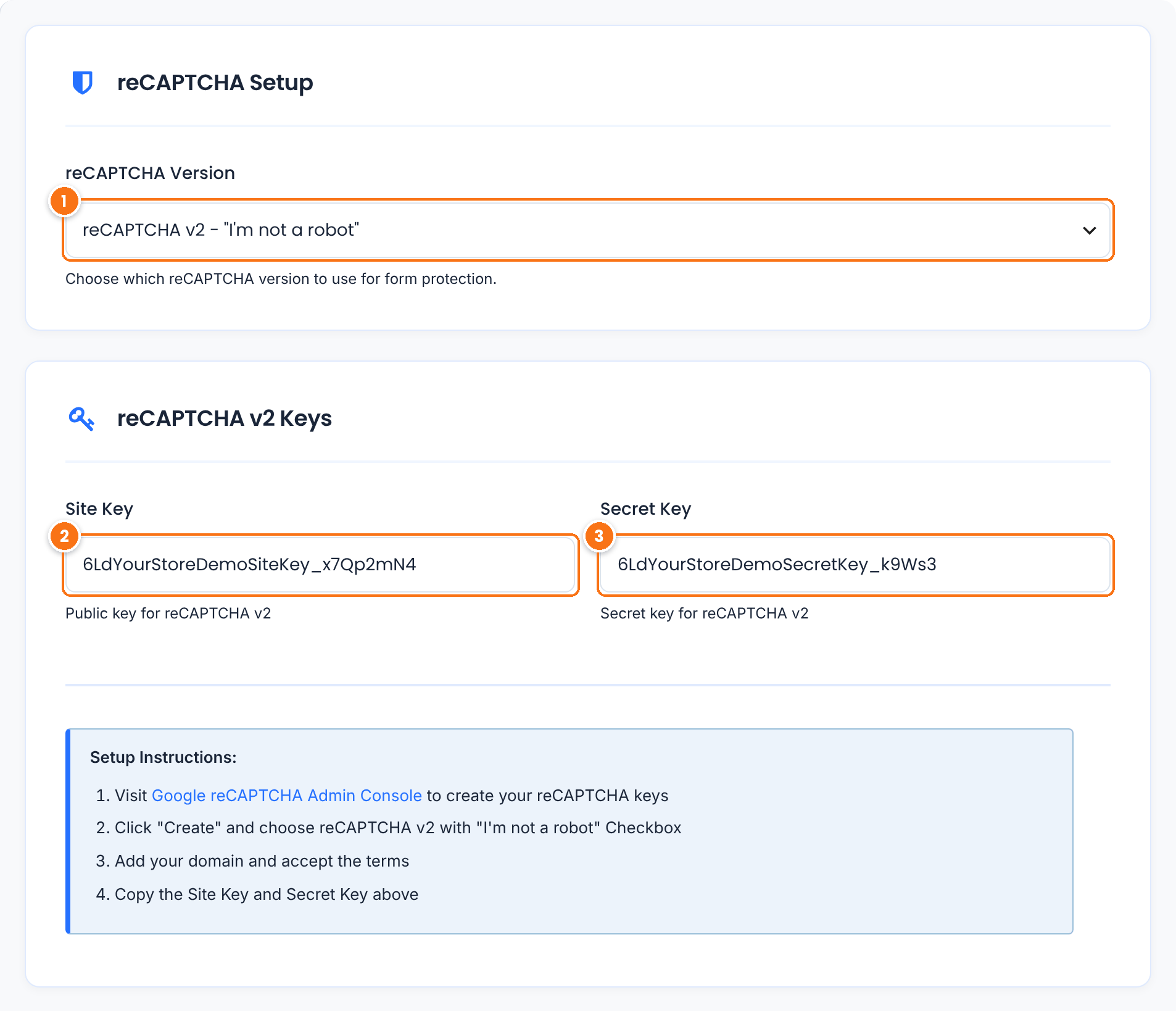
The version your keys were created for. The key fields below change to match it.
Default: reCAPTCHA v2 – “I’m not a robot”
The public key from Google. It is placed in the page so the reCAPTCHA can load.
The private key. Ultimate Affiliate Pro uses it to check each answer with Google. Never share it.
Click Save Changes.
Turn on affiliate registration reCAPTCHA #
Go to Ultimate Affiliate Pro›Showcases›Registration Form and open the Custom Fields tab. Find the field named Capcha (slug recaptcha); you can type its name in Filter fields.
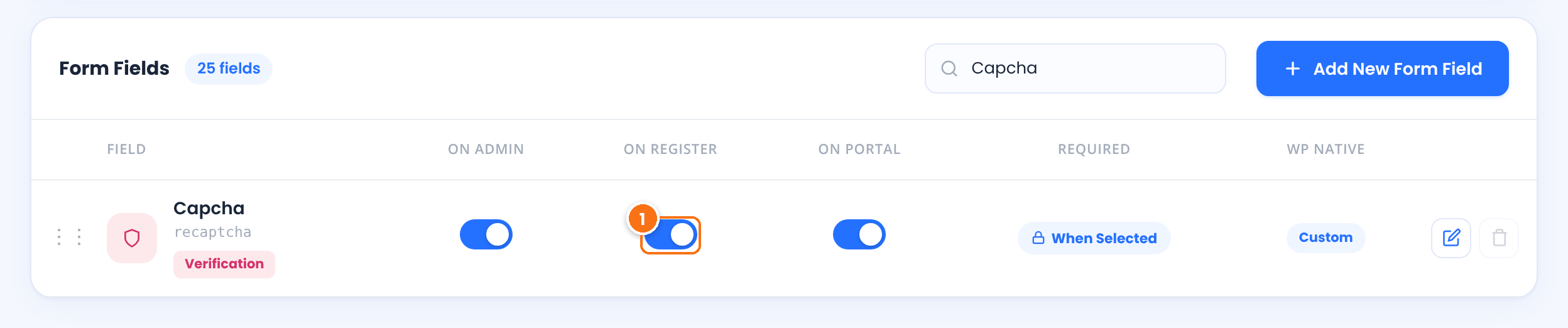
Turn it on to show the reCAPTCHA on the registration form. While it is shown, the check is always required: the form is not sent until it passes.
Default: Off
Click Save Changes. You can drag the row to choose where the reCAPTCHA appears on the form; most sites place it just before the terms checkbox.
Turn on reCAPTCHA for the login form #
Go to Ultimate Affiliate Pro›Showcases›Login Form. In Additional Options, turn on Display ReCaptcha Verification box and click Save Changes. The login form then uses the same keys and version.
Change the messages and the language #
Required ReCaptcha, in Showcases›Registration Form›Custom Messages.
Default: Oops! There was an error with the reCaptcha. Please try again
reCaptcha Error Message, in Showcases›Login Form›Custom Messages.
The v2 checkbox follows your WordPress site language, set in Settings›General›Site Language. With a multilingual plugin, it follows the language of the current page.
Test it #
- Open the registration page in a private browser window. With v2 you see the “I’m not a robot” checkbox; with v3 you see the small reCAPTCHA badge in the page corner.
- With v2, submit the form without ticking the checkbox and check that the error message appears.
- Register a test affiliate with the check passed, and repeat the test on the login form if you turned it on there.
To combine reCAPTCHA with affiliate approval, IP blocking and referral review, see Prevent affiliate fraud and spam signups.
Frequently asked questions #
The reCAPTCHA does not appear on the registration form. What do I check?
Check that both keys are saved for the version you selected, and that On Register is on for the Capcha field. The reCAPTCHA is shown only when a Site Key is saved. Then open the page in a private window, because the form is hidden for logged-in affiliates.
Google says the key is invalid for this site. What should I do?
Add your exact domain to the site in the Google reCAPTCHA Admin Console, and make sure the keys match the version selected in reCaptcha Setup. A v2 key does not work as a v3 key.
How do I change the language of the reCAPTCHA?
The v2 checkbox uses your WordPress site language from Settings, General. Change the Site Language there, or use a multilingual plugin for pages in several languages.
Can I use reCAPTCHA on the login form only?
Yes. Save your keys, leave On Register off for the Capcha field and turn on Display ReCaptcha Verification box in Showcases, Login Form.


