To migrate your affiliate plugin data from AffiliateWP, SliceWP, AffiliatePress, Solid Affiliate or a spreadsheet to Ultimate Affiliate Pro, follow four moves: export your affiliates and referrals to CSV, match your referral link settings, import the files in Ultimate Affiliate Pro›Export-Import, then switch off the old plugin. Your affiliates keep their accounts, their history and, in most cases, their existing links.
This guide is the plan for the whole move. The import screens themselves are explained step by step in Import and export data. If you are new to the plugin, read Affiliate referral links first, because keeping links working matters most when you migrate from one affiliate plugin to another.
Before you start
- Ultimate Affiliate Pro installed and activated on the same site as the old plugin. Keep the old plugin active until the end of the move.
- A full backup of your site files and database. See WordPress Backups.
- A spreadsheet app such as Excel, Google Sheets or LibreOffice Calc, to rename columns and save the files as CSV (UTF-8).
- A quiet moment for the switch, for example early in a week with no running promotion.
What moves and what stays #
| Data | How it moves |
|---|---|
| Affiliates | CSV import. WordPress user accounts stay the same: an existing user becomes an affiliate and keeps the same login and password. |
| Affiliate IDs | Kept when you map the Affiliate ID column and the ID is not used yet on this site. |
| Referrals and commissions | CSV import, with amount, date, status, payout status, reference and description. |
| Commission rates | Recreated as ranks. Each affiliate gets a rank from the Rank column. |
| Payout history | Kept as Paid on each imported referral. Save the old payout export as your record of the payments. |
| Settings, creatives, email texts | Set up again in Ultimate Affiliate Pro. They are specific to each plugin. |
Export your data from the old plugin #
Export two files: one with the affiliates and one with the referrals (some plugins call them commissions). Choose all statuses and the full date range.
- AffiliateWP: go to AffiliateWP › Tools › Export/Import and use Export Affiliates and Export Referrals.
- SliceWP: export affiliates and commissions to CSV with its data export feature.
- AffiliatePress: use its export option for affiliates and commissions.
- Solid Affiliate: open Data Export in its menu and download Affiliates and Referrals.
- Spreadsheet or other system: one row per affiliate and one row per referral, with a header row.
While you are in the old plugin, write down three settings: the referral variable (for example ref), the link format (ID or username) and the cookie duration.
Match your referral link settings #
Go to Ultimate Affiliate Pro›Settings›General Settings and find the Affiliate Links card. Set it so the links your affiliates already shared keep working.
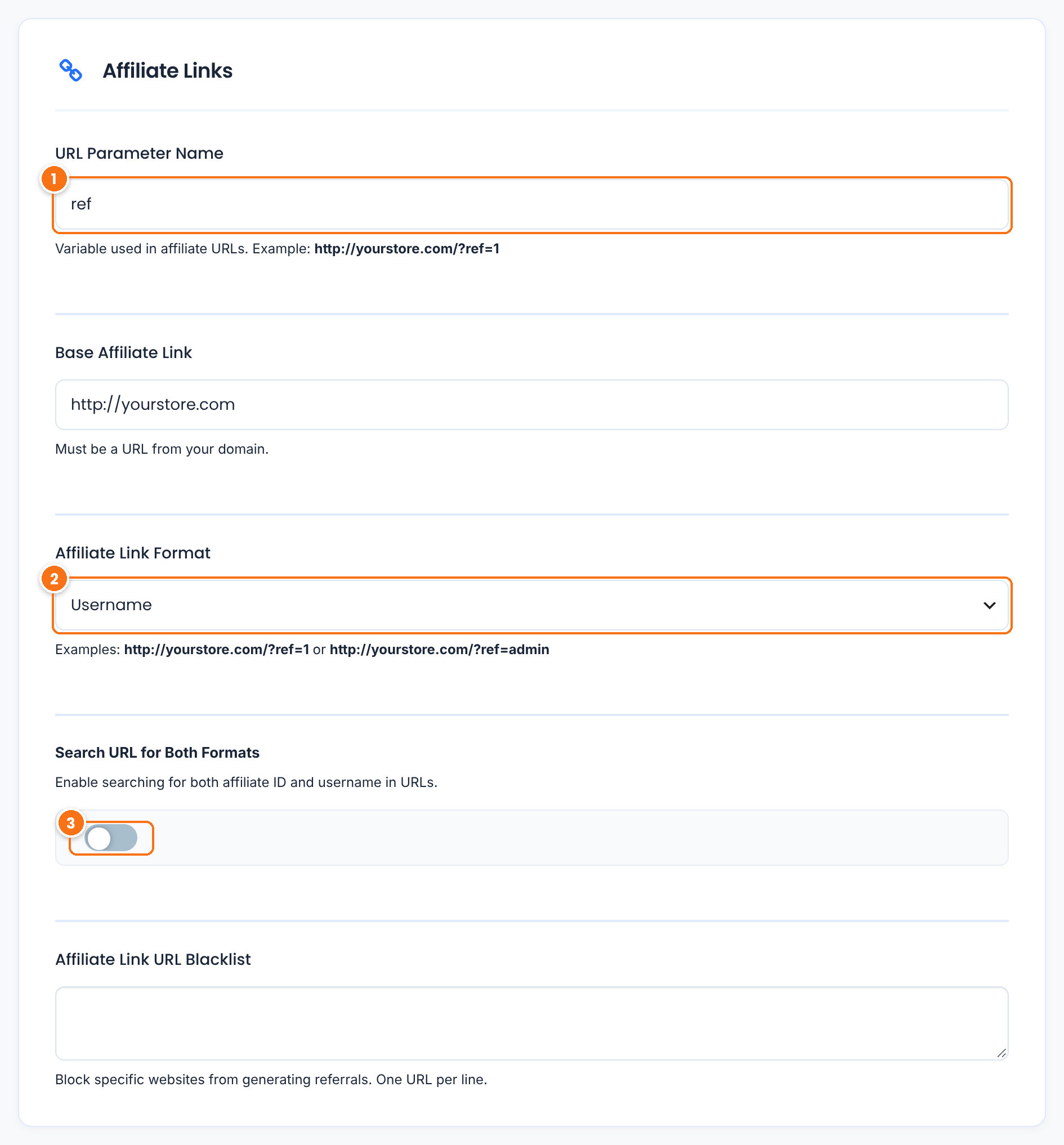
The variable in affiliate links. Enter the one your old plugin used, for example ref for AffiliateWP, aff for SliceWP or afref for AffiliatePress.
Default: ref
How new links show the affiliate: Username or Affiliate ID. With Username, links that hold the ID of an active affiliate also work.
Default: Username
Turn it on if you choose Affiliate ID and some old links use usernames. Links are then checked for both.
Default: Off
Both link forms are recognized, so yourstore.com/?ref=emma.collins and yourstore.com/ref/emma.collins/ credit the same affiliate. To give affiliates new links in the /ref/emma.collins/ form, turn on the Pretty Affiliate Links module. In the Cookie Settings card on the same page, set Cookie Expiration (Days) to the duration you used before. Click Save Changes.
Keep ID-based links working
If your affiliates shared links with a number, such as ?ref=14, import the affiliates with their old IDs (next steps). Affiliate 14 in the old plugin stays affiliate 14, and the link credits the right person.
Recreate your commission rates as ranks #
In Ultimate Affiliate Pro, the commission rate of an affiliate comes from their rank. Go to Ultimate Affiliate Pro›Ranks and create one rank for each rate or group you had, for example Basic at 10%, Silver at 15% and Gold at 20%. See Ranks.
Then add a rank column to your affiliates file and type each affiliate’s rank name exactly as you created it. Rows with an empty or unknown rank get the default rank for new affiliates.
Import affiliates #
Prepare the affiliates file: keep the columns for affiliate ID, email, username, name, rank, role and join date. Go to Ultimate Affiliate Pro›Export-Import, drop the file in the Affiliates import zone and click Import CSV File.
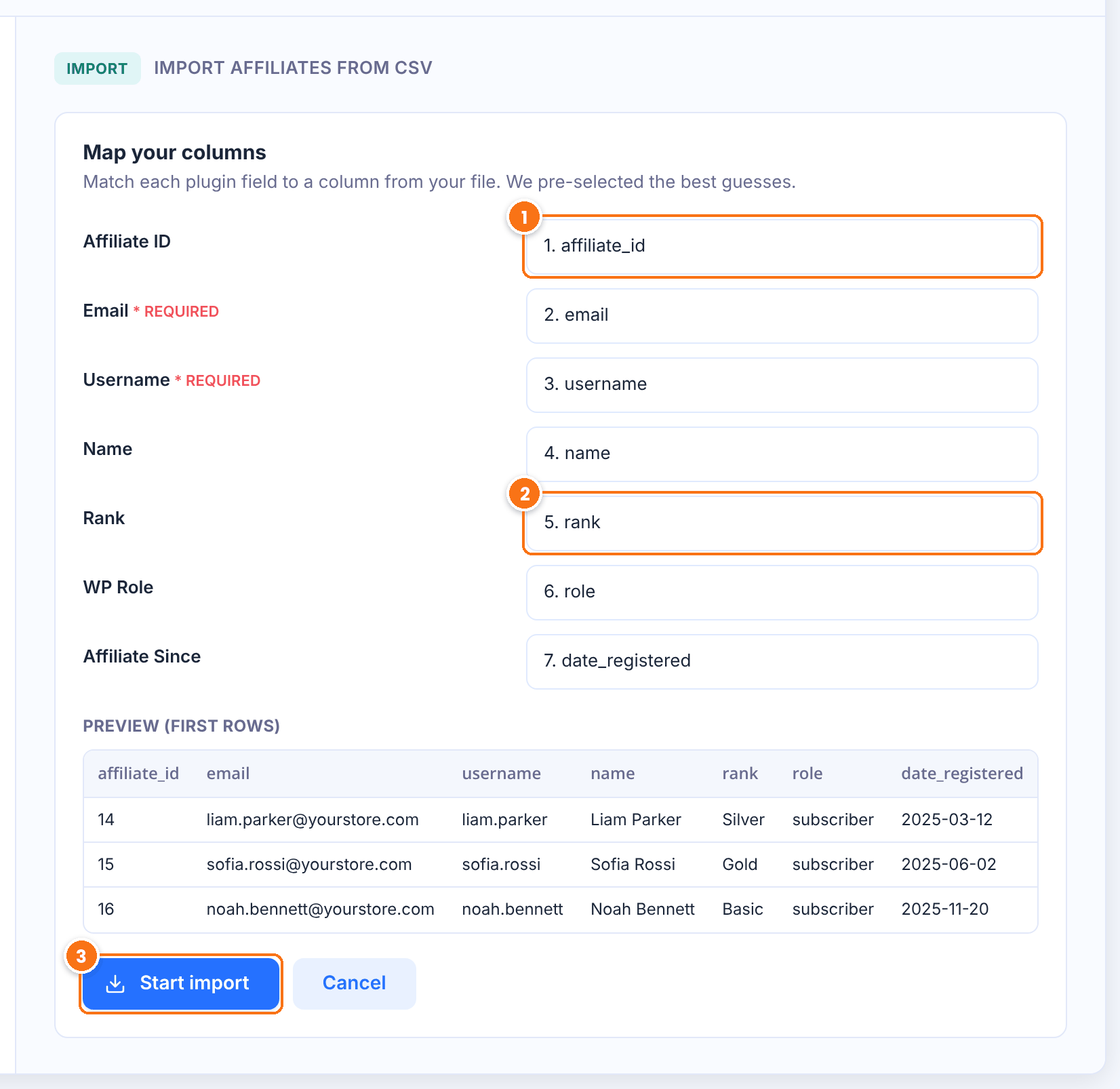
Map it to the ID column of the old export. Each affiliate keeps that ID when no other affiliate on this site has it.
Map it to the column with the rank names.
Imports the rows and shows a report with imported, skipped and failed rows.
Email and Username are required. An email that already belongs to a WordPress user turns that user into an affiliate, with the same login and password. A new email creates a new user with a random password.
Import referrals and commissions #
Prepare the referrals file, then import it in the Referrals section of the same page. Map at least Affiliate ID. Because you kept the IDs, the affiliate ID in each row of the old export already points to the right affiliate. Change the old status values to these:
| Old status | Status | Payout Status |
|---|---|---|
| Unpaid | Approved | Unpaid |
| Paid | Approved | Paid |
| Pending | Pending | Unpaid |
| Rejected | Rejected | Unpaid |
- Amount: the commission with its currency, for example
18.00 USD. If the currency is in a separate column, join the two in your spreadsheet. - Reference: the order number. A row with the same reference and affiliate as an existing referral is skipped, so you can import the file again safely.
- Date: keep the original date, for example
2026-09-30 10:15:00. - Source: the platform name, for example
WooCommerce.
Referrals marked Paid count as paid earnings and are not paid again. Approved, unpaid referrals are ready for your next payout.
Direct migration for AffiliateWP, Affiliates Pro and WP Affiliate #
For three plugins, Ultimate Affiliate Pro also has a one-click migration that reads the old plugin’s data from your database. Go to Ultimate Affiliate Pro›Modules and open the Migration section.
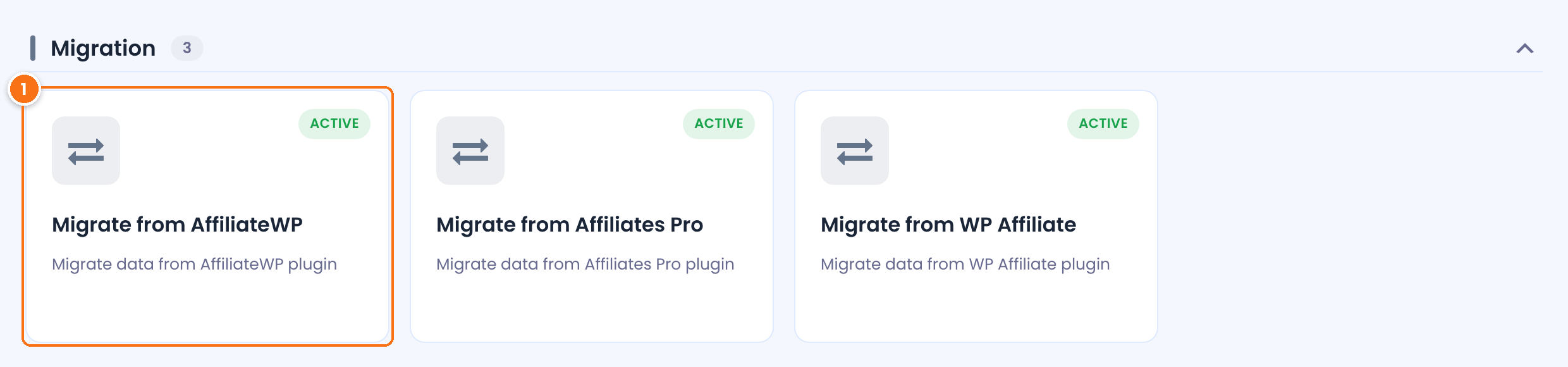
Moves affiliate user accounts and their referrals. Migrate from Affiliates Pro works the same way. Migrate from WP Affiliate moves affiliate user accounts.
Click a card. The screen explains what is copied and reminds you that the original data is not removed.
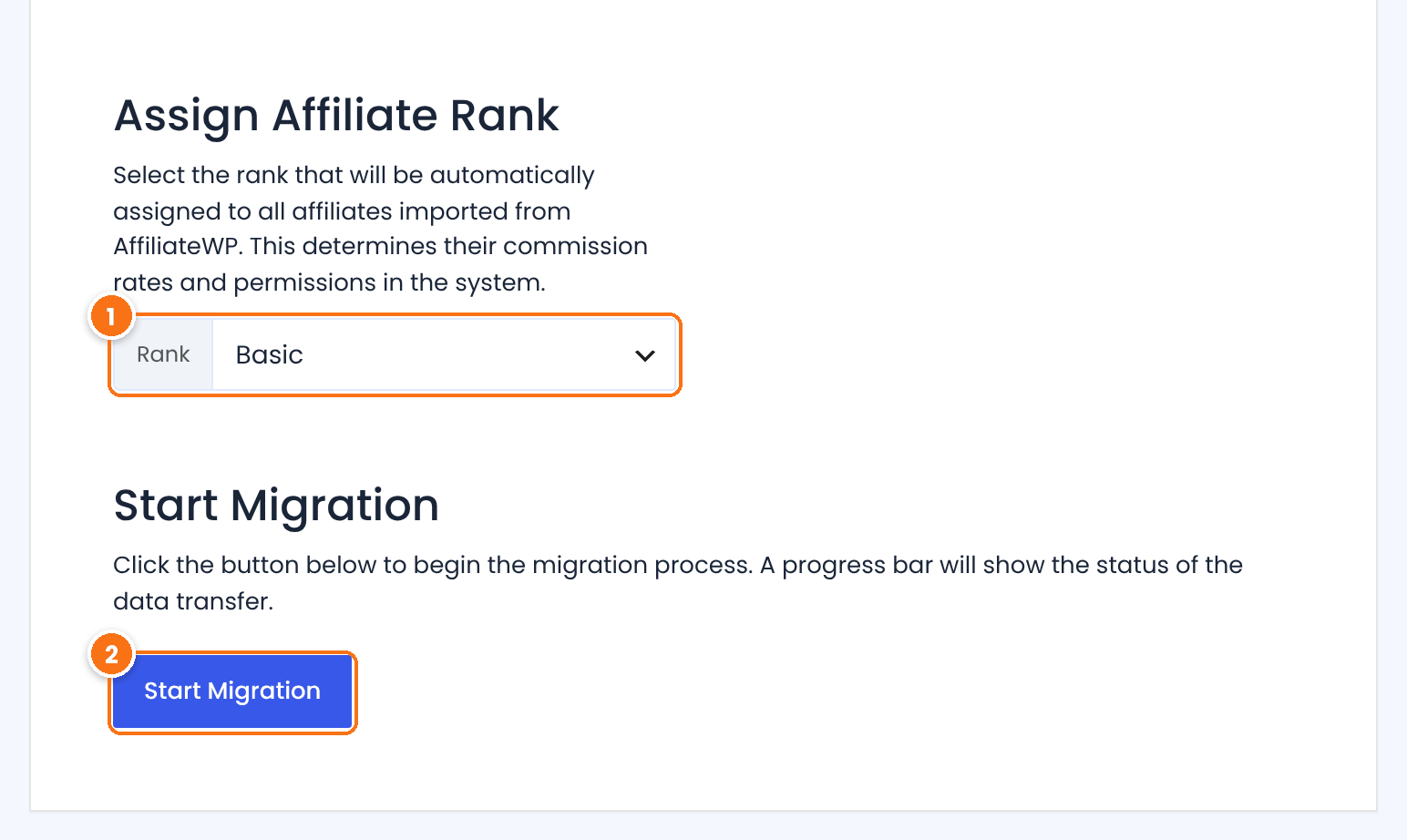
The rank that all migrated affiliates receive. It sets their commission rate.
Copies affiliates first, then referrals, in batches of 100. A progress bar shows the status, and the page reloads when the process is completed.
The direct migration gives each affiliate a new Ultimate Affiliate Pro affiliate ID and one rank for everyone. Use the CSV route when you want to keep the old IDs or give affiliates different ranks. SliceWP, AffiliatePress and Solid Affiliate use the CSV route.
Finish the switch #
- Open Ultimate Affiliate Pro›Affiliates and compare the number of affiliates and their paid and unpaid earnings with the old plugin.
- Set up the affiliate pages in Ultimate Affiliate Pro›Settings›Pages Setup. To keep the old affiliate area address, put the
[uap-account-page]shortcode on the old page, or redirect the old address to the new page. - Do the same for the registration and login pages, with
[uap-register]and[uap-login-form]. - Set up payout methods, email notifications and creatives again.
- Deactivate the old plugin, so only one plugin tracks referrals. Keep it installed until you are sure all data is correct.
- Email your affiliates: where to log in, where to find their links, and that their history moved with them.
Clicks before the switch
For visitors who clicked an affiliate link before the switch, Ultimate Affiliate Pro starts tracking from their next visit through an affiliate link. Switch at a quiet time to keep this window small.
Test it #
- Open an old affiliate link in a private browser window, for example
yourstore.com/?ref=14. - Place a test order and check that a referral appears for the right affiliate in Ultimate Affiliate Pro›Referrals.
- Log in as an affiliate and check the earnings and the referral history in the Affiliate Portal.
- For a complete check, follow Test your affiliate program.
Frequently asked questions #
How do I migrate from AffiliateWP to Ultimate Affiliate Pro?
Export affiliates and referrals from AffiliateWP to CSV, set the URL Parameter Name in Ultimate Affiliate Pro to the same variable, create ranks for your rates, then import both files in Ultimate Affiliate Pro, Export-Import. You can also use the Migrate from AffiliateWP module in Modules.
Will my affiliates’ existing links still work?
Yes, when the URL Parameter Name matches the old variable. Username links work right away, and ID links work when you import affiliates with their old IDs.
Do affiliates need to register again?
No. Affiliates who already have a WordPress account on your site keep the same login and password. New users get a random password and can reset it from the login page.
Can I migrate from SliceWP?
Yes. Export affiliates and commissions from SliceWP as CSV and import them in Export-Import. Set the URL Parameter Name to aff if your affiliates use SliceWP links.
Is the payout history migrated?
Referrals keep their paid or unpaid status, so earnings are correct and paid commissions are not paid again. Keep the old payout export as a record of each payment.
Is my old data deleted?
No. Importing and migrating only add data to Ultimate Affiliate Pro. The old plugin’s data stays until you remove it.


