Affiliate registration not working, or affiliates cannot log in? The message on the form usually points to the cause: a required field, reCAPTCHA, an account waiting for approval, a cached page or another plugin that changes the WordPress login. This guide goes through each message and its fix.
Ultimate Affiliate Pro uses its own front-end forms: [uap-register] for registration, [uap-login-form] for login and [uap-reset-password] for lost passwords. They work with the pages assigned in Ultimate Affiliate Pro›Settings›Pages Setup. To change the fields or the messages, see customize the affiliate registration form.
Before you start
- A private browser window. Forms are not shown to logged-in administrators: the page shows a notice instead, so always test while logged out.
- The exact message the affiliate sees, or a screenshot of it.
- Access to Ultimate Affiliate Pro›Showcases›Registration Form and Ultimate Affiliate Pro›Showcases›Login Form.
Check the pages and shortcodes #
Go to Ultimate Affiliate Pro›Settings›Pages Setup. Each of these must point to a published page that contains its shortcode:
- Registration Page with
[uap-register]. - Login Page with
[uap-login-form]. - Lost Password Page with
[uap-reset-password]. - Affiliate Portal with
[uap-account-page]. - TOS Page, the page with your affiliate program terms, linked from the registration form.
Use page slugs of your own, such as affiliate-login or become-an-affiliate. Common slugs like login, register or lost-password are often taken by WordPress, a security plugin or your theme, and the page may then not show the form. After you change a slug, save your permalinks again in Settings, Permalinks. If your page builder does not render the shortcode, add it in a Shortcode block or widget.
Affiliate registration not working: fix form errors #
The registration form shows these messages by default. You can change their text in the Custom Messages tab of the Registration Form showcase.
A field marked as required is empty. Two fields are easy to miss: the Terms & Conditions checkbox and reCAPTCHA. In Ultimate Affiliate Pro›Showcases›Registration Form, open Custom Fields and check which fields are shown On Register Page and set as Required.
reCAPTCHA is on the form but its keys are missing or do not match. In Ultimate Affiliate Pro›Settings›reCaptcha Setup, check that reCAPTCHA Version matches the type of keys you created, v2 or v3, and that your domain is added to those keys in the Google reCAPTCHA console. See add reCAPTCHA to affiliate forms.
The affiliate did not tick the terms checkbox. Make sure the checkbox has a clear label: set Terms & Conditions Label in the Register Showcase tab and assign the TOS Page in Pages Setup.
The person already has an account on your site, for example as a customer. Ask them to log in and become an affiliate from their account. A page with the [uap-user-become-affiliate] shortcode shows a Become an Affiliate button to logged-in users. See turn existing users into affiliates.
Passwords must follow the Minimum Length (6 characters by default) and Password Strength Options set in the Register Showcase tab. Lower the requirements if they are stricter than you need.
Check approval and email verification #
Registration can succeed and still leave the affiliate unable to log in. That is the case when new accounts wait for your approval. Go to Ultimate Affiliate Pro›Showcases›Registration Form, tab Register Showcase.
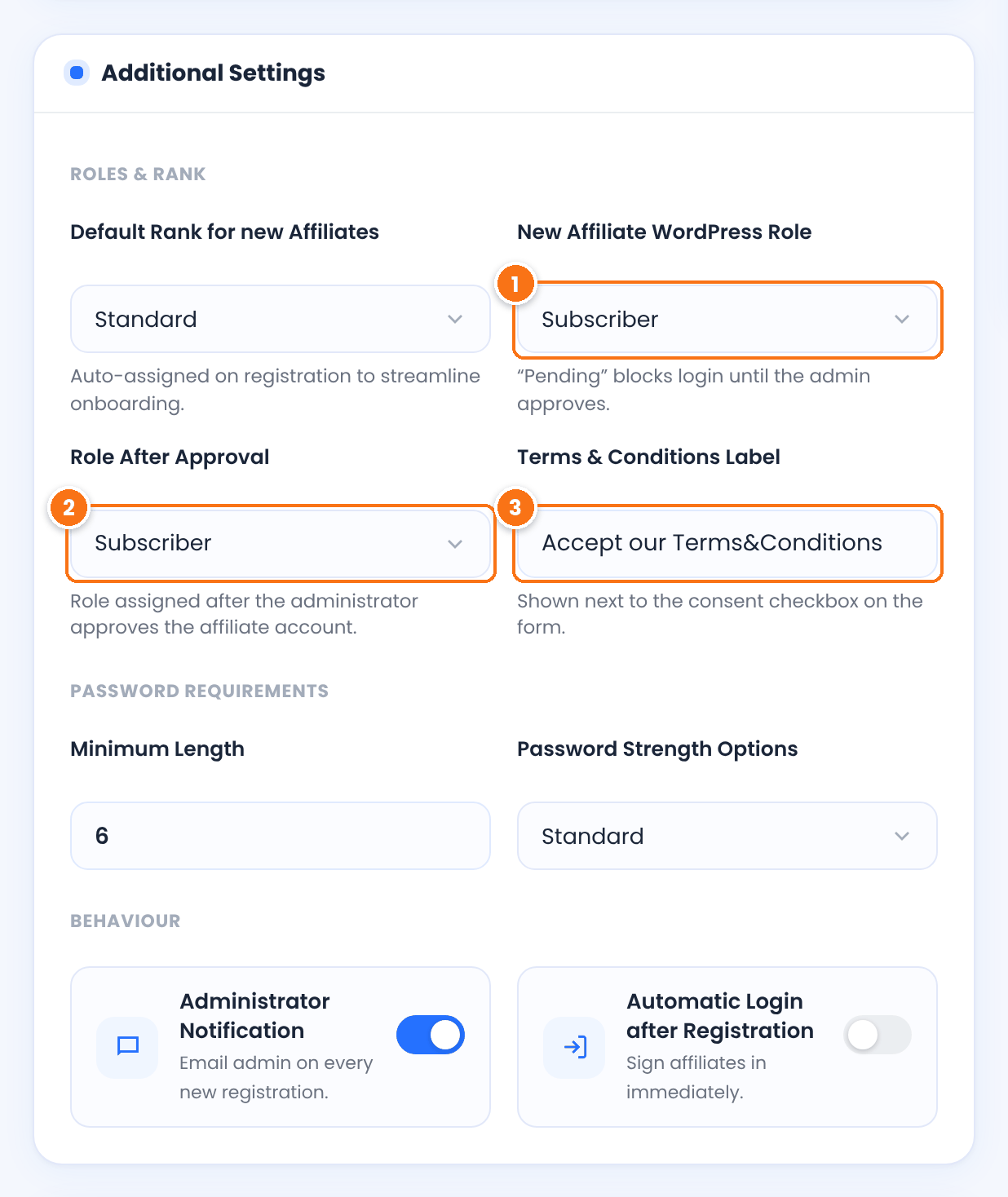
The role new affiliates get. With Pending, affiliates cannot log in until you approve them, and the login form shows Your Affiliate account has not been approved yet. To approve someone, go to Ultimate Affiliate Pro › Affiliates, open the actions menu on their row and click Approve Affiliate.
Default: Subscriber
The role the affiliate gets when you approve the account.
Default: Subscriber
The text next to the terms checkbox on the registration form.
Default: Accept our Terms&Conditions
With the Email Verification module on, affiliates must click the link in their verification email before they can log in. Until then, the login form shows Your Affiliate Email address has not been verified yet. You can verify an account yourself with Approve Email in the same actions menu. If the email never arrives, see emails are not sent. More in approve affiliates and verify their email.
Fix login errors #
When the login fails, the form shows the error message from the Custom Messages tab of the Login Form showcase.
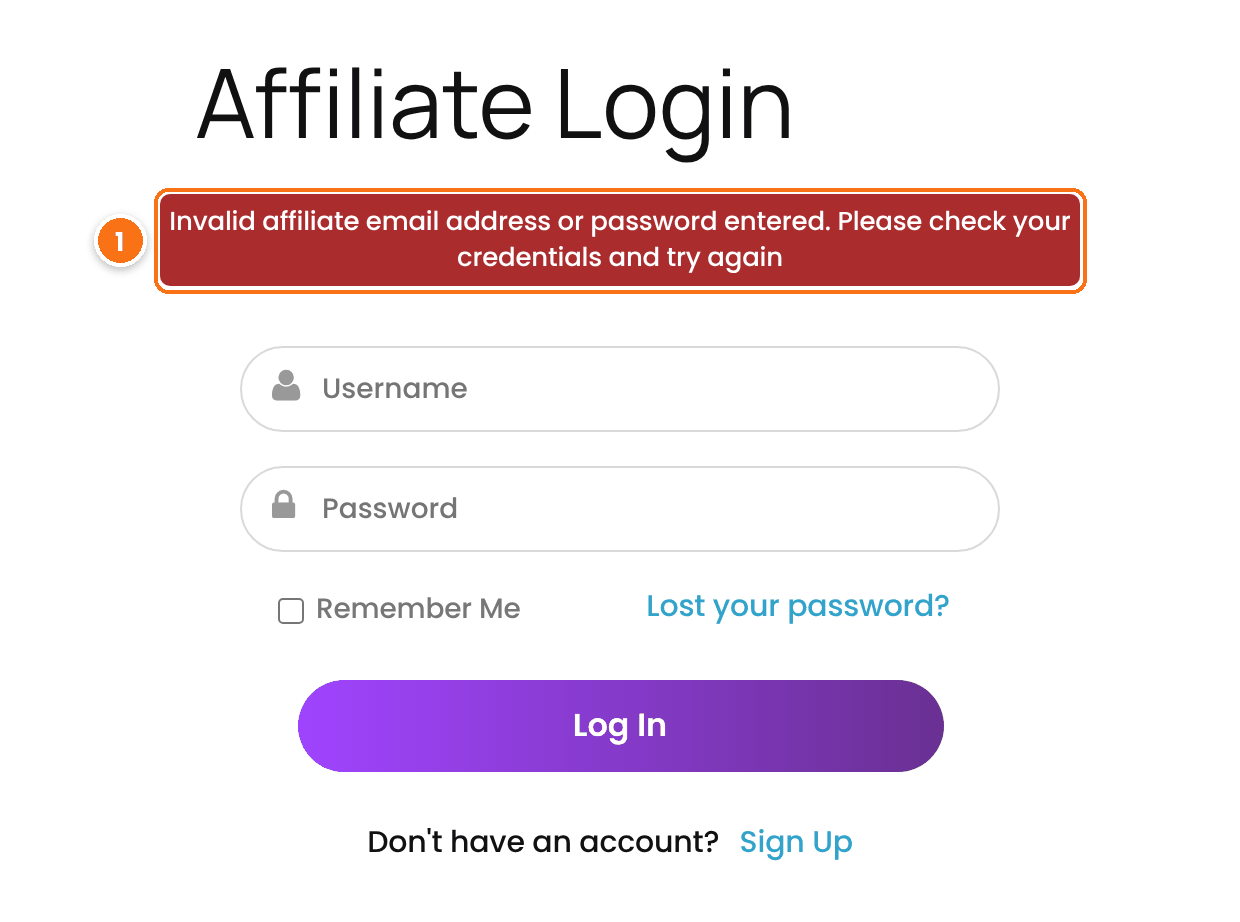
The username or password is wrong, or the account is not an affiliate. Affiliates log in with their username or the email address of their account. A WordPress user who is not an affiliate, such as a customer or an editor, gets the same message. Make the user an affiliate first, as shown in turn existing users into affiliates. The affiliate can also reset the password from the Lost your password? link.
If the credentials are right and the message keeps coming back, or the page reloads without logging in, check these causes:
- A cached login page. A cached copy of these pages can show an outdated form or an old message, and the lost password form uses a security token that expires. Exclude these pages, and the Affiliate Portal, from caching. See cache plugins and host caching.
- Another login form on the same page. Some themes and page builders add their own login popup. Keep only the Ultimate Affiliate Pro form on the page.
- Plugins that change the WordPress login. Security plugins, two-factor login, custom login URL plugins and other captcha plugins can block the form. Turn on Safe Mode to test, as shown in plugin and theme conflicts.
- The wrong page after login. Where affiliates land after login is set in Ultimate Affiliate Pro›Settings›Redirects Setup, option After Login. See redirects for affiliates.
Test it #
- Open the registration page in a private window and create a test affiliate.
- If accounts need approval, approve it in Ultimate Affiliate Pro › Affiliates.
- Log in on the login page with the new username and password.
- Check that you land on the Affiliate Portal.
Frequently asked questions #
Why do I not see the registration form when I open the page?
The form is hidden from logged-in administrators, and from users who are already affiliates. Open the page in a private window to see it as a visitor.
Can affiliates log in with their email address?
Yes. The login form accepts the username or the email address of the account, together with the password.
Where do I change the error messages?
In Ultimate Affiliate Pro, Showcases, Registration Form, tab Custom Messages for registration, and in Showcases, Login Form, tab Custom Messages for login.
A new affiliate cannot log in after registering. What do I check?
Check New Affiliate WordPress Role in the Register Showcase tab. With Pending, approve the affiliate first. With the Email Verification module on, the affiliate must confirm the email address first.
Can existing customers become affiliates without a new account?
Yes. Logged-in users can join from a page with the [uap-user-become-affiliate] shortcode, or you can make them affiliates yourself from the Affiliates screen.


