Skip to content
  • Try Now
  • Features
    • MLM Affiliate Program
    • Smart Affiliate Tracking
    • Advanced Commission Rules
    • Simplified Affiliate Payouts
    • Ultimate Affiliate Pro vs AffiliateWP vs EasyAffiliate
    • See all Features
  • Integrations
    • WooCommerce
    • Easy Digital Downloads
    • WPForms
    • Ninja Forms
    • See all Integrations
  • Pricing
  • Support
    • Documentation
    • Open a Ticket
  • AddOns
    • Standard Add-Ons
    • Pro Add-Ons
  • Demo
  • Blog
Login
Ultimate Affiliate Pro
  • Try Now
  • Features
    • MLM Affiliate Program
    • Smart Affiliate Tracking
    • Advanced Commission Rules
    • Simplified Affiliate Payouts
    • Ultimate Affiliate Pro vs AffiliateWP vs EasyAffiliate
    • See all Features
  • Integrations
    • WooCommerce
    • Easy Digital Downloads
    • WPForms
    • Ninja Forms
    • See all Integrations
  • Pricing
  • Support
    • Documentation
    • Open a Ticket
  • AddOns
    • Standard Add-Ons
    • Pro Add-Ons
  • Demo
  • Blog
Login
Buy Now
Ultimate Affiliate Pro

Getting Started

10
  • Update Ultimate Affiliate Pro
  • Translate Ultimate Affiliate Pro (WPML, Polylang)
  • Install and activate Ultimate Affiliate Pro
  • How Ultimate Affiliate Pro works
  • Test your affiliate program
  • Requirements and compatibility
  • Manage your license: move, revoke and migrate
  • Affiliate marketing glossary
  • Quick start: launch your affiliate program
  • Settings overview

Affiliates & Affiliate Portal

8
  • Change texts, labels and messages
  • Affiliate profile picture (avatar)
  • Set up the Affiliate Account Page
  • Manage affiliates: add, approve and edit
  • Affiliate area in WooCommerce and BuddyPress accounts
  • Redirects and wp-admin access for affiliates
  • Customize templates and styles
  • What affiliates see: stats and earnings

Registration & Login

10
  • The OptIn Subscription are not stored
  • How to activate OptIn Subscriptions?
  • Add reCAPTCHA to affiliate forms
  • Set up the registration, login and password pages
  • Approve affiliates and verify their email
  • Wp Social Login Integration
  • Turn existing users and customers into affiliates
  • How password reset works for affiliates
  • Customize the affiliate registration form
  • Charge affiliates to join your program

Tracking & Referral Links

9
  • Affiliate referral links
  • Affiliate coupon tracking
  • Friendly affiliate links and custom slugs
  • Direct link tracking: credit affiliates by their website
  • Visits and source details
  • Landing commissions (pay per action)
  • Campaigns
  • How affiliate tracking works
  • Cookie consent and affiliate tracking

Commissions & Referrals

12
  • Ranks: commission tiers for affiliates
  • Signup referrals (pay per lead)
  • Commissions on every future order of a referred customer
  • Recurring commissions for subscriptions
  • Own referrals
  • Manage referrals: status, reassign and limits
  • Fair checkout reward
  • Currencies and multi-currency stores
  • Commission rates per product
  • How commissions are calculated
  • Include or exclude products from commissions
  • Affiliate reports and statistics

MLM (Multi-Level Marketing)

4
  • Show the MLM tree to affiliates
  • Assign or change an MLM parent
  • Set up an MLM affiliate program
  • MLM structures: unilevel, binary and matrix

Creatives & Promotion

3
  • Social share buttons
  • QR codes for affiliate links
  • Creatives: banners and text links

Payouts

5
  • Store Credit
  • How affiliate payouts work
  • Stripe payouts
  • PayPal payouts
  • Bank transfer and manual payouts

Emails & Notifications

4
  • Email notifications
  • Periodical reports for affiliates
  • Pushover push notifications
  • Contact your affiliates

Integrations

26
  • Dokan
  • WPForms affiliate tracking
  • Contact Form 7 affiliate tracking
  • Ninja Forms Tracking
  • Bitly Integration
  • Zapier
  • myCRED
  • LearnPress affiliate integration
  • LifterLMS affiliate integration
  • Tutor LMS affiliate integration
  • Amelia affiliate integration
  • WP Booking Calendar affiliate integration
  • The Events Calendar affiliate integration
  • Integrations overview
  • WooCommerce
  • Easy Digital Downloads
  • Ultimate Membership Pro
  • Page builders (Elementor, Divi, blocks)
  • MemberPress affiliate integration
  • Paid Memberships Pro affiliate integration
  • Restrict Content Pro affiliate integration
  • MemberMouse affiliate integration
  • Gravity Forms affiliate tracking
  • Fluent Forms affiliate tracking
  • Forminator affiliate tracking
  • LearnDash affiliate integration

Pro Add-ons

26
  • WooCommerce discounts for referred buyers
  • One Time Reward: one referral per customer
  • Split Commission between affiliates
  • Extended Shortcodes: show content to affiliates and visitors
  • Import referrals via CSV
  • WooCommerce Revenue Sharing
  • Manage Reset Password: a custom reset password page
  • WooCommerce Redirect for affiliates
  • Extension Kit
  • Anchor Link
  • Random Affiliate ID
  • Exchange Rate
  • External Referral Links
  • WooCommerce Product Discounts
  • Remove Dummy Data
  • Payout Request By Affiliate
  • MLM Based On Product Price
  • IP Restrictions
  • Invite Your Friends
  • Fraud Protection
  • Affiliate Own Referrals
  • Pro add-ons: what they are and how to install them
  • Dynamic Coupons: automatic affiliate coupons
  • Rank Achievement – Network Growth
  • Affiliate Manager role
  • Mass Affiliate Conversion

Developers

4
  • Import and export data
  • REST API
  • Hooks and filters
  • Shortcodes reference

Troubleshooting

10
  • Emails are not sent
  • Plugin and theme conflicts
  • PHP errors: 500, parse error, cannot redeclare
  • Referrals or clicks are not recorded
  • Affiliate link opens a 404 page
  • Registration and login problems
  • Referral dates and time zone
  • License activation problems
  • Cache plugins and host caching
  • Before you contact support
  • Home
  • Docs
  • Registration & Login
  • Set up the registration, login and password pages

Set up the registration, login and password pages

7 min read

7 minBeginnerUltimate Affiliate Pro 9.7+

The affiliate registration page is the page where visitors sign up for your affiliate program. Ultimate Affiliate Pro uses six front-end pages in total: registration, login, lost password, logout, the Affiliate Portal and your program terms. This guide shows how to create them, assign them and choose where affiliates go after they log in, register or log out.

When you activate the plugin, it creates five of these pages for you and assigns them automatically. Most sites only need to check the setup, add a logout option and adjust the redirects. If you are starting from scratch, follow the quick start guide first.

Before you start

  • Ultimate Affiliate Pro installed, with your license active.
  • Permission to create and edit pages in WordPress.
  • A private (incognito) browser window, to see the forms the way visitors see them.

The pages and their shortcodes #

Each page is a normal WordPress page with one shortcode in its content. You can add your own text, images or layout around the shortcode. In the block editor, use a Shortcode block. In Elementor or another page builder, use its shortcode widget.

Default pages created on activationPage title and shortcode
Registration Page
Become an Affiliate: [uap-register]
Login Page
Affiliate Login: [uap-login-form]
Lost Password Page
Affiliate Reset Password: [uap-reset-password]
Affiliate Portal
Affiliate Portal: [uap-account-page]
TOS Page
Affiliate Program Terms: your terms, no shortcode
Logout Page
Not created. Optional: [uap-logout]

You find every shortcode, ready to copy, in Ultimate Affiliate Pro›Shortcodes. The registration and login shortcodes also show a Copy chip at the top of their Showcases screens.

Assign the pages #

Go to Ultimate Affiliate Pro›Settings›Pages Setup. Each dropdown lists your published pages. Under a selected page you see its link, so you can open it and check it.
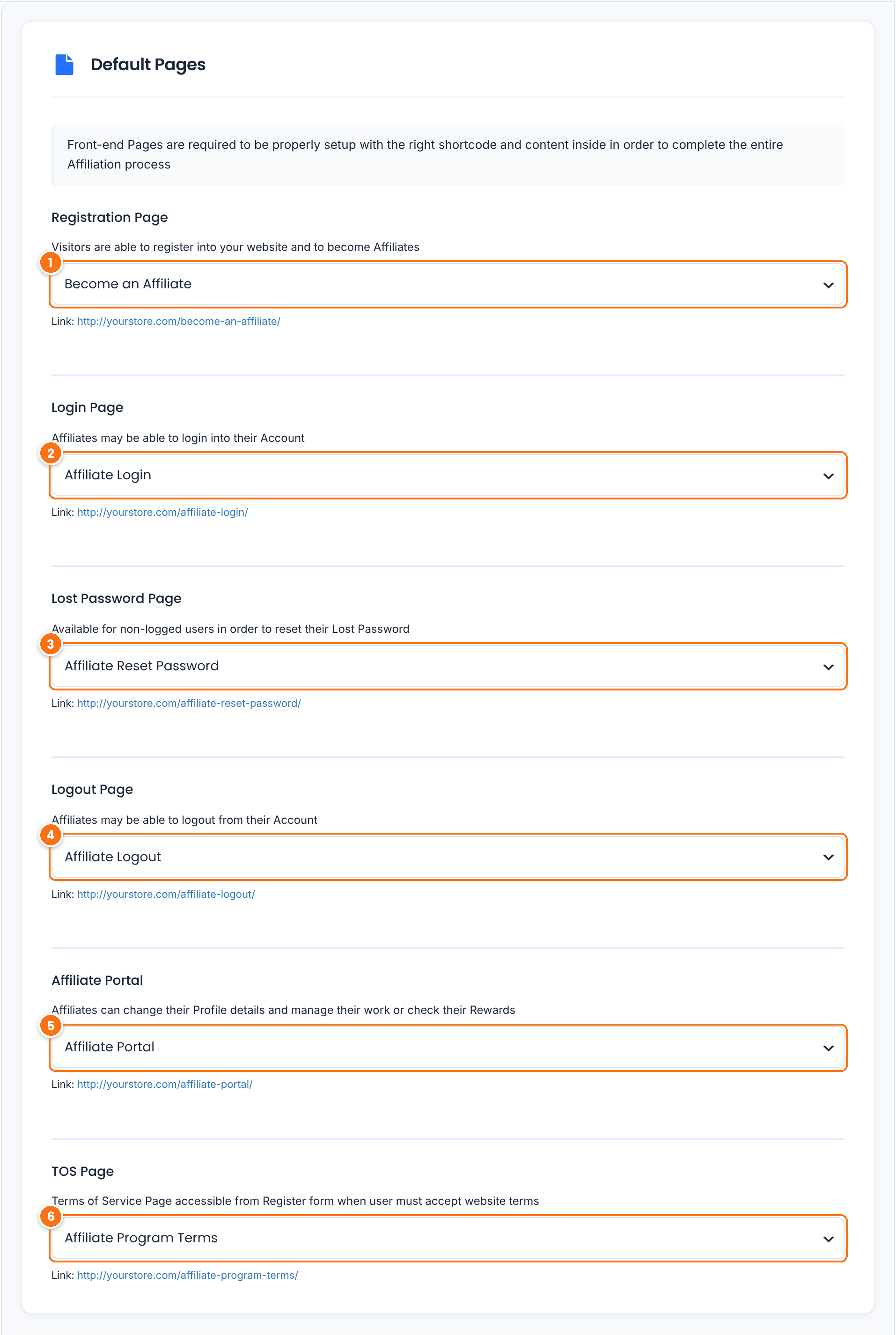
Default Pages card in Ultimate Affiliate Pro Pages Setup settings with the Registration Page, Login Page, Lost Password Page, Logout Page, Affiliate Portal and TOS Page dropdowns
The Default Pages card in Settings › Pages Setup.
1Registration Page

The page with [uap-register], where visitors apply to become affiliates. The login form links to it.

2Login Page

The page with [uap-login-form]. Only affiliates can log in through this form. A WordPress user who is not an affiliate sees the login error message.

3Lost Password Page

The page with [uap-reset-password], opened from the Lost your password? link of the login form. See how password reset works.

4Logout Page

Optional. A page with [uap-logout], which shows a Log Out button to logged-in affiliates. You can also use a menu link instead, as shown in step 3.

5Affiliate Portal

The page with [uap-account-page], where affiliates see their links, stats and payouts. See Affiliate Portal settings.

6TOS Page

Your affiliate program terms. The terms checkbox on the registration form links to this page.

Click Save Changes at the bottom of the page.

Tip

You can also assign a page while you edit it. In the page editor sidebar, the Affiliates Pro – Default Pages box lets you pick what the page is used for and shows which default pages are still not set.

Choose where affiliates are redirected #

Go to Ultimate Affiliate Pro›Settings›Redirects Setup. Each option is a list of your pages, with Do Not Redirect as the first choice.
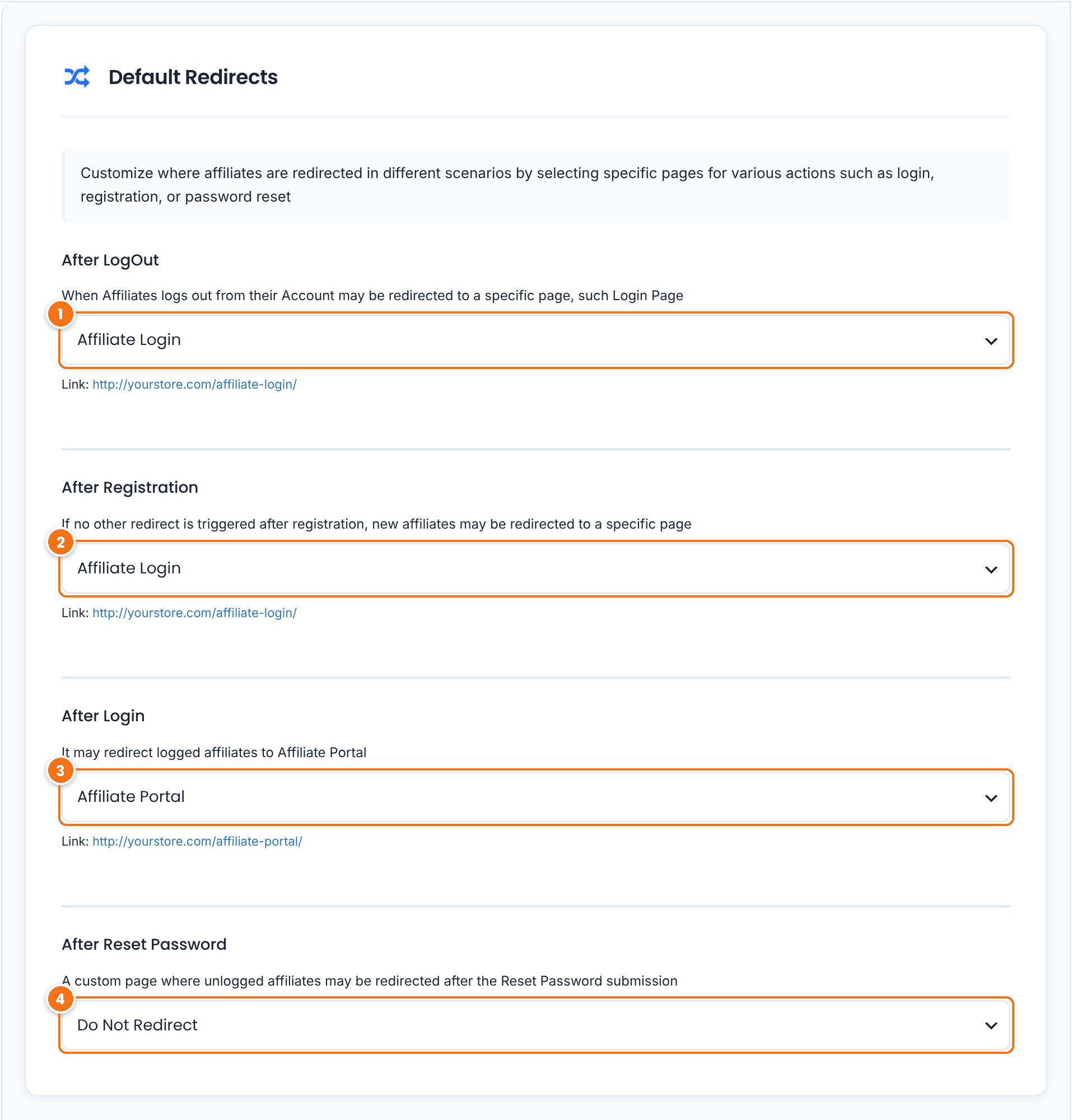
Default Redirects in Ultimate Affiliate Pro: After LogOut, After Registration, After Login and After Reset Password page dropdowns
The Default Redirects card, with the values set on activation.
1After LogOut

The page affiliates see after they log out. With Do Not Redirect, they stay on the page where they clicked the logout link.

Set on activation: Affiliate Login

2After Registration

The page new affiliates see after they submit the registration form. With Do Not Redirect, the registration page reloads and shows the success message.

Set on activation: Affiliate Login

3After Login

The page affiliates open after they log in through the affiliate login form. Most programs send them to the Affiliate Portal.

Set on activation: Affiliate Portal

4After Reset Password

The page affiliates open after they click the confirmation link in the password reset email. When no page is set, they go to your homepage.

Below it, the Extra Redirects card protects the pages from the wrong visitors:

Affiliate Portal – Restricted

Where visitors who are not logged in go when they open the Affiliate Portal. Set on activation: Affiliate Login.

Login Page – Restricted and Registration Page – Restricted

Where logged-in affiliates go when they open the login or registration page. Set on activation: Affiliate Portal.

LogOut Page – Restricted and Lost Password Page – Restricted

Where visitors who are not logged in go when they open the logout page, and where logged-in affiliates go when they open the lost password page. Set on activation: Affiliate Login and Affiliate Portal.

Click Save Changes. For redirects that keep affiliates out of the WordPress dashboard, see redirects and wp-admin access for affiliates.

Add a logout link to your menu #

Affiliates can log out from the Affiliate Portal. To give them a logout link in your site menu as well, add a custom link that ends in ?uapaction=logout:

  1. Open your menu: Appearance›Menus in a classic theme, or the Navigation block in Appearance›Editor in a block theme.
  2. Add a custom link with the URL https://yourstore.com/?uapaction=logout, using your own domain.
  3. Name it Log Out and save the menu.

The link logs the user out and opens the After LogOut page from step 2. To show the link only to logged-in users, use your theme’s menu visibility options or a menu visibility plugin. You can learn more about menus in the WordPress menus documentation.

Choose what the login form shows #

Go to Ultimate Affiliate Pro›Showcases›Login Form. Pick one of the 13 templates, then use the Additional Options card. The live preview on the right updates as you change them.
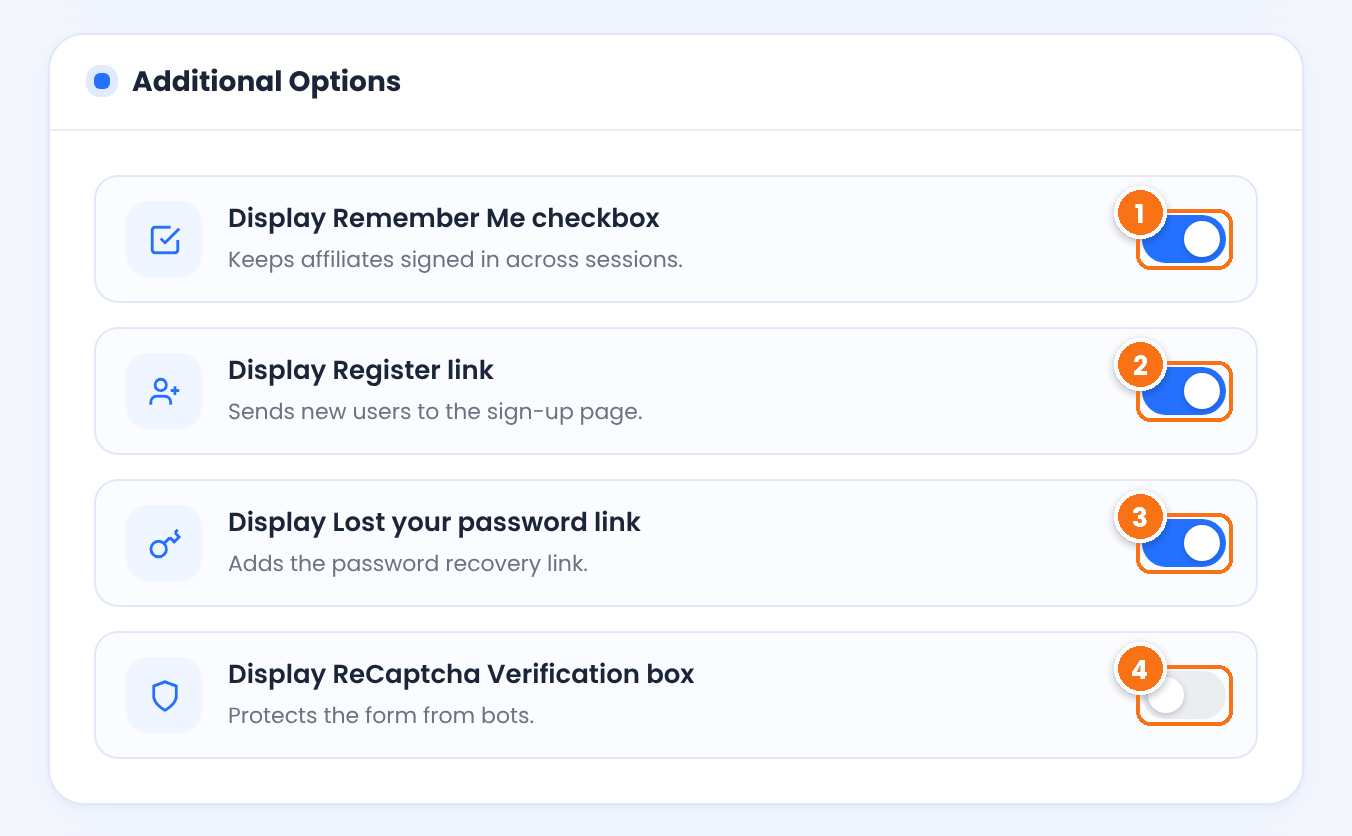
Login Form Showcase Additional Options: Display Remember Me checkbox, Display Register link, Display Lost your password link and Display ReCaptcha Verification box switches
Additional Options in Showcases › Login Form.
1Display Remember Me checkbox

Lets affiliates stay logged in after they close the browser.

Default: On

2Display Register link

Shows a link to the Registration Page under the form.

Default: On

3Display Lost your password link

Shows a link to the Lost Password Page.

Default: On

4Display ReCaptcha Verification box

Adds a reCAPTCHA check to the login form. It needs your reCAPTCHA keys. See Add reCAPTCHA to affiliate forms.

Default: Off

Click Save Changes. The messages affiliates see on the login screen, such as the error and pending messages, are in the Custom Messages tab of the same screen. To change the registration form itself, see Customize the affiliate registration form.

Test it #

  1. Open the registration page in a private browser window and register a test affiliate.
  2. Check that you land on the After Registration page.
  3. Log in with the test affiliate on the login page and check that the Affiliate Portal opens. If the affiliate is waiting for approval, the pending message appears instead. See Approve affiliates and verify their email.
  4. Click your logout link and check that the After LogOut page opens.

Frequently asked questions #

Why can’t I see the login or registration form?

The registration form is hidden from logged-in affiliates, and the login form is hidden once an affiliate is logged in. As an administrator you see a short notice in their place. Open the page in a private browser window to see the form the way visitors do.

Can a logged-in customer use the registration form?

Yes. A logged-in user who is not an affiliate yet sees the form with the account details already filled in and locked, and without password fields. Submitting it turns the existing account into an affiliate account. See Turn existing users and customers into affiliates.

Can I have more than one registration form?

All affiliates use the same set of registration fields. You can place the [uap-register] shortcode on more than one page, and give each page its own look with the template attribute, for example [uap-register template="uap-register-5"].

Can I use pages I already have?

Yes. Add the shortcode to any existing page and select that page in Pages Setup. The pages do not need a special template.

I deleted one of the default pages. How do I get it back?

Create a new page, add the shortcode from the table above and select the page in Settings, Pages Setup.

What’s next #

Customize the registration formAdd fields and choose what is required.Approve affiliatesReview applications and verify emails.Password resetHow affiliates recover access.Affiliate PortalWhat affiliates see after login.

What are your feelings

  • Happy
  • Normal
  • Sad
Share This Article :
  • Facebook
  • X
  • LinkedIn
  • Pinterest
The OptIn Subscription are not storedCustomize the affiliate registration form

#1 Affiliate WordPress Plugin

Boost Sales with Ultimate
Affiliate Pro

~100 Built-in Add-Ons included with every plan
30+ Seamless Integrations WooCommerce, EDD, Stripe & more
Multi-tier Commissions
Get Ultimate Affiliate Pro →

Ultimate Affiliate Pro

Build & manage an affiliate program with one easy-to-use & most-favored WordPress affiliate & referral marketing plugin

Company

  • About
  • Features
  • Integrations
  • Envato Portfolio
  • We’re Hiring
  • Hosting Partners
  • Affiliate Program

Resources

  • Documentation
  • Support
  • Ultimate Affiliate Pro Nulled
  • AffiliateWP Alternative
  • Ultimate Affiliate Pro Comparison
  • Pro vs Standard
  • Testimonials
  • ChangeLog

Meet Our Family

  • Ultimate Membership Pro
  • Ultimate Learning Pro
  • Social Share & Locker Pro
  • Privacy Policy
  • Terms and Conditions
  • Refund Policy
  • Ultimate Affiliate Pro Coupon Code

Copyright © 2026 - WPIndeed Net Solutions LLC. All rights reserved