You can change the affiliate plugin texts your affiliates see without touching code. Ultimate Affiliate Pro keeps most messages, labels and email texts in its settings. For every other word, such as a button label or a column name, you use a translation file, even if your site is in English.
Use the table below to find where a text lives, then follow the matching step. To translate the whole plugin into another language, or to run a multilingual site, see translate Ultimate Affiliate Pro.
Before you start
- Ultimate Affiliate Pro installed, with your license active.
- Administrator access to the WordPress dashboard.
Where each text is edited #
- Registration form errors and success message
- Showcases › Registration Form › Custom Messages
- Login and password reset messages
- Showcases › Login Form › Custom Messages
- Labels of custom registration fields
- Showcases › Registration Form › Custom Fields
- Affiliate Portal tab names and titles
- Showcases › Affiliate Portal
- Names of referral sources (WooCommerce, Bonus…)
- Settings › Public Workflow
- Email subjects and bodies
- Email Notifications
- Buttons, column names, native field labels
- Translation file (step 4)
Edit registration and login messages #
Go to Ultimate Affiliate Pro›Showcases›Registration Form and open the Custom Messages tab.
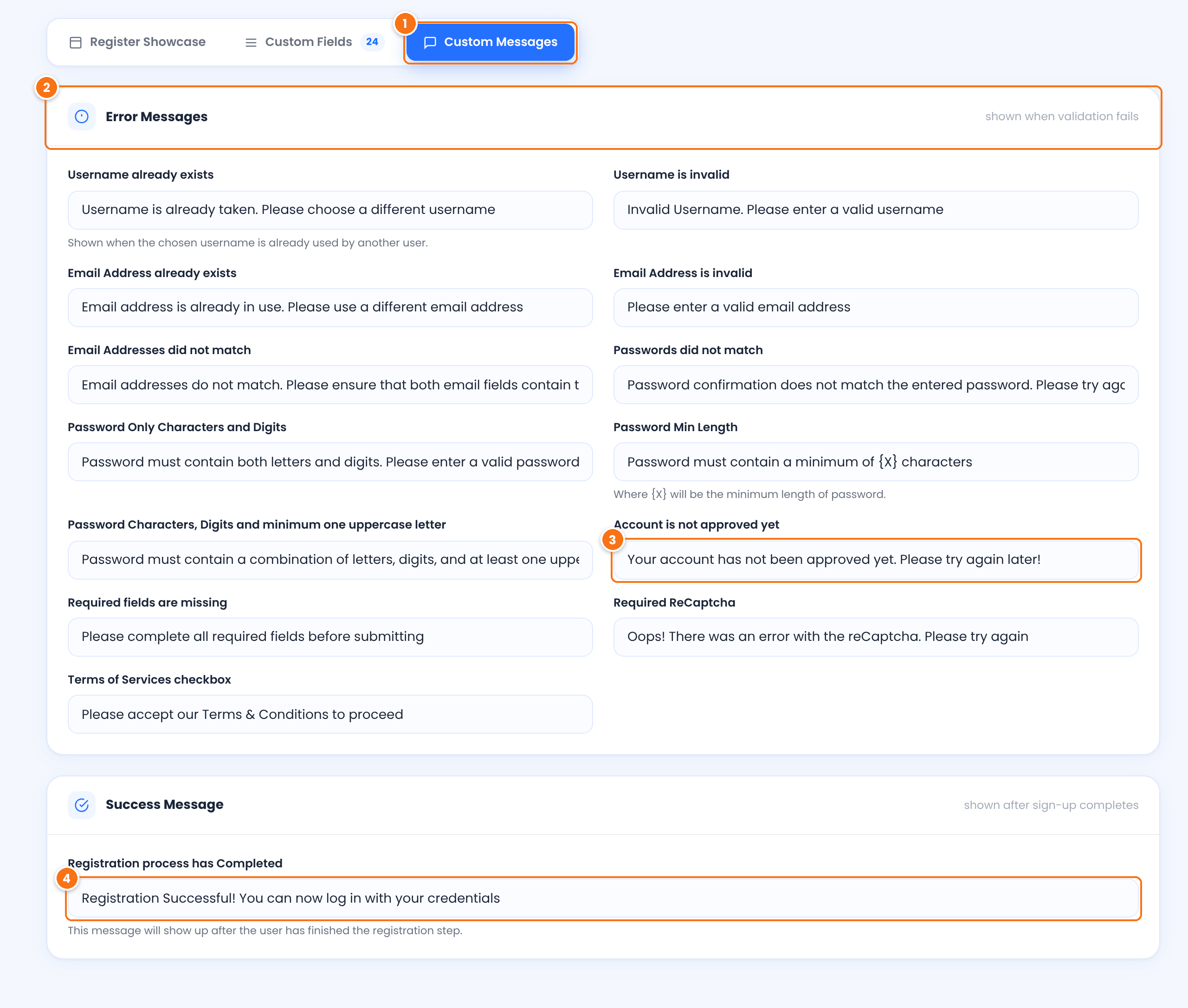
The tab with every message the registration form shows.
Shown when a field fails validation: username or email already used or invalid, emails or passwords that don’t match, password rules, required fields, reCAPTCHA and the terms checkbox. In Password Min Length, {X} is replaced by the minimum length you set.
Shown to affiliates whose account is still pending. See approve pending affiliates.
Shown after a successful sign-up.
Click Save Changes in the bar at the bottom of the screen.
Login messages work the same way: go to Showcases›Login Form and open Custom Messages. You can change the Successfully Message, the Error Message for wrong credentials, the Default message for pending users, the Email Pending message for affiliates who have not verified their email, and the messages of the password reset process.
Rename form fields and portal tabs #
- Custom registration fields (Phone, Country, How will you promote us? and the fields you add): go to Showcases›Registration Form›Custom Fields, click the edit icon of the field and change Field Label. See customize the affiliate registration form.
- WordPress fields (Username, First Name, Last Name, Email, Website, Password, Password Confirmation, Biographical Info) are marked WP Native and their labels are not edited in the form settings. Change them with a translation file (step 4).
- Affiliate Portal tabs: go to Showcases›Affiliate Portal, open a tab row and change Menu Label and Tab Title. See Affiliate Account Page.
Rename referral sources #
Every referral has a source, the system that created it, such as WooCommerce or a rank bonus. To show your own names, go to Ultimate Affiliate Pro›Settings›Public Workflow and scroll to Referral Sources.
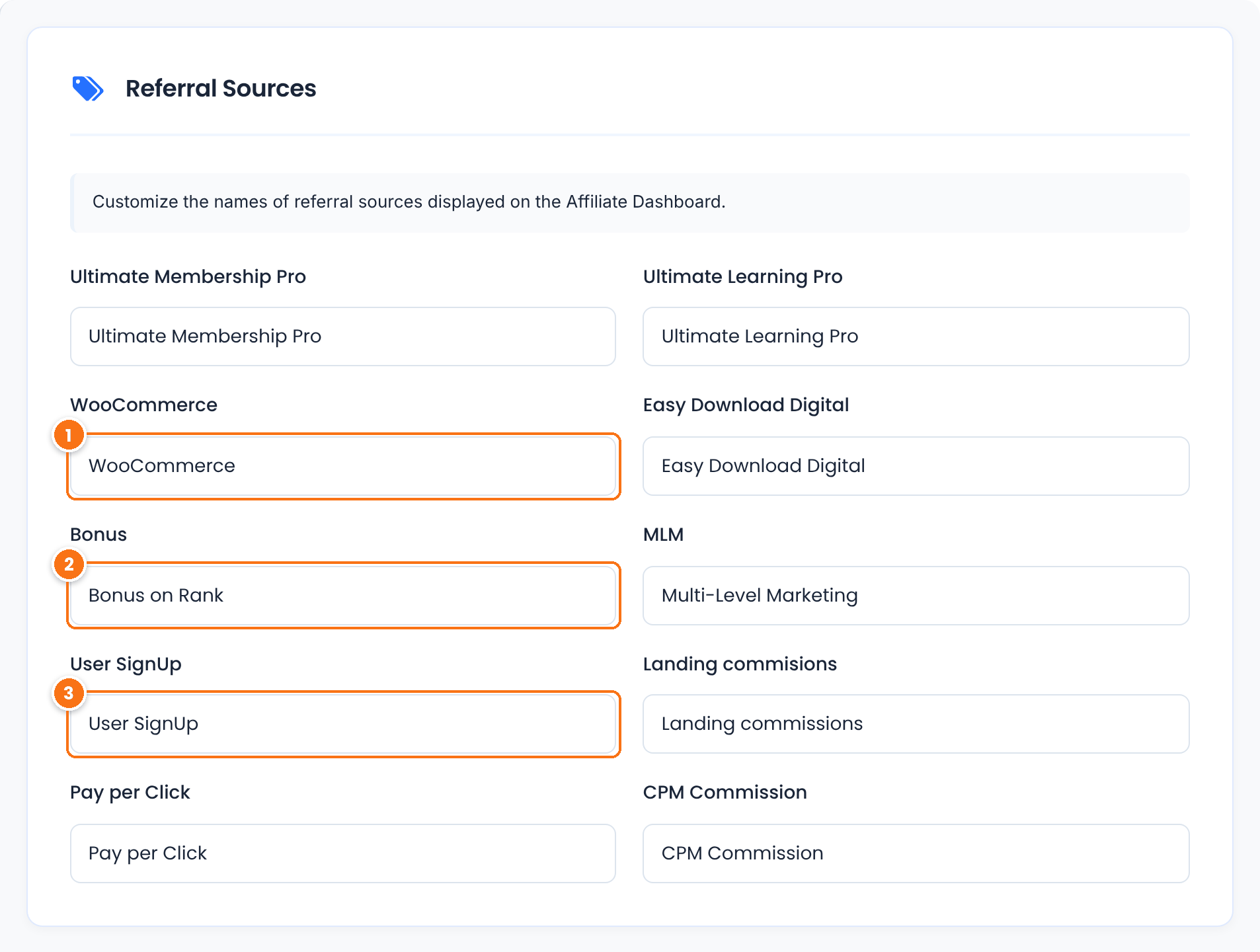
The name of referrals from WooCommerce orders. For example, change it to Store order.
Default: WooCommerce
The name of bonus referrals paid when an affiliate reaches a new rank.
Default: Bonus on Rank
The name of signup referrals, paid when a referred visitor creates an account.
Default: User SignUp
The same list has the other built-in sources, such as Ultimate Membership Pro, MLM, landing commissions and Pay per Click. Sources of other integrations, such as LearnDash, MemberPress or the form plugins, appear while their integration is active. The new names show in the Affiliate Portal, the admin referral lists, CSV exports and the {referral_source} email tag. Click Save Changes.
Change any other text with a translation file #
Every text of Ultimate Affiliate Pro is translation-ready, with the text domain uap. A translation file replaces the original words with yours, so you can use one to change English texts too. The easiest way is the free Loco Translate plugin:
- Install and activate Loco Translate, then go to Loco Translate›Plugins›Ultimate Affiliate Pro.
- Click New language and choose your site language, for example English (United States).
- For the location, choose Custom. Loco Translate saves the files in
wp-content/languages/loco/plugins/, where plugin updates don’t touch them. - Search for the text you want to change, type the new text in the translation box and click Save.
Loco Translate saves uap-en_US.po and uap-en_US.mo. The file name must end with your site language code, as set in Settings›General›Site Language. If you prefer a desktop editor such as Poedit, start from languages/uap.pot in the plugin folder and upload the .mo file to wp-content/languages/plugins/.
Caution
Don’t edit the plugin files or save translations inside the plugin folder. Plugin updates replace that folder, and your changes would be lost.
Test it #
- Clear your cache plugin, if you use one.
- Open the registration form in a private window and submit it with an email that is already registered. Check that your error message appears.
- Log in as a test affiliate and check the Affiliate Portal for the texts you changed.
Frequently asked questions #
How do I change the “Become an Affiliate” button text?
Use a translation file. In Loco Translate, search for Become an Affiliate in the Ultimate Affiliate Pro strings and enter your text.
Why can’t I edit the Username or Email label in the registration form?
These are WordPress native fields, so their labels are not edited in the field settings. Change them with a translation file, the same way as any other plugin text.
Will my changes be lost when I update Ultimate Affiliate Pro?
No. Texts in the settings are stored in your database, and translation files saved in wp-content/languages/ stay in place. Only files inside the plugin folder are replaced by updates.
My translation does not show. What do I check?
Check that the file name ends with your site language code (for example uap-en_US.mo for English, United States), that the .mo file exists next to the .po file, and clear your cache.
Where do I change the text of the emails affiliates receive?
Emails have their own subject and message. See email notifications.


