To manage affiliates in WordPress with Ultimate Affiliate Pro, you use one screen: Affiliates. From there you add affiliates by hand, approve new applications, edit profiles, change ranks and remove accounts. Every affiliate is a WordPress user with an affiliate record linked to it.
Affiliates usually join through your registration form, which you set up in registration and login pages. This guide covers what you do after they join. To credit affiliates with commissions at different rates, see ranks.
Before you start
- Ultimate Affiliate Pro installed, with your license active.
- An administrator account. Only administrators can manage affiliates.
- At least one rank in Ultimate Affiliate Pro›Ranks, so every affiliate has a commission rate.
Open the Affiliates list #
Go to Ultimate Affiliate Pro›Affiliates. The list shows every affiliate with their rank, commission rate, clicks, referrals and earnings.
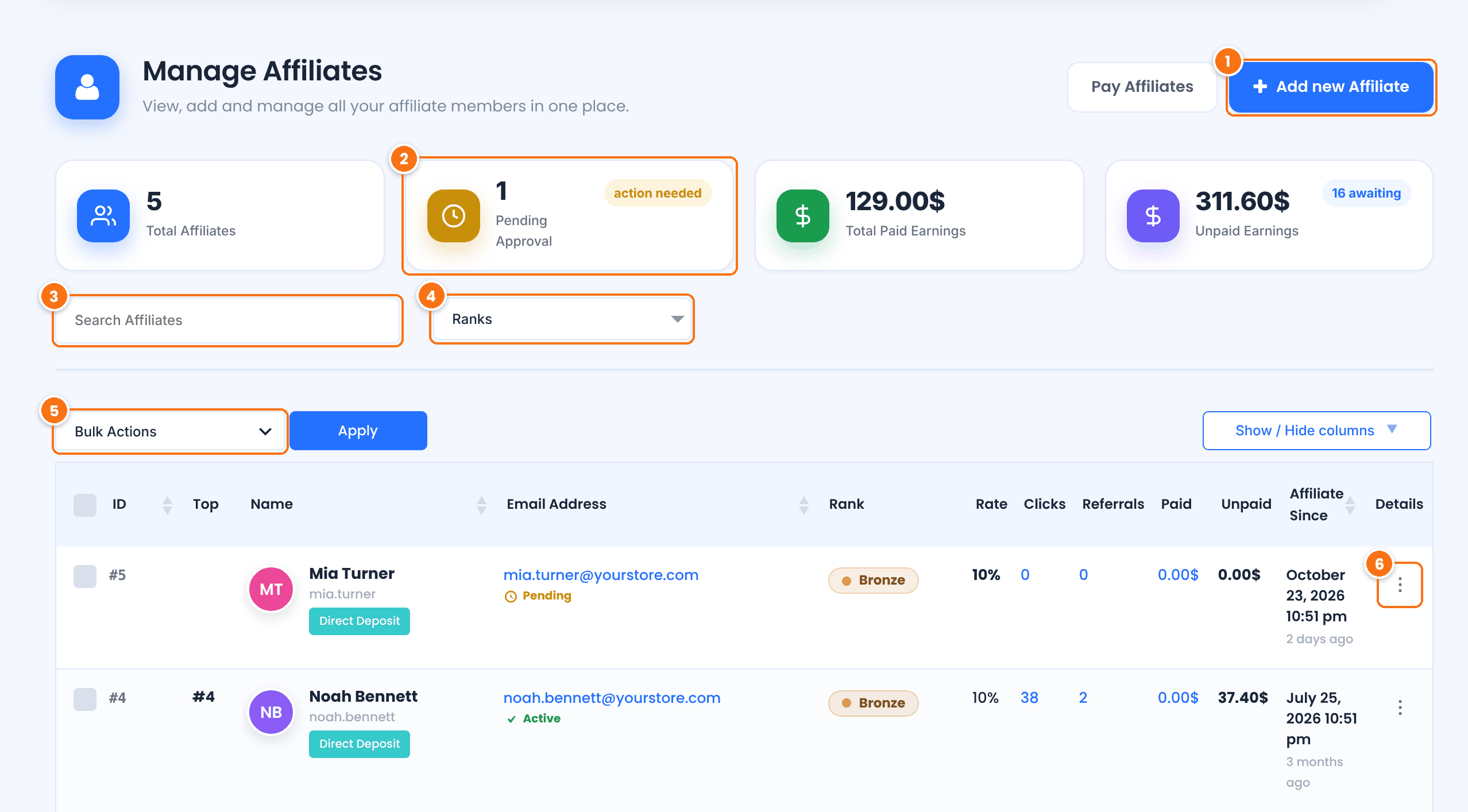
Opens the form where you create an affiliate account yourself. See step 3.
How many affiliates are waiting for you to approve them. The other cards show the total number of affiliates, the earnings already paid and the earnings not paid yet.
Finds affiliates by name, username or email address.
Shows only the affiliates in the ranks you select.
Applies an action to every affiliate you tick in the first column, then you click Apply.
- Remove: deletes the selected affiliates, the same as Remove in the row menu (see step 4).
- Update Rank: checks the selected affiliates against the achievement rules of your ranks and moves each one to the rank they qualify for.
The ⋮ button at the end of each row opens the actions for that affiliate. See step 2.
Click a number in the Clicks or Referrals column to open that affiliate’s clicks or referrals. Use Show / Hide columns to add the Metrics (earnings per click) and Role columns, or to hide the ones you don’t need.
Approve pending affiliates #
An affiliate is pending when their WordPress role is Pending. This happens when New Affiliate WordPress Role is set to Pending in Showcases›Registration Form. Pending affiliates can’t log in to the Affiliate Portal until you approve them, and their status shows Pending under the email address.
Click ⋮ at the end of the affiliate’s row.
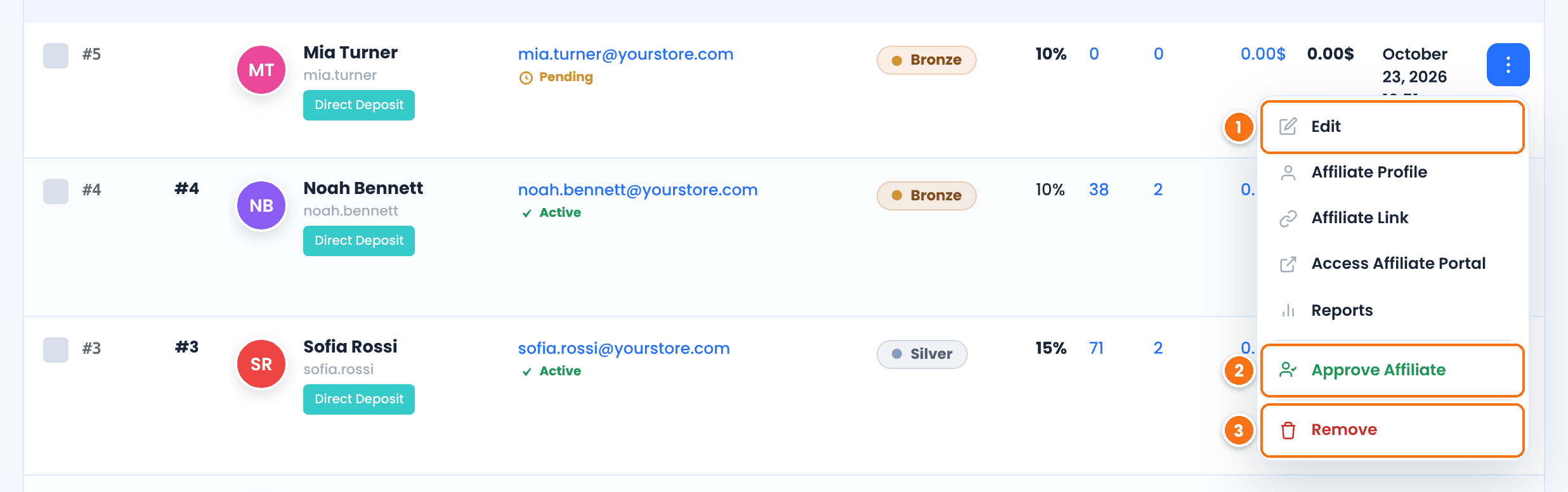
Opens the affiliate’s profile, rank and role. See step 3.
Approves the account. The affiliate gets the role set in Role After Approval (Subscriber unless you changed it) and can log in right away. If the Affiliate Account Approval Notification email is active in Email Notifications, the affiliate receives it.
Deletes the affiliate. Read the warning in step 4 before you use it.
The other items in the menu are shortcuts:
- Affiliate Profile opens a summary page with the affiliate’s details, referral link, stats and rank progress.
- Affiliate Link copies the affiliate’s default referral link to your clipboard.
- Access Affiliate Portal opens the Affiliate Portal as this affiliate sees it, while you stay logged in as administrator. Use it to check what an affiliate sees or to help them find something.
- Reports opens the statistics for this affiliate only.
- Approve Email appears when the affiliate has not confirmed their email address yet (Email Verification module). It confirms the address for them.
Tip
To skip manual approval, set New Affiliate WordPress Role to Subscriber (or any role except Pending). New affiliates are then approved as soon as they register. To check that new affiliates own their email address instead, use email verification.
Add or edit an affiliate #
To create an affiliate yourself, click Add new Affiliate on the Affiliates screen. To change an existing affiliate, choose Edit in their row menu. The form opens with two parts:
- Affiliate Profile: the fields of your registration form that have On Admin turned on, such as name, email, password, payout details, avatar and country. To add or remove fields, see customize the affiliate registration form.
- Additional Settings: options that only an administrator can change.
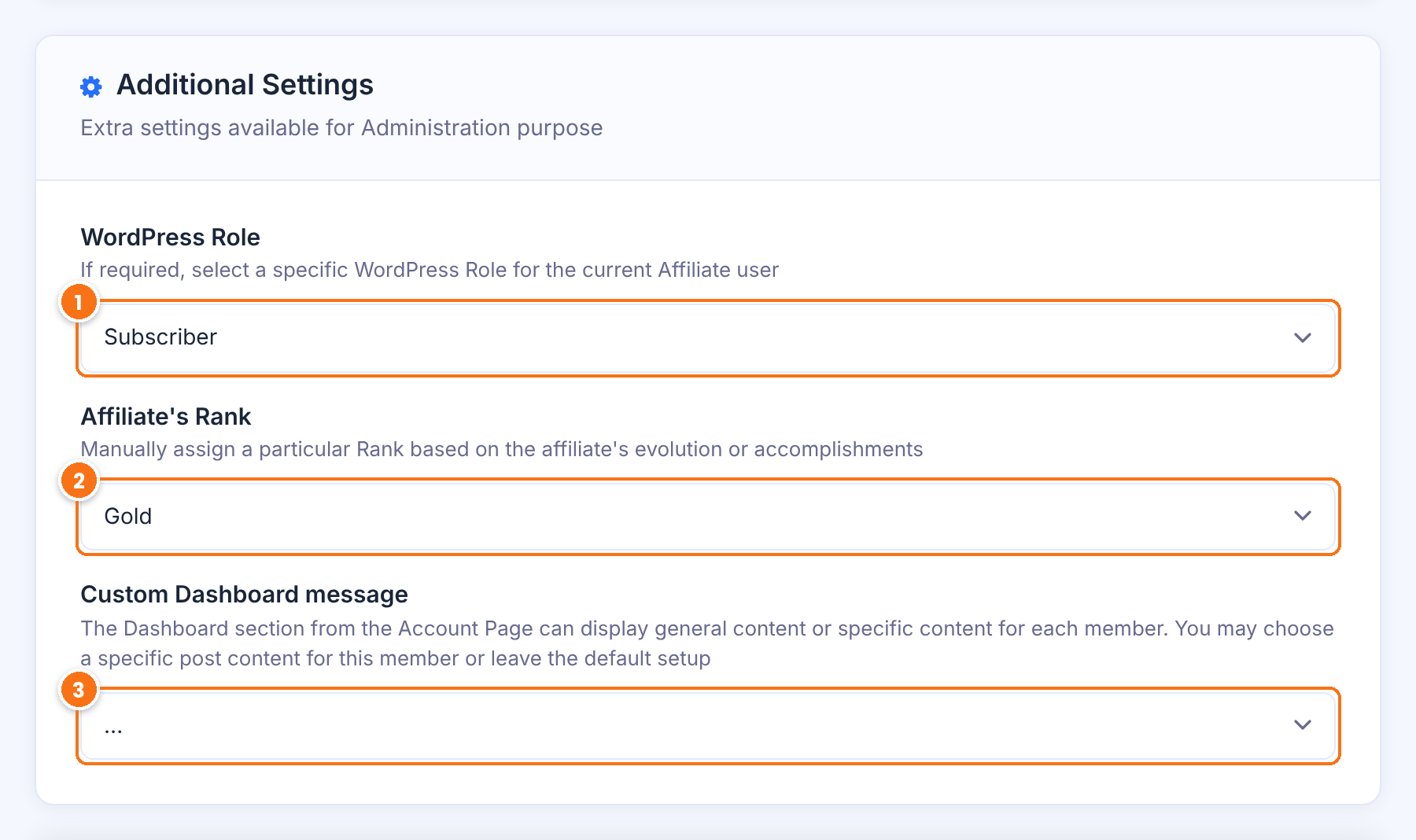
The WordPress role of the affiliate’s user account. The list has every role on your site except Administrator. Choose Pending to block the account until you approve it again.
The rank the affiliate is in. The rank sets the commission rate, so changing it changes what the affiliate earns on new referrals. Referrals already recorded keep their amount.
Shows the content of a post or page you pick in the Dashboard tab of this affiliate’s portal, instead of the default content. Use it for personal instructions or a special offer for one affiliate. Leave it on … to show the default content.
When the Custom Affiliate Slug module is on, the form also has Affiliate Custom Slug, where you set the word used in the affiliate’s links. When the MLM module is on, it has Select a Parent for this Affiliate. See custom slugs and MLM parent.
Click Register to create a new affiliate, or Save Changes when you edit one. The summary on the right updates as you type.
Note
Accounts you create in the dashboard are approved right away and don’t trigger the registration emails. Send the affiliate their login details yourself, or ask them to use the lost password page to set their own password.
Turn an existing WordPress user into an affiliate #
If the person already has an account on your site, for example a customer, you don’t need to create a new one. Go to Users›All Users, open the user and scroll to the Ultimate Affiliate Pro section.
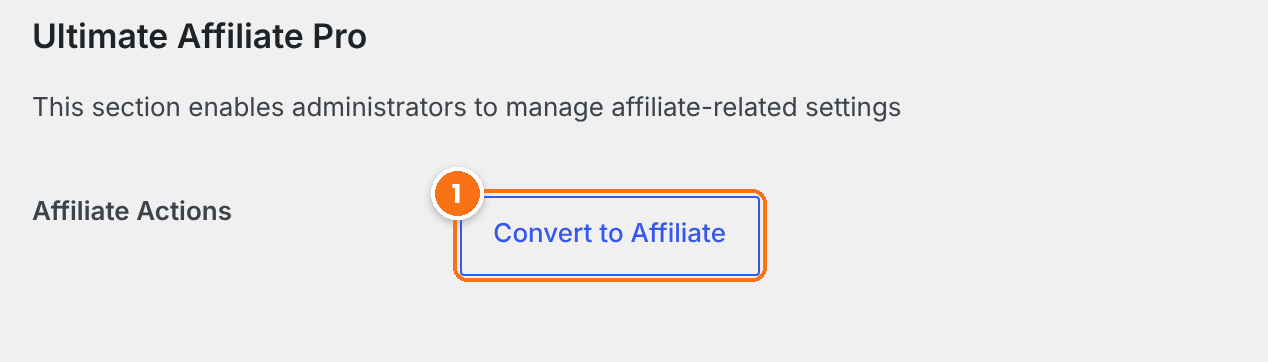
- Click Convert to Affiliate. The user becomes an affiliate in the default rank for new affiliates.
- For a user who is already an affiliate, the button reads Revert from Affiliate Program.
To convert many users at once, or to make every new customer an affiliate, see turn existing users and customers into affiliates.
Remove an affiliate #
You have two ways to take someone out of your program. Choose based on whether the person should keep their user account on your site.
Deletes the WordPress user account and all of the affiliate’s data: referrals, clicks, payouts, campaigns, coupons and MLM relations. The affiliate receives the Affiliate Account Deletion Notification email if it is active.
Keeps the WordPress user account, so a customer can still log in and see their orders, and deletes only the affiliate data.
Before you remove an affiliate
Both actions delete the affiliate’s referrals and payout history permanently. If you might need these records for accounting, export them first in Ultimate Affiliate Pro›Export-Import. To stop an affiliate without losing their data, change their WordPress Role to Pending instead.
Frequently asked questions #
Where do I approve new affiliates?
In Ultimate Affiliate Pro, Affiliates. Pending affiliates show a Pending status. Open the row menu and choose Approve Affiliate. The Pending Approval card at the top shows how many are waiting.
Can I reject an affiliate application?
Leave the affiliate in the Pending role so they can’t log in, or remove them from the row menu. Removing deletes their WordPress account as well.
How do I change an affiliate’s commission rate?
Commission rates come from ranks. Edit the affiliate and choose another rank in Affiliate’s Rank, or change the rate of the rank itself in Ultimate Affiliate Pro, Ranks. See ranks and commission rates per product.
Can I see the Affiliate Portal as a specific affiliate?
Yes. Open the row menu and choose Access Affiliate Portal. The portal opens with that affiliate’s data while you stay logged in as administrator.
Can an affiliate change their username?
No. WordPress doesn’t allow usernames to change. You can change the name, email, password and every other field in the affiliate form.
How do I import affiliates from another plugin?
Use the CSV import in Ultimate Affiliate Pro, Export-Import, or the built-in migration tools for other affiliate plugins.


