To update Ultimate Affiliate Pro, keep your license active and install the new version from your WordPress admin with one click, like any other plugin. You can also update by hand by uploading the new zip file. Your affiliates, referrals and settings stay in place.
Each release brings new features, fixes and compatibility with the latest WordPress and WooCommerce versions. You can read what changed in every version in the Ultimate Affiliate Pro changelog.
Before you start
- Your license is active in Ultimate Affiliate Pro›Licensing. See Install and activate Ultimate Affiliate Pro.
- A recent backup of your site files and database.
- Your site meets the current requirements.
Back up your site #
Make a full backup before every update, with your host’s backup tool or a backup plugin. If something goes wrong, you can restore the site as it was. For a busy store, update on a staging copy of your site first and check your affiliate pages there. WordPress explains your options in its backup guide.
Update from your WordPress admin #
When a new version is available, WordPress shows it in Dashboard›Updates and in Plugins›Installed Plugins.

Opens the version details, with the description and the changes in the new version.
Downloads and installs the new version. WordPress shows a message when the update is complete.
In Dashboard›Updates, you can also select Ultimate Affiliate Pro and click Update Plugins.
Automatic updates
The Enable auto-updates link in the Plugins list lets WordPress install new versions for you. If you turn it on, keep regular backups, because updates then run without you watching.
Update by uploading the new version #
Use this method if the update notice does not appear, or if you prefer to update by hand.
- Log in to your account on ultimateaffiliate.pro and download the latest Ultimate Affiliate Pro zip file.
- In WordPress, go to Plugins›Add Plugin and click Upload Plugin.
- Choose the zip file and click Install Now.
- WordPress tells you the plugin is already installed and compares the two versions.
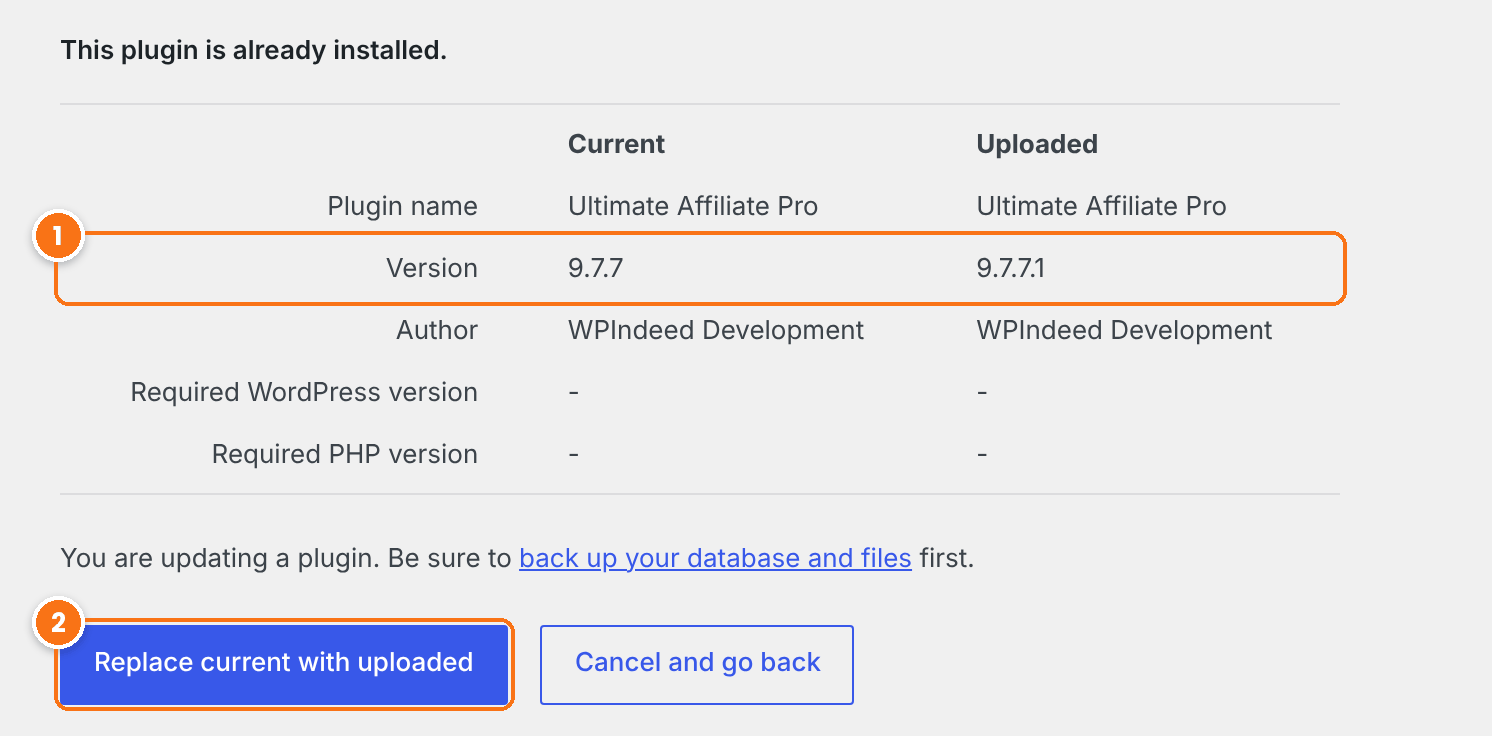
Check that the version in the Uploaded column is newer than the Current one.
Replaces the plugin files with the new version. Your data and settings are kept.
Do not delete the plugin to update it
Deleting Ultimate Affiliate Pro from the Plugins screen revokes your license on that site and removes the plugin’s data. To install a new version, always use one of the update methods on this page.
With FTP, unzip the new version on your computer and upload the ultimate-affiliate-pro folder to wp-content/plugins/, replacing the existing files.
Update Pro add-ons #
Pro add-ons are separate plugins. To update one, download its latest version from your account and upload it in Plugins›Add Plugin, then click Replace current with uploaded, the same way as above.
Check your site after the update #
- Open Ultimate Affiliate Pro›Dashboard and check the version number in the footer of the plugin screens.
- Clear your cache plugin and your host’s cache.
- Open a referral link in a private window and check that the click appears in Clicks. See Test your affiliate program.
- Log in to the Affiliate Portal as a test affiliate and check that it loads correctly.
Frequently asked questions #
Why don’t I see the update notice?
Updates are shown only when your license is active on the site, so check Ultimate Affiliate Pro, Licensing. The plugin checks for new versions once every 24 hours, so a new release can take up to a day to appear. You can always update by uploading the new zip file.
Will I lose my affiliates, referrals or settings when I update?
No. Updating replaces the plugin files only. Your affiliates, referrals, payouts and settings are stored in your database and stay in place.
Where do I see what changed in a new version?
Click View version details in the update notice, or read the changelog on ultimateaffiliate.pro.
How do I update on a WordPress Multisite network?
A network administrator updates plugins for the whole network in Network Admin, Updates, or in Network Admin, Plugins.
I updated and something looks wrong. What should I do?
Clear all caches first, including your browser cache. If the problem stays, use Safe Mode in Settings, Developers to check for a conflict with another plugin, then see Plugin and theme conflicts.


