Tiered affiliate commissions pay your best affiliates a higher rate. In Ultimate Affiliate Pro each tier is a rank: you give every rank its own commission rate and the goals an affiliate must reach, and the plugin moves affiliates up automatically as they hit those goals.
Every affiliate belongs to one rank, and the rank rate is the starting point of every commission. Product rates and custom WooCommerce rates can change it for some products, as explained in How commissions are calculated. Ranks also hold the amounts for other commission types, such as signup referrals and recurring commissions.
Before you start
- Ultimate Affiliate Pro installed, with your license active.
- A plan for your tiers: how many ranks, the rate of each one, and the goal that unlocks it.
- WordPress scheduled tasks (WP-Cron) running on your site, so ranks can update automatically.
How ranks work #
Ranks have an order. New affiliates join the default rank, usually the first one. Ultimate Affiliate Pro checks affiliates on a schedule and moves each one up, rank by rank, to the highest rank whose achievement rules they meet. Achievements count approved referrals only, so pending and rejected referrals never move an affiliate up.
- Basic (position 1)
- 10% on every sale, default rank for new affiliates
- Silver (position 2)
- 15%, after 25 approved referrals
- Gold (position 3)
- 20%, after 100 approved referrals or $2,000 earned
Open the ranks list #
Go to Ultimate Affiliate Pro›Ranks. The list shows every rank with its rate, achievement rules, number of affiliates and status. Click Add New Rank to create a rank, or click a rank name to edit it.
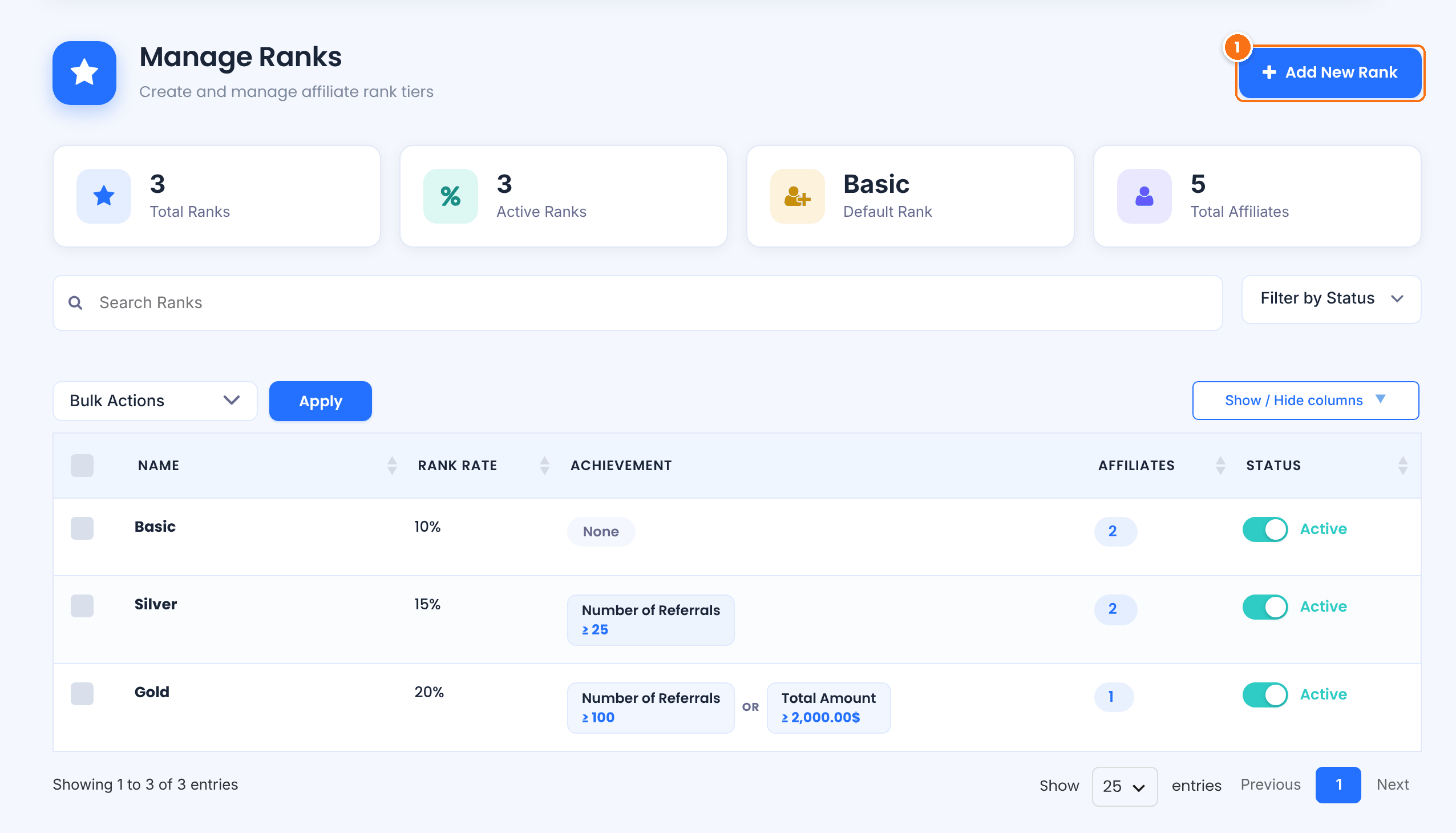
Opens the rank editor for a new rank.
Each new install comes with demo ranks you can rename and edit. You can also turn a rank off with its status switch without deleting it.
Name and place the rank #
In the rank editor, fill in the first cards:
Turns the rank on or off without removing it.
Default: On
A unique internal name. Use lowercase letters, numbers, dashes and underscores, for example gold.
The rank name you and your affiliates see, for example Gold. Required.
An optional note and the color used for the rank badge across the dashboards and the Affiliate Portal.
Turn it on for the rank new affiliates join when they register. Only one rank is the default.
The rank’s place in the ladder. Affiliates move from a lower position to the next one. Give higher positions harder goals and better rates.
Set the rate and the goals #
Scroll to the Rank Rate and Achievement Rules cards.
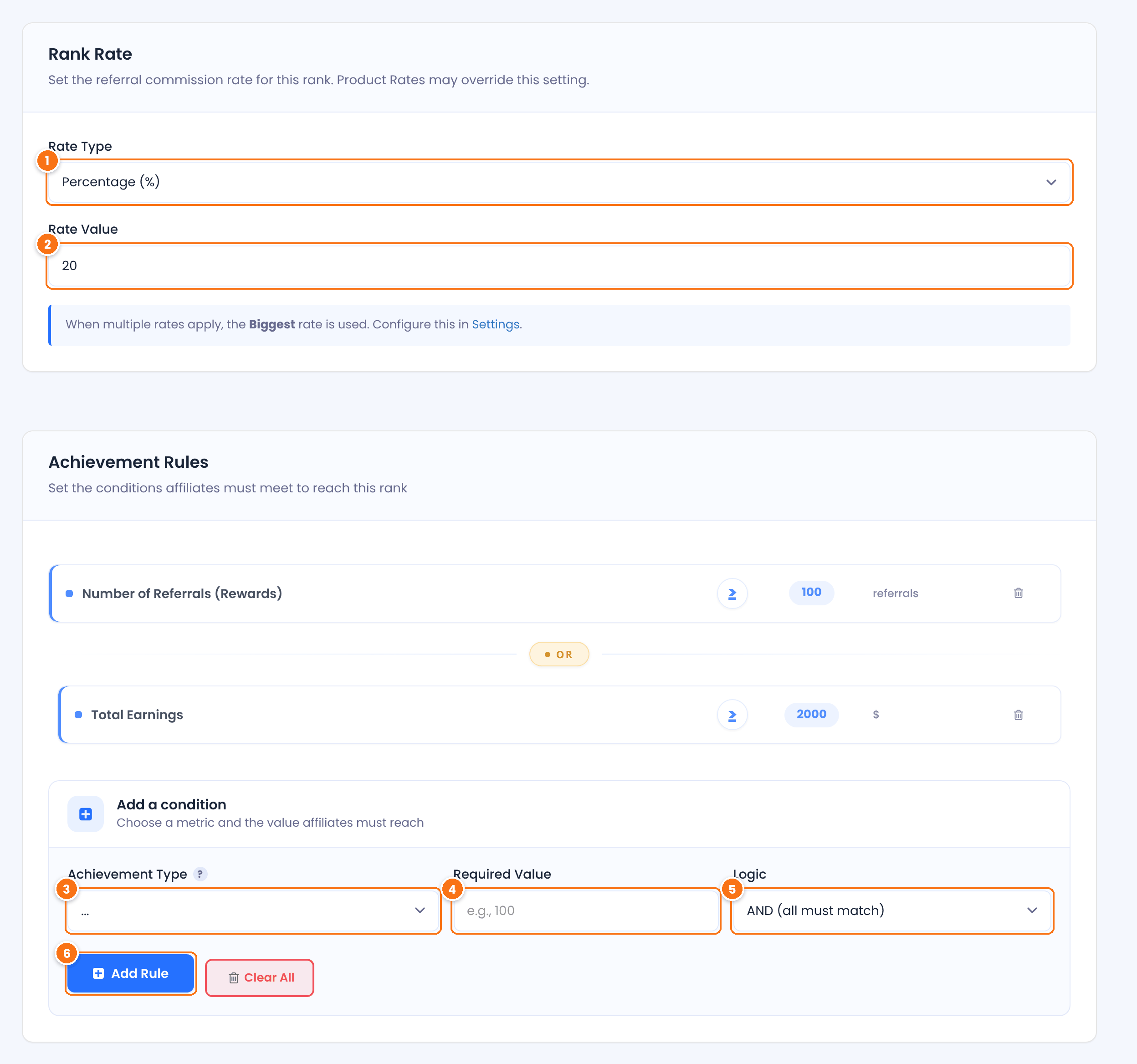
How the commission is calculated for affiliates in this rank.
- Percentage (%): a share of the order amount.
- Flat Rate: a fixed amount in your currency for each product line in the order, whatever the quantity.
Default: Percentage (%)
The rate itself, for example 20 for 20%. Required.
Default: 10
The goal an affiliate must reach to get this rank.
- Number of Referrals (Rewards): how many approved referrals the affiliate has.
- Total Earnings: the total amount of the affiliate’s approved referrals.
The number of referrals, or the amount, the affiliate must reach. The goal is met when the affiliate’s total is equal to or above it.
How a new rule combines with the ones above it: AND (all must match) or OR (any can match). It is used when the rank has more than one rule.
Adds the condition to the list. Remove one with its trash icon, or every condition with Clear All.
Click Save Changes. Leave the achievement rules of your first rank empty: it is where affiliates start.
Tip
Below these cards, the editor shows extra amounts for the modules you turned on: Achievement Bonus, signup, LifeTime Commissions, recurring, MLM, pay-per-click and CPM amounts. You can set each rank’s value here or on the module’s own page.
Choose when ranks update #
Ultimate Affiliate Pro recalculates ranks in the background. Go to Ultimate Affiliate Pro›Settings›Admin Workflow and pick the Update Affiliates Rank Interval: Hourly, Every 12 hours or Daily (default). When an affiliate reaches a new rank, the plugin sends the rank change emails to the affiliate and to you, if those notifications are on.
To place an affiliate in a rank yourself, edit the affiliate in Ultimate Affiliate Pro›Affiliates and pick a rank in Affiliate’s Rank. To change many at once, select them in the affiliates list and use the Update Rank bulk action.
Reward affiliates when they reach a rank #
Go to Ultimate Affiliate Pro›Modules and open Ranks Bonus. Turn on Activate/Hold Ranks Bonus, choose the Default Referral Status of the bonus (Approved by default), and enter an amount for each rank under Amount For Each Rank. Leave a rank empty to pay no bonus for it.
When the automatic update moves an affiliate into a rank, Ultimate Affiliate Pro adds a referral with the bonus amount and the description “Bonus for reaching rank”. It is paid out with the affiliate’s other commissions.
Promote and demote by recent performance #
By default, ranks count every approved referral since the affiliate joined, and affiliates only move up. To base ranks on recent results instead, open Ultimate Affiliate Pro›Modules, then Ranks PRO.
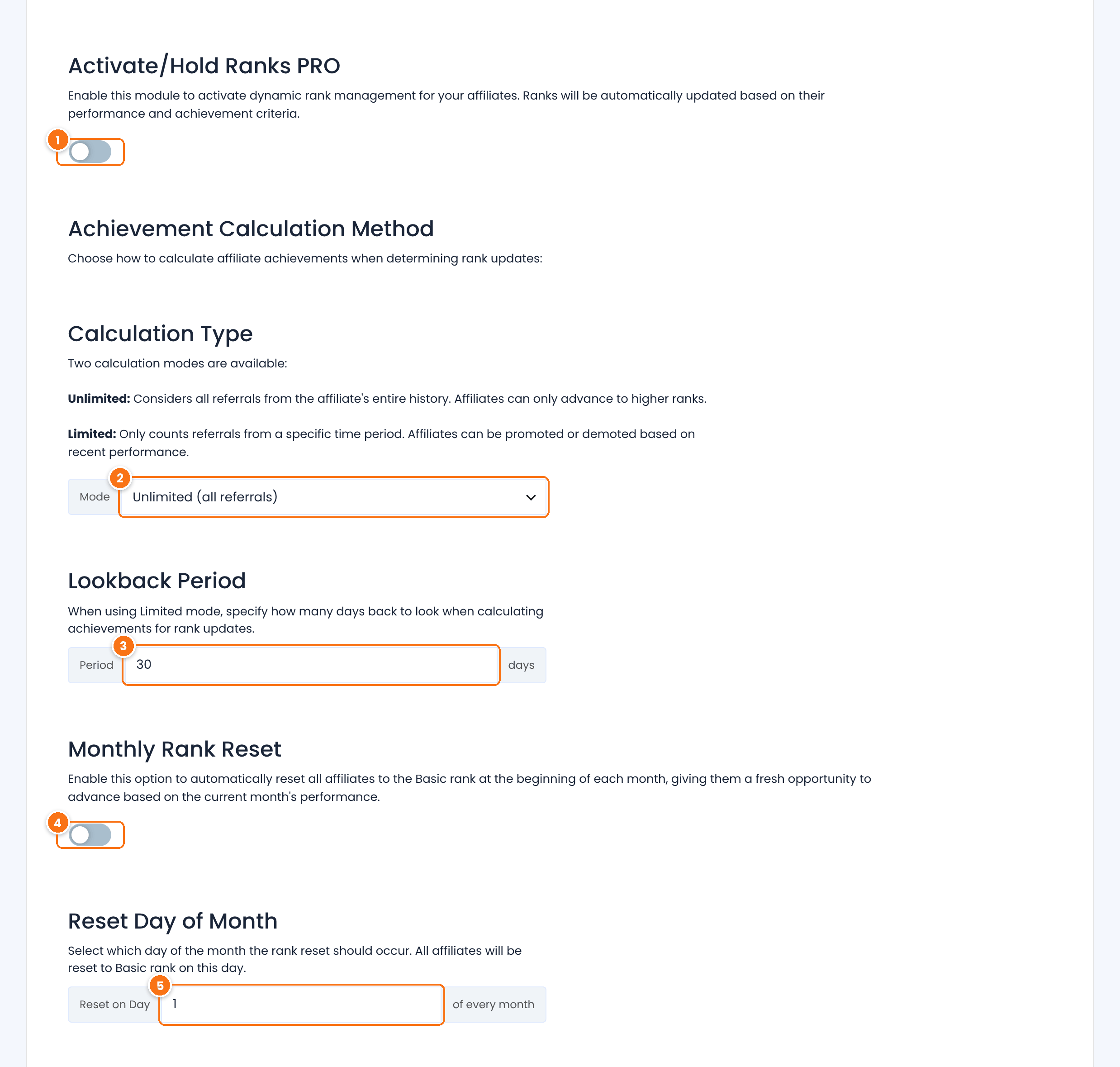
Turns on the options below.
Default: Off
How achievements are counted.
- Unlimited (all referrals): the affiliate’s whole history. Affiliates only move up.
- Limited (time period): only referrals from the lookback period. Each update places the affiliate in the highest rank whose rules they meet in that period, so they can move up or down.
Default: Unlimited (all referrals)
The lookback period in days, used in Limited mode.
Default: 30 days
Moves every affiliate back to the first rank once a month, so each month starts fresh.
Default: Off
The day of the month for the reset, from 1 to 30.
Default: 1
Click Save Changes.
Test it #
- Create a test rank with a low goal, for example 1 approved referral.
- Approve a referral for a test affiliate in Ultimate Affiliate Pro›Referrals.
- Wait for the next rank update, then check the affiliate’s rank in Ultimate Affiliate Pro›Affiliates.
- Delete the test rank or raise its goal when you are done.
Frequently asked questions #
How often do affiliates move to a new rank?
Ranks update on a schedule, not right after each referral. The default is once a day. Change it in Settings, Admin Workflow, Update Affiliates Rank Interval.
An affiliate reached the goal but did not move up. Why?
Achievements count approved referrals only, so check that the referrals are Approved. Then wait for the next scheduled update. If ranks never update, make sure WordPress scheduled tasks run on your site. A plugin such as WP Crontrol shows whether the uap_cron_job task runs.
Do new rates apply to referrals the affiliate already earned?
No. A new rank rate applies to referrals created after the affiliate moves to that rank. Earlier referrals keep their amount.
Can a rank pay a flat amount instead of a percentage?
Yes. Set Rate Type to Flat Rate. The amount is paid once for each product line in the order, whatever the quantity.
Can affiliates go down a rank?
Only with the Ranks PRO module in Limited mode, or with the Monthly Rank Reset. You can also change any affiliate’s rank by hand.


