Import referrals from a CSV file to add many referrals at once: commissions from your previous affiliate system, offline sales, or corrections prepared in a spreadsheet. The Import Referrals via CSV add-on reads each row of the file and adds it to Ultimate Affiliate Pro›Referrals.
Use it when you move to Ultimate Affiliate Pro and want affiliates to keep their history, or when sales happen outside your store. To add a single referral by hand, click Add New Referral in Ultimate Affiliate Pro›Referrals instead. See Manage referrals.
Before you start
- The Import Referrals via CSV add-on installed and active. See Pro Add-ons: what they are and how to install them.
- The affiliates already exist in Ultimate Affiliate Pro. You need their Affiliate ID, shown in the ID column of Ultimate Affiliate Pro›Affiliates.
- A spreadsheet app such as Excel, Google Sheets or LibreOffice Calc, and a backup of your site database.
Open the import page #
Go to Ultimate Affiliate Pro›Modules and open the Import Referrals via CSV card.
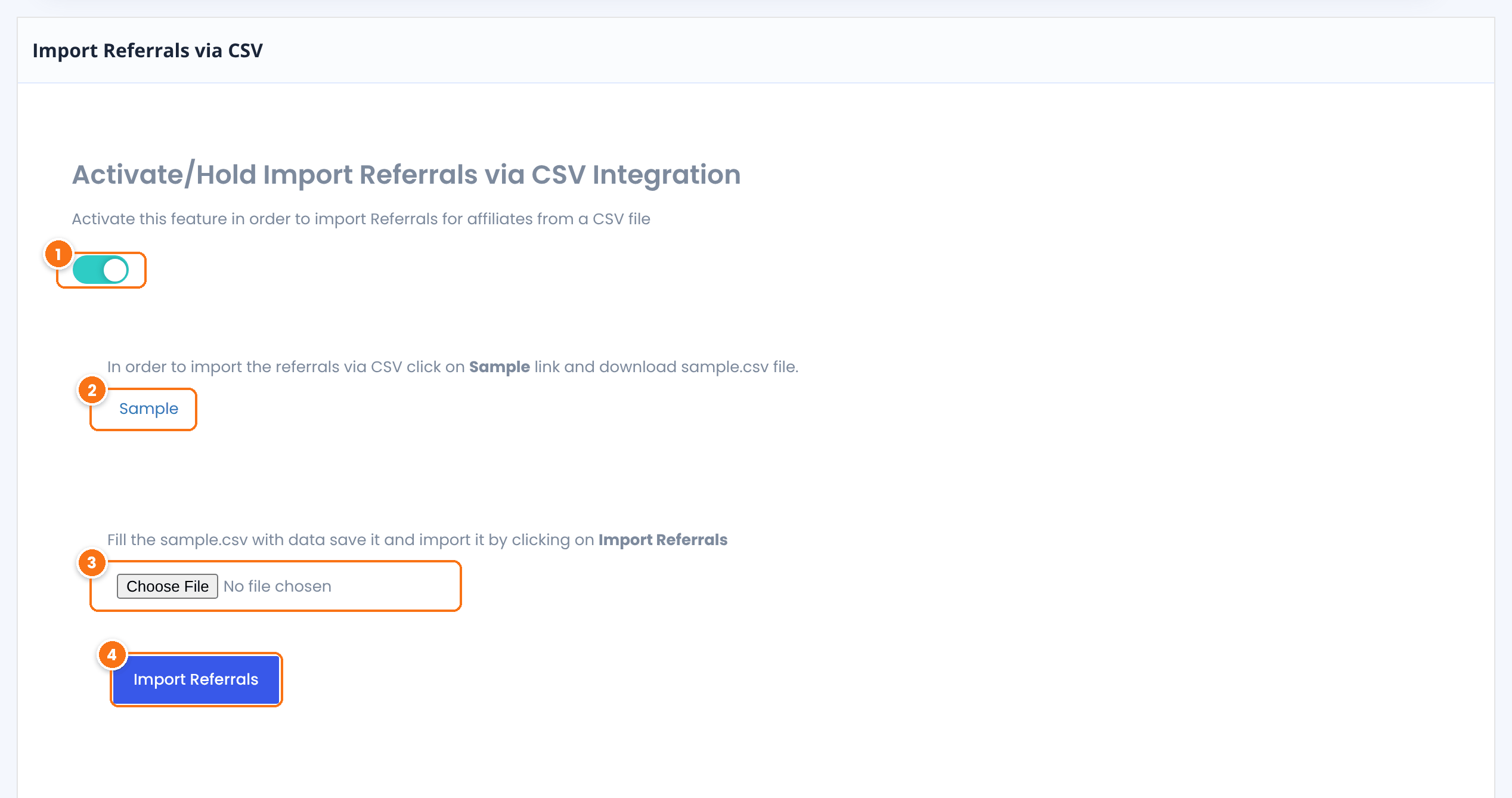
Turns the add-on on. Click Save Changes at the bottom of the page after you change it.
Default: Off
Downloads sample.csv, a file with the header row and one example row. Start from it, so the columns are in the right order.
The CSV file to import.
Imports the file. When it finishes, the page shows Import successfully!
Below the form, the page lists every column with its type, an example and its meaning.
Prepare the CSV file #
Open sample.csv in your spreadsheet app and add one row per referral. Keep the header row and all 15 columns in this order, even the ones you leave empty:
| # | Column | Required | What to enter |
|---|---|---|---|
| 1 | refferal_wp_uid | No | WordPress user ID of the customer who bought, or empty. |
| 2 | campaign | No | Campaign slug of the affiliate, or empty. See Campaigns. |
| 3 | affiliate_id | Yes | Affiliate ID from Ultimate Affiliate Pro›Affiliates (not the WordPress user ID). |
| 4 | visit_id | No | ID of the click behind the referral, or 0. |
| 5 | description | No | A short note, shown in the Description column. |
| 6 | source | Yes | Where the referral comes from, for example import, woo or offline. It is shown in the Source column. |
| 7 | reference | No | Order or invoice number. |
| 8 | reference_details | No | Extra details, such as the product name. |
| 9 | parent_referral_id | No | For MLM referrals, the linked referral ID. Otherwise 0. |
| 10 | child_referral_id | No | For MLM referrals, the linked referral ID. Otherwise 0. |
| 11 | amount | Yes | The commission the affiliate earns, with a dot for decimals, for example 18.00. |
| 12 | currency | No | Currency code, for example USD. Empty uses the currency of Ultimate Affiliate Pro. |
| 13 | date | No | Date of the referral as YYYY-MM-DD HH:MM:SS. Empty uses the import date. |
| 14 | status | No | 2 Approved, 1 Pending, 0 Rejected. Empty imports as Pending. |
| 15 | payment | No | 0 Unpaid, 1 payout Pending, 2 Paid. Empty imports as Unpaid. |
This file adds three referrals from a previous affiliate system. The second one is already paid:
referrals-import.csv
refferal_wp_uid,campaign,affiliate_id,visit_id,description,source,reference,reference_details,parent_referral_id,child_referral_id,amount,currency,date,status,payment
8,,1,0,Order from previous affiliate system,import,1001,Yoga Mat,0,0,8.00,USD,2026-09-14 10:22:00,2,0
9,,3,0,Order from previous affiliate system,import,1002,Online Yoga Course,0,0,18.00,USD,2026-09-18 16:05:00,2,2
10,,4,0,Order from previous affiliate system,import,1003,Meditation Cushion,0,0,5.50,USD,2026-09-21 09:40:00,1,0
Tip
Fill status and payment on every row, so each referral gets exactly the status you want. Use 2 and 2 for history that is approved and already paid, so it is not paid twice.
Save the file as CSV (comma delimited) with UTF-8 encoding. If your spreadsheet app uses semicolons as separators, change the separator to a comma before you save. The file follows the standard CSV format (RFC 4180): put a value in double quotes if it contains a comma.
Import referrals from the CSV file #
- On the Import Referrals via CSV page, click Choose File and select your CSV file.
- Click Import Referrals and wait for the Import successfully! message.
- Go to Ultimate Affiliate Pro›Referrals to check the new referrals.
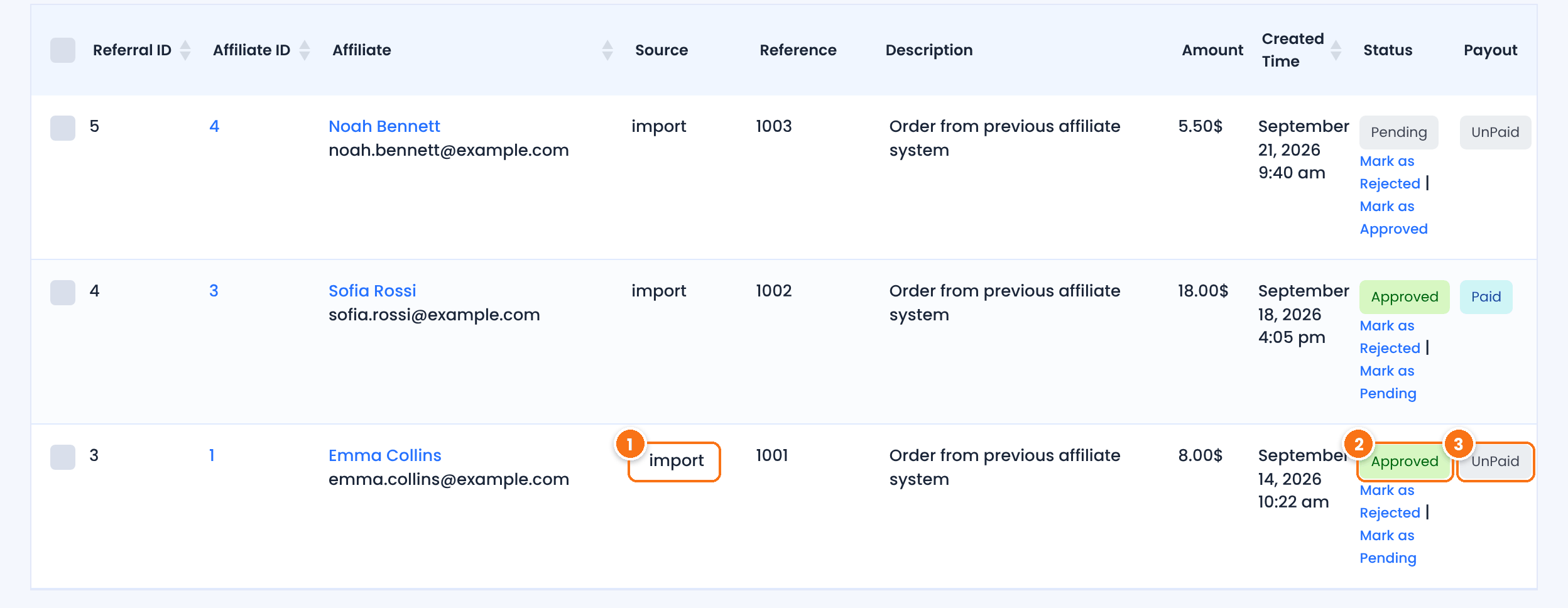
The value of the source column, here import. Use it to find the imported referrals later.
From the status column. You can still approve or reject each referral from the list.
From the payment column: UnPaid, Pending or Paid.
Imported referrals are added directly, as they are in the file. Ultimate Affiliate Pro does not send referral emails for them and does not calculate MLM commissions from them, so add any MLM referrals as their own rows. Approved, unpaid referrals are included in the next payout. See How affiliate payouts work.
Import each file once
Every import adds new referrals. If you import the same file twice, the referrals are added twice. Start with a file of two or three rows to check the result, then import the rest.
Test it #
- Download Sample and change the example row to one of your affiliates, with an amount of
1and status1. - Import the file and find the referral in Ultimate Affiliate Pro›Referrals.
- Log in as the affiliate and check that the referral shows in the Affiliate Portal, then delete the test referral.
Frequently asked questions #
Which columns are required?
affiliate_id, source and amount. Keep all 15 columns in every row, in the same order as the sample file, even if some of them are empty.
Where do I find the affiliate ID?
In Ultimate Affiliate Pro, Affiliates, in the ID column. It is not the same as the WordPress user ID.
What status values can I use?
2 for Approved, 1 for Pending and 0 for Rejected. For the payout column, use 0 for Unpaid, 1 for Pending and 2 for Paid.
Are affiliates notified about imported referrals?
No. Imported referrals are added without emails, so you can bring in history without notifying affiliates.
What happens if I import the same file twice?
The referrals are added again. Check the Referrals list after each import and delete duplicates if needed.
Can I export referrals to CSV?
Yes. Use the Export section in Ultimate Affiliate Pro, Reports, or Export-Import. See Affiliate reports and statistics.


