An affiliate link 404 error means WordPress could not find the page the referral link points to. The tracking code itself never causes it: the cause is a rewrite rule, the page in the link, the URL parameter or a cached error page. Most cases are fixed in a minute by saving your permalinks again.
Ultimate Affiliate Pro reads the tracking code as soon as the page loads, records the visit and then sends the visitor to the same page without the code (with Redirect Same Page Without URL Parameters on, the default; friendly links are always redirected). If that page does not exist, or WordPress cannot route the address, the visitor sees your 404 page. Friendly links such as yourstore.com/ref/emma.collins depend on rewrite rules, so they are the most common case. See friendly affiliate links and affiliate referral links for how links are built.
Before you start
- The referral link that opens the 404 page, copied exactly as the affiliate shared it.
- Administrator access to your WordPress dashboard.
- Access to your cache plugin or hosting panel, if your site uses caching.
Fix the affiliate link 404 with your permalinks #
Saving the permalink settings rebuilds the WordPress rewrite rules. On Apache servers it also updates the .htaccess file. In your WordPress admin, go to Settings›Permalinks.
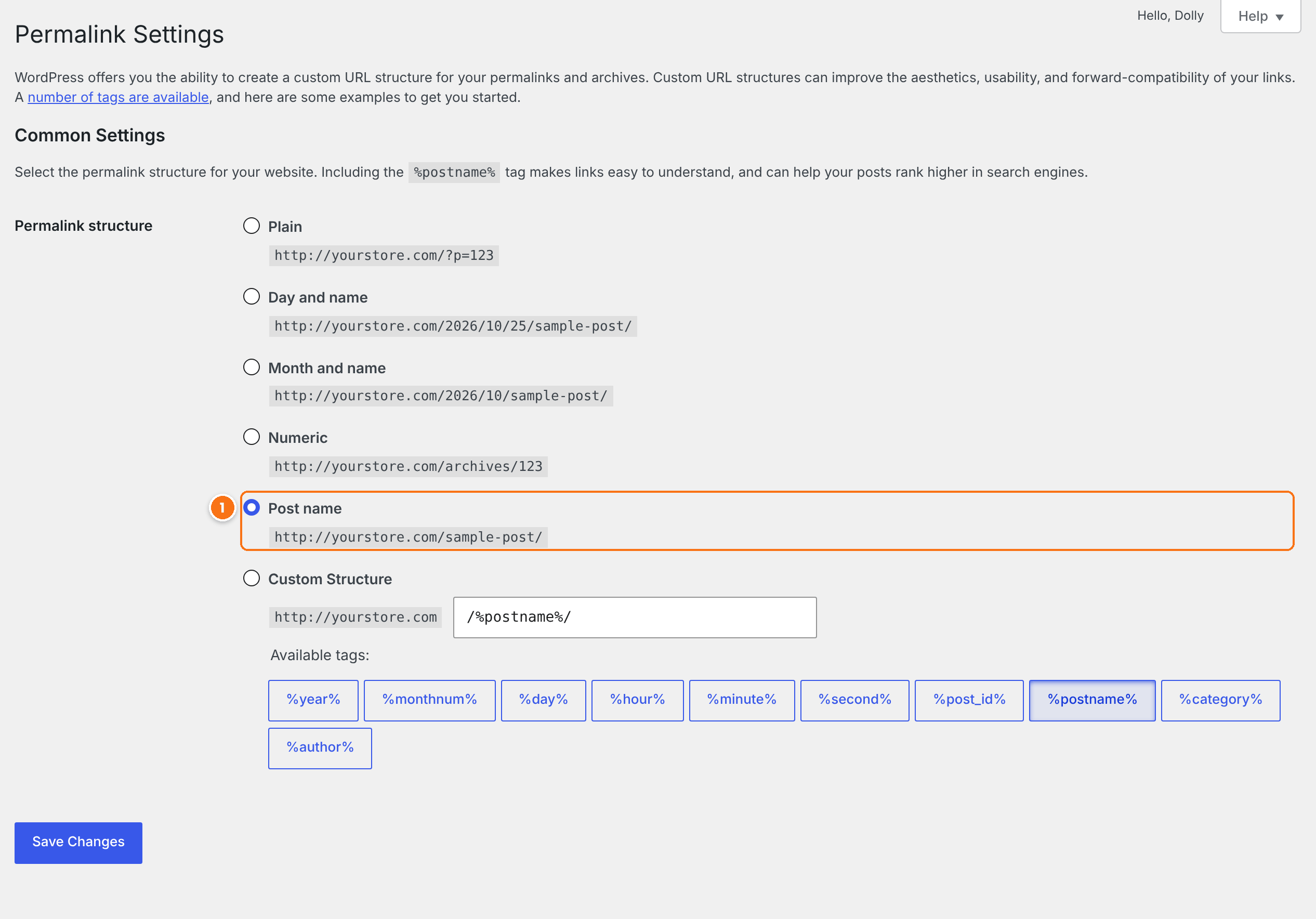
Keep your current structure, or choose Post name if the site uses Plain. Friendly links need a structure other than Plain. Changing the structure changes the URLs of your posts and pages, so only switch on a site that is not live yet, or add redirects.
Click Save Changes at the bottom of the screen, even if you did not change anything. Then open the referral link again in a private window. The WordPress documentation explains each option in Customize permalinks.
Tip
Save the permalinks again after you turn on the Pretty Affiliate Links module, after you move the site to a new domain, and after you add the Affiliate Portal as a tab in WooCommerce My Account. A 404 on the affiliate tab of My Account has the same fix. See affiliate area in WooCommerce and BuddyPress accounts.
Check the page in the link #
Remove the tracking code from the link and open what is left. For yourstore.com/summer-sale/?ref=emma.collins, open yourstore.com/summer-sale/.
- If this page also shows a 404, the page was deleted, moved to draft or its slug changed. Ask the affiliate to create a new link, or redirect the old address to the new page.
- If the page opens, the problem is in the tracking part of the link. Continue with the next step.
- If the 404 comes from the default link of every affiliate, check Base Affiliate Link in Ultimate Affiliate Pro›Settings›General Settings, section Affiliate Links. It must be a page that exists on your domain.
Check the URL parameter #
Go to Ultimate Affiliate Pro›Settings›General Settings and look at URL Parameter Name in the Affiliate Links section.
Links with the old parameter, such as /ref/emma.collins after you switched to aff, no longer match. A friendly link with the old parameter is then an address WordPress does not know. Set the original parameter back, or ask affiliates to copy their new links from the Affiliate Portal.
Default: ref
WordPress uses some words in URLs for its own queries, such as p, page, name, author, cat, tag or year. A link like ?name=emma.collins makes WordPress look for a post called emma.collins and show a 404. Use a word of your own, such as ref, aff or partner. The full list is in the WordPress reserved terms.
Friendly links use the affiliate’s username, so the Affiliate Link Format must be Username. If links with IDs are already shared, turn on Search URL for Both Formats so both versions are recognized.
Clear the cache and check the server #
Caches can keep serving a 404 page after you fixed the cause.
- Clear your cache plugin, your host cache and your CDN, such as Cloudflare.
- Make sure links with
ref=are excluded from caching. See cache plugins and host caching. - On Nginx servers, the site configuration must send unknown addresses to WordPress, usually with
try_files $uri $uri/ /index.php?$args;. Ask your host to check it if friendly links fail and pages work. - If the link still fails, turn on Safe Mode in Ultimate Affiliate Pro›Settings›Developers to check for a plugin that changes URLs or redirects. See plugin and theme conflicts.
Test it #
- Open a new private window.
- Paste the referral link and press Enter.
- Check that the page opens. With the default redirect setting, the tracking code is removed from the address bar.
- Go to Ultimate Affiliate Pro›Clicks and check that the visit appears for the affiliate.
Frequently asked questions #
Do I need to save permalinks after every plugin update?
No. Save them again only when friendly links or the affiliate tab in My Account show a 404, after you turn on Pretty Affiliate Links, or after you move the site.
Why does the 404 appear only for friendly links?
Links with ?ref= work with any permalink structure. Friendly links such as /ref/emma.collins are part of the path, so the server must pass the request to WordPress. Saving the permalinks again, with a structure other than Plain, writes the rules that do this.
Is the visit recorded when the link shows a 404?
When the tracking code is valid, the visit is usually recorded before the redirect, even if the page itself is missing. Fix the page so visitors can buy, otherwise the visit does not lead to a referral.
Can I change the URL parameter without breaking old links?
Old links stop working with a new parameter. If many links are already shared, keep the original parameter, or redirect the old links to the new ones.


