Affiliate email notifications are the automatic emails Ultimate Affiliate Pro sends when something happens in your program: a new affiliate registers, an account is approved, a payout is sent, a referral comes in. You choose which emails are active, who receives them and what they say.
Each email is a notification with a trigger, a subject and a message. Emails about new referrals have their own modules, covered in step 5. For summaries sent on a schedule, see periodic reports for affiliates.
Before you start
- Ultimate Affiliate Pro installed, with your license active.
- A working email setup on your site. WordPress sends email through your server, which many hosts limit. An SMTP plugin, such as WP Mail SMTP, makes delivery reliable.
Set the sender and the manager address #
Go to Ultimate Affiliate Pro›Settings›Notifications Settings.
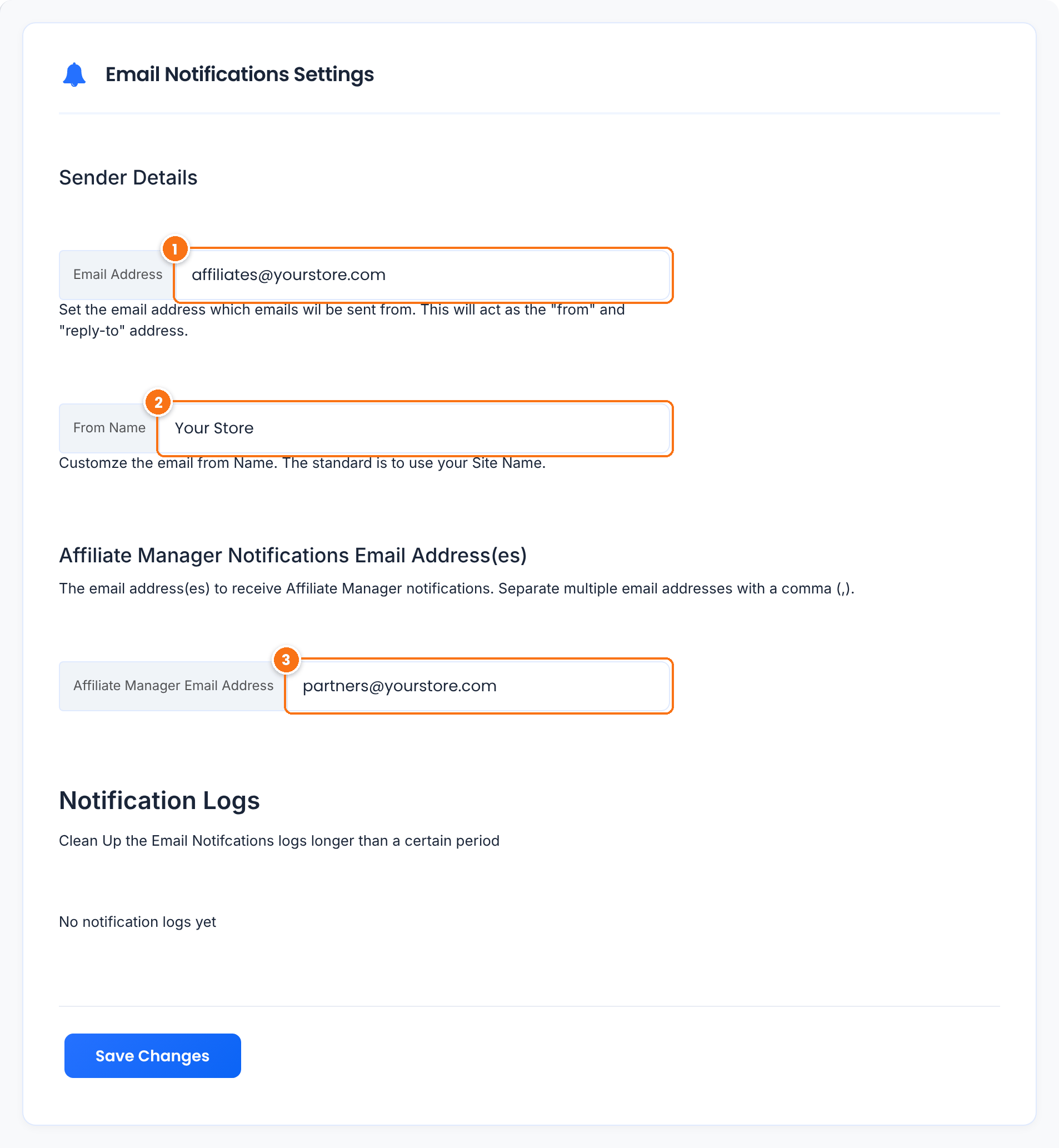
The address emails are sent from, also used as the reply-to address. Use an address on your own domain, for example affiliates@yourstore.com. Empty: the WordPress administration email.
The sender name affiliates see in their inbox. Empty: your site title.
Who receives the emails meant for the program manager, such as a new affiliate registration. Separate several addresses with a comma. Empty: the WordPress administration email.
The Notification Logs section on the same screen deletes logs older than one day, one week or one month. Click Save Changes.
Review your affiliate email notifications #
Go to Ultimate Affiliate Pro›Email Notifications. The list shows every notification you created, who receives it and whether it is active.
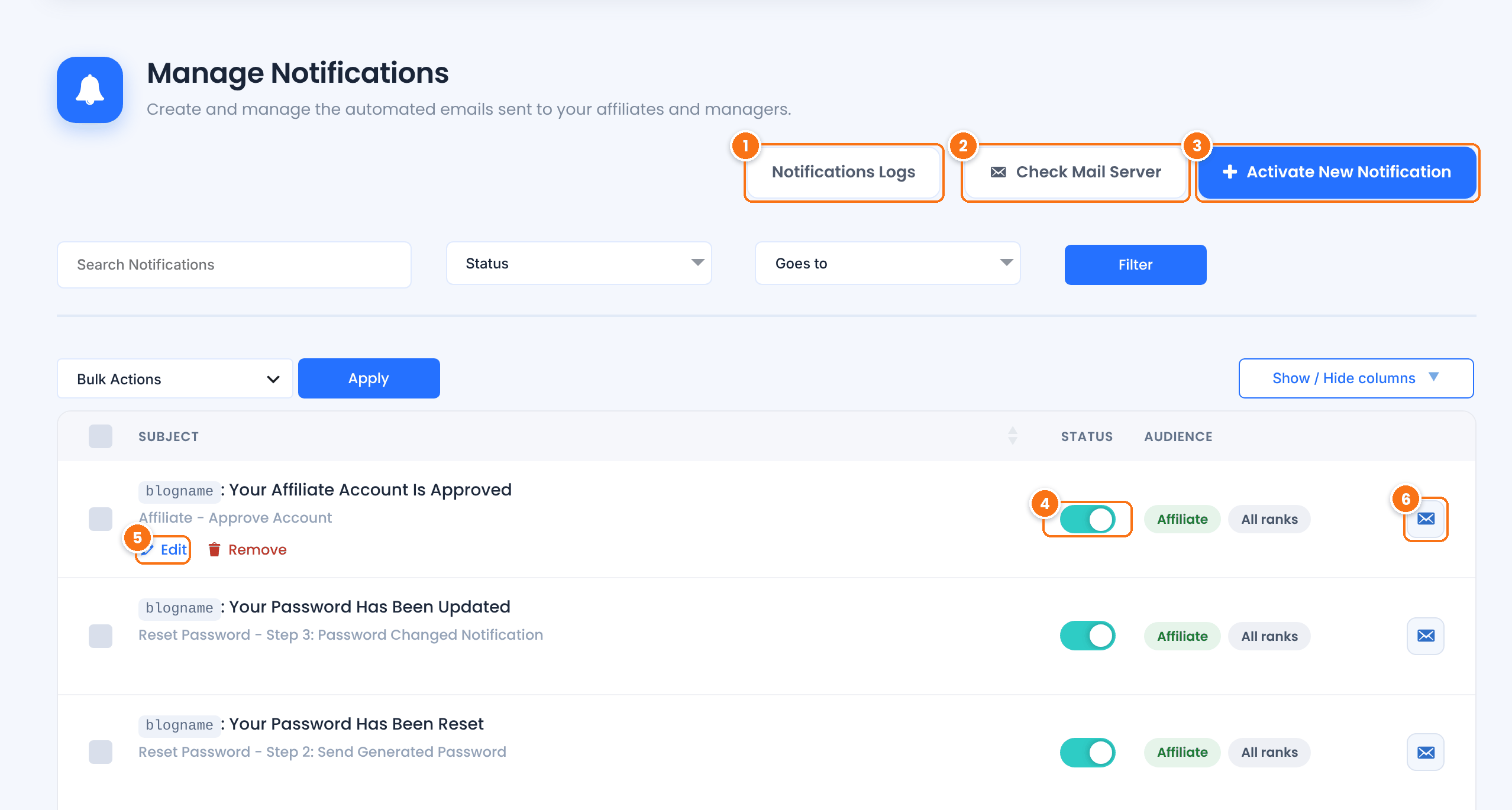
The list of emails sent, with the notification type, the recipient and the date.
Sends a test email to the Affiliate Manager address, so you can check that your site sends email at all.
Creates a notification for a trigger. See step 3.
Turns the notification on or off without deleting it.
Opens the notification. Hover over a row to see Edit and Remove.
Sends this notification to an address you enter. Template tags stay as they are in the test, for example {first_name}.
Audience shows Affiliate or Manager and the rank the notification is for. Use the filters to show only active or inactive notifications, or only those for affiliates or managers.
Tip
Ultimate Affiliate Pro sends only the notifications in this list that are on. The setup wizard adds the main ones (registration, rank change, payouts, profile update and password reset). If the list is empty, create them with Activate New Notification.
Create or edit a notification #
Click Activate New Notification, or Edit on an existing one.
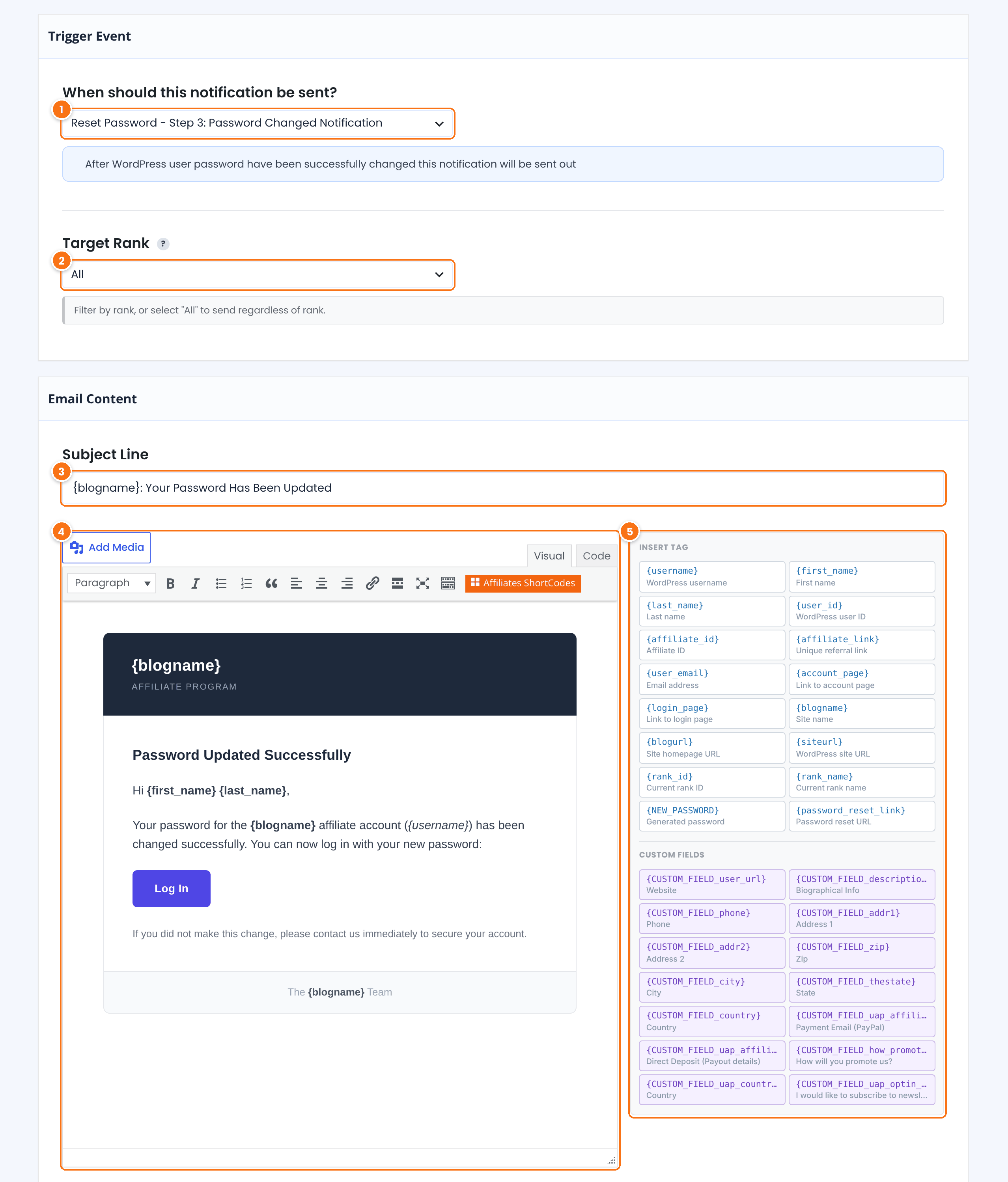
The trigger. When you pick one, the subject and message load with a ready-made text, and the box below explains when the email is sent.
Sends this version of the email only to affiliates in one rank. Use it to welcome Gold affiliates with a different text. All sends it to everyone. When a rank has its own version, that one is used instead of the All version.
Default: All
The email subject. Tags work here too, for example {blogname}.
The email body. Use the Visual tab, or the Code tab for HTML.
Click a tag to add it to the message. Tags are replaced with the affiliate’s data when the email is sent: {first_name}, {username}, {account_page}, {rank_name} and more. The email template tags reference lists every tag. Registration custom fields are listed as {CUSTOM_FIELD_…} tags.
Click Create Notification (or Save Changes) at the bottom. Use Send Test Email to see the email in your inbox first.
Available triggers:
- Affiliate Manager Notifications
- New affiliate registered, new rank assigned to an affiliate, affiliate updated their profile
- Registration Process
- New affiliate account registered, auto-generated password sent, affiliate account approved
- Affiliate Account
- Profile updated, account deleted, new rank achieved, MLM assignment
- Reset Password Process
- Step 1: confirmation request, step 2: new password, step 3: password changed
- Payouts Process
- Payout failed, payout processing, payout completed
With the Email Verification module on, the dropdown also has the email verification messages. See approve affiliates and verify their email. With the Pushover module on, each notification also has a Pushover Notification section. See Pushover push notifications.
Turn on new referral emails #
Emails about new referrals are modules, so each affiliate decides which referrals they hear about. Go to Ultimate Affiliate Pro›Modules and open Referral Notifications.
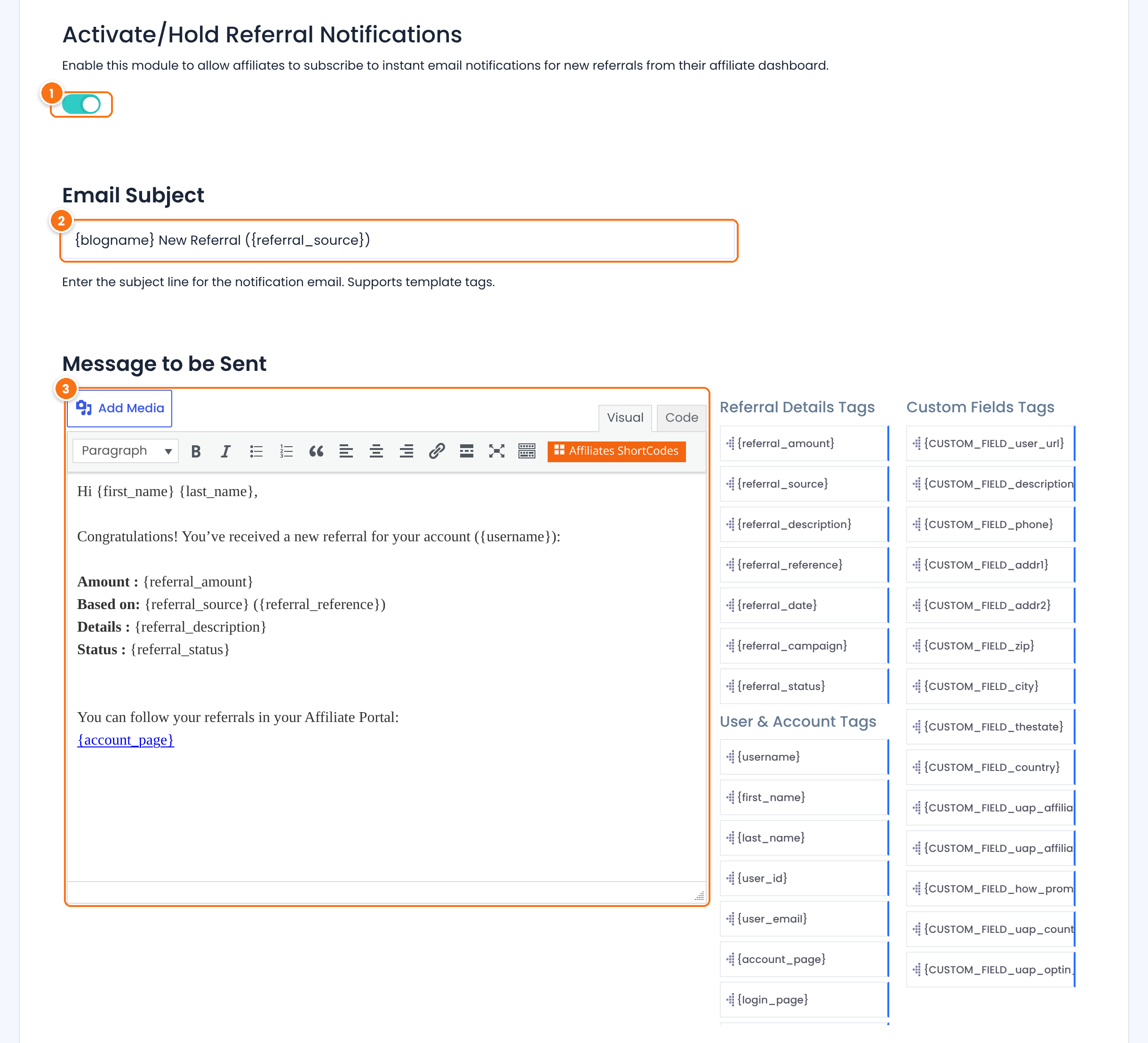
Sends affiliates an email for each new referral.
Default: Off
The subject of the referral email.
Default: {blogname} New Referral ({referral_source})
The email body. Besides the user tags, the Referral Details Tags next to the editor add the referral data: {referral_amount}, {referral_source}, {referral_description}, {referral_reference}, {referral_date}, {referral_campaign} and {referral_status}. For WooCommerce orders, {WOOCOMMERCE_ORDER_DETAILS} adds the order details.
Click Save Changes. Then let affiliates choose:
- Go to Showcases›Affiliate Portal and turn on the Notifications tab.
- In the Affiliate Portal, affiliates open Notifications and tick the referral types they want emails for, such as WooCommerce or signup referrals. With nothing ticked, they get an email for every referral.
To get an email yourself for every new referral, turn on Admin Referral Notifications in Modules. It has the same Email Subject and Message to be Sent fields and tags. It goes to the Affiliate Manager address from step 1.
Test it #
- Click Check Mail Server and check your inbox, including the spam folder.
- Use Send Test Email on a notification to check its look.
- Register a test affiliate and check the welcome email, then open Notifications Logs to see it logged.
Frequently asked questions #
Who receives the admin notifications?
The addresses in Affiliate Manager Email Address, in Settings, Notifications Settings. If it is empty, the WordPress administration email receives them.
Can I send a different email to each rank?
Yes. Create one notification per rank with the same trigger and choose the rank in Target Rank. Keep a version with All for the other ranks.
Can I use HTML in notification emails?
Yes. Emails are sent as HTML. Use the Visual tab for formatting, or paste your own HTML in the Code tab.
How do I stop one email without deleting it?
Turn off its Status switch in the Manage Notifications list.
Affiliates don’t receive any emails. What do I check?
Click Check Mail Server. If the test email doesn’t arrive, the problem is the email setup of your site, not the notification. See emails are not sent.
How do I email all my affiliates at once?
Notifications are automatic. For a one-off message, see contact your affiliates.


