With the Pay to become Affiliate module you can charge affiliates to join your program: a user becomes an affiliate only after they buy a product you choose, in WooCommerce or Ultimate Membership Pro. Use it for paid partner programs, starter kits or to accept only real customers.
The purchase is the application. As soon as the qualifying order is completed, Ultimate Affiliate Pro creates the affiliate account, approves it and sends the approval email. To let customers join for free instead, see Turn existing users and customers into affiliates.
Before you start
- Ultimate Affiliate Pro installed, with your license active.
- WooCommerce or Ultimate Membership Pro active, with the integration turned on in Ultimate Affiliate Pro›Integrations.
- The product or membership affiliates will buy, for example “Partner Program Access”.
How to charge affiliates to join #
- 1. Registers
- Liam fills in the affiliate registration form. His account is created, but he is not an affiliate yet.
- 2. Buys
- He buys Partner Program Access while logged in to that account.
- 3. Order completed
- When the WooCommerce order status is Completed, Liam becomes an approved affiliate.
- 4. Starts promoting
- He logs in to the Affiliate Portal and gets his referral link.
Customers who already have an account skip step 1: buying the qualifying product is enough. With the module on, the Become an Affiliate button from the [uap-user-become-affiliate] shortcode shows the message “You are not allowed to become affiliate for the moment!” to users who have not bought it.
Choose the qualifying products #
Go to Ultimate Affiliate Pro›Modules and open Pay to become Affiliate.
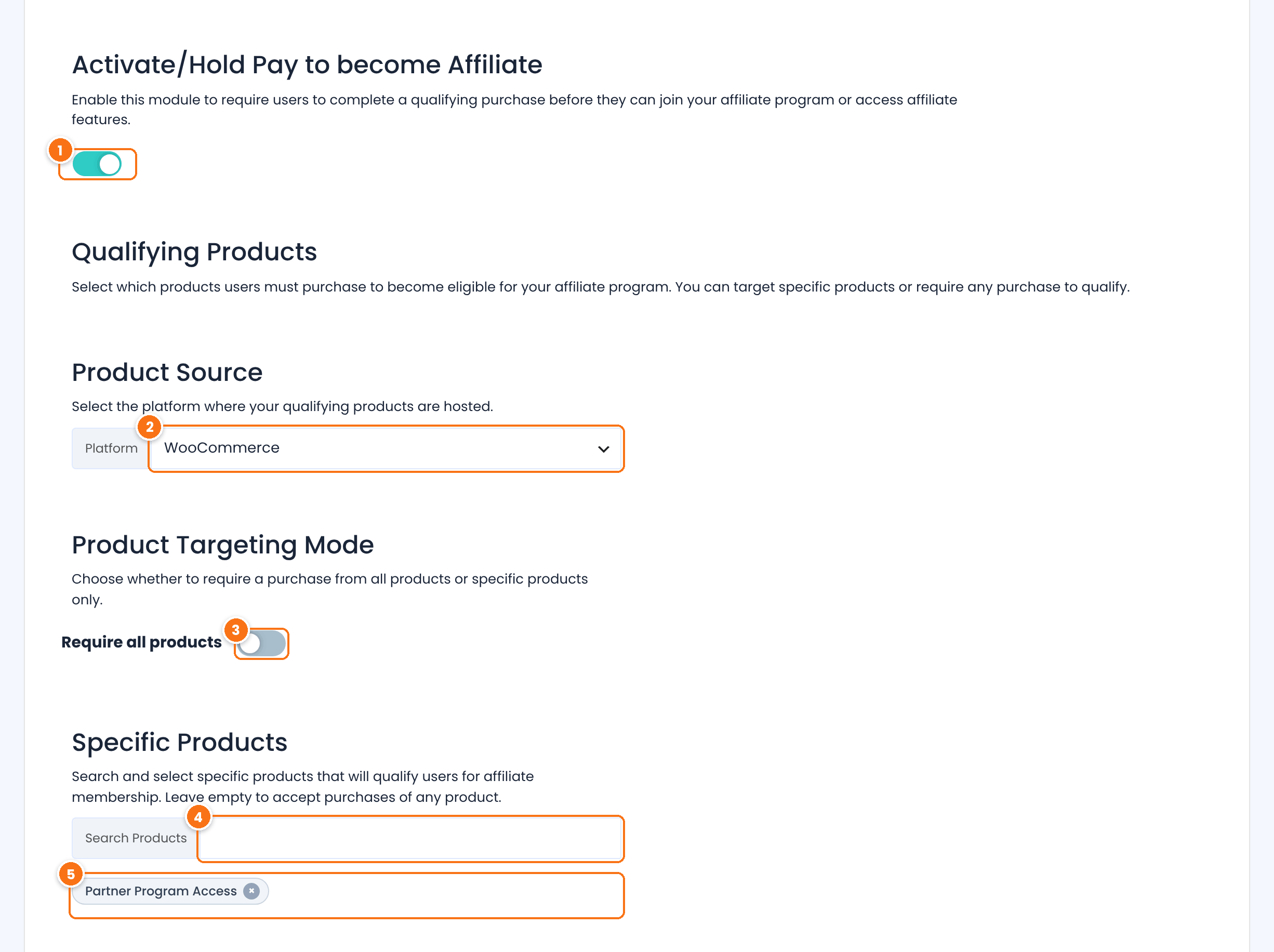
Turns the module on.
Default: Off
Where the qualifying product is sold: WooCommerce (products) or Ultimate Membership Pro (memberships). Only active platforms are listed.
When on, a purchase of any product from the selected platform qualifies, and the product search is disabled. When off, only the products you select below qualify.
Default: Off
Type part of a product or membership name and pick it from the suggestions. Add as many as you need; buying any one of them qualifies.
The qualifying products. Click the × on a tag to remove it.
Select at least one product, or turn on Require all products. Click Save Changes.
Make sure buyers have an account #
The affiliate account is added to the WordPress account that placed the order, so buyers must be logged in or create an account at checkout. In WooCommerce, open WooCommerce›Settings›Accounts & Privacy and turn off guest checkout, or let customers create an account during checkout.
Then link your registration page to the qualifying product, for example in the success message of the registration form or with a button on the product page, so new applicants know the next step.
Complete the order #
The affiliate account is created when the order reaches the right status:
The order status must be Completed. Orders where every product is both virtual and downloadable complete on their own after payment; other orders are completed by you in WooCommerce›Orders. See the WooCommerce order statuses guide.
The membership payment must be Completed.
At that moment the buyer becomes an affiliate, gets the Role After Approval if their account was pending, and receives the Affiliate Account Approval Notification email. With the MLM module on, the sponsor chosen at registration becomes their parent. Make sure the approval notification is active in Email Notifications; see Approve affiliates and verify their email.
Tip
To avoid paying a commission on the joining fee itself, exclude the qualifying product from commissions. See Include or exclude products from commissions.
Test it #
- Register a test user on the registration page and check that they are not listed in Ultimate Affiliate Pro›Affiliates yet.
- Log in as that user and buy the qualifying product, for example with a 100% coupon.
- Set the order to Completed and check that the user now appears in the Affiliates list and can open the Affiliate Portal.
Frequently asked questions #
Can I charge people to join my affiliate program?
Yes. Turn on the Pay to become Affiliate module and choose the WooCommerce product or Ultimate Membership Pro membership they must buy. They become affiliates when that order is completed.
A customer paid but is not an affiliate yet. Why?
Check that the order status is Completed, that the product is in the qualifying list, and that the customer was logged in to their account when they placed the order.
Can any purchase in my store qualify?
Yes. Turn on Require all products. Then any completed order on the selected platform turns the buyer into an affiliate, so only customers can join.
Do paying affiliates still need my approval?
No. The completed purchase approves them, and they receive the approval email right away.
Can I use a membership instead of a product?
Yes. Choose Ultimate Membership Pro as the Platform and select the memberships that qualify.


