The Direct Link Tracking module lets you track affiliates without a link: every visitor who comes to your store from an affiliate’s website is credited to that affiliate. The affiliate links to you with plain URLs such as yourstore.com/shop/, and Ultimate Affiliate Pro recognizes where the visitor came from.
Plain links look neutral to readers, so they click them more readily than links with a visible tracking code. The method suits bloggers, review sites and partners with their own domain. It works next to standard affiliate referral links and follows the same tracking rules.
Before you start
- Ultimate Affiliate Pro installed, with your license active.
- An approved affiliate who owns a website, for example Emma Collins with
https://emmasblog.com/.
How to track affiliates without a link #
When someone clicks a link to your store, the browser sends the address of the page they came from, called the referrer. Ultimate Affiliate Pro compares it with the approved direct links of your affiliates. When it matches, the visit is recorded for that affiliate and the tracking cookie is saved, exactly as if the visitor had used a referral link.
- Emma’s blog post
- Links to yourstore.com/shop/, with no tracking code
- Referrer sent by the browser
- https://emmasblog.com/
- Result
- Visit recorded for Emma, cookie saved
- Later purchase
- Referral for Emma
Use the website address
Browsers send only the address of the referring website, not the full page path, when a visitor moves from one site to another. Save direct links as the website address, written exactly as the browser sends it: https://, the domain and the trailing slash, for example https://emmasblog.com/. Add separate entries for other domains the affiliate owns, such as a newsletter on https://emmacollins.substack.com/.
Turn on Direct Link Tracking #
Go to Ultimate Affiliate Pro›Modules and open Direct Link Tracking.

- Turn on Activate/Hold Direct Link Tracking.
- In Links Limit Per Affiliate, set Maximum Links: how many direct links each affiliate can have, including pending ones and the ones you add for them. The default is 1. Set a higher number, such as 3, for affiliates who run more than one website.
- Click Save Changes.
Show the Direct Links tab to affiliates #
Affiliates submit their websites in the Direct Links tab of the Affiliate Portal. Go to Ultimate Affiliate Pro›Showcases›Affiliate Portal, turn on Direct Links in the list of portal tabs and save. The tab appears under Marketing. See Affiliate Portal settings.
Affiliates submit their websites #
In the Affiliate Portal, the affiliate opens Marketing›Direct Links.
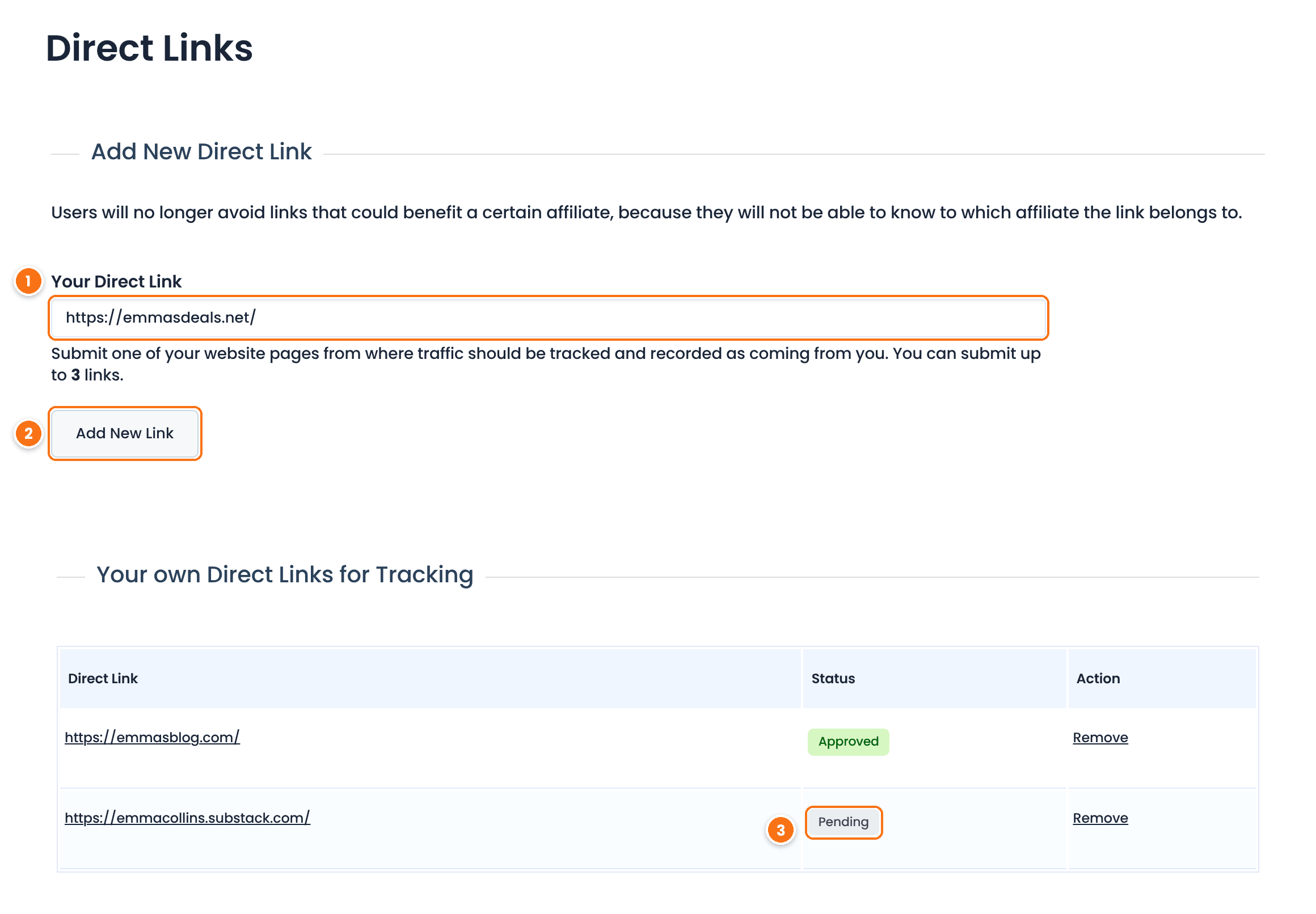
- The affiliate types the address of another website they own in Your Direct Link, for example
https://emmasdeals.net/. - They click Add New Link.
- The link appears in the list as Pending until you approve it. Approved links show Approved. Affiliates can remove a link with Remove.
Each address can belong to only one affiliate. A link that another affiliate already submitted is refused.
Approve or add direct links #
Back in Ultimate Affiliate Pro›Modules›Direct Link Tracking, scroll to Create New Direct Link and the list of links below it.
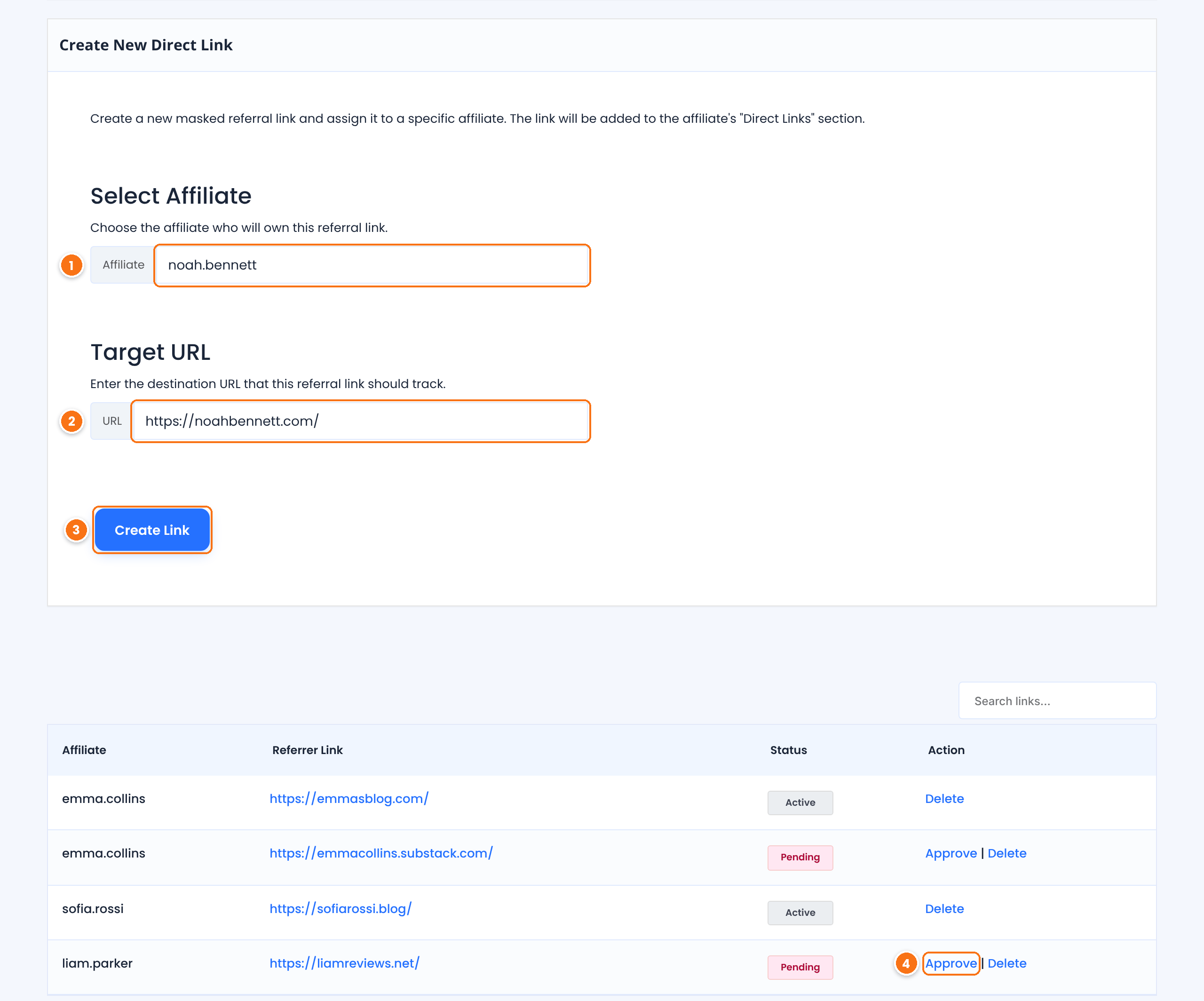
Start typing the affiliate’s username and pick them from the list.
Under Target URL: the address of the affiliate’s website, for example https://noahbennett.com/.
Saves the link. Links you add here are active right away.
Links submitted by affiliates show Pending. Visit the website to check that it belongs to the affiliate, then click Approve. The status changes to Active. Use Delete to remove a link, and the search box to find one.
Test it #
- Ask the affiliate to publish a plain link to your store on their website.
- Open their page in a private browser window and click the link.
- In Ultimate Affiliate Pro›Clicks, check that the visit appears for the affiliate, with their website in the Referring URL column.
Tip
The Referring URL column in Clicks shows the exact address browsers send for each visit. Copy it from there when you add a direct link, so the two match character for character. Learn more about the referrer in the MDN Referer header reference.
Frequently asked questions #
Do affiliates still need referral links?
Not on the websites you approved. Visitors who arrive from those websites are credited through plain links. Affiliates still use referral links everywhere else, such as social media, email and videos.
Should I add the full page URL or the website address?
The website address, such as https://emmasblog.com/. Browsers send the address of the referring website, not the page path, so the website address is what matches.
How many websites can one affiliate add?
As many as you allow in Maximum Links, in the Links Limit Per Affiliate section of the module. The default is 1.
What happens if the visitor already has another affiliate’s cookie?
The usual tracking rules apply. By default the first affiliate keeps the credit. With the Credit Last Affiliate module on, the affiliate whose website sent the visitor gets the credit.
Why should I review links before approving them?
An approved link credits every visitor from that website. Approve only websites the affiliate owns, so visitors from search engines, social networks or your own site are never credited to one affiliate.


