WooCommerce revenue sharing links a product to an affiliate, so that affiliate earns a commission every time the product is sold, no matter how the buyer reached your store. Use it for product creators, co-authors, instructors or partners who own a share of a product.
Normal referrals depend on the visitor clicking an affiliate link or using a coupon. See How affiliate tracking works. The WooCommerce Revenue Sharing add-on works next to that flow: the linked affiliate gets an extra referral for each sale of the product, and the affiliate who referred the buyer still gets their usual commission.
Before you start
- Ultimate Affiliate Pro and WooCommerce installed and active.
- The WooCommerce Revenue Sharing add-on installed and active. See Pro Add-ons: what they are and how to install them.
- The person who shares the revenue registered as an affiliate. See Manage affiliates.
- Product
- Online Yoga Course, $120
- Target Affiliate
- liam.parker, 10%
- Sale
- Olivia buys the course after clicking Emma’s referral link (no shipping or tax on the order)
- Liam earns
- $12.00 (WooCommerce Revenue Sharing referral)
- Emma earns
- Her usual commission for referring Olivia
Turn on WooCommerce Revenue Sharing #
Go to Ultimate Affiliate Pro›Modules and open the WooCommerce Revenue Sharing card.
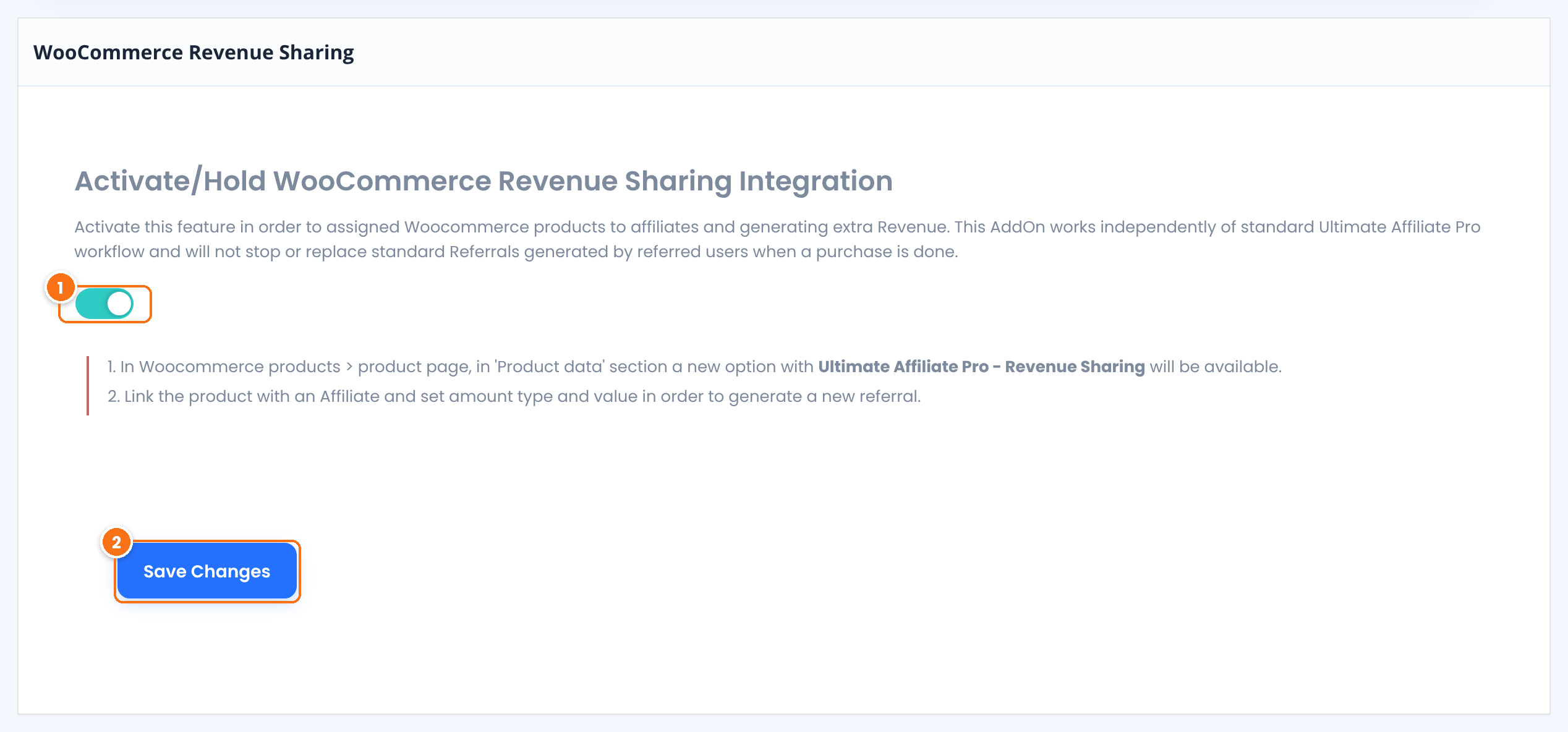
Turns revenue sharing on and adds the Ultimate Affiliate Pro – Revenue Sharing tab to the WooCommerce product editor.
Default: Off
Saves the setting.
Link a product to an affiliate #
Go to Products›All Products and edit the product (see Managing products in the WooCommerce docs). In the Product data box, open the Ultimate Affiliate Pro – Revenue Sharing tab.
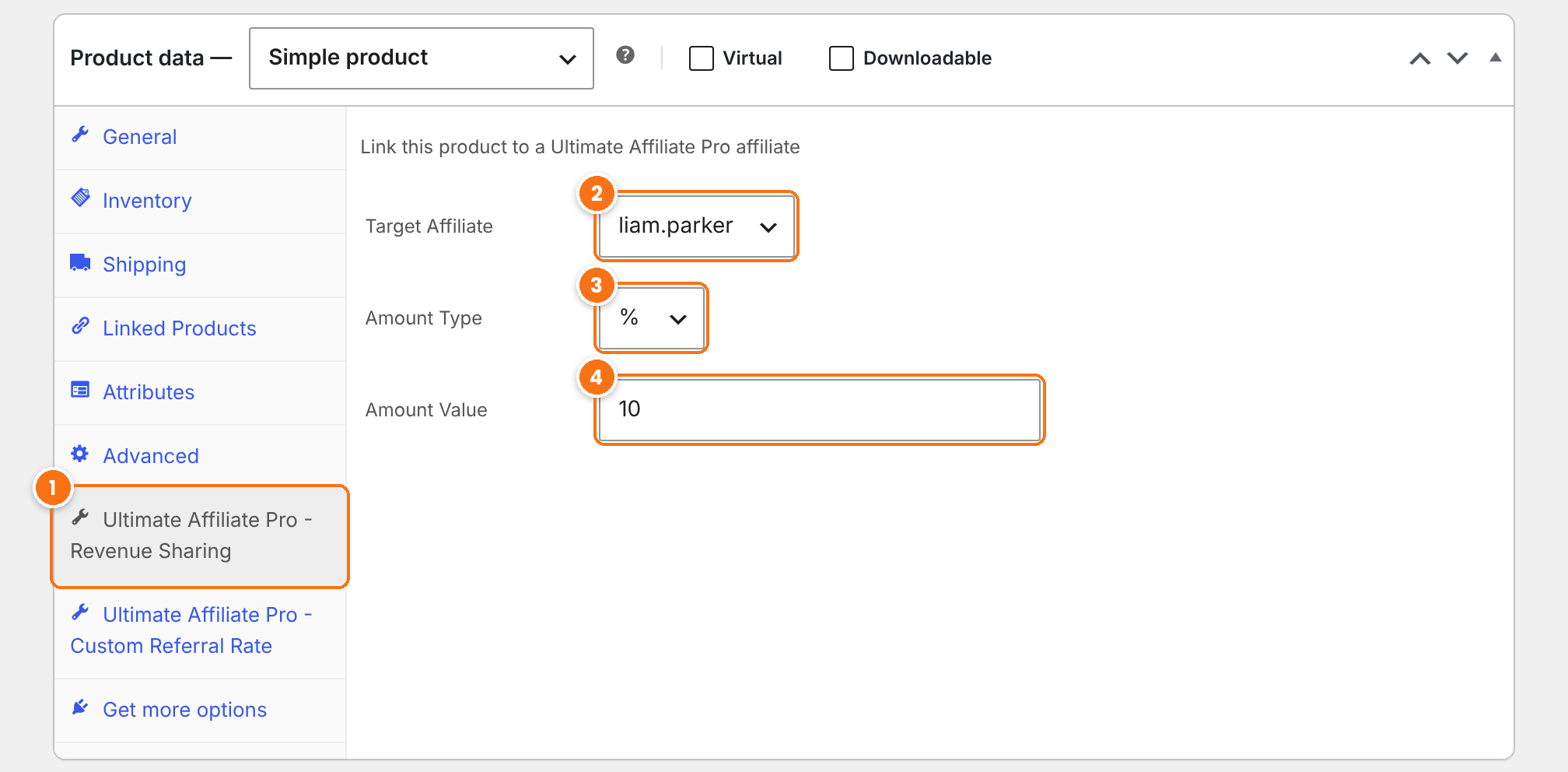
The product data tab of the add-on. It is available for simple and variable products.
The affiliate who earns from every sale of this product, listed by username. One affiliate per product.
How the share is calculated:
- %: a percentage of the price paid for the product in the order.
- Currency (for example USD): a flat amount for each order line with the product.
The percentage or the flat amount, for example 10.
Click Update to save the product. For a variable product, the setting applies to all its variations.
Tip
To pay a different share on another product, link that product to the same or another affiliate. Each product has its own Target Affiliate, Amount Type and Amount Value.
How the revenue share is calculated #
When an order is placed, Ultimate Affiliate Pro checks each product in it. For every product linked to an affiliate, it creates one referral for that affiliate:
- With %, the base is the line total of the product after discounts. Shipping and taxes are included unless you turned on Exclude Shipping from Calculations or Exclude Taxes from Calculations in Ultimate Affiliate Pro›Settings›General Settings. See How commissions are calculated.
- With a flat amount, the referral is the Amount Value for the order line.
- Rank rates and Product Rates do not apply to revenue sharing referrals. The share is always the value set on the product.
- The buyer does not need a referral link or coupon. If the buyer was referred by another affiliate, that affiliate still gets their normal referral.
Follow the revenue sharing referrals #
Go to Ultimate Affiliate Pro›Referrals. Revenue sharing referrals have the source WooCommerce Revenue Sharing.
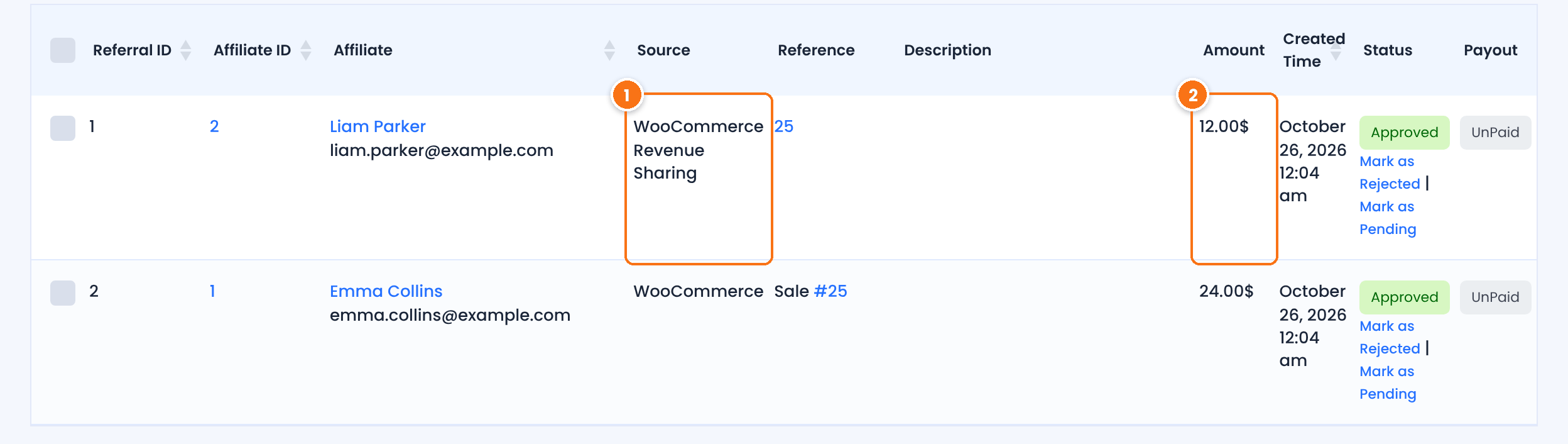
The share calculated from the product settings.
The referral status follows the order:
| Order status | Referral status |
|---|---|
| Placed, Pending payment, Processing, On hold | Pending |
| Completed | Approved |
| Cancelled, Refunded, Failed | Rejected |
Approved revenue sharing referrals are paid like any other referral. See How affiliate payouts work. Affiliates see them in the Affiliate Portal with their other referrals.
Test it #
- Link a test product to an affiliate, for example
liam.parkerwith 10%. - Place an order for the product in a private browser window, without any referral link.
- In Ultimate Affiliate Pro›Referrals, check the new referral with the source WooCommerce Revenue Sharing and status Pending.
- Mark the order Completed in WooCommerce. The referral changes to Approved.
Frequently asked questions #
Does the linked affiliate need to refer the sale?
No. The linked affiliate earns on every sale of the product, even when the buyer did not use any referral link or coupon.
Does revenue sharing replace the normal referral?
No. If the buyer came through another affiliate, that affiliate gets their usual commission, and the linked affiliate gets the revenue share as a separate referral.
How do I share revenue on several products?
Open each product and set its Target Affiliate, Amount Type and Amount Value in the Ultimate Affiliate Pro – Revenue Sharing tab. Each product can go to the same or a different affiliate.
Are shipping and taxes included in the percentage?
Yes, unless Exclude Shipping from Calculations or Exclude Taxes from Calculations is on in Ultimate Affiliate Pro, Settings, General Settings.
What happens when the order is refunded?
The revenue sharing referral changes to Rejected, the same as when the order is cancelled or fails.
Do rank rates apply to revenue sharing?
No. The amount is always the Amount Type and Amount Value set on the product.


