Before you invite affiliates, test affiliate tracking from start to finish: open a referral link, place a test order and check that the click and the referral are recorded for the right affiliate, with the right commission. This test takes about ten minutes.
Ultimate Affiliate Pro links a visitor to an affiliate with a cookie, so every test needs a clean browser session. If you want to know what happens behind the scenes, read how Ultimate Affiliate Pro works.
Before you start
- Your integration is turned on in Ultimate Affiliate Pro›Integrations, for example WooCommerce.
- A rank with a commission rate. The setup wizard creates one; see the quick start.
- A payment method you can use for test orders, such as WooCommerce Cash on delivery or your payment gateway in test mode.
Create a test affiliate #
- Register through your Become an Affiliate page in a private browser window, or add an affiliate in Ultimate Affiliate Pro›Affiliates with Add new Affiliate.
- If new affiliates need approval, approve the test affiliate in the Affiliates list, so they can log in to the Affiliate Portal.
- Log in to the Affiliate Portal as the test affiliate and copy the referral link from Marketing›Affiliate Links, for example
yourstore.com/?ref=emma.collins. - Log out.
Open the referral link in a clean browser #
Open a new private (incognito) window, where you are not logged in and no affiliate cookie is saved yet, and paste the referral link. If Redirect Same Page Without URL Parameters is on, the parameter disappears from the address bar after the page loads. That is expected: the visit is already recorded.
In your admin, go to Ultimate Affiliate Pro›Clicks.
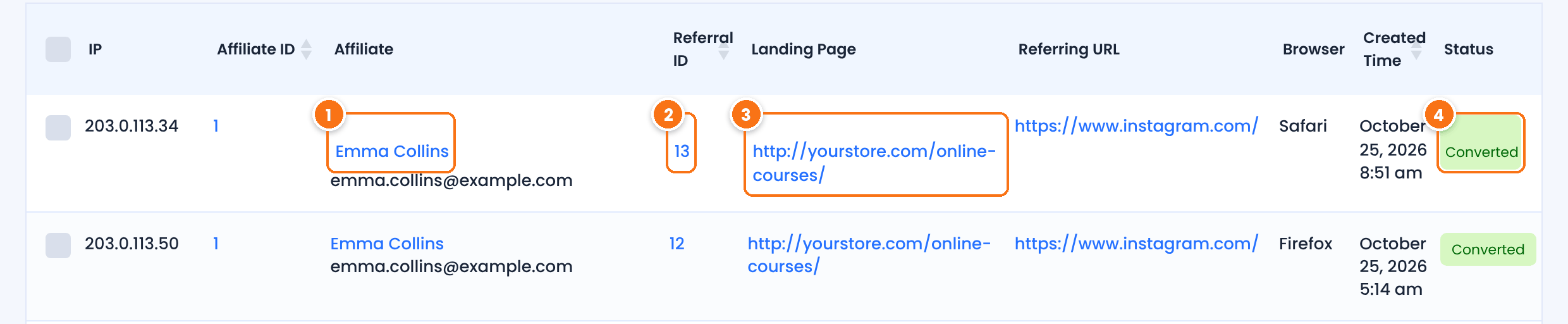
The affiliate whose link was opened. It must be your test affiliate.
Empty until the visitor places an order. After the test order, it shows the ID of the referral the click turned into.
The page the visitor opened, the one from the referral link.
One affiliate per browser
Once a browser has an affiliate cookie, opening another affiliate’s link in the same browser does not record a new click, unless you turn on the Credit Last Affiliate module. Close the private window and open a new one before every test.
Place a test order #
- In the same private window, add a product to the cart and go to checkout.
- Check out as a guest or with a customer account. Do not use the affiliate’s own account: affiliates do not earn on their own orders unless Allow Self Referrals is turned on.
- Pay with your test payment method and note the order number.
Check the referral #
Go to Ultimate Affiliate Pro›Referrals. The newest referral is at the top of the list.
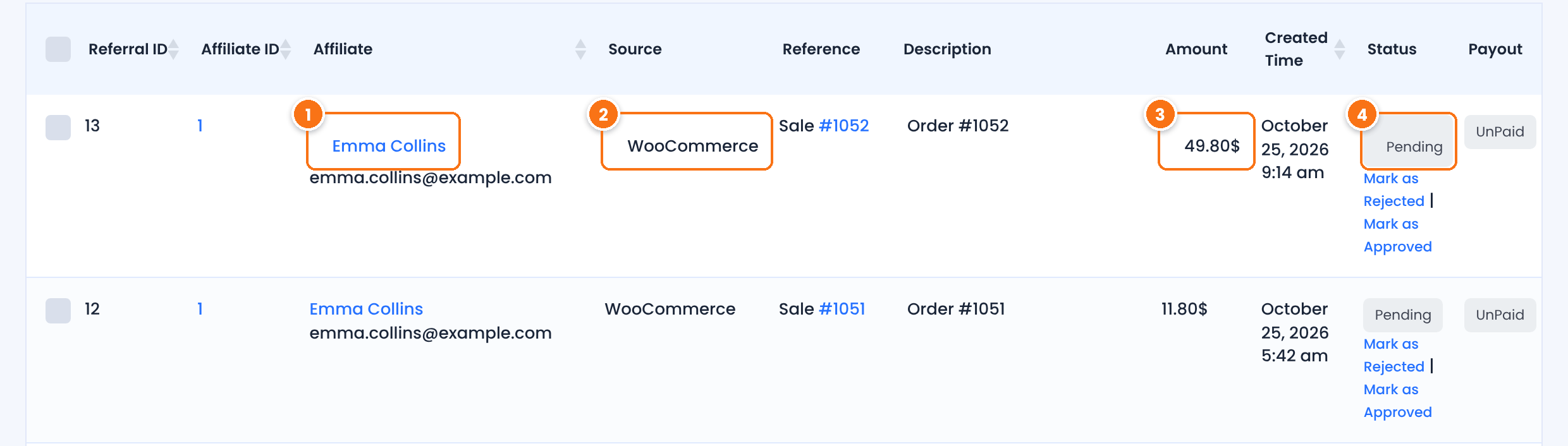
The affiliate credited with the order. The Reference column shows the order number.
The integration that created the referral, for example WooCommerce.
The commission. With a 20% rank and a $249 product, the amount is $49.80. Shipping and taxes are excluded by default.
A new referral starts as Pending. With WooCommerce, it changes to Approved when you mark the order Completed.
Then check the other side: in the Affiliate Portal of the test affiliate, the referral appears in Referrals and the click in Reports›Traffic Log.
Test the order status changes #
- In WooCommerce, change the test order to Completed. The referral changes to Approved.
- Create a second test order and cancel it. Its referral changes to Rejected. Refunded orders are rejected too, while Reject Commissions on Refund is on (the default).
The WooCommerce order statuses guide explains when each status is used.
Test your other ways to earn #
Repeat the test for each feature you use, in a new private window every time:
Apply the affiliate’s coupon code at checkout without opening a referral link. The order must be credited to that affiliate. See Affiliate coupon tracking.
With the SignUp Referrals (CPL) module on, register a new user through the referral link and check that a referral is created. See Signup referrals.
Check that the test affiliate received the emails you turned on, and look them up in Ultimate Affiliate Pro›Settings›Notifications Settings.
Pay the approved test referral in Ultimate Affiliate Pro›Payouts›Pay Affiliates and check that it is marked Paid.
Clean up #
When you are done, remove the test data so it does not count in your reports: select the test rows in Ultimate Affiliate Pro›Referrals and Ultimate Affiliate Pro›Clicks, choose Remove in Bulk Actions and click Apply. Cancel or delete the test orders in your shop too.
To clear all test affiliates, clicks, referrals and payouts at once before you launch, use the Remove Dummy Data add-on.
Frequently asked questions #
The click is not recorded. What should I check?
Use a new private window: an affiliate cookie from an earlier test blocks new clicks. Check that the affiliate account is active and that the link uses your URL parameter. If your site uses page caching, make sure pages with the referral parameter are not served from cache. See Referrals or clicks are not recorded.
The click is recorded but the order is not. Why?
Check that the integration is turned on in Integrations, that you did not order as the affiliate, and that you used the same browser window for the click and the order.
Why is the commission lower than I expected?
Shipping and taxes are excluded by default, and product rates or other rules can change the rate. See How commissions are calculated.
Can I test while logged in as administrator?
Yes, as long as the administrator is not the affiliate whose link you test. A private window that is not logged in is the most reliable test.
The referral link opens a 404 page. What do I do?
Resave your permalinks in Settings, Permalinks, then see Affiliate link opens a 404 page.


