With manual affiliate payouts, you send the money yourself, by bank transfer or any other way you choose, and Ultimate Affiliate Pro keeps the record: who you owe, the bank details each affiliate gave you and which payments are paid. In payout screens this method is called Direct Deposit; in Payout Settings it appears as Wire Transfer.
Manual payouts work in every country and need no payment account connected to WordPress. To pay automatically instead, see PayPal payouts or Stripe payouts. For the full payout flow, read How affiliate payouts work.
Before you start
- Ultimate Affiliate Pro installed, with your license active.
- A bank account or another payment service you will use to send the money.
- Approved, unpaid referrals for at least one affiliate.
Choose the bank details form #
Go to Ultimate Affiliate Pro›Settings›Payout Settings and click Configure on Wire Transfer. The Wire Transfer Form Settings page opens.
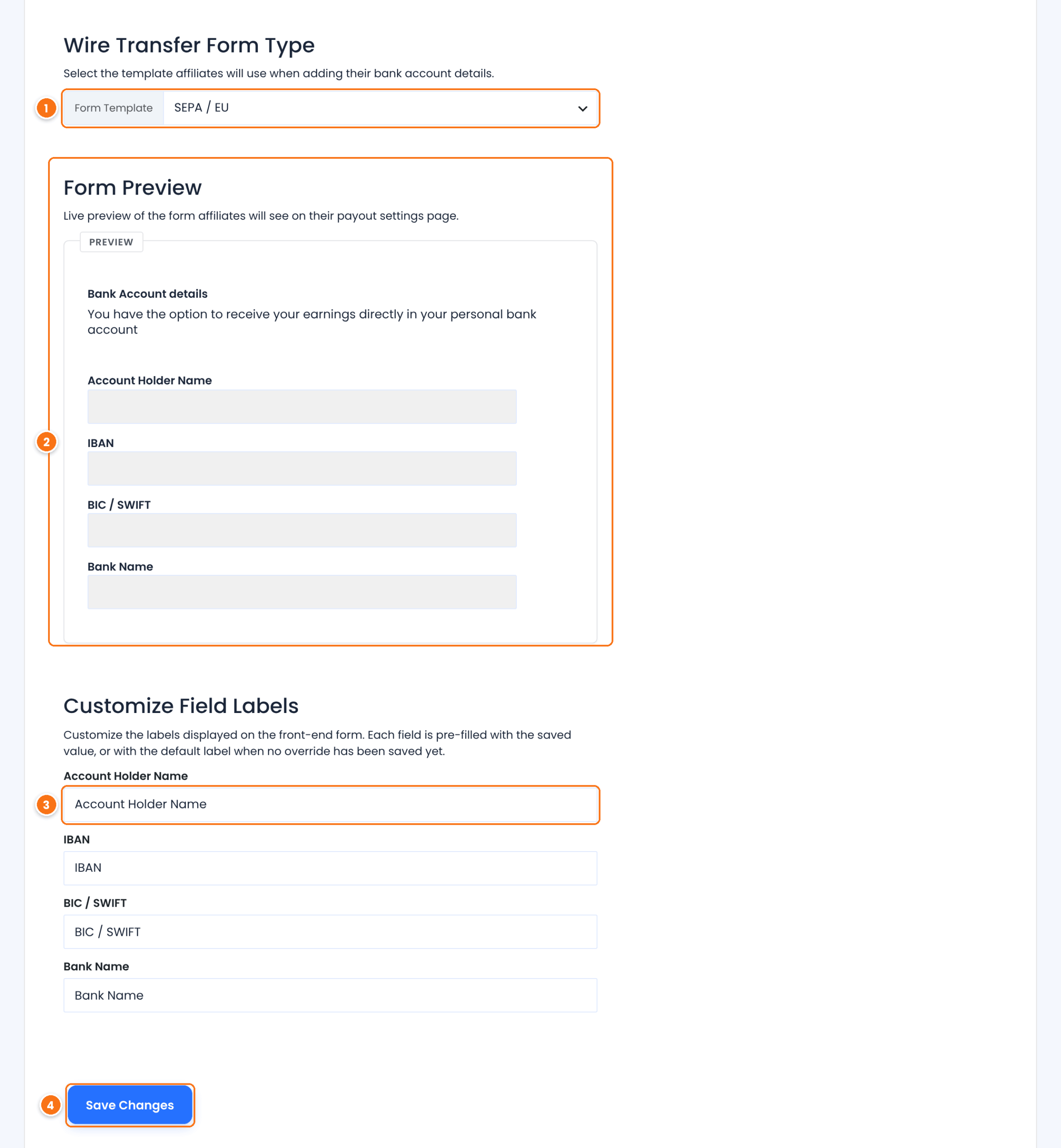
The bank form affiliates fill in. Pick the one that matches where most of your affiliates bank.
- SEPA / EU: Account Holder Name, IBAN, BIC / SWIFT, Bank Name.
- UK Domestic (GBP): Account Holder Name, Sort Code, Account Number, Bank Name.
- US Domestic (ACH/Wire): Account Holder Name, Routing Number, Account Number, Account Type (Checking or Savings), Bank Name.
- International SWIFT: Account Holder Name, IBAN / Account Number, SWIFT / BIC, Bank Name, Bank Address, Beneficiary Address.
- Custom / Plain Text: one Banking Instructions box where affiliates write their details freely.
Default: Custom / Plain Text
Shows the form exactly as affiliates will see it. It updates as soon as you change the template.
Rename any field of the selected template, for example “IBAN” to “Your IBAN”. Each box shows the current label.
Saves the template and your labels.
Tip
Paying affiliates in several countries? Choose International SWIFT or Custom / Plain Text, so everyone can enter the details their bank needs.
Let affiliates add their bank details #
Affiliates add their details in the Affiliate Portal, under Profile›Payout Details.
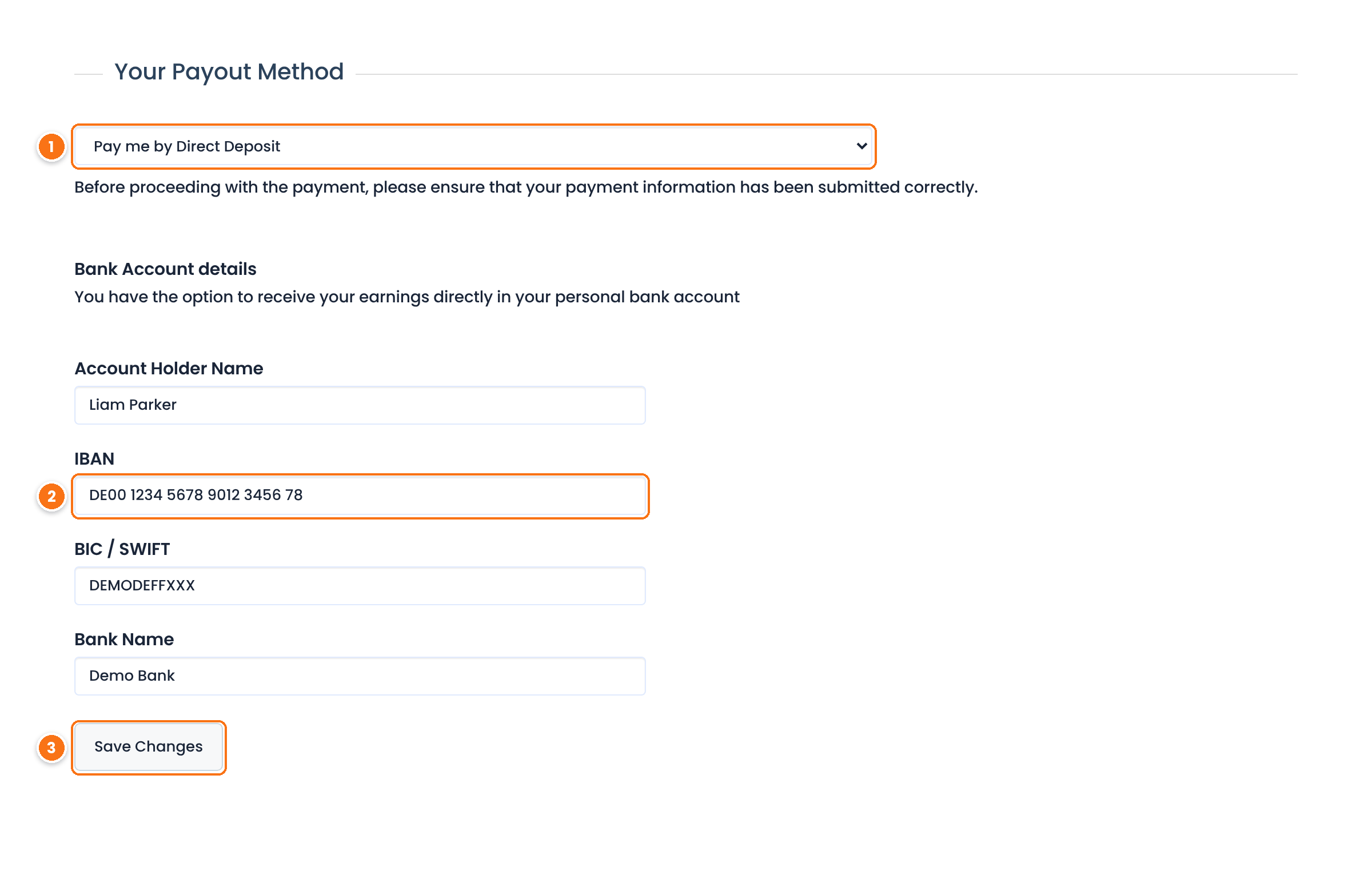
- The affiliate selects Pay me by Direct Deposit in Your Payout Method.
- They fill in the bank form, for example their IBAN.
- They click Save Changes.
Affiliates can also enter their details when they sign up, with the Direct Deposit (Payout details) field of the registration form. See Customize the affiliate registration form.
Create the payout #
Go to Ultimate Affiliate Pro›Payouts›Pay Affiliates. In 04 – Choose Payout Method, choose Direct Deposit to pay only the affiliates who use bank transfer, or Inherited Payout Method to pay everyone with their own method. Click Preview Payout, check the summary and click Create Payout.
Ultimate Affiliate Pro creates one payment per affiliate with the status Processing. No money moves yet.
Send the money and mark it as paid #
Go to Ultimate Affiliate Pro›Payouts›Mass Payouts and open the payout.
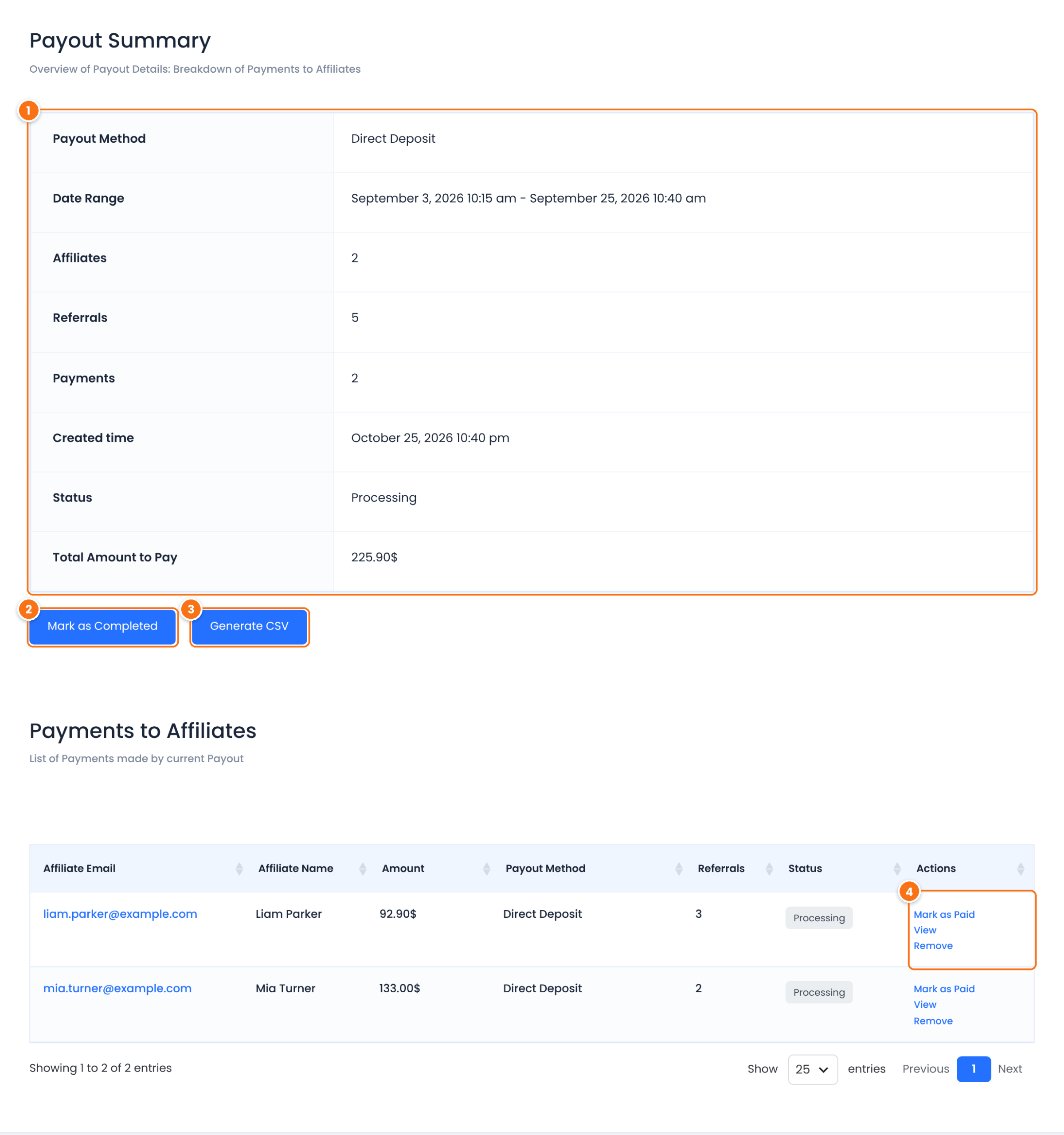
The total you need to send and the number of payments.
After you have sent every transfer, marks all payments in the payout as paid at once.
Creates a CSV file with the payments of the payout. Click Download File and use it for your bank’s bulk transfer or your records.
Mark one payment as paid, open it to see the affiliate’s bank details under Affiliate Payment details, or remove it so its referrals return to unpaid.
- Click View on a payment to see the amount and the affiliate’s bank details.
- Send the transfer from your bank, with the amount shown.
- Back in the payout, click Mark as Paid for that payment, or Mark as Completed when all transfers are sent.
When a payment is marked as paid, its referrals become Paid and the affiliate sees the payment in the Payments tab of the Affiliate Portal.
Turn off bank transfer #
If you pay only through PayPal or Stripe, go to Ultimate Affiliate Pro›Settings›Payout Settings and turn on Disable Direct Deposit. Click Save Changes. Affiliates can no longer choose Direct Deposit in their Payout Details, and the method is disabled in the Pay Affiliates screen.
Important
Before you disable Direct Deposit, ask affiliates who use it to choose another method in their Payout Details, and set Default Payment System to PayPal or Stripe so new affiliates get a method they can use.
Test it #
- Log in to the Affiliate Portal as a test affiliate, choose Direct Deposit and save some test bank details.
- Approve a referral for that affiliate and create a payout with Direct Deposit.
- Open the payout, click View on the payment and check that the bank details are there.
- Click Mark as Paid and check that the referral shows Paid in Referrals.
Frequently asked questions #
Can I pay with Wise, a check or another service?
Yes. Direct Deposit covers any payment you send outside WordPress. Create the payout with Direct Deposit, send the money your way, then mark the payment as paid.
Can I mark a single referral as paid without a payout?
Yes. Open the referral in Ultimate Affiliate Pro, Referrals, set Payment to Paid and save. A payout is better when you pay several referrals, because it keeps the payment history.
I changed the form template. What happens to details affiliates already saved?
The portal shows the fields of the new template. Ask affiliates to check their Payout Details and save them again in the new form.
Where do I see all bank transfer payments?
In Ultimate Affiliate Pro, Payouts, Payments. The Payment Method column shows the method of each payment and you can filter by status.
Can affiliates see when they were paid?
Yes. Each payment marked as paid appears in the Payments tab of their Affiliate Portal, with its date and amount.


