The Affiliate Bar is an affiliate toolbar at the top of your site that only your affiliates see. While they browse your store, it gives them a referral link and a banner for the page they are on, page statistics and quick links to their Affiliate Portal. You turn it on and set it up in the Affiliate Bar module of Ultimate Affiliate Pro.
Without the bar, an affiliate who wants to promote a product copies its URL, opens the Affiliate Portal and builds the link there. With the affiliate bar, they open the product and click once. The links are normal affiliate links, so they track exactly like the ones in Affiliate referral links.
Before you start
- At least one active affiliate who can log in to your site.
- Optional: the Social Share & Locker plugin, if you want share buttons in the bar. See Social share buttons.
Who sees the affiliate bar #
- Logged-in users who have an affiliate account. Visitors, customers and other users never see it.
- On every front-end page of your site, except the Affiliate Portal page.
- Each affiliate can turn the bar off for their account, or hide it for 24 hours. See step 5.
Turn on the Affiliate Bar #
Go to Ultimate Affiliate Pro›Modules and open the Affiliate Bar card.
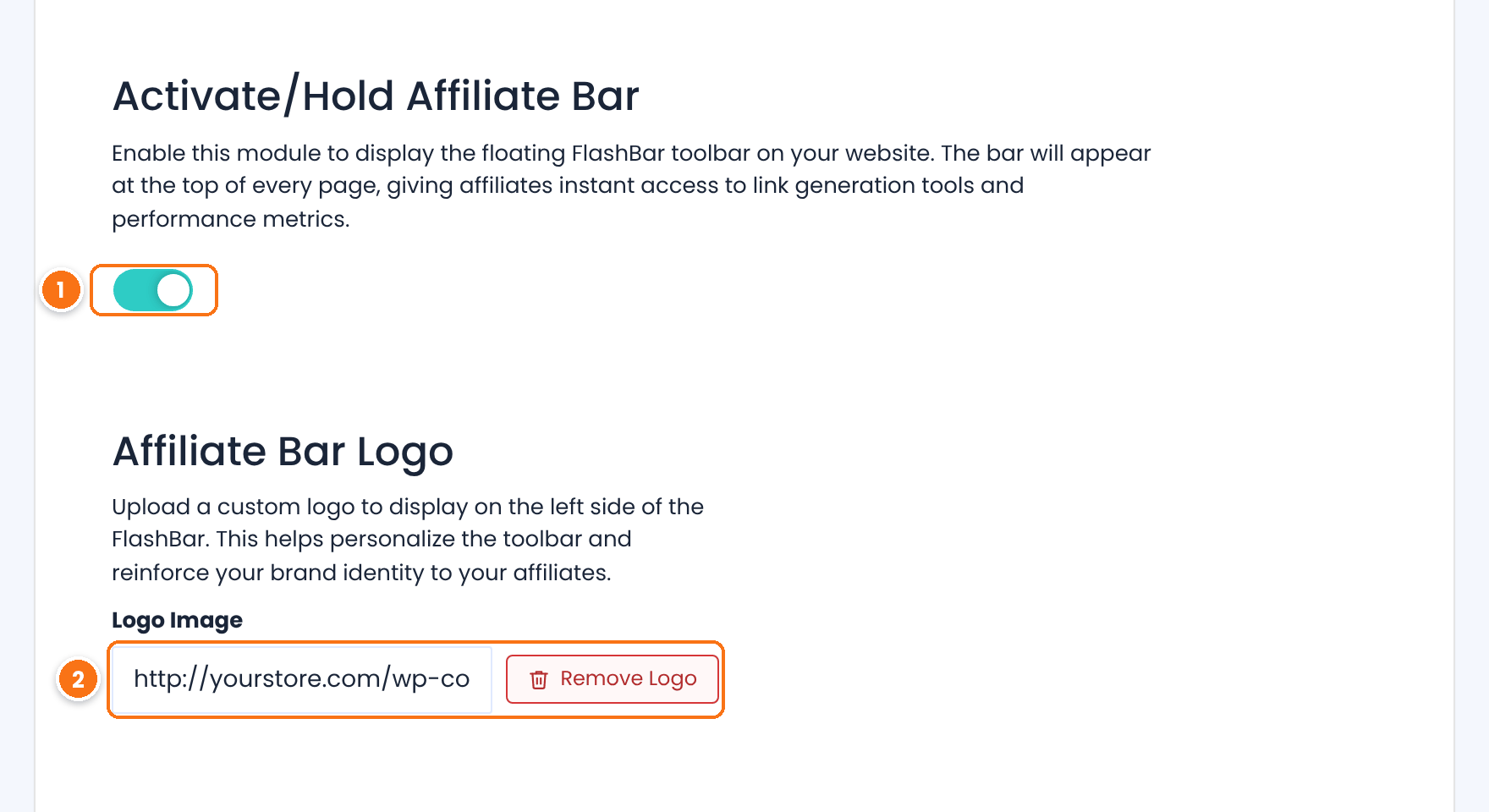
Shows the bar to your affiliates.
Default: Off
The logo on the left of the bar. Click the field to choose an image from the Media Library. Remove Logo clears the field.
Affiliate Bar Preview shows what the bar looks like with every section turned on.
Choose the sections of the bar #
Scroll down to Affiliate Bar Sections. Each section has its own switch and labels. All sections are on by default. The Social Sharing section needs the Social Share & Locker plugin, so turn it off if you do not use that plugin.
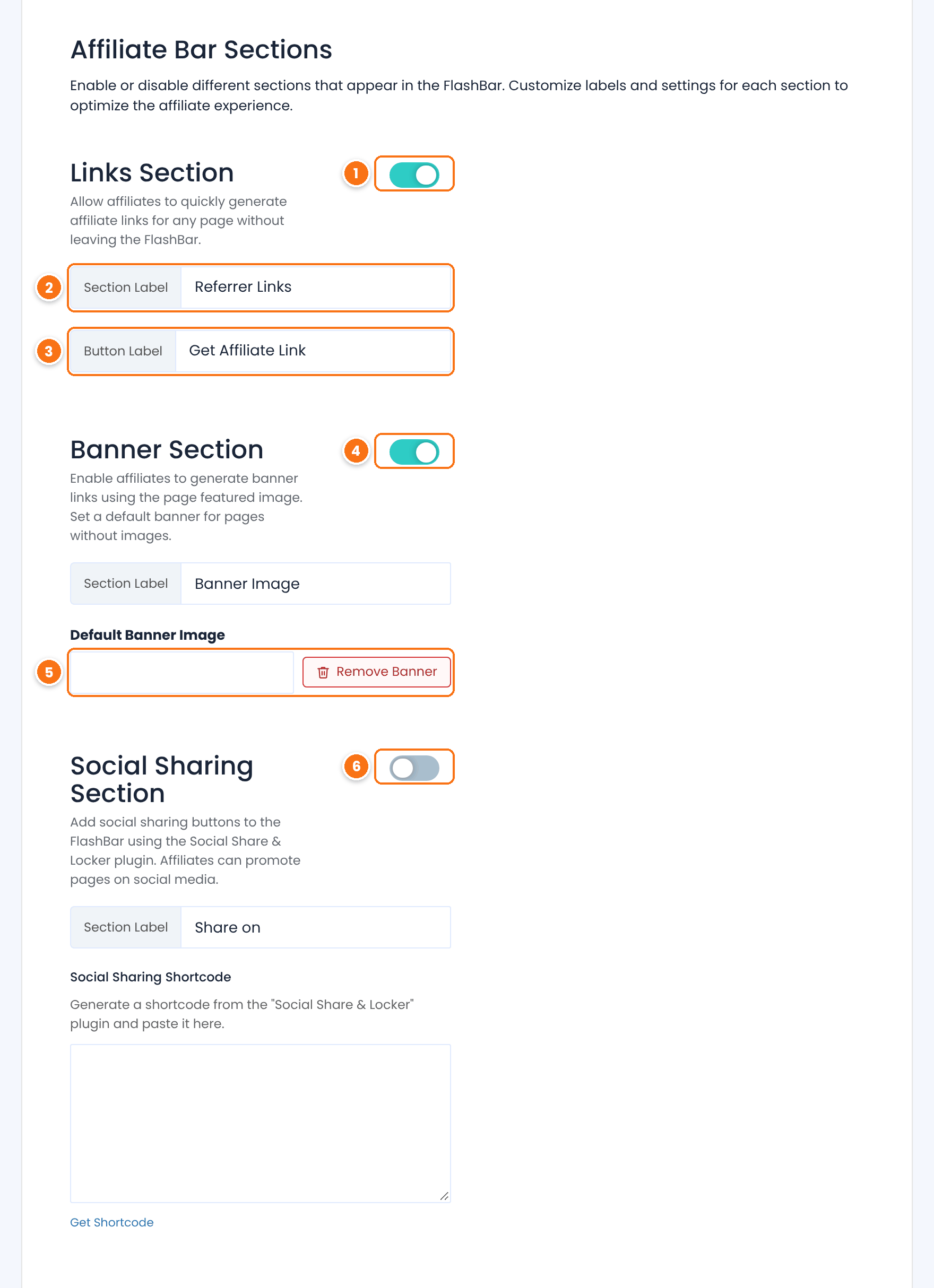
Adds the link button that creates an affiliate link for the current page.
Text of the link button in the bar.
Default: Referrer Links
Small heading above the link and banner buttons.
Default: Get Affiliate Link
Adds a banner button. It appears on pages and products that have a featured image. The Section Label below it is the button text (default Banner Image).
Image used on pages without a featured image, so the banner button shows everywhere. Leave it empty to show the button only on pages with a featured image.
Adds share buttons to the bar. Turn it on when the Social Share & Locker plugin is active: click Get Shortcode to open it, create a share buttons shortcode and paste it into Social Sharing Shortcode. The buttons share the affiliate link of the current page. Section Label is the text in front of the buttons (default Share on).
Set up statistics and the menu #
Further down, set the statistics block and the menu of the bar, then save.
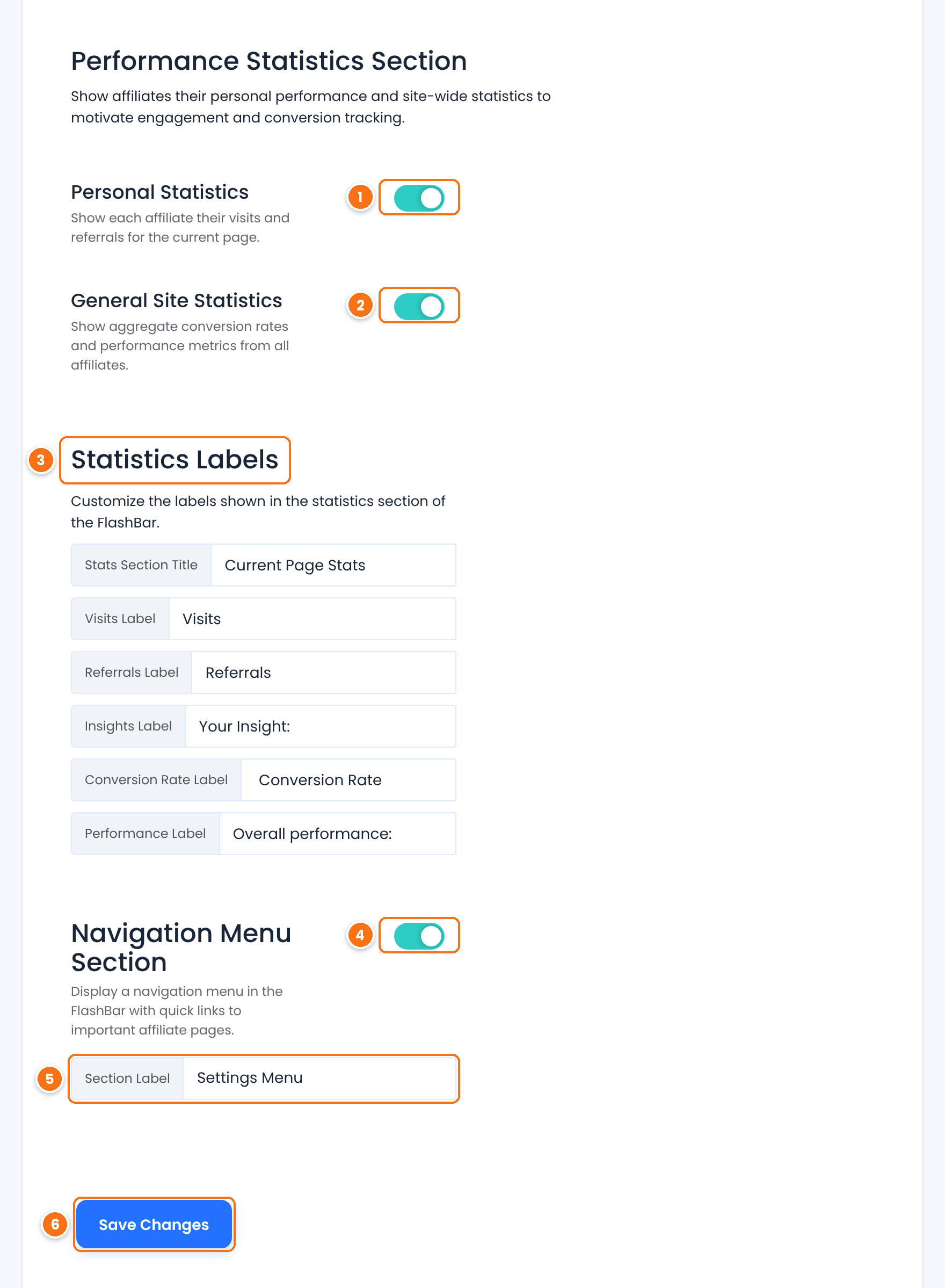
Together with the next switch, controls the Current Page Stats block of the bar. Keep both on to show the affiliate’s own numbers and the overall conversion rate.
See above. Turn both off to remove the block.
Texts of the statistics block: Stats Section Title (Current Page Stats), Visits Label, Referrals Label, Insights Label (Your Insight:), Conversion Rate Label and Performance Label (Overall performance:).
Adds the menu icon on the right of the bar.
Title of the menu.
Default: Settings Menu
Saves all the Affiliate Bar settings.
What each part of the affiliate bar does #
Log in as an affiliate and open any product or page of your store. The bar appears at the top.

Your logo from the module settings.
Opens Simple Affiliate Link with the affiliate link of the current page.
Opens Banner Affiliate Link with a ready-to-paste image banner for the page.
The affiliate’s own visits and referrals that started on this page, through their affiliate link.
Conversion rate of this page for all affiliates: referrals divided by affiliate visits on the page.
Opens the settings menu.
Generate a link for the current page #
A click on Referrer Links opens the link for the page the affiliate is viewing. The affiliate clicks the field to select the link and copies it.
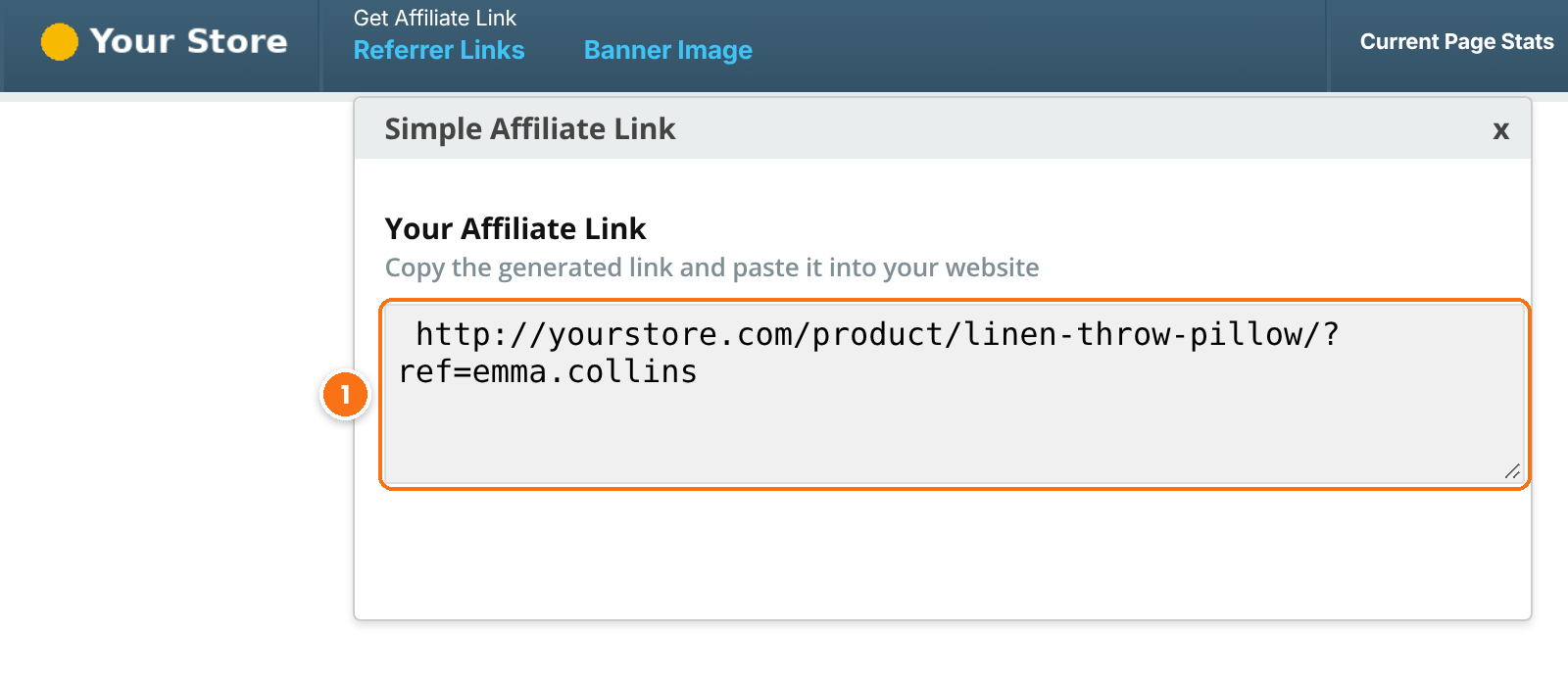
The current page URL with the affiliate’s referral parameter. When the Friendly Affiliate Links module is on, a Friendly Links selector switches it to a link such as yourstore.com/product/linen-throw-pillow/ref/emma.collins.
Get a banner for the current page #
Banner Image builds an image banner from the featured image of the page, linked with the affiliate link.
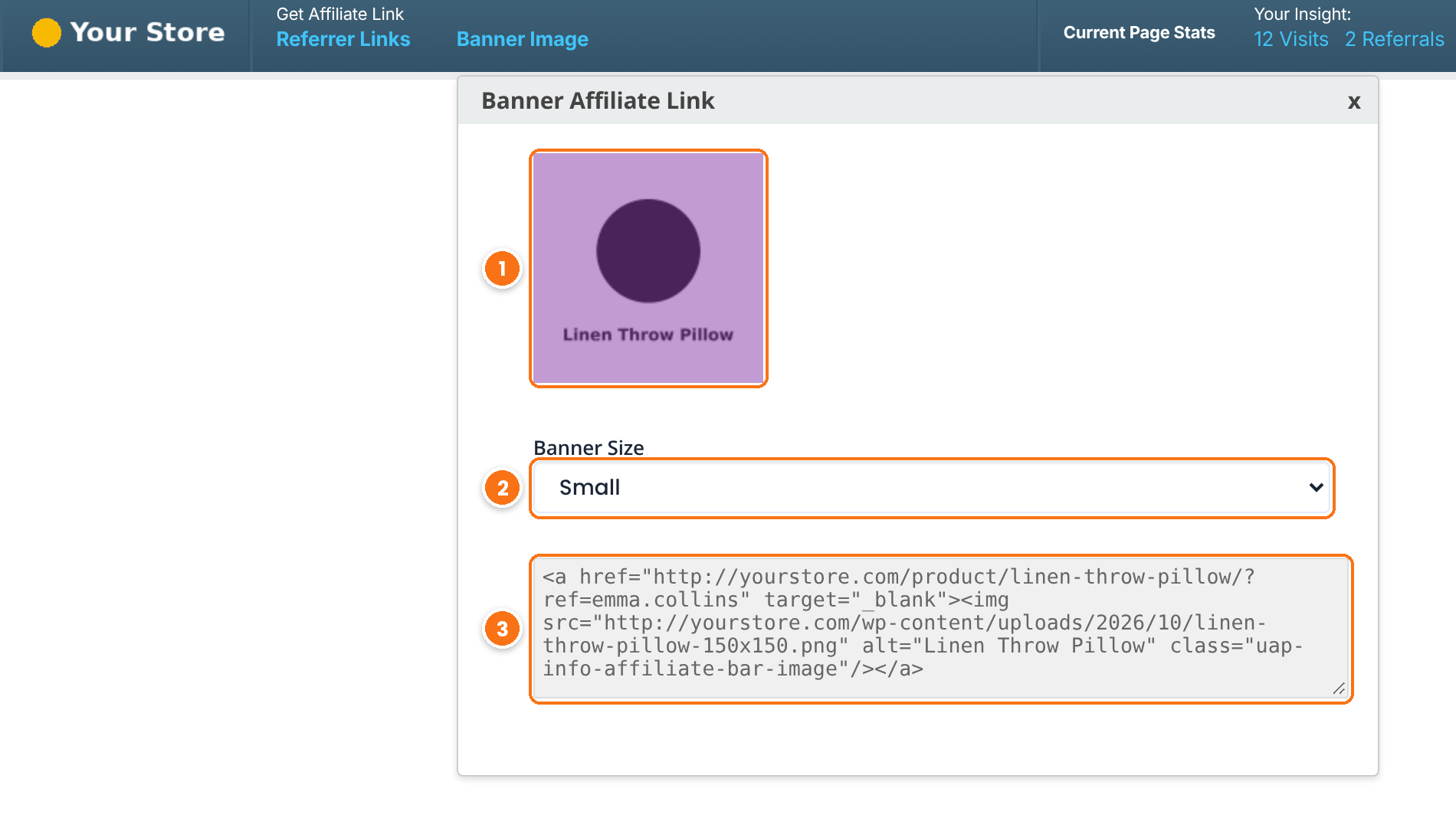
How the banner looks.
HTML the affiliate pastes into a website or blog post.
For banners you design yourself, use Creatives.
Use the settings menu #
The menu icon on the right opens quick links to the Affiliate Portal.
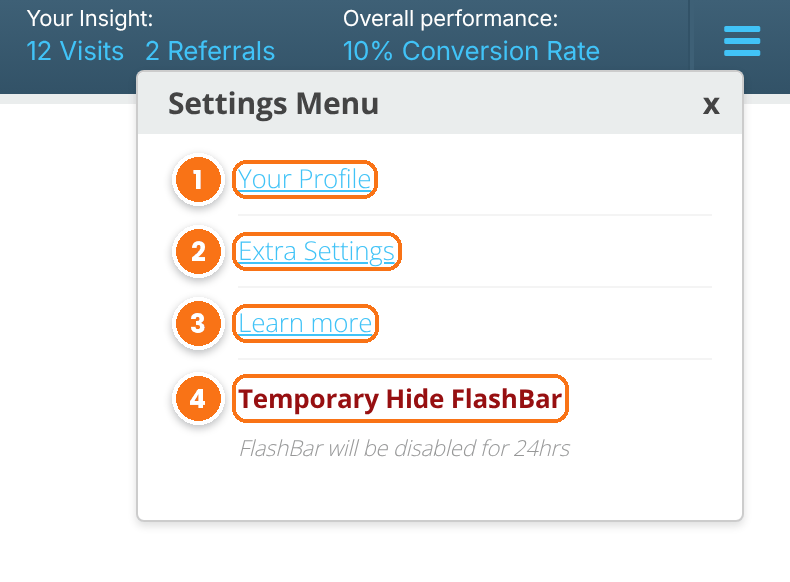
Opens the affiliate’s account details in the Affiliate Portal, in a new tab.
Opens the Affiliate Bar settings tab of the portal in a new tab. See step 5.
Opens the Affiliate Bar help tab of the portal in a new tab.
Hides the bar for 24 hours in this browser. It comes back by itself.
Add the Affiliate Bar tabs to the Affiliate Portal #
The Extra Settings and Learn more links open two portal tabs. Turn them on in Ultimate Affiliate Pro›Showcases›Affiliate Portal: in Content Section, turn on Affiliate Bar and its sub-tabs Settings and Help, then click Save Changes. In the portal menu, the group appears as Affiliate FlashBar. Click the arrow next to Help to write your own tips for affiliates. See Set up the Affiliate Account Page.
In the Settings tab, each affiliate controls the bar for their own account:
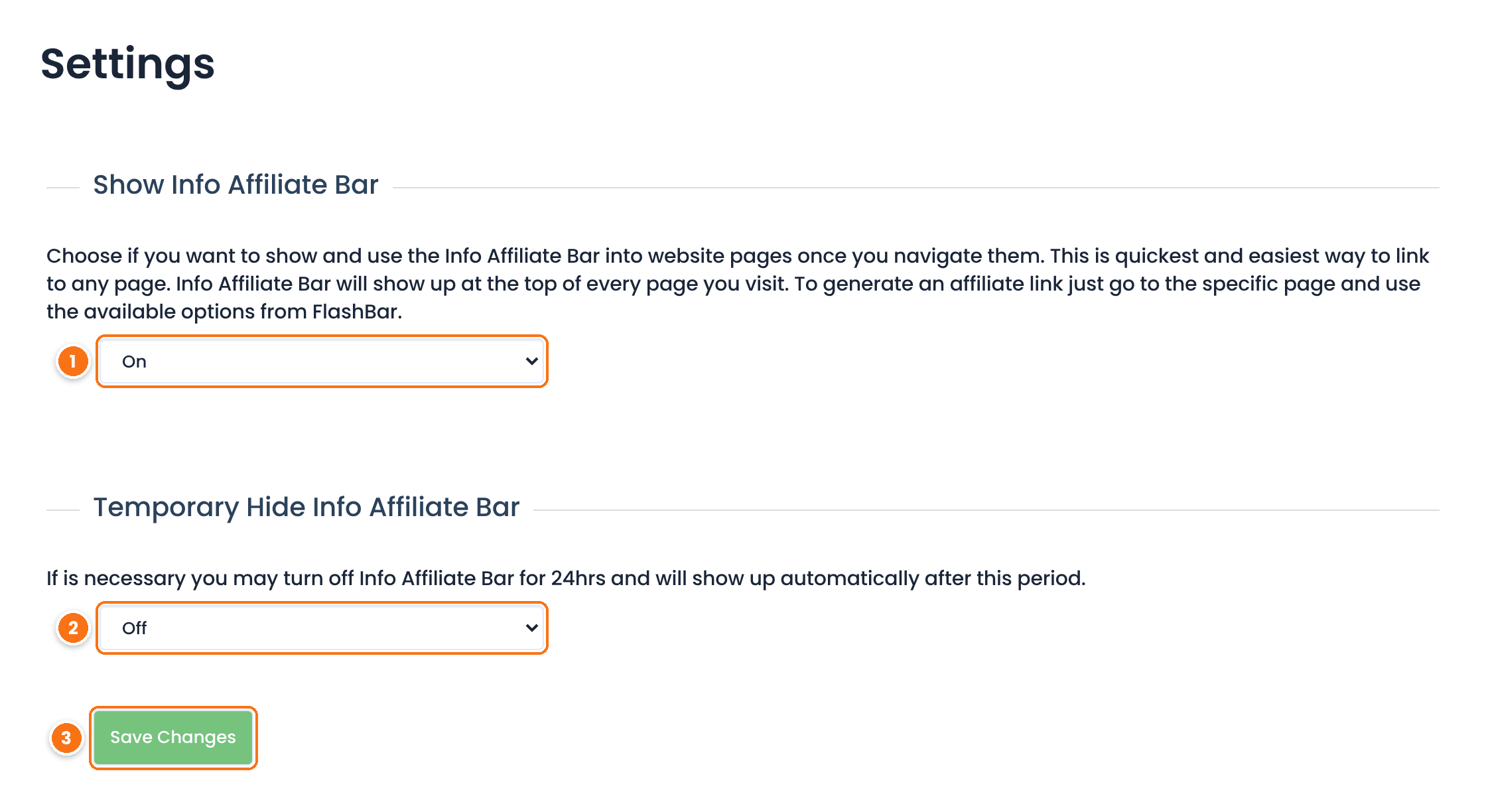
Default: On
Default: Off
Saves the choice.
Test it #
- Log in as an affiliate in a private browser window and open a product page. The bar appears at the top.
- Click Referrer Links, copy the link and open it in another browser. In Ultimate Affiliate Pro›Clicks, check the new visit.
- Open the Affiliate Portal page. The bar does not show there.
- Click the menu icon and choose Temporary Hide FlashBar. Reload the page: the bar is hidden.
- In the portal, open the Affiliate FlashBar Settings tab, set Temporary Hide Info Affiliate Bar to Off and save. The bar is back.
- Log out. The bar does not show to visitors.
Frequently asked questions #
What is the Affiliate Bar?
It is a toolbar at the top of your site that only logged-in affiliates see. It creates an affiliate link and a banner for the page they are viewing, shows page statistics and links to their Affiliate Portal.
Can customers or visitors see the affiliate bar?
No. The bar shows only to logged-in users who have an affiliate account.
Why does the affiliate bar not show on the Affiliate Portal page?
The bar is hidden on the Affiliate Portal page on purpose, because the portal already has all the affiliate tools.
How can an affiliate hide the bar?
From the bar menu, Temporary Hide FlashBar hides it for 24 hours. In the Affiliate Portal settings tab, Show Info Affiliate Bar set to Off hides it until the affiliate turns it on again.
Why is the Banner Image button missing on some pages?
The banner uses the featured image of the page. Add a featured image to the page, or set a Default Banner Image in the Affiliate Bar settings.
Do links from the affiliate bar track like normal affiliate links?
Yes. They are standard affiliate links to the current page, so they record visits and credit the affiliate for orders.


