The Manual Affiliate Order Assignment add-on lets you assign an order to an affiliate from the WooCommerce order screen. You pick the affiliate, save the order, and Ultimate Affiliate Pro creates the referral with the commission calculated for that order.
Use it when a sale should earn a commission but was not tracked: the customer ordered by phone, came from an event, switched devices or blocked cookies, or the affiliate sent you the customer’s name. Orders that arrive through affiliate links and coupons are still tracked automatically by the WooCommerce integration. To add a referral that is not tied to a WooCommerce order, use Add New Referral in Manage referrals.
Before you start
- WooCommerce installed and active, with the WooCommerce card turned on in Ultimate Affiliate Pro›Integrations.
- The Manual Affiliate Order Assignment add-on installed and active. See Pro add-ons: what they are and how to install them.
- The affiliate you want to credit is active, with a rank that has a commission rate. See Ranks: commission tiers for affiliates.
Turn on Manual Affiliate Order Assignment #
Go to Ultimate Affiliate Pro›Modules and open Manual Affiliate Order Assignment.
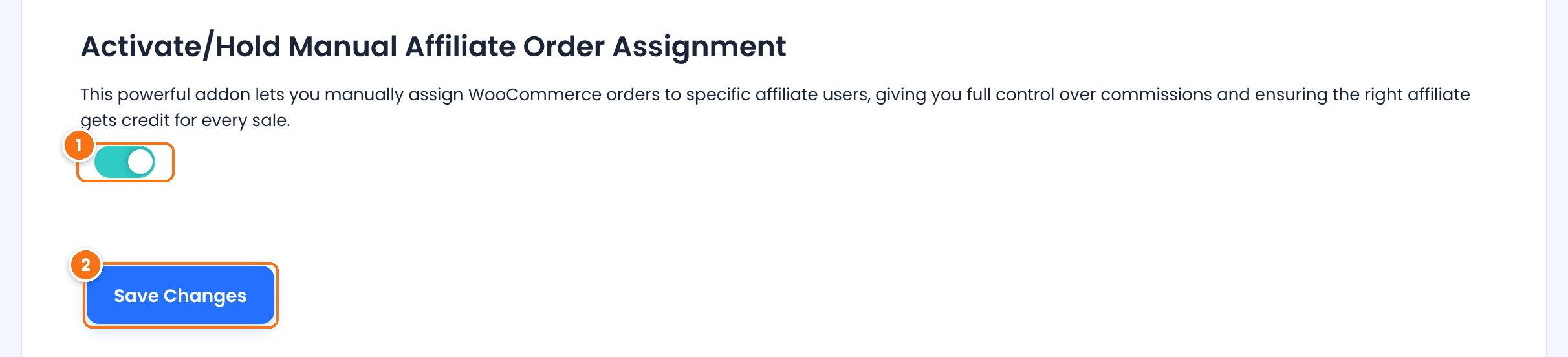
Adds the Ultimate Affiliate Pro – Referral Assign box to the WooCommerce order screen. While it is on, this box replaces the Ultimate Affiliate Pro referral details box on that screen.
Default: Off
Saves the setting.
Assign an order to an affiliate #
Go to WooCommerce›Orders and open the order. Find the Ultimate Affiliate Pro – Referral Assign box in the right column.
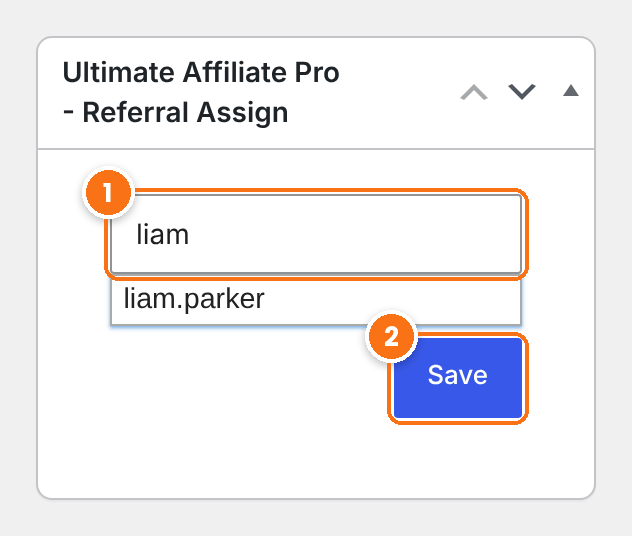
Type part of the affiliate’s username, then click the affiliate in the list of matches. Only affiliates appear in the list.
Saves the order and creates the referral for the selected affiliate.
The box shows the search field only while the order has no referral. You can assign any order this way, whatever its status.
How the commission is calculated #
The referral uses the same rules as a tracked WooCommerce sale:
- The affiliate’s rank rate, compared with any product rates, for each product in the order. See How commissions are calculated.
- Shipping and tax are included unless you exclude them in the commission settings.
- Products and categories you exclude from commissions earn nothing.
- With MLM on, the affiliate’s parents earn their MLM commission too.
For example, Liam Parker is in the Silver rank with a 15% rate. You assign him a $30 order, and he earns a $4.50 referral.
Check the referral #
After you save, the box shows the referral of the order instead of the search field.
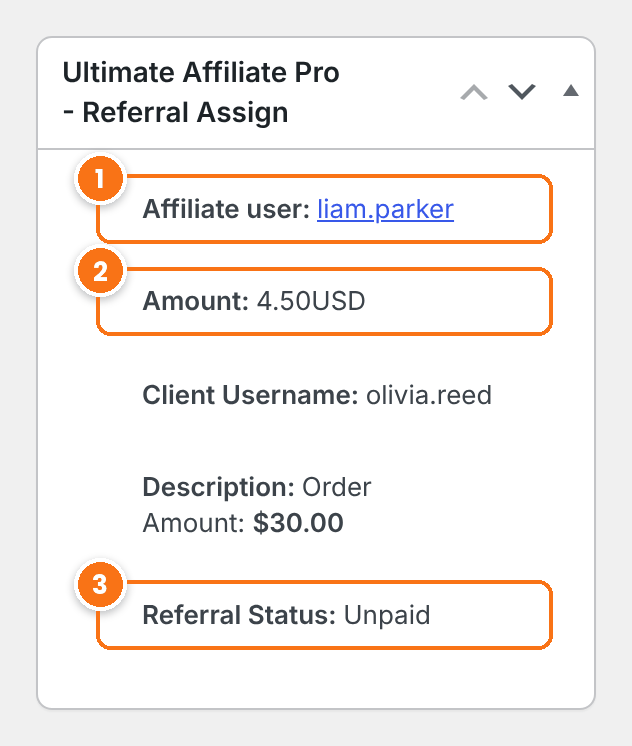
The affiliate who earns the commission. Click the username to open the affiliate’s profile.
The commission for this order. Client Username and Description below it show the customer and the order total.
The payout status of the commission: Unpaid until you pay it, then Pending or Complete as the payout moves on. See How affiliate payouts work.
The referral also appears in Ultimate Affiliate Pro›Referrals with WooCommerce as the source and the order number as the reference. It follows the order status like any WooCommerce referral:
- Order Completed when you assign it: the referral is approved right away.
- Order not completed yet: the referral is Pending, and it is approved when the order is Completed.
- Order cancelled, refunded or failed: the referral is rejected.
Change or remove an assignment
To give the commission to another affiliate, or to cancel it, open the referral in Ultimate Affiliate Pro›Referrals. There you can reassign it, change the amount, or mark it as rejected.
Test it #
- Create a test order in WooCommerce›Orders, or open an order that has no referral yet.
- In the Referral Assign box, search for a test affiliate, select them and click Save.
- Check that the box now shows the affiliate, the amount and the status.
- Open Ultimate Affiliate Pro›Referrals and find the new referral with the order number as the reference.
WooCommerce explains the order screen in Managing orders.
Frequently asked questions #
How do I assign an order to an affiliate in WooCommerce?
Turn on Manual Affiliate Order Assignment in Ultimate Affiliate Pro, Modules. Then open the order in WooCommerce, Orders, search for the affiliate in the Ultimate Affiliate Pro – Referral Assign box, select them and click Save.
Can I assign an order that already has a referral?
No. The search field appears only on orders without a referral. To credit another affiliate, reassign the existing referral in Ultimate Affiliate Pro, Referrals.
Is the commission approved right away?
Only when the order is already Completed. Otherwise the referral is Pending and is approved when the order is Completed.
Does the affiliate see the assigned order?
Yes. The referral is listed in the affiliate’s Affiliate Portal with the amount and status, like any tracked sale.
Can I assign an order the affiliate placed for themselves?
Only when own referrals are allowed. Otherwise no referral is created for an affiliate’s own order. See Own referrals.


