The Paid Member Subscriptions affiliate integration pays your affiliates when a visitor they referred buys a subscription plan with Paid Member Subscriptions. Ultimate Affiliate Pro creates the referral when the payment is recorded and keeps its status in sync with the payment.
The visitor is linked to the affiliate through an affiliate referral link. The commission comes from the affiliate’s rank, applied to the amount paid. The add-on uses your existing Ultimate Affiliate Pro settings, so there is almost nothing to configure.
Before you start
- Paid Member Subscriptions is installed and active, with at least one subscription plan. You can get it from wordpress.org.
- The Paid Member Subscriptions Tracking add-on is installed and active. See Pro Add-ons.
- Your affiliates have a rank with a commission rate. See Ranks.
What creates and updates a referral #
The add-on follows Paid Member Subscriptions payments. The amount of each payment is the base for the commission.
| Paid Member Subscriptions event | Referral |
|---|---|
| A payment is recorded for a member who came through an affiliate link | Created as Pending, or Approved right away when the payment is already Completed |
| Payment status changes to Completed | Approved |
| Payment status changes to Failed | Rejected |
| Payment status changes back to Pending | Pending |
Rejected referrals are not paid. If you prefer to approve every referral yourself, turn on Keep Referral Status as Pending in Ultimate Affiliate Pro›Settings›Admin Workflow: automatic approval is turned off, and you approve referrals yourself.
Turn on the Paid Member Subscriptions affiliate integration #
Go to Ultimate Affiliate Pro›Integrations and find the Paid Member Subscriptions card in the Membership group.

Turns tracking for Paid Member Subscriptions on or off. The card shows Enabled while it is on.
Default: Off
Opens the Paid Member Subscriptions Tracking settings.
Name the referral source #
Click Configure. The settings screen explains how the add-on works. Its only option is the name shown for these referrals.
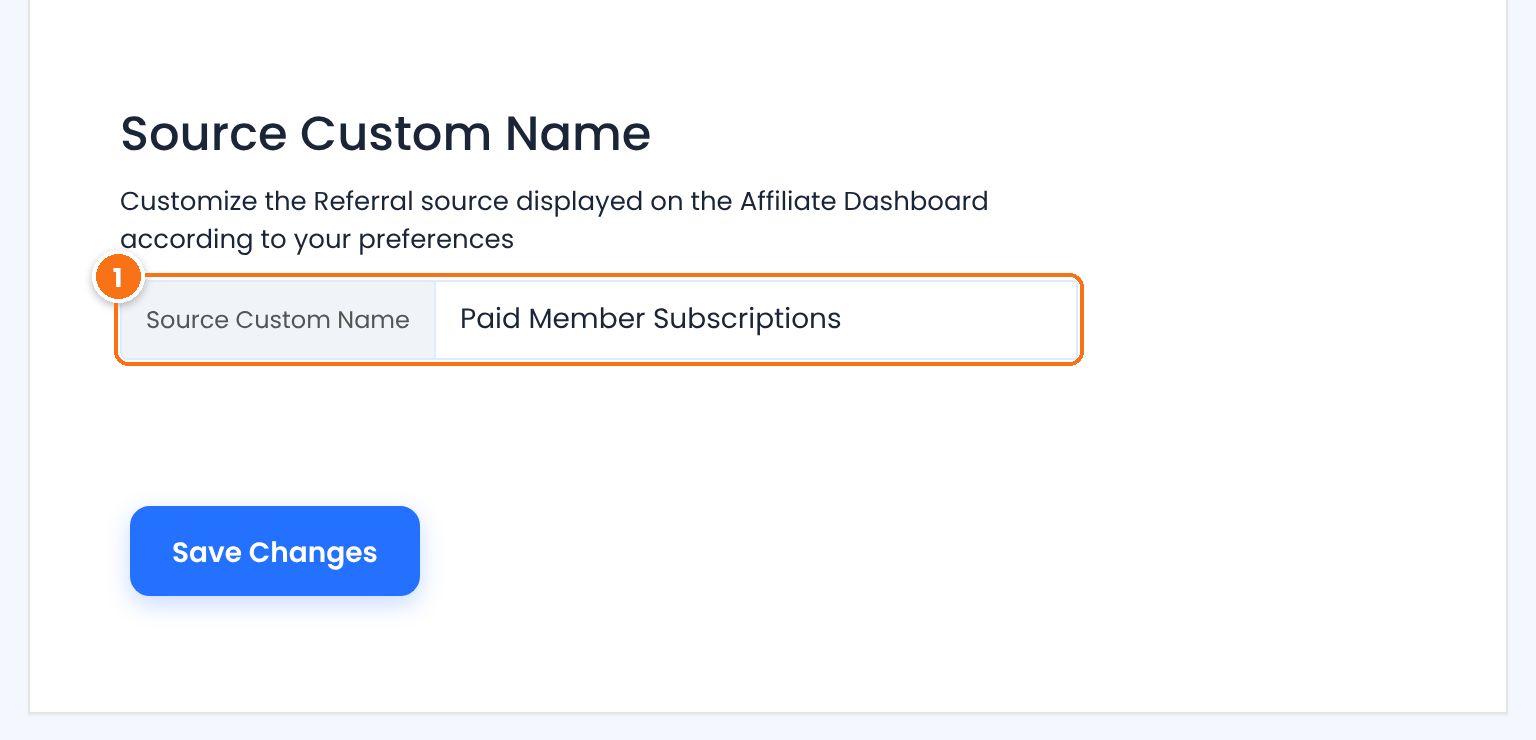
The source name of Paid Member Subscriptions referrals, shown in the Referrals list and in the affiliate’s Affiliate Portal.
Default: Paid Member Subscriptions
Click Save Changes.
Pay commissions on renewals #
Each automatic renewal of a subscription creates a new Paid Member Subscriptions payment. To pay the affiliate for those renewals, turn on the Recurring Commissions module.
- Go to Ultimate Affiliate Pro›Modules.
- Open Recurring Commissions and turn on Activate/Hold Recurring Commissions.
- Save the module settings.
With the module on, each renewal payment creates a new referral for the affiliate who referred the member, even after the referral cookie has expired. Renewal referrals use the rank’s regular commission rate, applied to the renewal amount. See Recurring commissions for subscriptions.
Review the referrals #
Go to Ultimate Affiliate Pro›Referrals. Paid Member Subscriptions referrals show Paid Member Subscriptions in the Source column.
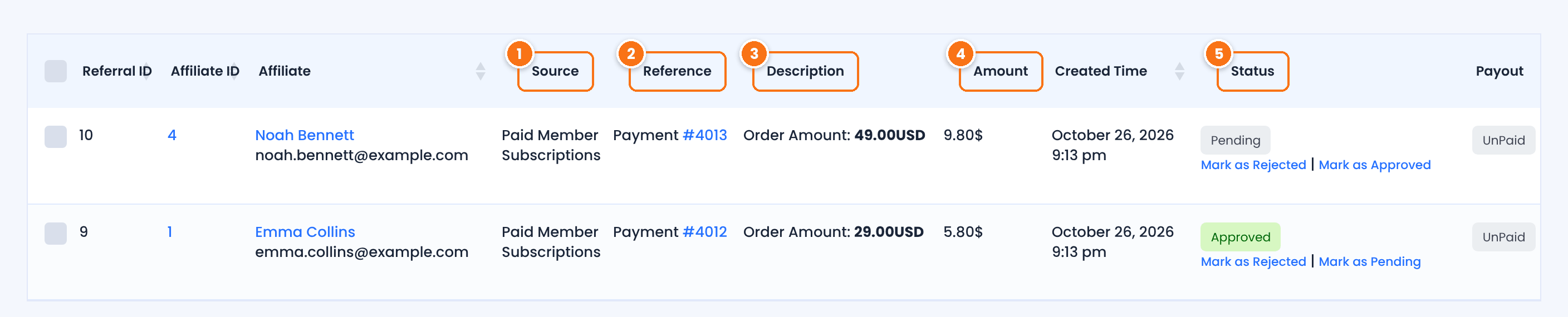
The Source Custom Name, Paid Member Subscriptions by default.
The Paid Member Subscriptions payment number, for example Payment #4012.
The amount the member paid, for example Order Amount: 29.00USD.
The commission: the affiliate’s rank rate applied to the amount paid. With a 20% rank, a $29 payment earns $5.80.
Approved referrals are paid like any other commission. See How affiliate payouts work.
Test it #
- Open a private browser window and visit your site through an affiliate link, for example
yourstore.com/?ref=emma.collins. - In the same window, open your Paid Member Subscriptions register page and subscribe to a paid plan with a new account. Use a test payment method.
- In Ultimate Affiliate Pro›Referrals, check that a referral with source Paid Member Subscriptions was created for the affiliate, and that it is Approved once the payment is Completed.
For a full test routine, see Test your affiliate program.
Frequently asked questions #
Do affiliates earn on Paid Member Subscriptions renewals?
Yes, when the Recurring Commissions module is on. Each renewal payment creates a new referral for the affiliate who referred the member, at the rank’s regular rate.
How is the Paid Member Subscriptions commission calculated?
The affiliate’s rank rate is applied to the payment amount. A 20% rank on a $49 payment gives a $9.80 referral.
What happens when a payment fails?
The referral of that payment changes to Rejected, so it is not paid. If the payment later changes to Completed, the referral is approved.
Can I approve Paid Member Subscriptions referrals manually?
Yes. Turn on Keep Referral Status as Pending in Ultimate Affiliate Pro, Settings, Admin Workflow: automatic approval is turned off, and you approve referrals yourself in the Referrals list.
A new subscription did not create a referral. What should I check?
Check that the Paid Member Subscriptions card is enabled in Integrations, that the member opened the affiliate link in the same browser before subscribing, that the plan is a paid plan and that the affiliate account is active. See Referrals or clicks are not recorded.


