The Event Tickets affiliate integration pays your affiliates a commission when a visitor they referred buys a ticket or registers for an RSVP with Event Tickets. You can set a custom commission for each ticket, or turn referrals off for a ticket, right in the ticket editor.
It works like a sale in a shop. The visitor arrives through an affiliate referral link, then buys a ticket with Tickets Commerce, the checkout built into Event Tickets. The order amount becomes the base for the commission. Free RSVP registrations earn a commission too, based on a reference amount you set for each RSVP.
Before you start
- Event Tickets is installed and active, with Tickets Commerce turned on and a payment gateway connected, and at least one event, page or post with tickets.
- The Event Tickets Tracking add-on is installed and active. See Pro Add-ons.
- Your affiliates have a rank with a commission rate. See Ranks.
How ticket sales and RSVPs become referrals #
Ultimate Affiliate Pro tracks two kinds of Event Tickets actions:
| Action | When the referral is created | Commission base | When it is approved |
|---|---|---|---|
| Ticket purchase (Tickets Commerce) | When the order is placed | The order amount | When the order is Completed |
| RSVP registration | When the visitor submits the RSVP form | The Reference Amount of the RSVP | When the attendee is checked in |
- Ticket price
- $40
- Affiliate rank
- Standard, 20% ($8)
- Ticket rate
- Percentage, 30% ($12)
- Referral
- $12, Approved when the order is Completed
When a ticket has its own rate, Ultimate Affiliate Pro compares it with the rank rate and uses the one chosen in Ultimate Affiliate Pro›Settings›General Settings, under Referral Calculation, in Which Rate should be used?. The default is Biggest Amount.
Turn on the Event Tickets affiliate integration #
Go to Ultimate Affiliate Pro›Integrations and find the Event Tickets card in the Events & Booking group.

Turns tracking for Event Tickets on or off. The card shows Enabled while it is on.
Default: Off
Opens the Event Tickets Tracking settings.
Set the source name #
Click Configure on the card and scroll below the introduction. Event Tickets tracking uses your existing commission settings, so there is only one option here.
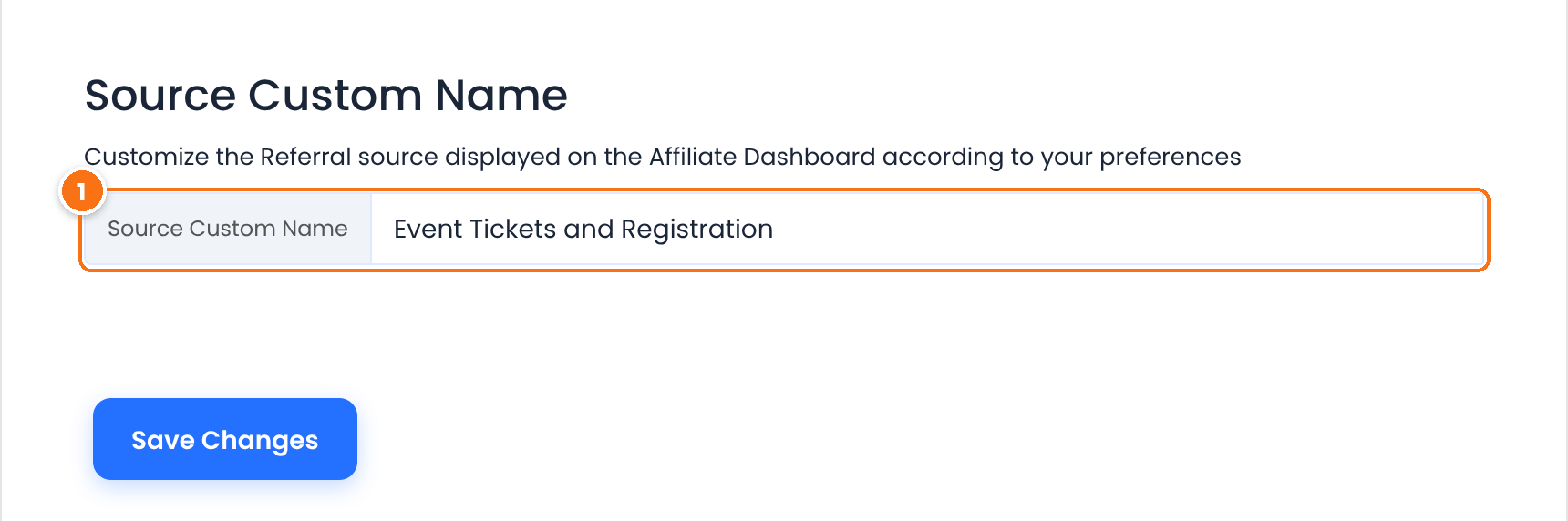
The source name of Event Tickets referrals, shown in the Referrals list and in the affiliate’s Affiliate Portal.
Default: Event Tickets and Registration
Click Save Changes.
Set a commission for each ticket #
Open the event, page or post in the editor. In the Tickets section, click the pencil icon of a ticket, or click New ticket. Below the price and capacity fields you find the Ultimate Affiliate Pro – Affiliate Rate section.
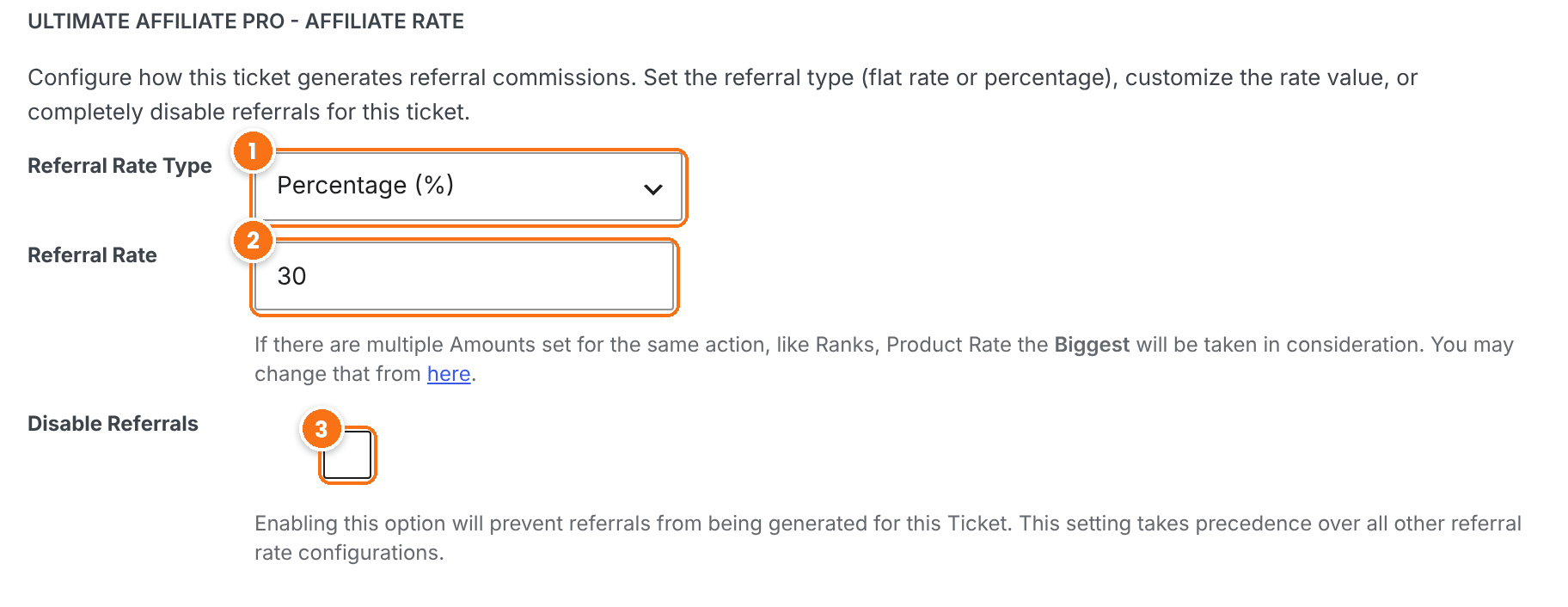
How the ticket commission is calculated.
- Flat (USD): a fixed amount, in your affiliate currency.
- Percentage (%): a share of the order amount.
- Default Affiliate system Settings: the ticket uses the rank rate and your Product Rates.
Default: Flat
The amount or the percentage. Leave it empty to use the rank rate.
Tick it to stop this ticket from creating referrals. It overrides every other rate.
Default: Off
Click Save ticket, then update the event. You can also set rates for several tickets in one place: go to Ultimate Affiliate Pro›Product Rates and choose Event Tickets as the source. See Product Rates.
Set a reference amount for RSVPs #
RSVPs are free, so give each RSVP a value that the commission is calculated from. In the Tickets section, edit an RSVP, or click New RSVP.

The base amount for each RSVP registration. The affiliate’s rank rate is applied to it. For example, a Reference Amount of 10 and a Standard rank of 20% give a $2 referral. With a percentage rank, set a value greater than 0, otherwise RSVPs do not earn a commission.
Review the Event Tickets referrals #
Go to Ultimate Affiliate Pro›Referrals. Ticket orders and RSVPs from referred visitors appear with the Event Tickets and Registration source (your Source Custom Name).
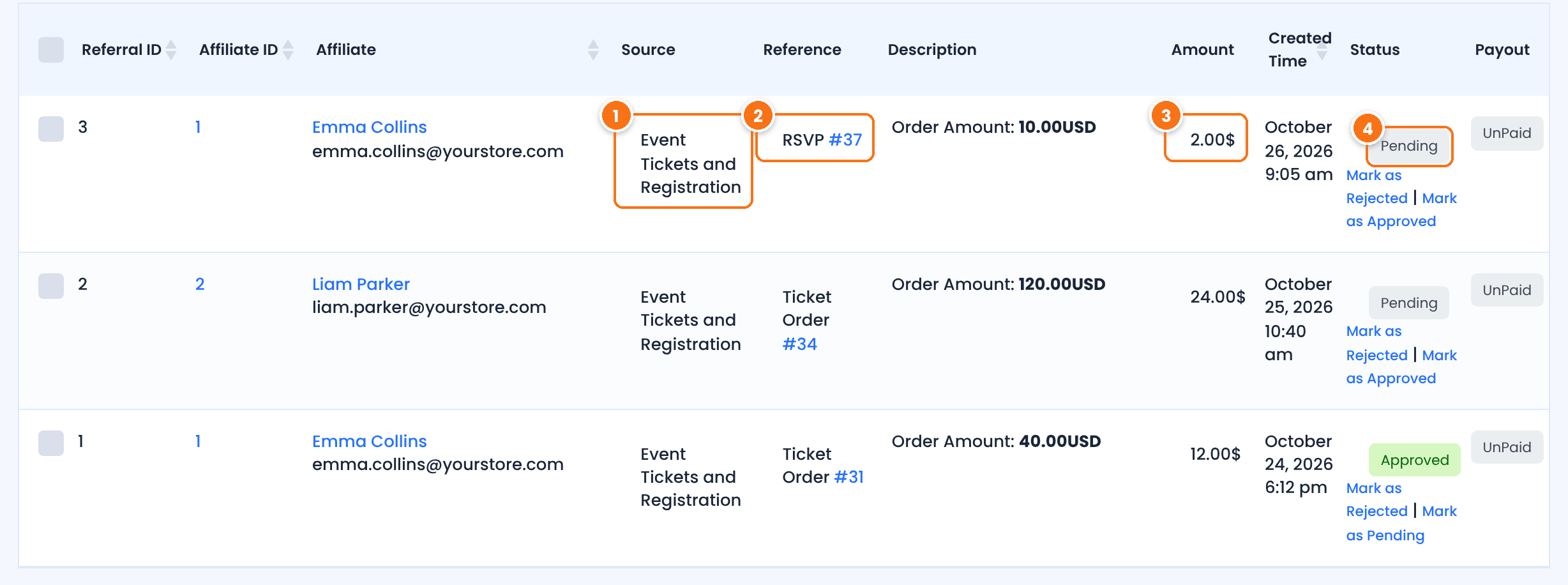
The Source Custom Name, Event Tickets and Registration by default.
The commission calculated from the order amount or the Reference Amount.
Follows the Event Tickets order or the RSVP check-in.
- Ticket order Completed: the referral is Approved.
- Ticket order Pending: the referral is Pending.
- Ticket order Refunded, Failed, Voided, Reversed or Denied: the referral is Rejected.
- RSVP: the referral is Pending until you check the attendee in, then it is Approved.
Approve referrals manually
If you turn on Keep Referral Status as Pending in Ultimate Affiliate Pro›Settings›Admin Workflow, automatic approval is turned off, and you approve referrals yourself.
Test it #
- Open a private browser window and visit your site through an affiliate link, for example
yourstore.com/?ref=emma.collins. - In the same window, open an event with tickets and buy a ticket. Use the test mode of your payment gateway.
- In Ultimate Affiliate Pro›Referrals, check that a referral with the Ticket Order reference was created for the affiliate, with the right amount.
- Register for an RSVP the same way, then check the attendee in from the Event Tickets attendee list. The RSVP referral changes to Approved.
See Test your affiliate program for a full test routine. Event Tickets itself is available on WordPress.org.
Frequently asked questions #
Which Event Tickets actions create a referral?
Ticket purchases made with Tickets Commerce and RSVP registrations, by a visitor who arrived through an affiliate link.
Can I pay a different commission for each ticket?
Yes. Edit the ticket and set Referral Rate Type and Referral Rate in the Ultimate Affiliate Pro – Affiliate Rate section, or set the rate in Ultimate Affiliate Pro, Product Rates.
How do I stop a ticket from paying commissions?
Edit the ticket and tick Disable Referrals. This overrides the rank rate and every other rate.
How is the commission for a free RSVP calculated?
From the Reference Amount of the RSVP and the affiliate’s rank rate. A Reference Amount of 10 and a 20% rank give a $2 referral.
When is an RSVP referral approved?
When you check the attendee in. Until then it stays Pending.
Do I need The Events Calendar?
No. Event Tickets works on its own, on pages, posts or events. With The Events Calendar you can also reward calendar interactions, see The Events Calendar affiliate integration.


