Affiliate email template tags are placeholders, such as {first_name}, that Ultimate Affiliate Pro replaces with real details when it sends an email. You write a tag once in a template, and every affiliate gets a message with their own name, referral link and account links.
Template tags work in the subject and the message of every email notification, in the new referral emails, in the periodic reports, in Pushover messages and in the texts of the Affiliate Portal. This page lists the tags you can use, what each one is replaced with and where it works.
Before you start
- Ultimate Affiliate Pro installed, with your license active.
- Your site can send email, with the sender set in Settings›Notifications Settings. See Emails are not sent if messages do not arrive.
- A test affiliate account with a first name, last name and rank, so you can check the replaced values.
Insert a tag in an email notification #
Go to Ultimate Affiliate Pro›Email Notifications. Hover over a notification and click Edit, or click Activate New Notification to create one. The Email Content section has the editor and the tags.
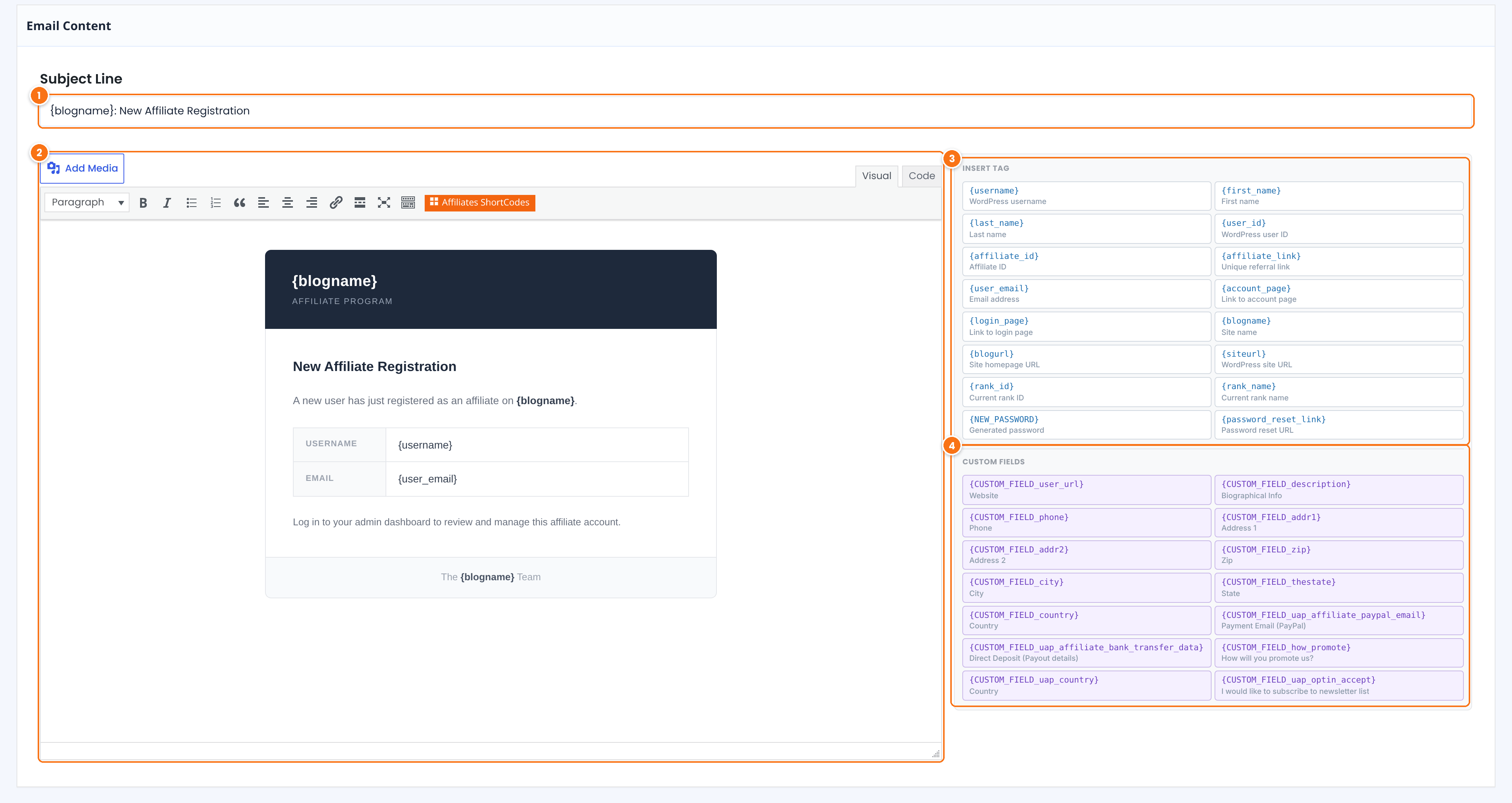
Tags work in the subject too, for example {blogname}: Welcome, {first_name}!. Click in the Subject Line, then click a tag to add it there.
Click where you want the value to appear. Tags work in the Visual and the Code tab. To use a tag as a link address, switch to the Code tab and write the link, for example <a href="{account_page}">My account</a>.
Click a tag to add it to the message. Each tag shows a short description below its name. {NEW_PASSWORD} and {password_reset_link} are filled only in the password emails listed under Tags for specific emails, below. The other tags are explained in the next section.
One tag for each field of your registration form, written as {CUSTOM_FIELD_ plus the field name, for example {CUSTOM_FIELD_phone}. Fields you add in Showcases›Registration Form appear here too.
Click Save Changes, or Create Notification for a new one. Tags are case-sensitive: write them exactly as listed, with both curly braces.
Affiliate email template tags reference #
These tags work in every email notification. The examples show what Emma Collins, an affiliate of Your Store, would see.
| Tag | Replaced with | Example |
|---|---|---|
{first_name} | The affiliate’s first name | Emma |
{last_name} | The affiliate’s last name | Collins |
{username} | The WordPress username | emma.collins |
{user_email} | The affiliate’s email address | emma.collins@example.com |
{user_id} | The WordPress user ID | 2 |
{affiliate_id} | The affiliate ID, shown in Ultimate Affiliate Pro › Affiliates | 1 |
{rank_name} | The name of the affiliate’s current rank | Silver |
{rank_id} | The ID of the current rank | 2 |
{account_page} | The URL of the Affiliate Portal page | https://yourstore.com/affiliate-portal/ |
{login_page} | The URL of the affiliate login page | https://yourstore.com/affiliate-login/ |
{blogname} | Your site title, from Settings › General | Your Store |
{blogurl} | Your WordPress Address (URL), from Settings › General | https://yourstore.com |
{siteurl} | The same WordPress Address (URL) | https://yourstore.com |
{user_url} | The website from the affiliate’s profile | https://emmacollins.blog |
{user_registered} | The date and time the affiliate joined your program | October 25, 2026 8:28 pm |
{CUSTOM_FIELD_name} | The value of a registration form field, by field name | {CUSTOM_FIELD_phone} → 555-0101 |
For the website an affiliate entered, use {user_url}. Fields with several values, such as checkboxes, are shown as a comma-separated list. A tag whose value is empty, for example a field the affiliate left blank, is removed from the message.
Tags for specific emails #
Some notifications have extra tags with details of the event. They are filled only in the emails listed below, and the ready-made texts already use them.
| Tag | Replaced with | Notification |
|---|---|---|
{password_reset_link} | The link that confirms the password reset | Reset Password – Step 1: Confirmation Request |
{NEW_PASSWORD} | The new password | Reset Password – Step 2: Send Generated Password, and Send auto-generated Password to Customer |
{amount_to_pay} | The payout amount | Payment Confirmation – Payout has Failed, Payout Processing and Payout Completed |
{amount_currency} | The payout currency | The same three payout notifications |
{verify_email_address_link} | The link the affiliate clicks to confirm their email address | Double Email Verification Request |
The notifications in the Affiliate Manager Notifications group (New Affiliate account Registered, New Rank Assigned to Affiliate and Affiliate has Updated his Profile Information) go to the addresses in Affiliate Manager Notifications Email Address(es), in Settings›Notifications Settings, but their tags show the affiliate’s details. Use {username} and {user_email} there to see who registered or changed their profile.
Add referral details to new referral emails #
The emails sent for each new referral have their own tags. Go to Ultimate Affiliate Pro›Modules and open Referral Notifications (the email to the affiliate) or Admin Referral Notifications (the email to you). The tags are listed next to Message to be Sent.
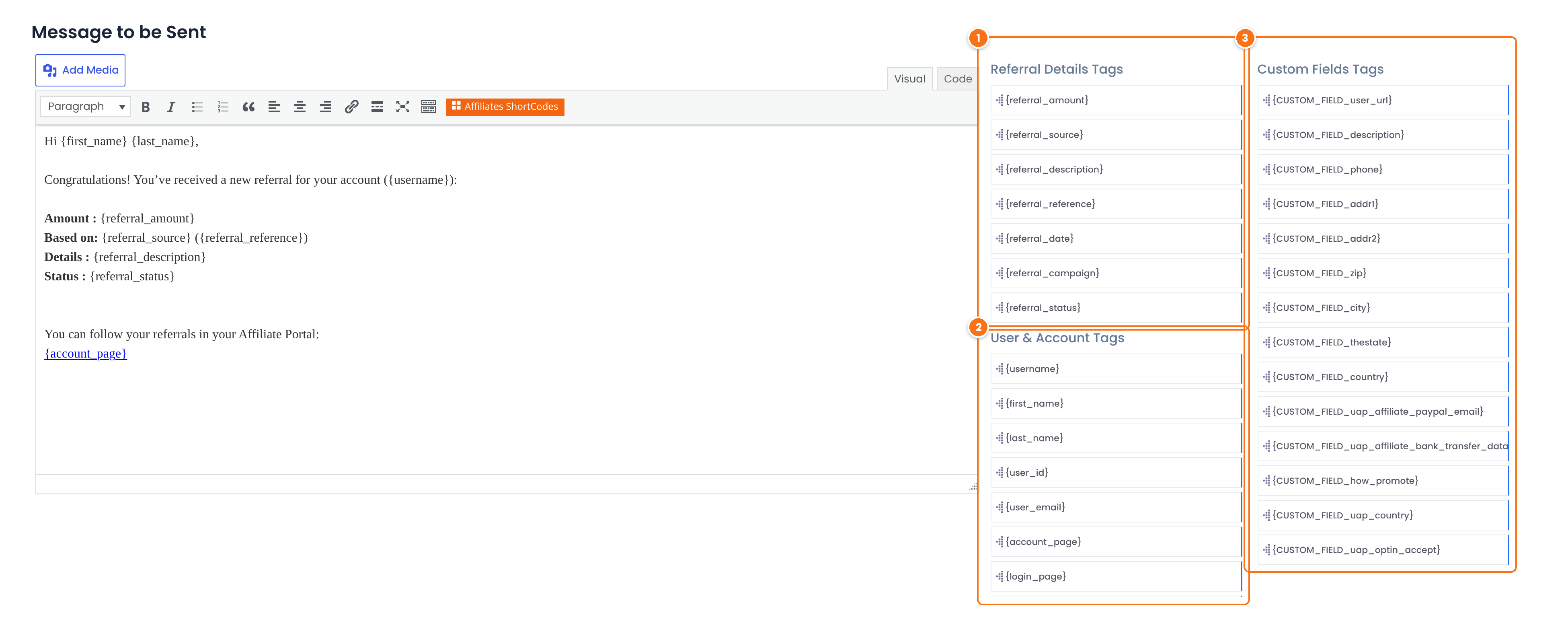
Details of the referral that triggered the email.
{referral_amount}: the commission with its currency, for example12.00USD.{referral_source}: where the referral came from, for example WooCommerce.{referral_description}: the referral description.{referral_reference}: the order or record ID, for example the WooCommerce order ID.{referral_date}: the date and time of the referral.{referral_campaign}: the campaign of the link, when there is one.{referral_status}: Pending, Approved or Rejected.
The general tags from the reference above, with the details of the affiliate who earned the referral.
The registration form fields of that affiliate.
Under WooCommerce Tags, below these lists, {WOOCOMMERCE_ORDER_DETAILS} adds the order date, the order amount and the products in the order, and the customer’s name, email address, phone number, and billing and shipping addresses. For referrals from other sources it stays empty. Affiliates choose which referral types they get emails for in the Notifications tab of their Affiliate Portal.
Customer data
{WOOCOMMERCE_ORDER_DETAILS} contains your customer’s personal data. Use it in the admin email, and add it to the affiliate email only if your privacy policy allows you to share these details with affiliates.
Tags in reports and the Affiliate Portal #
The Periodic Reports email adds the affiliate’s results for the period: {visits}, {total_referrals}, {total_earnings}, {verified_referrals} (approved), {unverified_referrals} (pending) and {refuse_referrals} (rejected), next to the general tags.
The texts of the Affiliate Portal, such as the Welcome Message, the content of each tab and the Bottom Message, use the same general tags, with an Insert tag panel next to each editor in Showcases›Affiliate Portal. There you can also use {flag}, the flag of the affiliate’s country. You can also use the general tags in the Pushover Message of each notification, when Pushover is on.
Tip
Emails are sent as HTML, so you can style a tag like any text. For example, in the Code tab, <a href="{account_page}">Open your Affiliate Portal</a> turns the portal address into a clickable link. WordPress sends every message through its wp_mail function, so an SMTP plugin applies to these emails too.
Test it #
Send Test Email sends a preview of the layout, with the tags shown as you wrote them. To see the tags filled with an affiliate’s details, trigger the real event:
- Make sure the Status switch of the notification you edited is on in Ultimate Affiliate Pro›Email Notifications.
- Use a test affiliate whose email address you can read. For the Profile Information Updated Successfully email, log in as that affiliate, open Edit Your Account in the Affiliate Portal and click Save Changes.
- Open the email and check that every tag shows a value, for example the affiliate’s first name instead of
{first_name}. - If a tag is still visible, compare it with the tables above: check the spelling and that the tag works in that notification.
Frequently asked questions #
Why does a tag show as plain text in the email?
Either the tag is misspelled, or it does not belong to that notification. Tags are case-sensitive, and event tags such as {NEW_PASSWORD} work only in their own emails. Test emails also keep the tags as they are.
Can I use template tags in the email subject?
Yes. Every tag that works in the message also works in the Subject Line, for example {blogname}: New referral for {first_name}.
How do I show a registration form field in an email?
Use {CUSTOM_FIELD_ followed by the field name, for example {CUSTOM_FIELD_phone}. The Custom fields part of the Insert tag panel lists every field of your form. For the website field, use {user_url}.
Do admin emails show my name or the affiliate’s?
The affiliate’s. Admin emails are sent to your manager address, but tags such as {username} and {first_name} show the affiliate who registered, changed rank or updated their profile.
Where are the admin emails sent?
To the addresses in Affiliate Manager Notifications Email Address(es), in Settings, Notifications Settings. Separate several addresses with a comma. The sender name and address are set in the Sender Details section of the same screen.


