The Dokan Integration AddOn connects Ultimate Affiliate Pro with the Dokan Multivendor Marketplace, turning your vendors (sellers) into affiliates and giving them the ability to set their own referral rates per product. This way, sellers can promote their own products through your affiliate program and earn commissions for every successful referral, expanding the audience reached by your marketplace.
Requirements #
Before configuring this AddOn, make sure you have:
- Ultimate Affiliate Pro installed and activated.
- Dokan (free or Pro) installed and activated on the same WordPress site.
- WooCommerce active, since Dokan runs on top of it.
Installation #
- Download the AddOn (.zip file) from your Store Account.
- In your WordPress Dashboard, go to Plugins → Add New → Upload Plugin and upload the .zip file.
- Activate the plugin.
- In the WordPress sidebar, navigate to Ultimate Affiliate Pro → Dashboard → Modules. The Dokan card will be available in the modules grid.
- Click the Dokan card or open it from Ultimate Affiliate Pro → Dashboard → Integrations, where Dokan will also be listed once activated.
Activation #
The Dokan Integration can be turned on or off at any time from two locations:
- From the Modules tab — by clicking the Dokan Multivendor module card and toggling Activate/Hold Dokan Integration.
- From the Integrations tab — by switching the toggle on the Dokan integration card.
Once this AddOn is activated, sellers will be able to promote their products to a wider audience through the affiliate system.
Configuration #
After activation, the following options become available in the Dokan module panel:
1. Seller Become Affiliate #
When this option is enabled, every user who registers as a seller (vendor) on the Dokan marketplace will automatically become an affiliate as well. This avoids any extra registration step on the affiliate side and ensures all sellers can start promoting their products immediately.
On registration, the seller becomes an Affiliate.

2. Show Ultimate Affiliate Pro Tab #
Once enabled, a dedicated Ultimate Affiliate Pro tab is added to the Dokan vendor dashboard. From this tab, sellers can access their affiliate area without leaving the Dokan environment — they can check their referrals, clicks, payouts, creatives, and the rest of the affiliate tools directly from the marketplace dashboard.
When this option is enabled, a new tab will appear on the Dokan account page.

3. Seller May Set Referral Rates #
When this option is active, sellers can define a custom referral rate for each of their products, directly from the Dokan product editor. The rate represents the amount that goes to the affiliate after the order is completed and can be configured in three ways:
- Flat — a fixed amount (for example, $5 per sale).
- Percent — a percentage calculated on the product price (for example, 10% of the price).
- Default — keeps the global rule defined in the Default Affiliate System Settings of Ultimate Affiliate Pro.
With this option enabled, sellers may set custom referral rates for affiliates. Rates may be calculated as a flat value, as a percent, or by maintaining the basic model in the Default Affiliate system Settings, and reflect the amount that belongs to the affiliate after the order has been completed.
When the seller creates or edits a product from the Dokan vendor dashboard, the referral rate field becomes available in the product data area:
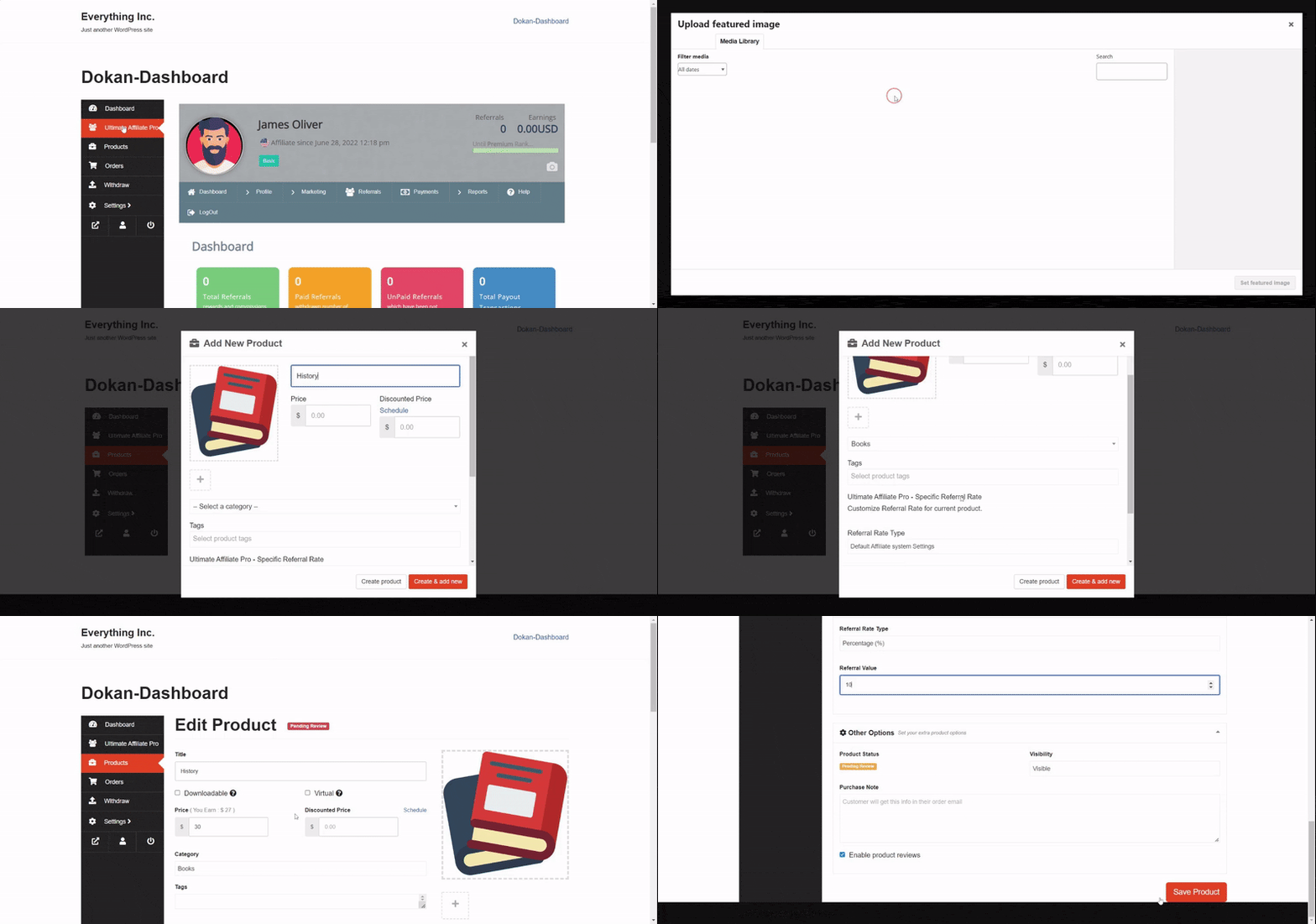
After making your changes, click Save Changes to apply the new configuration.
How the Commission System Works #
In a Dokan marketplace there are already two parties sharing the revenue from each order: the marketplace admin and the vendor. When Ultimate Affiliate Pro is added on top, a third party enters the picture — the affiliate who referred the sale.
It is important to understand that the affiliate commission and the Dokan vendor commission are calculated independently. They do not subtract from each other automatically — the affiliate commission is calculated by Ultimate Affiliate Pro on the product price, while the Dokan vendor commission is calculated by Dokan on the same product price according to its own settings (Selling Options → Admin Commission). It is up to the marketplace admin to decide who absorbs the affiliate cost.
The two commission layers #
Layer 1 — Dokan vendor commission Configured in WP Admin → Dokan → Settings → Selling Options, or per-vendor / per-product / per-category from the Dokan settings. This determines what share of the order goes to the vendor and what share stays with the admin.
Layer 2 — Affiliate commission (Ultimate Affiliate Pro) Determined in this order of priority:
- The custom rate set by the vendor on the product (only if Seller May Set Referral Rates is enabled and a value was entered).
- Product Rates offers configured in Ultimate Affiliate Pro.
- The default rate from Ultimate Affiliate Pro → Settings.
The first matching rule wins.
Calculation breakdown — example #
Suppose a customer buys a product priced at $100 through an affiliate link. Dokan is configured with a 20% admin commission, and the affiliate referral rate is 10%.
| Party | Amount | How it is calculated |
|---|---|---|
| Customer pays | $100 | Product price |
| Vendor earns | $80 | Dokan: 100 − 20% admin commission |
| Marketplace admin keeps | $20 | Dokan admin commission |
| Affiliate earns | $10 | UAP: 10% of $100 |
In this scenario the marketplace admin retains $20 from the order but owes $10 to the affiliate, so the net admin revenue is $10. The vendor’s $80 is unaffected.
If the marketplace owner wants the vendor to absorb the affiliate cost instead, the vendor can adjust the Dokan vendor commission to compensate. This is a business decision — the plugin does not split it automatically.
Note: The affiliate amount is calculated on the product price, following the same rules used for any other product in Ultimate Affiliate Pro. Shipping and tax can be excluded from the calculation through the global UAP setting Excluding Shipping and Taxes from Referral Calculation.
MLM and Dokan #
If you run a multi-level structure with the MLM module, the parent affiliates of the seller-affiliate also receive their share according to the MLM levels you defined. This works the same as for any other referral generated through Ultimate Affiliate Pro — the Dokan integration does not change the MLM logic.
Refund Handling #
Each referral generated through the Dokan integration is linked to a WooCommerce order. Ultimate Affiliate Pro automatically follows the status of that order and reflects any change on the corresponding referral, throughout the order’s life cycle. There is no separate setting to enable for this — the behavior is built in.
Order status → Referral status #
| WooCommerce order status | Referral status in UAP |
|---|---|
| Pending / On-hold / Processing | Pending |
| Completed | Unpaid (eligible for payout) |
| Refunded | Refunded |
| Cancelled / Failed | Not stored, unless Empty Referrals is enabled |
When a vendor or admin refunds an order in WooCommerce / Dokan, Ultimate Affiliate Pro detects the status change and automatically marks the corresponding referral as Refunded. The affiliate will not be paid for that referral and it will not be included in future payouts.
Refunds after payout #
If a referral has already been paid to the affiliate and the order is later refunded, the referral status will still update to Refunded, but the payout itself cannot be reversed automatically. To avoid this situation, it is recommended to use the Referrals Grace Period option in the Payouts settings — this delays the payout window long enough for any refunds to occur within your store’s refund policy period (for example, 14 or 30 days).
Empty Referrals and zero-value orders #
If a customer arrives through an affiliate link but the order ends up with a $0 referral amount (for example, the order is cancelled, fully discounted, or the products did not generate a commission), Ultimate Affiliate Pro can either skip the referral entirely or save it as an “Empty Referral” for record-keeping. This is controlled by the Empty Referrals option in Ultimate Affiliate Pro → Settings → General. See What do “Empty Referrals” mean? for details.
How It Works (End-to-End Flow) #
- A new vendor signs up on the Dokan marketplace. If Seller Become Affiliate is enabled, they are automatically registered as an affiliate and receive their own referral URL.
- The vendor opens the Ultimate Affiliate Pro tab from the Dokan dashboard (if Show Ultimate Affiliate Pro Tab is enabled) and can copy their affiliate link, view stats, and manage payouts.
- When the vendor adds or edits a product, they may optionally set a custom referral rate for that product (if Seller May Set Referral Rates is enabled).
- A customer arrives via an affiliate link and purchases the product. WooCommerce records the order; Dokan splits the order revenue between the admin and the vendor; Ultimate Affiliate Pro creates a referral for the affiliate based on the applicable rate.
- While the order is in Pending / Processing, the referral stays in Pending status.
- When the order is marked as Completed, the referral becomes Unpaid and eligible for the next payout.
- If the order is later Refunded, the referral is automatically updated to Refunded and excluded from payouts.
Notes #
- The integration uses the standard Ultimate Affiliate Pro tracking and storage, so referrals generated through Dokan vendors appear together with all other referrals under Ultimate Affiliate Pro → Referrals.
- Disabling Seller Become Affiliate later does not remove the affiliate role from sellers who already registered while the option was active — only new vendors will be affected.
- The affiliate commission is independent of the Dokan vendor commission — the marketplace admin decides which side absorbs the affiliate cost by adjusting the Dokan commission settings or the per-product referral rate.
- For details on global commission rules, see Custom Referral Rate for product and Product Rates.


