Affiliate reports in Ultimate Affiliate Pro show how your program performs: referrals, earnings, clicks, conversion rate, top affiliates, products and coupons, for any period. Affiliates get their own statistics in the Affiliate Portal.
Use the admin reports to see which affiliates and products drive sales and to compare one period with another. Use the affiliate statistics to keep affiliates motivated, and the export to move the data into a spreadsheet. To change how referrals are counted, see Manage referrals.
Before you start
- Ultimate Affiliate Pro installed, with your license active.
- Some tracked activity: clicks on referral links and referrals. A test order is enough to see the reports fill in. See Affiliate referral links.
Open Analytics & Reports #
Go to Ultimate Affiliate Pro›Reports. The page opens on the last 30 days for the whole program.
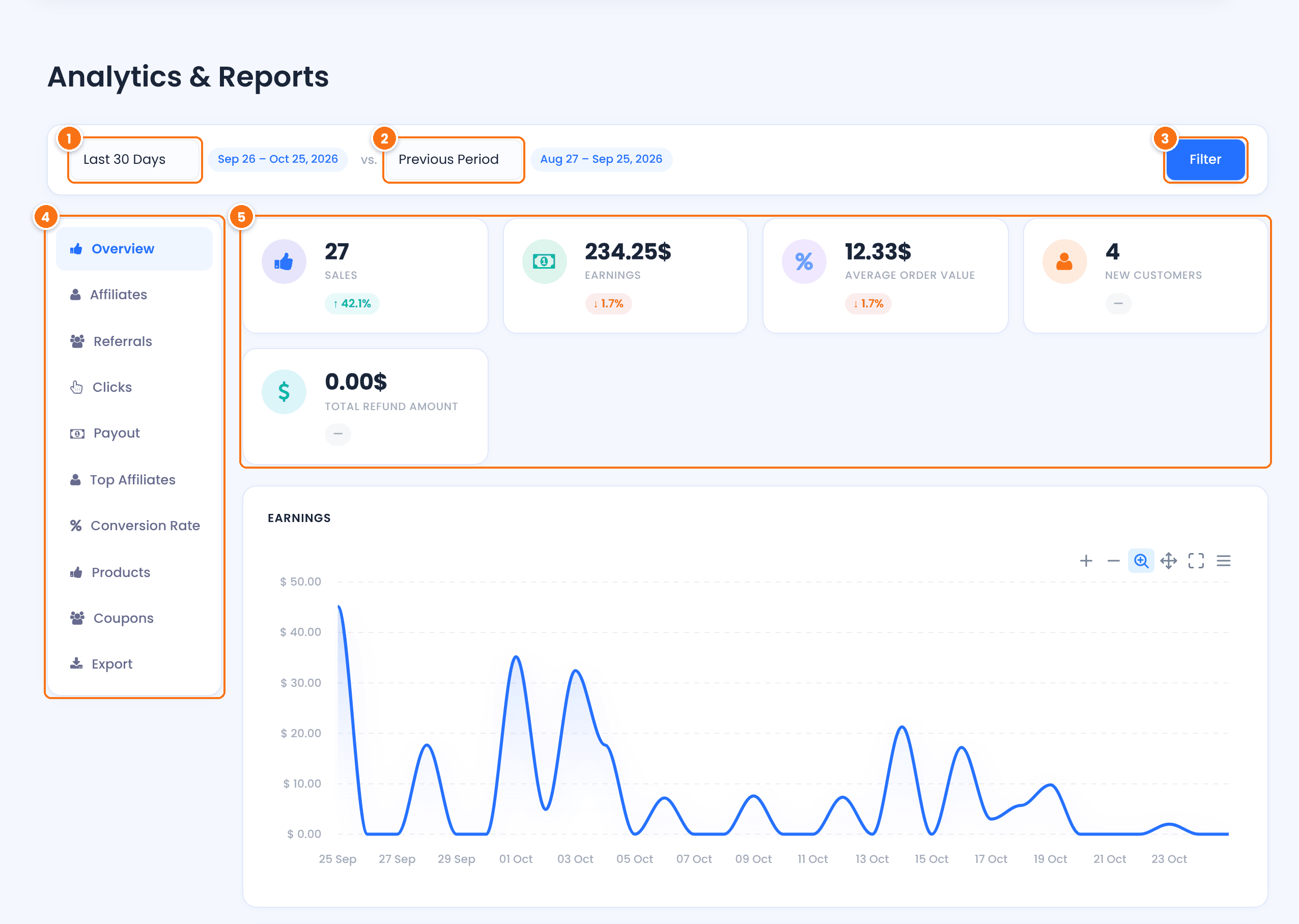
The period of the report: Today, Yesterday, This Week, Last Week, Last 30 Days, Month to Date, Last Month, Quarter to Date, Last Quarter, Year to Date, Last Year, All Time, or Custom with your own start and end dates.
Default: Last 30 Days
The period to compare with: Previous Period, Previous Month, Previous Quarter or Previous Year. The cards show the change as a percentage.
Default: Previous Period
Applies the period and the comparison.
Switch between the report sections, described below.
The key numbers of the period, such as Sales (referrals), Earnings (commission of approved referrals) and New Customers (customers linked to an affiliate in the period).
Under the cards, the Earnings and Clicks charts show each day of the period. Use the chart toolbar to zoom, pan or download the chart.
Read the report sections #
- Shows
- New, total and active affiliates, and affiliate growth
- Shows
- Referrals over time, split into approved, pending and rejected
- Shows
- Clicks and converted clicks over time
- Shows
- Paid earnings, transactions and payout history
- Shows
- A leaderboard by earnings and referrals
- Shows
- The program conversion rate and the rate of each affiliate
- Shows
- Top products by earnings and by referrals
- Shows
- Referrals and earnings from affiliate coupons, and the top coupons
With the Multi-Level Marketing module on, an MLM / Tiers section shows commissions by tier. Earnings always count approved referrals, so pending and rejected referrals do not change them. For clicks one by one, with the landing page, referring site, browser and device, open Ultimate Affiliate Pro›Clicks.
See the report of one affiliate #
Go to Ultimate Affiliate Pro›Affiliates and open Reports from the actions menu of the affiliate’s row. The same screen opens for that affiliate only, on All Time, so you see their full history. Use it before you change an affiliate’s rank or rate.
Export the data #
Open the Export section. Each export downloads a CSV file you can open in Excel or Google Sheets:
- Export Affiliates: all affiliates, or the affiliates of one rank.
- Export Referrals: all referrals, or only Approved, Pending or Rejected.
- Export Clicks: all clicks, or only Just Visit or Converted.
- Export Payouts: payout payments, filtered by status.
The same exports, and imports, are also in Ultimate Affiliate Pro›Export-Import. See Import referrals via CSV.
What affiliates see #
Affiliates follow their results in the Affiliate Portal, under Reports.
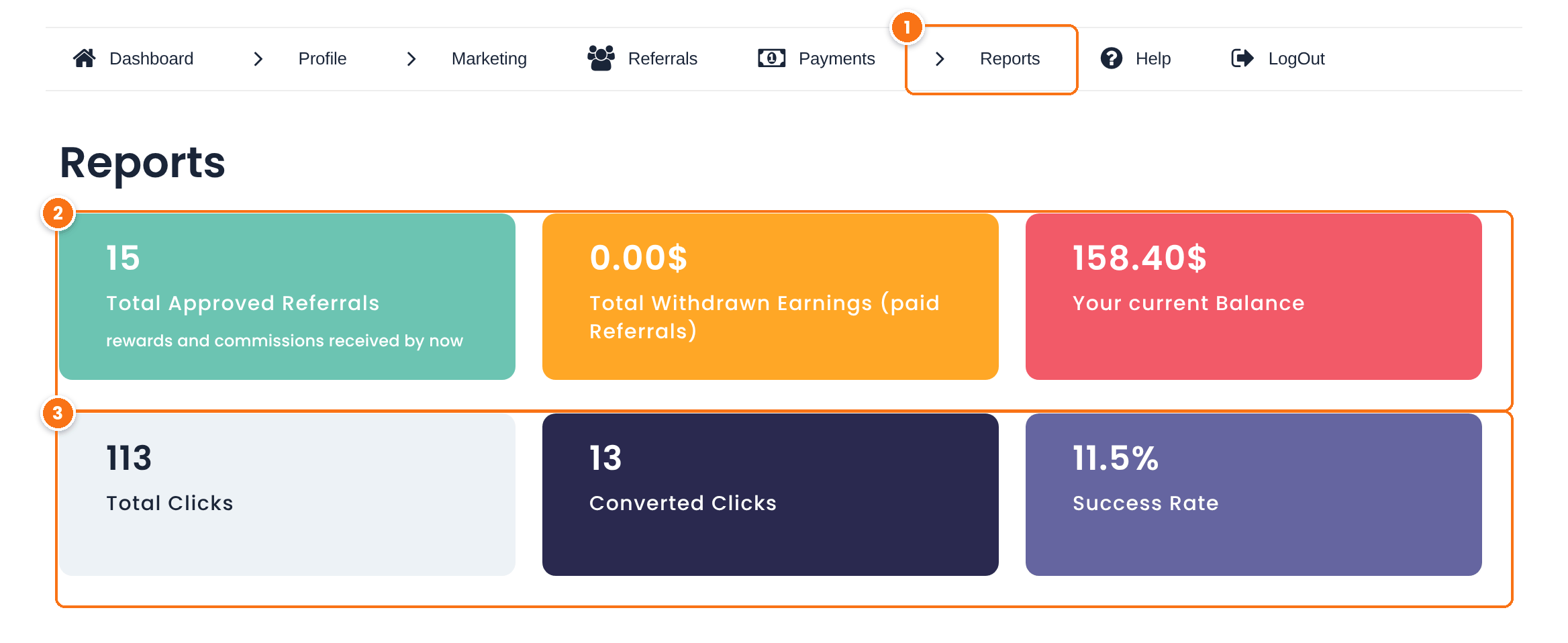
The menu with the affiliate’s statistics: Reports, Traffic Log (their clicks), Campaign Reports and Referrals History.
Total Approved Referrals, Total Withdrawn Earnings (paid referrals) and Your current Balance (approved and not paid yet).
Total Clicks, Converted Clicks and Success Rate, the share of clicks that became referrals.
Below the cards, Your Achievements lists the rank changes. The Referrals and Payments tabs list each referral and payout. To choose which tabs affiliates see, see Affiliate Portal settings.
Tip
To send the statistics by email, turn on the Periodic Reports module for affiliates, or Weekly Email Summary for yourself.
Test it #
- Open a referral link in a private window and place a test order.
- In Ultimate Affiliate Pro›Reports, choose Today and click Filter: the click and the referral appear.
- Log in as the affiliate and open Reports in the Affiliate Portal to see the same activity.
Frequently asked questions #
Why do the earnings not include all my referrals?
Earnings count approved referrals only. Pending referrals are added when they are approved, and rejected referrals are never counted.
Can I see the report of a single affiliate?
Yes. Open Reports from the actions menu of the affiliate’s row in Ultimate Affiliate Pro, Affiliates. The report opens for that affiliate, for all time.
How do I export my affiliate data?
Open the Export section of Reports and download affiliates, referrals, clicks or payouts as CSV files.
What is the conversion rate?
The share of clicks on referral links that turned into referrals in the period. The Conversion Rate section shows it for the whole program and for each affiliate.
Can affiliates see their own statistics?
Yes. The Reports menu in the Affiliate Portal shows their referrals, earnings, balance, clicks and conversion rate.


