Affiliate banners and creatives are ready-made promotional materials, image banners and text links, that your affiliates copy and place on their websites, newsletters or blogs. Ultimate Affiliate Pro adds each affiliate’s tracking code to every creative automatically, so every click is credited to the right person.
Good creatives save affiliates time and keep your brand consistent. Offer a few banner sizes that fit common ad spots, and point each one to the page that converts best. For the links affiliates build themselves, see Affiliate referral links.
Before you start
- Ultimate Affiliate Pro installed, with your license active.
- Your banner images, uploaded to the WordPress Media Library or ready to upload. Common sizes: 728×90, 300×250, 160×600.
- An Affiliate Portal page where affiliates log in.
Open Creatives #
Go to Ultimate Affiliate Pro›Creatives.
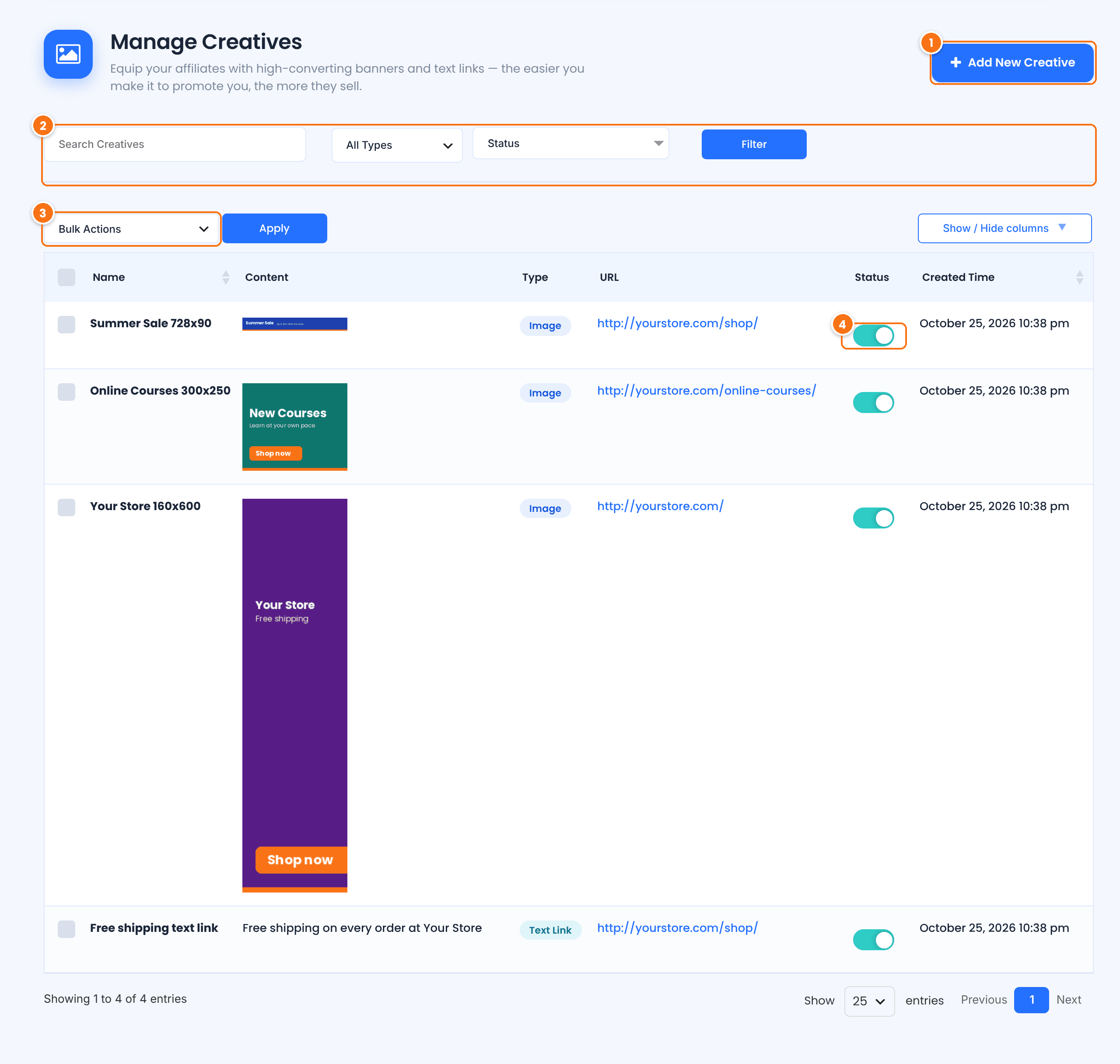
Opens the form for a new banner or text link.
Find creatives by name, filter by type (All Types, Image, Text Link) or by Status, then click Filter.
Active creatives are shown to affiliates. Turn the switch off to put a creative on hold without deleting it.
Create a creative #
Click Add New Creative.
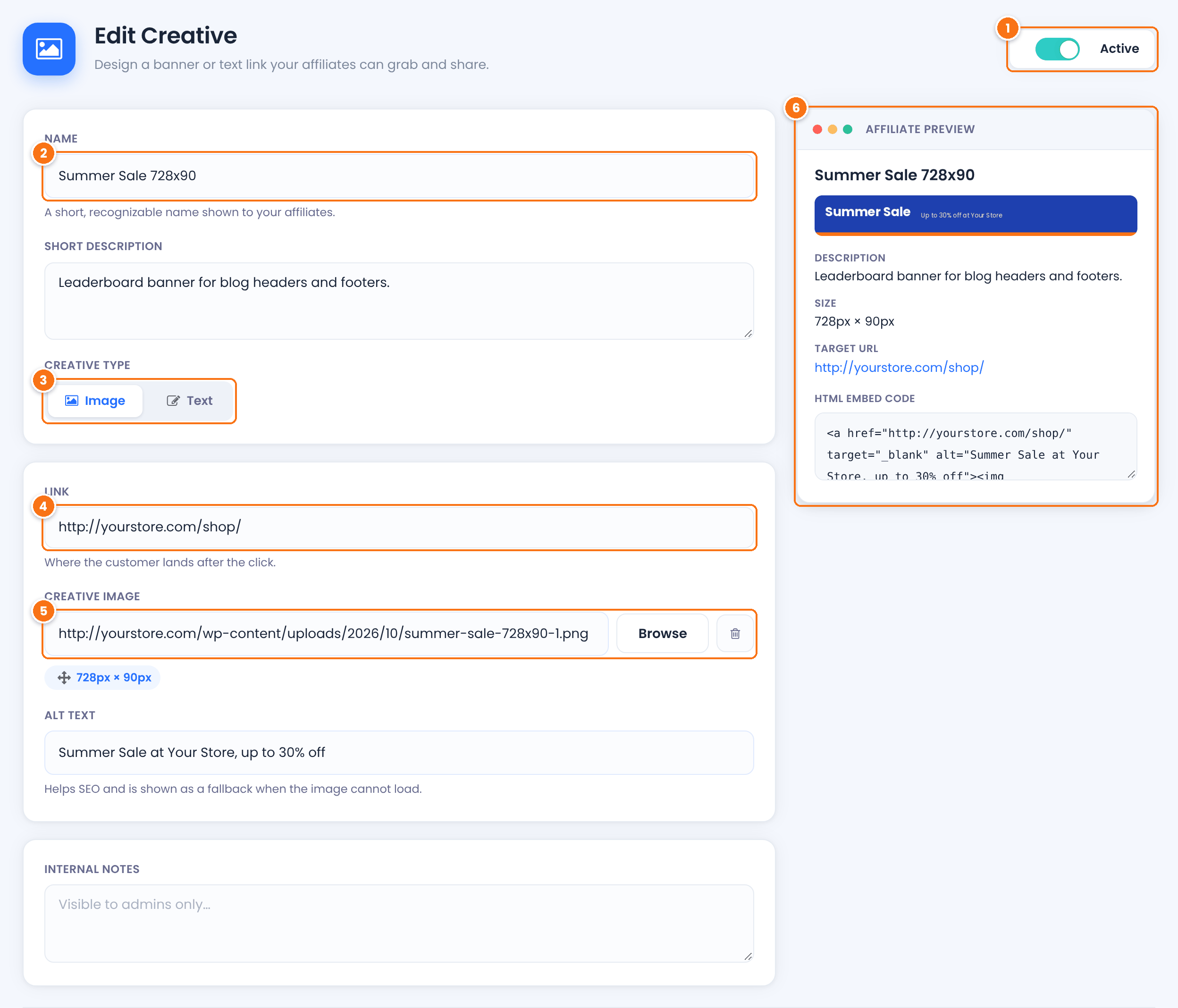
Shows the creative to affiliates as soon as you save.
Default: On
A short name affiliates see above the creative, such as “Summer Sale 728×90”. Including the size helps affiliates pick the right banner.
- Image: a banner. Choose the picture in Creative Image.
- Text: a text link. Type the link text in Anchor text, for example “Free shipping on every order at Your Store”.
Default: Image
The page on your site where visitors land after the click. Ultimate Affiliate Pro adds the affiliate’s tracking code to it, for example yourstore.com/shop/?ref=emma.collins.
Default: your homepage
Click Browse to pick or upload the banner from the Media Library. The size is detected and shown under the field.
How the creative looks for affiliates: name, image, description, size, target URL and the HTML Embed Code they will copy.
Optional details shown to affiliates, such as where the banner works best.
Describes the image for visitors who can’t see it. Shown with the banner image in the Affiliate Portal.
Notes for you and other admins. Affiliates don’t see them.
Click Save Changes, or Save & Add Another to save and open an empty form for the next creative.
Tip
Create one creative per size and destination: for example the same Summer Sale banner in 728×90 and 300×250, both linking to your sale page. To reuse settings, select a creative in the list and choose Duplicate.
How affiliates use creatives #
Affiliates find all active creatives in the Affiliate Portal, under Marketing›Creatives.
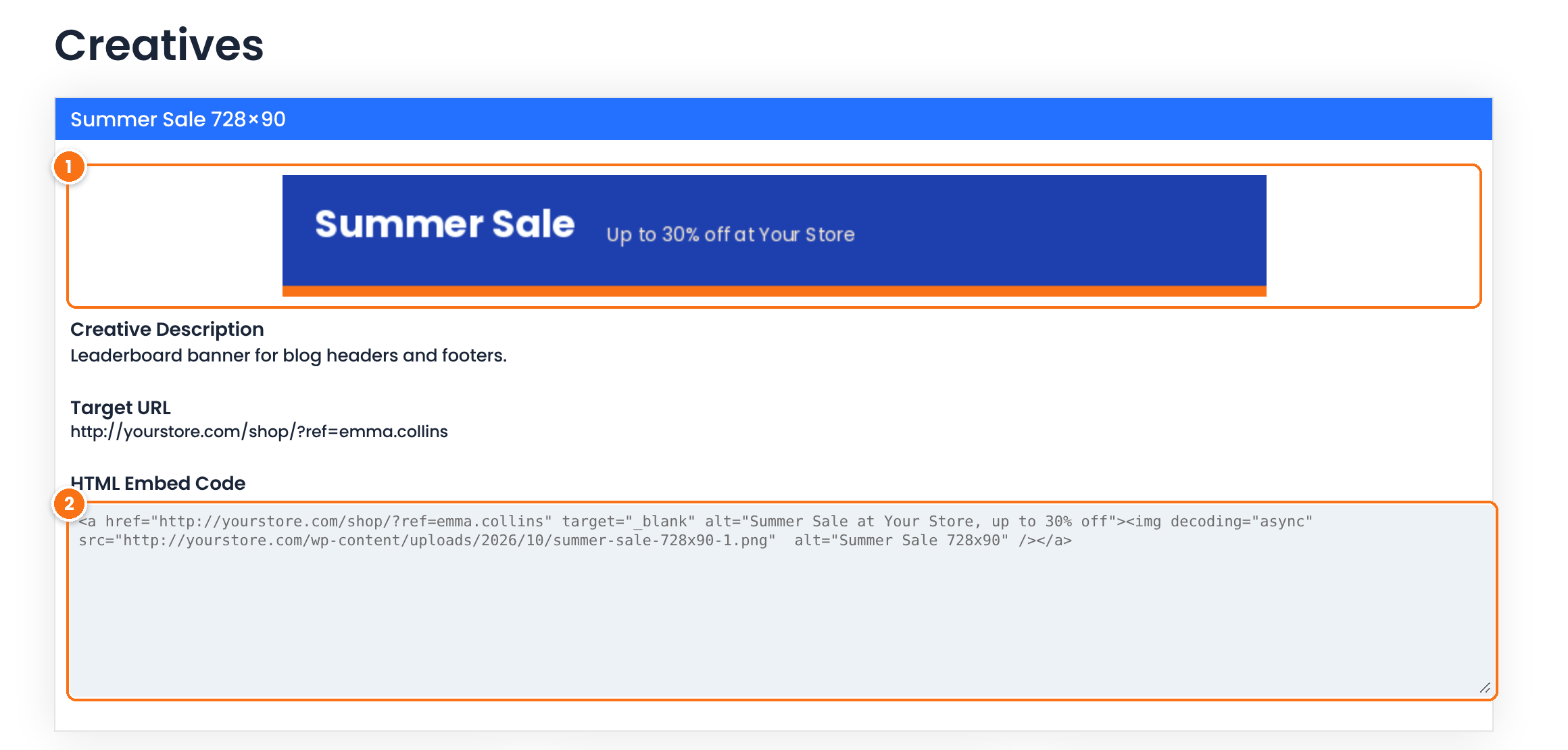
- The affiliate checks the banner and its Creative Description. The Target URL already contains their tracking code.
- They copy the code from HTML Embed Code and paste it into their website, newsletter or blog, in an HTML block.
The code links the banner to the target URL with the affiliate’s code, in the same format as their other links. If you use friendly affiliate links, creatives use that format too.
Extra options for creatives #
Add share buttons under each creative with the Social Share module. See Social share buttons.
With the CPM Commission module, the embed code also counts banner impressions, so you can reward affiliates per 1,000 views.
Change the label or add a message above the creatives in Showcases›Affiliate Portal, in the Creatives tab of the Content Section.
Test it #
- Create an active creative that links to your shop page.
- Log in to the Affiliate Portal as a test affiliate and open Marketing›Creatives.
- Copy the HTML Embed Code into a test page on another site, or open the Target URL in a private window.
- Click the banner and check the visit in Ultimate Affiliate Pro›Clicks, credited to the test affiliate.
Frequently asked questions #
Do creatives track clicks and sales like other affiliate links?
Yes. The link in every creative carries the affiliate’s tracking code, so clicks, referrals and commissions are recorded the same way as for any affiliate link.
Can I host the banner images on my site?
Yes. Choose them from your Media Library with Browse. The embed code loads the image from your site.
How do I stop showing an old banner?
Turn off its Status switch in Creatives, or choose Hold in Bulk Actions. It disappears from the Affiliate Portal and you can turn it back on later.
Can I offer text links instead of banners?
Yes. Set Creative Type to Text and type the link text in Anchor text. Affiliates get a ready-made text link with their tracking code.
Which banner sizes should I create?
The most used sizes are 728×90 (leaderboard), 300×250 (medium rectangle) and 160×600 (skyscraper). Add a square 1080×1080 image if your affiliates promote on social media.


