The WP Booking Calendar affiliate integration pays your affiliates a commission for every booking a referred visitor makes through WP Booking Calendar. You set one reference value for bookings, and each affiliate earns their rank rate on it.
Use it to reward affiliates who send you reservations for rooms, rentals, appointments or classes. The visitor is linked to the affiliate through an affiliate referral link before they book.
Before you start
- WP Booking Calendar is installed and active, with a booking form on one of your pages.
- The WP Booking Calendar Tracking add-on is installed and active. See Pro Add-ons.
- Your affiliates have a rank with a commission rate. See Ranks.
How the commission is calculated #
The commission does not depend on the booking cost. It is calculated from the Reference Commission value you set, with the affiliate’s rank rate:
- Reference Commission value
- $30
- Affiliate rank
- Standard, 20%
- Referral for each booking
- $6
If the rank uses a flat rate instead of a percentage, the affiliate receives that flat amount for every booking.
Turn on the WP Booking Calendar affiliate integration #
Go to Ultimate Affiliate Pro›Integrations and find the WP Booking Calendar card in the Events & Booking group.

Turns tracking for WP Booking Calendar on or off. The card shows Enabled while it is on.
Default: Off
Opens the WP Booking Calendar Tracking settings.
Set the reference value #
Click Configure on the card and scroll below the introduction.
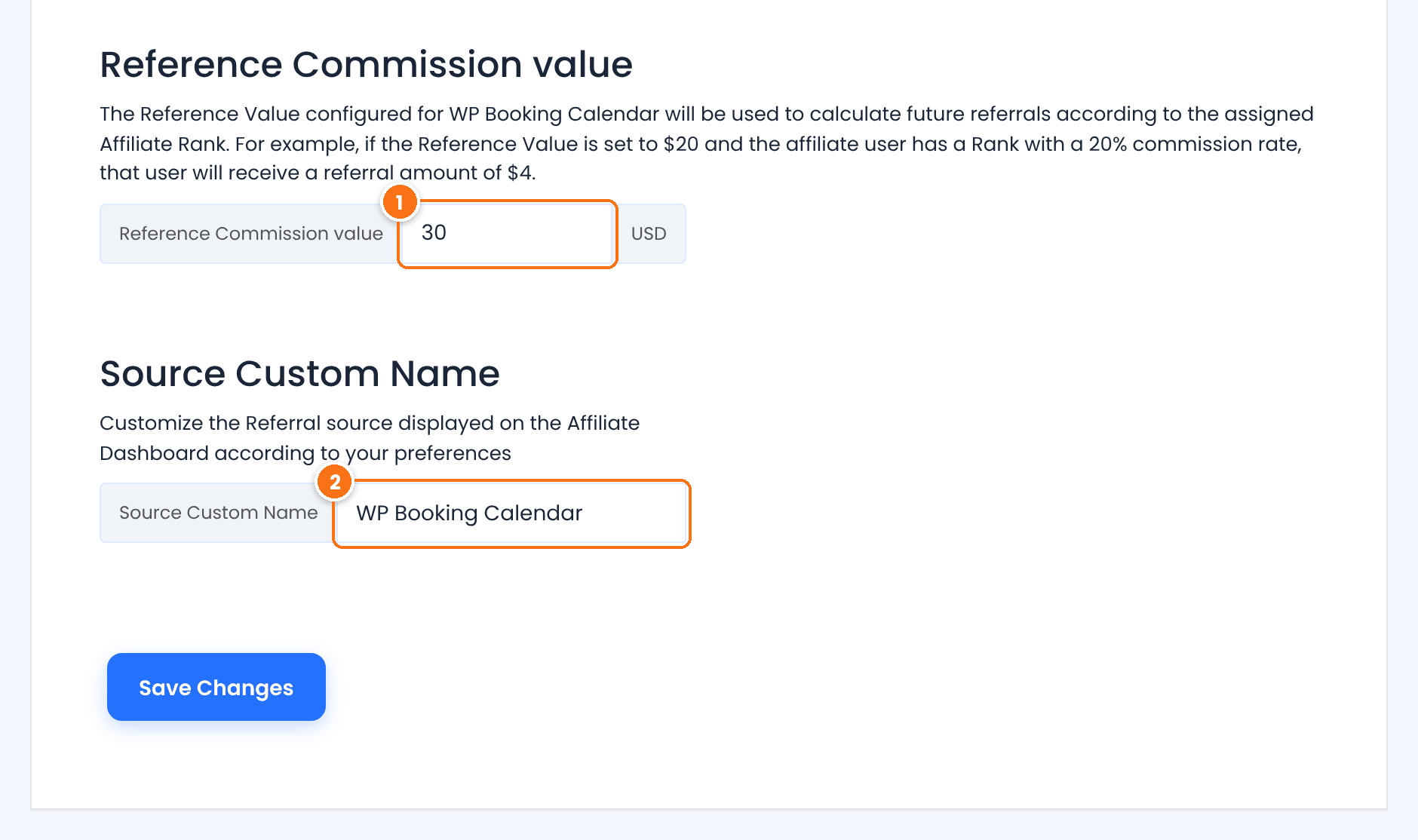
The base amount for every booking, in your affiliate currency. The affiliate’s rank rate is applied to it. Set a value close to what a booking is worth to you.
The source name of booking referrals, shown in the Referrals list and in the affiliate’s Affiliate Portal.
Default: WP Booking Calendar
Click Save Changes.
Approve bookings and referrals #
A new booking from a referred visitor creates a referral with the Pending status. The referral follows the booking in WP Booking Calendar:
When you approve the booking in WP Booking Calendar, the referral changes to Approved.
If you set an approved booking back to pending, the referral changes back to Pending.
Go to Ultimate Affiliate Pro›Referrals to see the booking referrals.
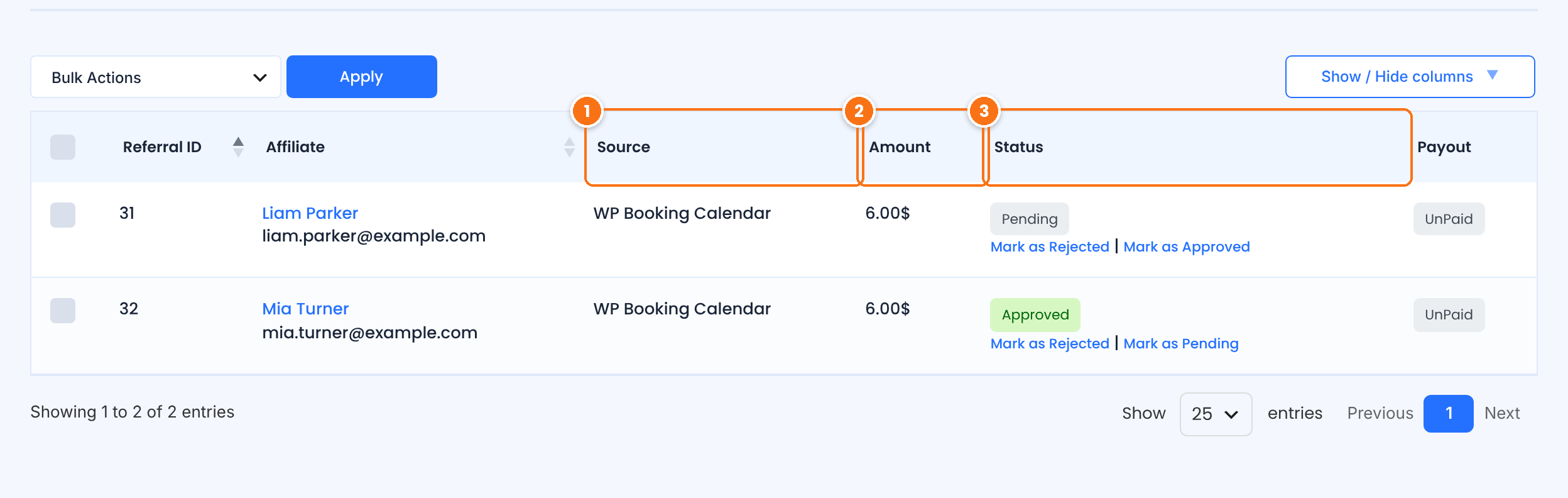
The Source Custom Name, WP Booking Calendar by default.
The reference value multiplied by the affiliate’s rank rate.
Approve referrals manually
If you turn on Keep Referral Status as Pending in Ultimate Affiliate Pro›Settings›Admin Workflow, automatic approval is turned off, and you approve referrals yourself.
Test it #
- Open a private browser window and visit your site through an affiliate link, for example
yourstore.com/?ref=emma.collins. - In the same window, open the page with your booking form and submit a booking.
- In Ultimate Affiliate Pro›Referrals, check that a Pending referral was created for the affiliate.
- Approve the booking in WP Booking Calendar and check that the referral changes to Approved.
For a full test routine, see Test your affiliate program. WP Booking Calendar is available on WordPress.org.
Frequently asked questions #
Is the commission based on the booking amount?
No. Every booking uses the same Reference Commission value, and the affiliate earns their rank rate on that value.
When is a booking referral approved?
When you approve the booking in WP Booking Calendar. Until then the referral is Pending. If Keep Referral Status as Pending is turned on in Settings, Admin Workflow, automatic approval is turned off, and you approve referrals yourself.
Do I need WooCommerce?
No. The integration works with WP Booking Calendar bookings directly.
A booking did not create a referral. What should I check?
Check that the WP Booking Calendar card is enabled in Integrations, that the Reference Commission value is set, and that the visitor opened the affiliate link in the same browser before booking. See Referrals or clicks are not recorded.


