The WooCommerce affiliate plugin integration in Ultimate Affiliate Pro turns every WooCommerce order that comes from an affiliate into a referral, with the commission calculated for you. It works with the classic checkout and the Checkout block, and with guest and registered customers.
Ultimate Affiliate Pro finds the affiliate from the referral cookie, from an affiliate coupon or from the affiliate the customer picks at checkout. Then it follows the order status: when you complete the order, the referral is approved. To see the full flow, read how Ultimate Affiliate Pro works. For all supported plugins, see the integrations overview.
Before you start
- WooCommerce installed and active. See the WooCommerce setup guide.
- Ultimate Affiliate Pro installed, with at least one rank. Ranks set the default commission. See Ranks.
- At least one approved affiliate, so you can test an order.
Turn on the WooCommerce integration #
Go to Ultimate Affiliate Pro›Integrations. In the eCommerce section, find WooCommerce.

Turns the integration on or off. The change is saved right away, there is no Save button.
Default: On (when WooCommerce is active)
How the WooCommerce affiliate plugin creates referrals #
When a customer places an order, Ultimate Affiliate Pro looks for the affiliate in this order:
- A coupon from the order that is linked to an affiliate (see the coupon step below).
- The referral cookie saved when the customer opened an affiliate link. The click and the campaign are saved with the referral.
- The affiliate the customer is already linked to, when Lifetime Commissions is on.
- The affiliate the customer selects at checkout, when the Checkout Referrals module is on.
If an affiliate is found, the referral is saved with the status Pending, the order number as reference and the order total in the description, for example Order Amount: $89.00. After that, the referral status follows the order status:
| WooCommerce order status | Referral status |
|---|---|
| Pending payment, On hold, Processing | Pending |
| Completed | Approved |
| Cancelled, Failed | Rejected |
| Refunded | Rejected, when Reject Commissions on Refund is on (default) |
Tip
To approve every referral yourself, turn on Keep Referral Status as Pending in Ultimate Affiliate Pro›Settings›Admin Workflow. Completed orders then leave the referral as Pending until you approve it in Ultimate Affiliate Pro›Referrals.
On the order screen in WooCommerce, the Affiliates Pro – Referral Details box shows the affiliate, the commission amount and the customer for that order.
How the commission amount is calculated #
The commission is calculated for each product line of the order, from the line total after discounts. Then:
- Shipping and taxes are left out by default. To include them, turn off Exclude Shipping from Calculations or Exclude Taxes from Calculations in Ultimate Affiliate Pro›Settings›General Settings, card Referral Calculation Exclusions.
- The rate comes from the affiliate’s rank. A Product Rate, the product’s custom rate or a category rate (next sections) can apply to the same line.
- When more than one rate applies, Which Rate should be used? in Ultimate Affiliate Pro›Settings›General Settings decides: Biggest Amount (default) or Lowest Amount.
- Order
- Running Shoes $89 + shipping $5 + tax $7.12
- Amount used
- $89.00 (shipping and tax left out)
- Commission
- 20% of $89.00 = $17.80
Set a commission rate for one product #
Go to Products›All Products and edit a product. In the Product data box, open the Ultimate Affiliate Pro – Custom Referral Rate tab.
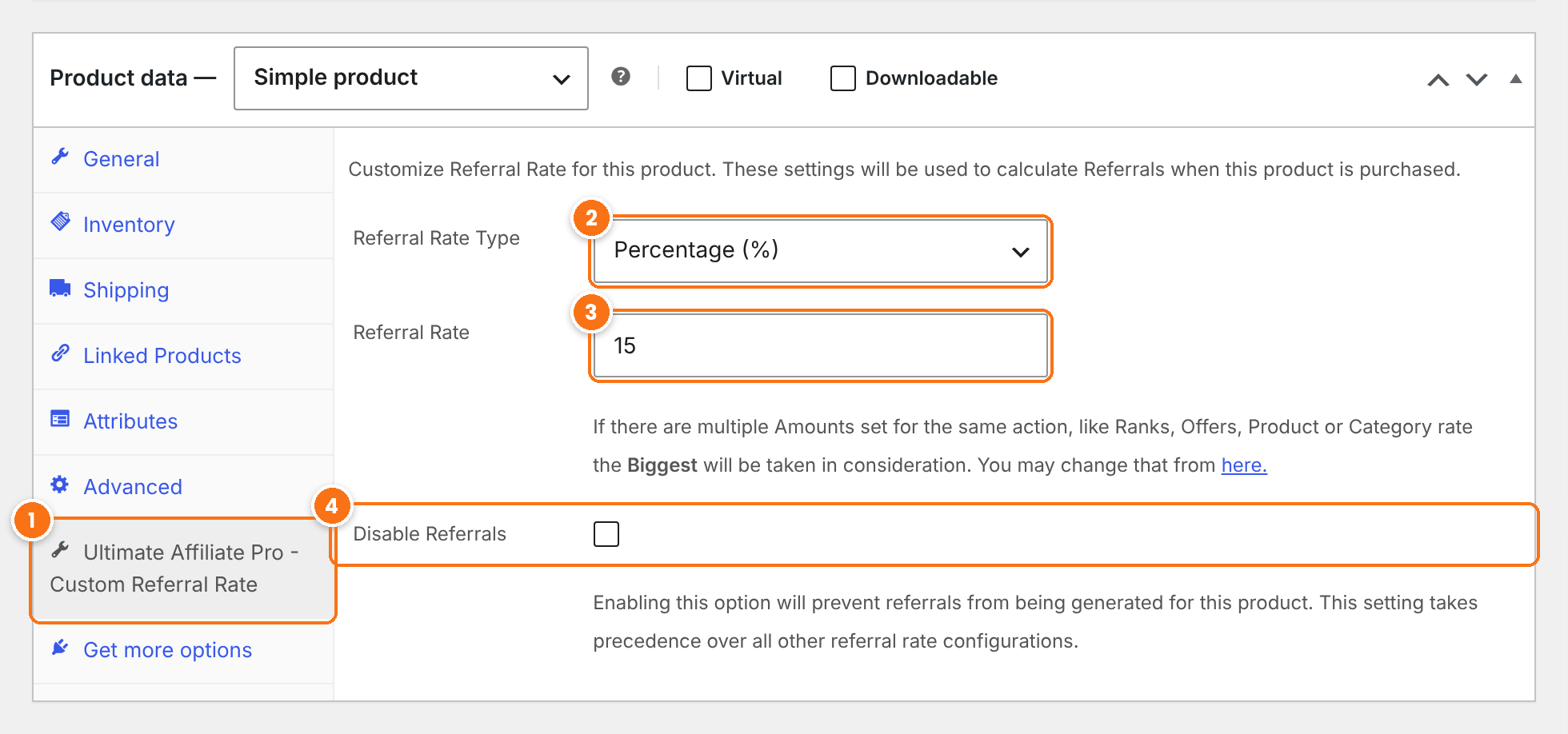
The tab with the affiliate settings of the product.
- Flat (your currency): a fixed amount in your currency for each product sold.
- Percentage (%): a percentage of the product line.
- Default Affiliate system Settings: no custom rate, the rank and Product Rates apply.
Default: Default Affiliate system Settings
The value of the rate, for example 15 for 15%.
No referral is created for this product, whatever rates are set elsewhere.
Default: Off
Click Update to save. For variable products, each variation has its own Referral Rate Type, Referral Rate and Disable Referrals fields in Product data›Variations, under Affiliate Program – Custom Referral Rate. A variation rate is used instead of the product rate.
Set a commission rate for a product category #
Go to Products›Categories and edit a category. The fields are at the bottom of the screen, under Affiliate Program – Custom Referral Rate.
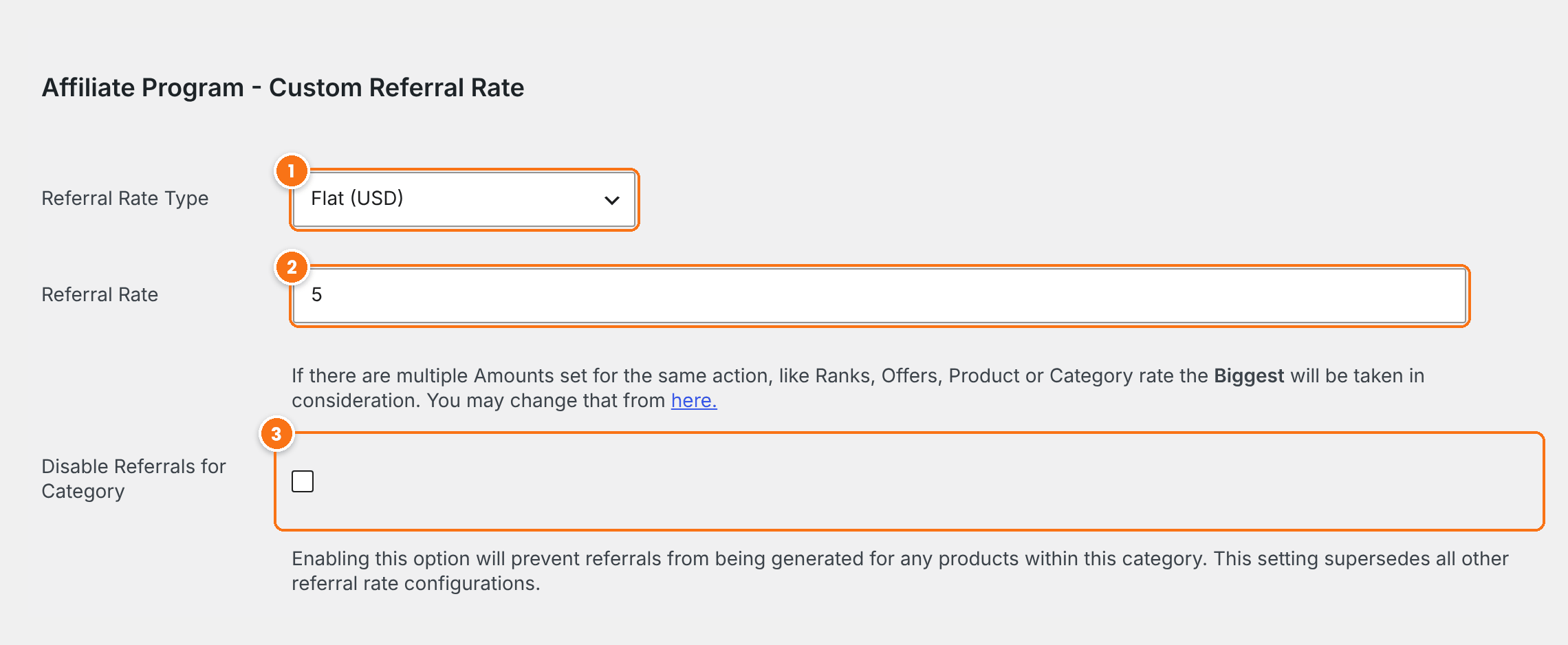
Default: Default Affiliate system Settings
The value of the rate for every product in the category.
No referral is created for the products in this category.
Default: Off
Click Update. To keep products out of the program in bulk, see Include or exclude products from commissions.
Link a WooCommerce coupon to an affiliate #
An affiliate coupon credits the affiliate every time a customer uses the code, even without a referral link. Go to Marketing›Coupons and edit a coupon. In the General tab, scroll to Affiliate Program – Static Coupon.
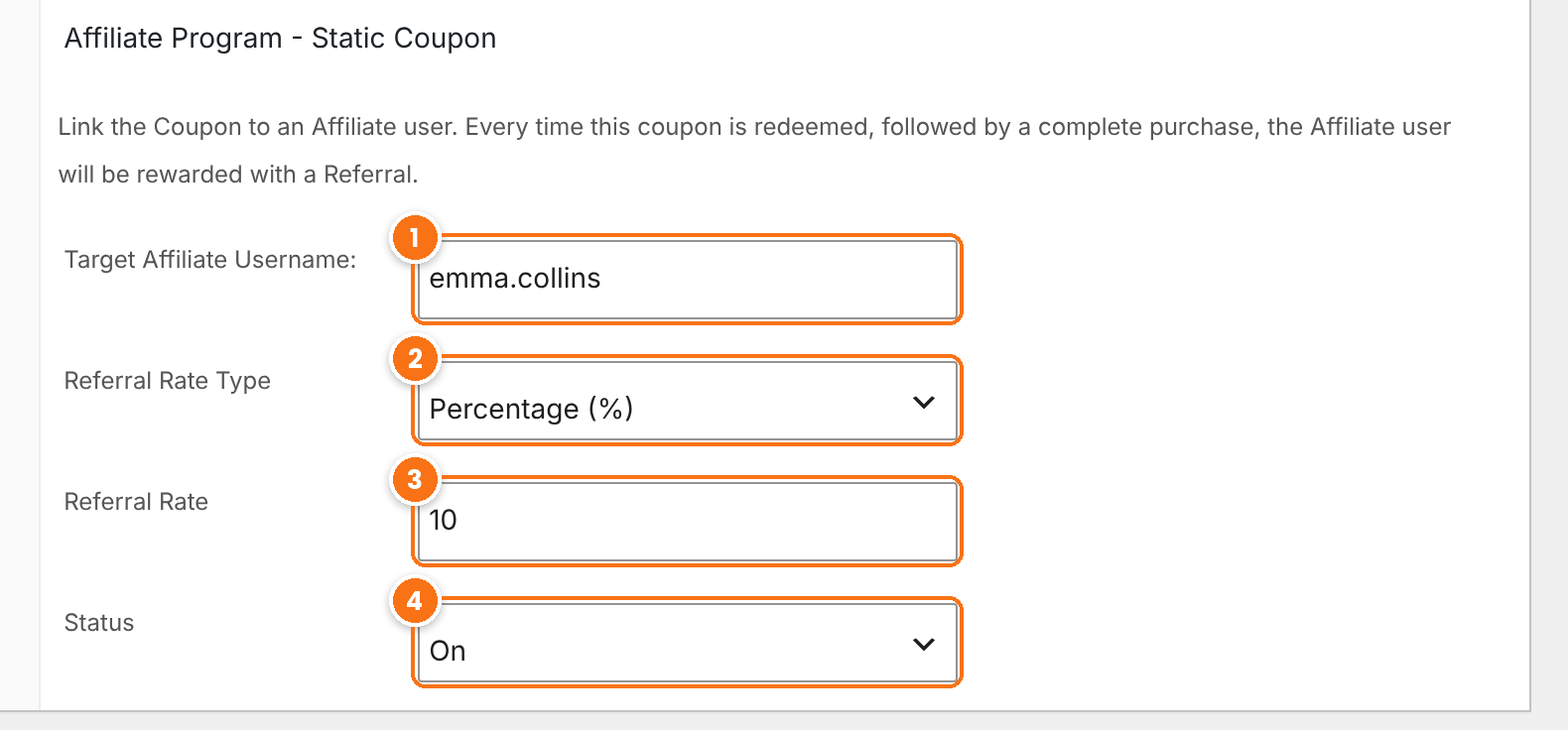
The username of the affiliate who gets the referral, for example emma.collins.
The commission for orders with this coupon. It replaces the rank rate for these orders.
Set it to On.
Click Update. You can also manage affiliate coupons in one list. See Affiliate coupon tracking.
Add the Affiliate Portal to WooCommerce My Account #
With the WooCommerce Account Page Integration module, affiliates open their Affiliate Portal from a tab in WooCommerce My account, so they do not need a second login page. Turn it on in Ultimate Affiliate Pro›Modules. See Affiliate area in WooCommerce and BuddyPress accounts.
Test it #
- Open an affiliate link, for example
yourstore.com/?ref=emma.collins, in a private browser window. - Add a product to the cart and place an order as a customer who is not the affiliate.
- Go to Ultimate Affiliate Pro›Referrals. The new referral shows the source WooCommerce, the order number and the status Pending.
- In WooCommerce, change the order status to Completed. The referral changes to Approved.
If no referral appears, see Referrals or clicks are not recorded.
To send affiliates to their affiliate area when they log in through the WooCommerce login form, use the WooCommerce Redirect add-on.
Frequently asked questions #
Is the commission calculated before or after the coupon discount?
After. The commission uses the product line total after WooCommerce discounts. Shipping and taxes are left out unless you turn off the exclusions in Settings, General Settings.
Are guest orders tracked?
Yes. The referral cookie works for guest checkout too. The referral then has no customer username.
Does the integration work with the WooCommerce Checkout block?
Yes. Referrals are created for orders placed with the classic checkout and with the Checkout block.
What happens to the referral when I refund an order?
When the order status changes to Refunded, the referral is rejected if Reject Commissions on Refund is on in Settings, General Settings. It is on by default.
Can I pay commissions only on first orders?
Yes. Turn on New Customer Commissions Only in Settings, General Settings. Customers with earlier orders do not generate referrals.


