Import affiliates from a CSV file to add many affiliates at once, and export affiliates, referrals, clicks and payouts to CSV for reports, accounting or a backup. Everything happens in Ultimate Affiliate Pro›Export-Import, with a column-mapping step so files from other systems work too.
Use import when you move affiliates from a spreadsheet or another affiliate system, or when you add referrals for sales made outside your store. Use export to analyze data in a spreadsheet or to share it with your accountant. For day-to-day changes to single records, see Manage affiliates and Manage referrals.
Before you start
- A recent backup of your site database, so you can restore the site if an import does not go as planned.
- The ranks you want to give imported affiliates, created in Ultimate Affiliate Pro›Ranks. See Ranks.
- A spreadsheet app such as Excel, Google Sheets or LibreOffice Calc to prepare the file. Save it as CSV (comma separated, UTF-8).
Open Export-Import #
Go to Ultimate Affiliate Pro›Export-Import. The page has one section for each type of data: Affiliates, Referrals, Clicks and Payout Payments. Each section has an Export side and, for affiliates and referrals, an Import side.
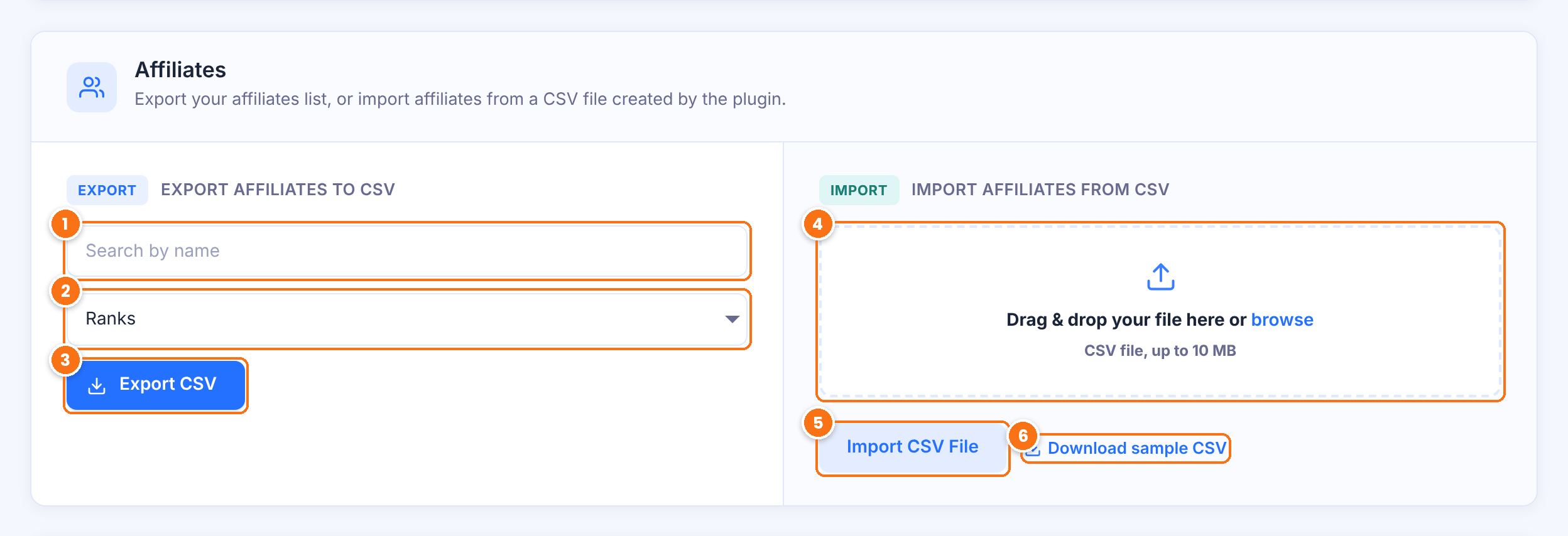
Exports only the affiliates whose name matches. Leave it empty to export everyone.
Exports only affiliates with the selected ranks. You can pick several.
Creates the CSV file and downloads it.
Drag your CSV file here, or click browse to choose it. Files up to 10 MB are accepted.
Reads the file and opens the column mapping.
Downloads a file with the column names the importer expects.
Export data to CSV #
Set the filters of a section and click Export CSV. The file downloads to your computer. Each section also has a Search box to export only matching records.
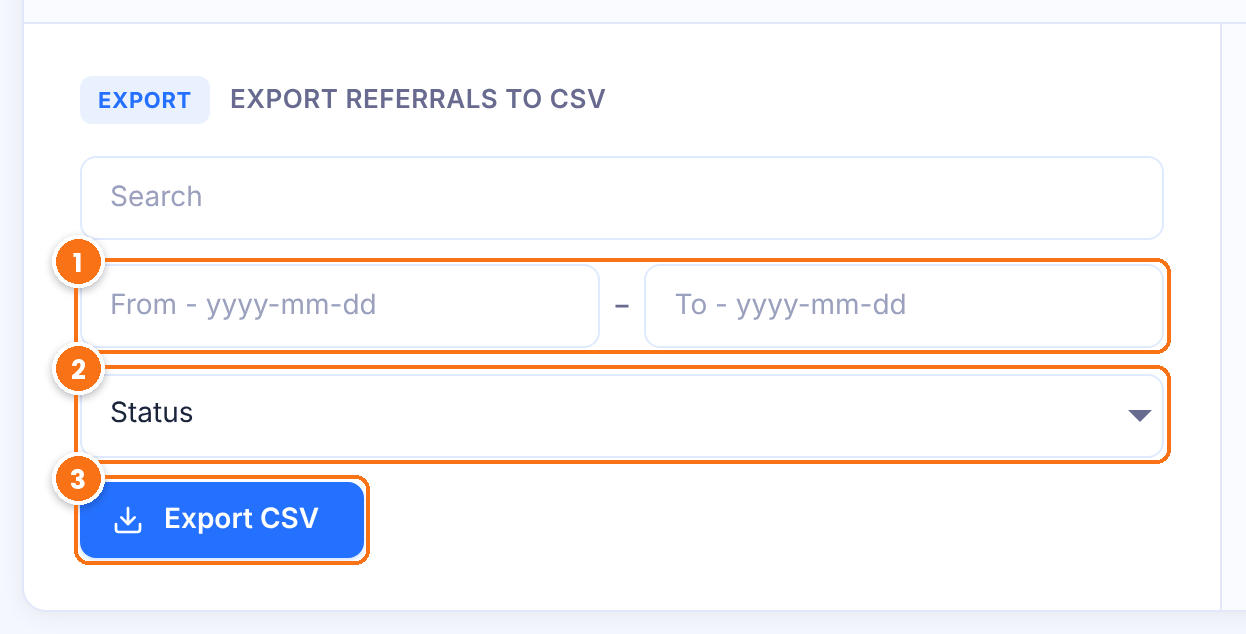
Exports only records between the two dates, in yyyy-mm-dd format.
Referrals: Approved, Pending, Rejected. Clicks: Just Visit, Converted. Payout Payments: Failed, Pending, Completed.
Downloads the file.
Each export has these columns:
| Export | Columns |
|---|---|
| Affiliates | Affiliate ID, Email, Username, Name, Rank, Clicks, Referrals, Paid Earnings, Unpaid Earnings, WP Role, Affiliate Since |
| Referrals | ID, Affiliate ID, Affiliate Email, From, Reference, Description, Amount, Date, Status, Payout Status, Campaign, Visit Id, Reference Details, Parent Referral Id, Child Referral Id |
| Clicks | ID, Affiliate ID, Affiliate Email, Referral ID, URL, From Page, IP Address, Browser, Device, Date, Status |
| Payout Payments | ID, Affiliate ID, Affiliate Email, Amount, Payout Method, Transaction ID, Payment Details, Date, Status |
For charts and totals inside WordPress, see Affiliate reports and statistics.
Prepare the affiliates file #
Put one affiliate per row, with a header row. The column names can be anything: you match them to the plugin fields in the next step. An export from this page, or the sample CSV, already has the right columns.
| Field | Required | What to enter |
|---|---|---|
| Yes | Email address of the affiliate. | |
| Username | Yes | WordPress username. Used only when a new user is created. |
| Name | No | Full name, for example Ethan Brooks. The last word becomes the last name. |
| Rank | No | Rank name exactly as in Ultimate Affiliate Pro›Ranks, for example Silver. Empty or unknown names get the default rank for new affiliates. |
| WP Role | Recommended | WordPress role for new users, usually subscriber. See Roles and Capabilities. |
| Affiliate Since | No | Date the affiliate joined, for example 2026-09-14. Empty means today. |
| Affiliate ID | No | Keeps the same affiliate ID when it is not used yet on this site. Leave it out to get new IDs. |
What happens to each row:
- New email: a WordPress user is created with a random password, and becomes an affiliate. If you set up the Send auto-generated Password to Customer email notification, the user receives the password by email.
- Email of an existing user: that user becomes an affiliate. Their account and password do not change.
- Email of an existing affiliate: the row is skipped.
- New email with a username that is already used: the row fails and the report shows it, so you can change the username.
Import affiliates from a CSV file #
In the Affiliates section, drop the file in the import zone and click Import CSV File. The Map your columns panel opens.
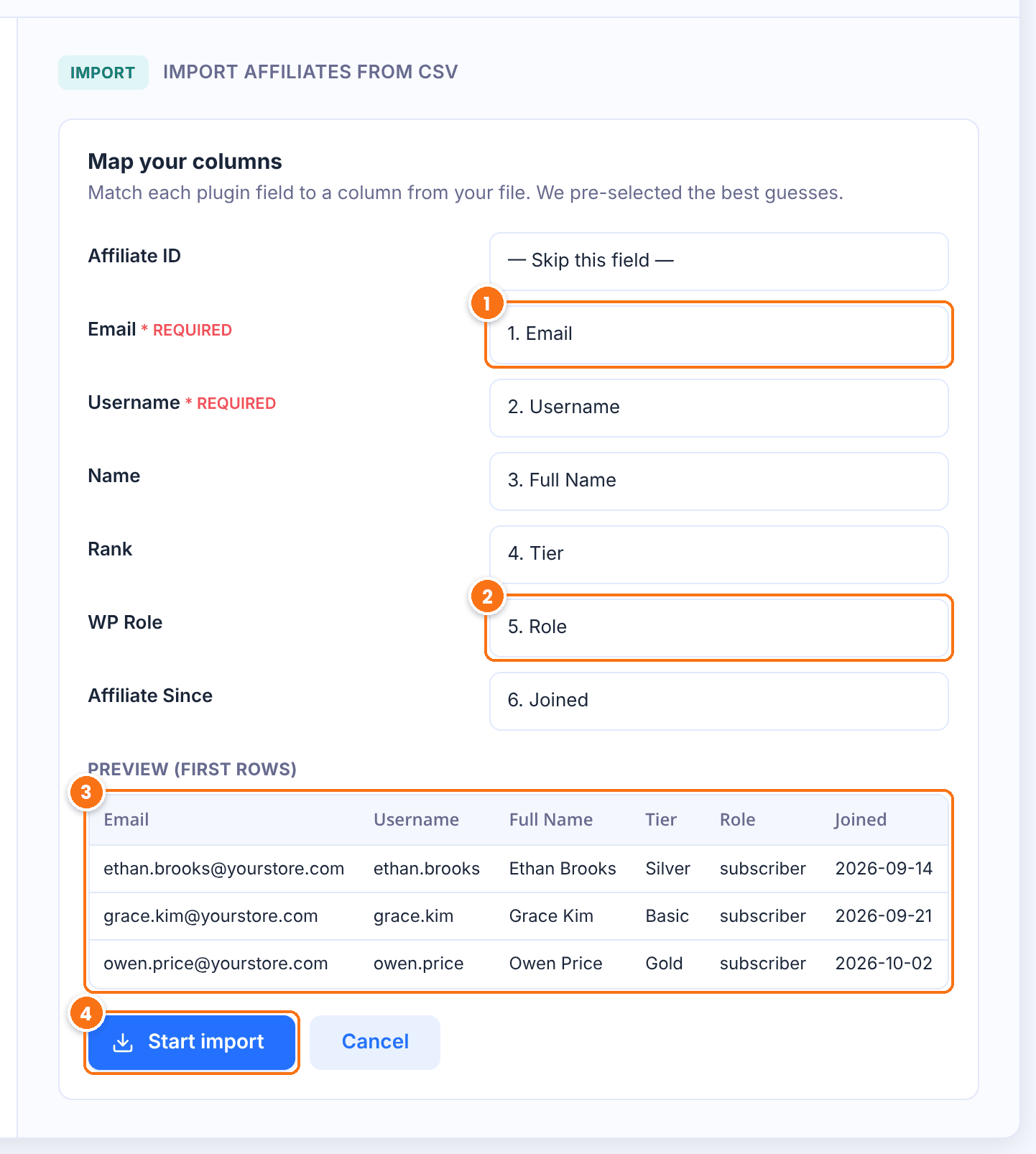
For each plugin field, pick the column of your file that holds it. Fields marked * REQUIRED must be mapped. The plugin preselects its best guess, so check every field, and choose — Skip this field — for fields your file does not have.
Map it to the role column of your file, so new users get a role such as subscriber.
The first rows of your file, to check the columns.
Imports the rows in batches of 50 and shows the progress.
When it finishes, the Import report shows how many rows were imported, skipped and failed.
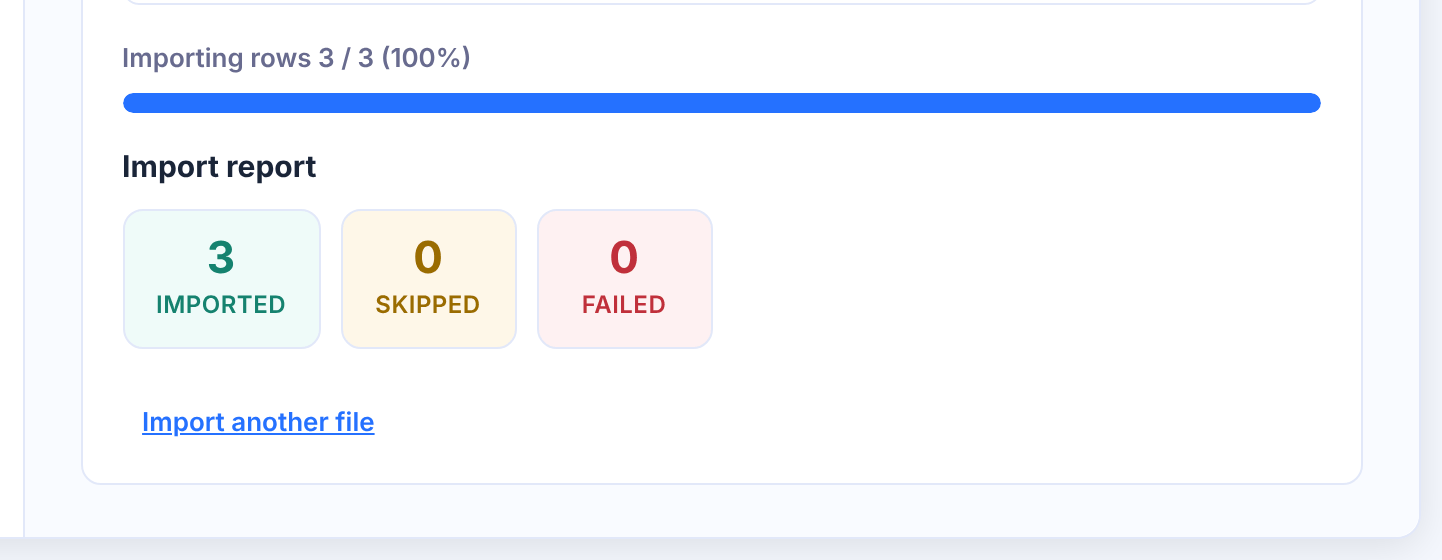
If some rows failed, the report lists them with the reason, and Download failed rows (CSV) saves them to a file. Fix those rows and import that file.
Import referrals #
The Referrals section works the same way. Map at least Affiliate ID, the ID from Ultimate Affiliate Pro›Affiliates. Use these values:
| Field | What to enter |
|---|---|
| Amount | Commission with its currency, for example 18.00 USD. |
| Date | Date and time, for example 2026-09-30 10:15:00. |
| Status | Approved, Pending or Rejected. |
| Payout Status | Paid, Unpaid or Pending. |
| Source | The source name, for example WooCommerce. |
| Reference | Order or invoice number. A row with the same reference and affiliate as an existing referral is skipped, so give every referral its own reference. |
| Description, Campaign, Reference Details | Optional text shown in the referral details. |
The Import Referrals via CSV add-on offers a separate importer with its own file format.
Moving the whole program to another site
A CSV import can give new IDs to the records it creates. To move a complete program with all its history, migrate the full database with a site migration or backup plugin instead.
Test it #
- Create a CSV with two test affiliates and a
subscriberrole column. - Import it and check the report: 2 imported.
- Open Ultimate Affiliate Pro›Affiliates and check the names, ranks and join dates.
- Import the same file again. Both rows are skipped.
Frequently asked questions #
How do I import affiliates from a CSV file?
Go to Ultimate Affiliate Pro, Export-Import. In the Affiliates section, drop your CSV file, click Import CSV File, map the columns and click Start import.
Which columns are required to import affiliates?
Email and Username. Name, Rank, WP Role, Affiliate Since and Affiliate ID are optional.
What happens if an affiliate already exists?
A row with the email of an existing affiliate is skipped. A row with the email of an existing user who is not an affiliate turns that user into an affiliate.
Do imported affiliates get a password?
New users get a random password. They receive it by email when the Send auto-generated Password to Customer notification is set up, or they can use the lost password form.
Can I export referrals for a date range?
Yes. In the Referrals section, fill in From and To, choose a status if needed and click Export CSV.
How large can the file be?
Up to 10 MB. Rows are imported in batches of 50, so large files work without timeouts.


