The affiliate registration form collects what you need to know about new affiliates. In Ultimate Affiliate Pro you choose which fields appear, which are required, and you add custom fields of your own: dropdowns, checkboxes, file uploads, a verification code and more.
Every field can also appear on the affiliate’s profile in the Affiliate Portal and on the affiliate edit screen in your dashboard, so you and your affiliates see the same information. The form is the one you place with the [uap-register] shortcode. See Set up the registration, login and password pages if you have not set up that page yet.
Before you start
- Ultimate Affiliate Pro installed, with your license active.
- A registration page with the
[uap-register]shortcode. - A list of the details you want from applicants, such as their website or how they plan to promote you.
Choose where each field appears #
Go to Ultimate Affiliate Pro›Showcases›Registration Form and open the Custom Fields tab. The list shows every field of the form, with switches for where it appears.
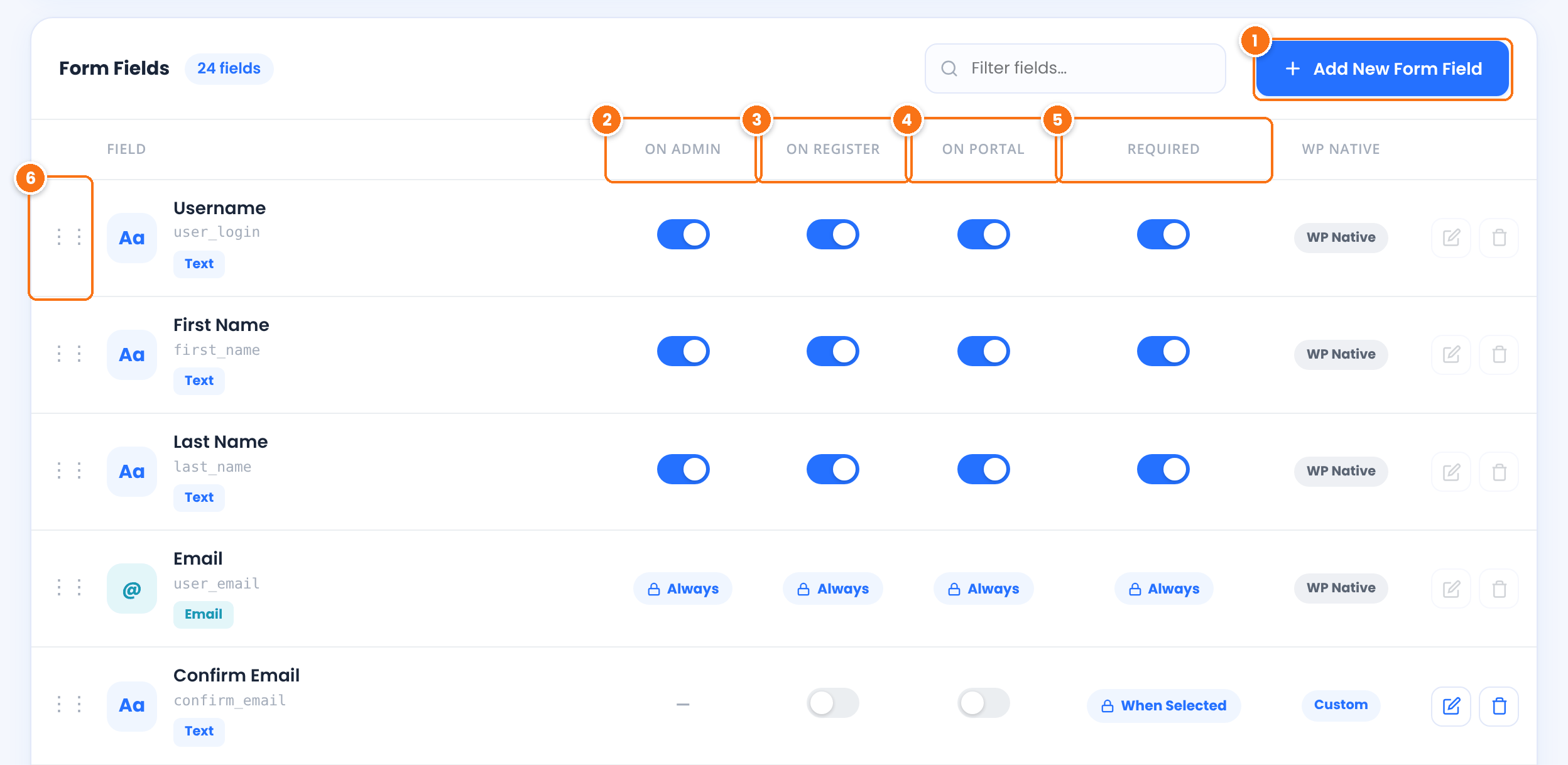
Creates a custom field. See step 2.
Shows the field on the affiliate edit screen in Ultimate Affiliate Pro›Affiliates, where you can read and change the value.
Shows the field on the public registration form.
Shows the field on the affiliate’s profile in the Affiliate Portal, where the affiliate can update it.
The form cannot be sent until the field is filled in. A lock badge (Always or When Selected) means the setting is fixed for that field. For example, Email is always shown and always required.
Drag a row up or down to change the order of the fields on the form.
The WP Native column tells you which fields are standard WordPress profile fields (username, name, email, website, password, biographical info). The other fields are stored as user meta. Some ready-made fields are switched off by default, such as Confirm Email, Website, Phone, the address fields and Payment Email (PayPal). Turn on On Register to use them.
Add a custom field #
Click Add New Form Field. The example below adds a dropdown that asks applicants how they will promote your store.
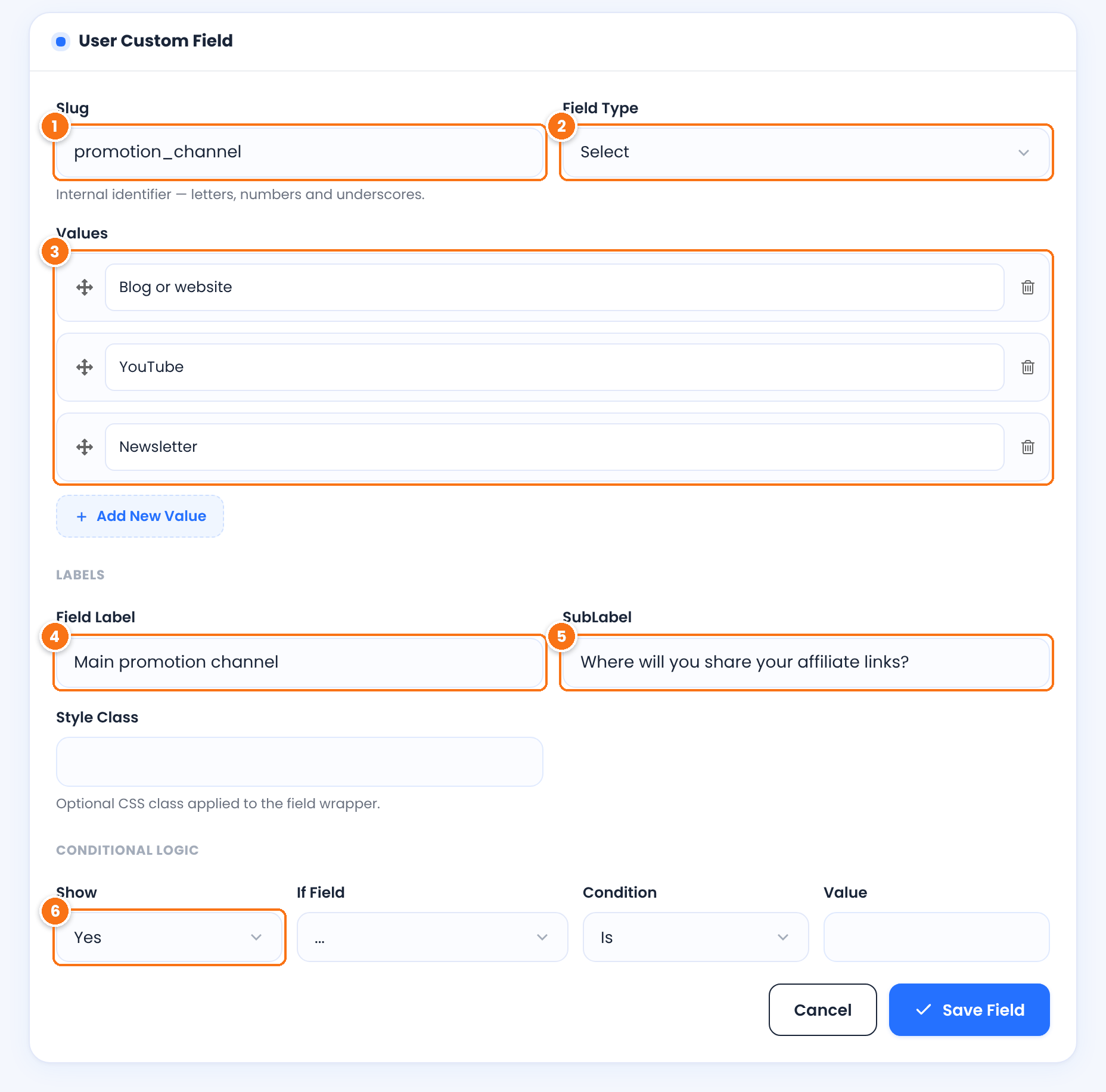
The internal name of the field: letters, numbers and underscores, for example promotion_channel. It must be unique. Pick it carefully, because saved answers are stored under this name.
What kind of input the field is.
- Text, Textarea, Number and Date Picker: free input.
- Select, Multiselect Box, Checkbox and Radio: a list of values to choose from.
- File Upload: an Upload button for documents or images.
- Plain Text: text or HTML shown on the form, such as a note or a heading. It collects no answer.
- Verification Code: the applicant must type the Right Answer you set, otherwise they see your Error Message. Use it for an invitation code.
Default: Text
The options of a Select, Multiselect Box, Checkbox or Radio field. Click Add New Value for each option and drag them to change the order.
The name of the field that applicants see above it.
A short hint shown under the field.
Shows or hides this field based on the answer to another field. Set Show to Yes or No, pick the other field in If Field, choose Is or Contains in Condition and type the Value. For example, show a “Channel URL” field only if the promotion channel is YouTube. Leave If Field on “…” to always show the field.
Style Class adds a CSS class to the field wrapper, for custom styling. Click Save Field, then turn on On Register for the new field in the list and click Save Changes.
Tip
You can use any custom field in email notifications with the tag {CUSTOM_FIELD_slug}, for example {CUSTOM_FIELD_promotion_channel}. The tags are listed in the notification editor. See Email notifications.
Set password rules and form behavior #
Open the Register Showcase tab. At the top, pick one of the 14 form templates; the live preview on the right shows the result. Then scroll to Additional Settings.
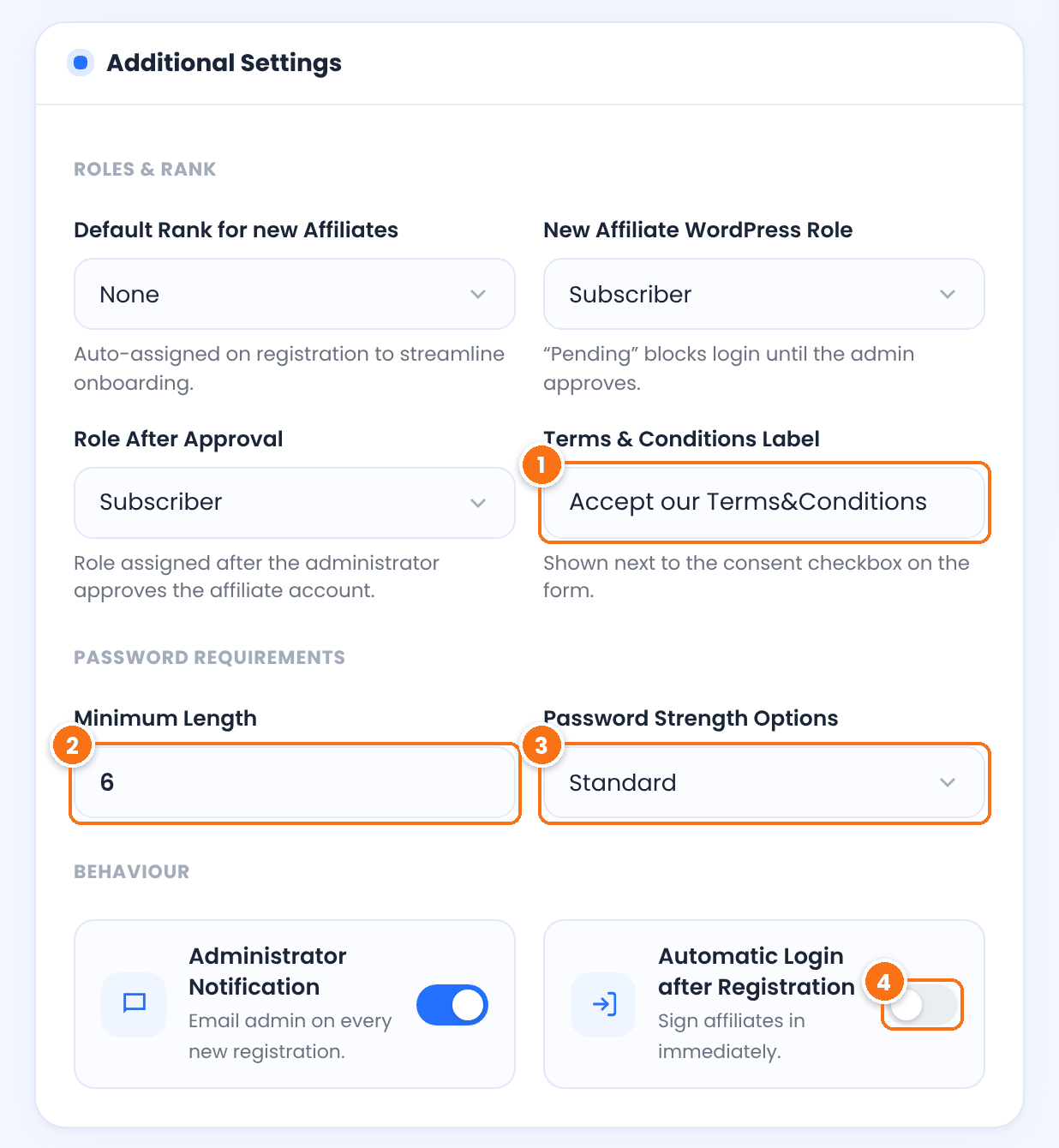
The text next to the terms checkbox. It links to the TOS Page set in Pages Setup. The checkbox is the Accept field in Custom Fields and is required when shown.
Default: Accept our Terms&Conditions
The shortest password applicants can choose.
Default: 6
Standard checks only the length. Characters and digits requires letters and numbers. Characters, digits, minimum one uppercase letter also requires a capital letter.
Default: Standard
Logs new affiliates in right after they register. It applies when new affiliates do not need your approval.
Default: Off
To get an email for every new registration, keep the New Affiliate account Registered notification for the administrator active in Email Notifications. The roles and default rank at the top of this card decide whether new affiliates need approval. See Approve affiliates and verify their email. Below the card, Custom CSS styles this form only. Click Save Changes.
Change the form messages #
The Custom Messages tab holds every message of the form: the errors for a username or email already in use, passwords that do not match or are too short, missing required fields, a failed reCAPTCHA and an unchecked terms box, plus the success message shown after registration. In the minimum length message, {X} is replaced with the minimum length you set.
Set up file uploads #
If you add a File Upload field, go to Ultimate Affiliate Pro›Settings›Uploads Settings:
The file types applicants can upload, separated by commas.
Default: txt,doc,pdf,jpg,jpeg,png,gif,mp3,zip
The largest file, in MB, for upload fields on the registration form and the profile.
Default: 5 MB
The largest profile picture, in MB.
Default: 1 MB
Uploaded files are saved in your WordPress Media Library. To see an affiliate’s file, open the affiliate in Ultimate Affiliate Pro›Affiliates and click Edit. With On Admin on for the field, the file name appears as a link, and images show a preview.
Ask who referred the new affiliate #
To add a sponsor field, turn on the Checkout Referrals module in Ultimate Affiliate Pro›Modules. It adds a field to the registration form where the applicant picks the affiliate who invited them, from a dropdown or by typing a username. With the MLM module on, that affiliate becomes the new affiliate’s parent. See Fair checkout reward for the module settings.
Test it #
- Open your registration page in a private browser window and check the order and labels of the fields.
- Send the form with a required field empty and check the error message.
- Register a test affiliate, then open it in Ultimate Affiliate Pro›Affiliates and check that the answers were saved.
To send new affiliates to Mailchimp or another email list, with an optional newsletter checkbox on this form, see Collect opt-in subscribers.
The terms checkbox on the form uses the Terms & Conditions Label and links to the TOS Page. See Affiliate program terms and conditions.
Frequently asked questions #
Can I have different registration forms for different affiliates?
All affiliates register with the same set of fields. You can show the form on several pages with a different design on each, using the template attribute of the shortcode, and use conditional logic to show extra fields only to some applicants.
Why can’t I delete some fields?
Fields that the plugin needs, such as the username, email, password, terms checkbox, reCAPTCHA and payout details, cannot be deleted. Turn off On Register to hide the ones you do not want on the form.
Where do I see what affiliates entered?
On the affiliate edit screen in Ultimate Affiliate Pro, Affiliates, for every field with On Admin turned on. Uploaded files are also in the Media Library.
The Upload button does not open. What can I check?
Another plugin or the theme may be changing the jQuery library that the upload button uses. Switch to a default theme or turn off other plugins one at a time to find the conflict. Also check that the file type and size are allowed in Uploads Settings.


