Affiliate IP restrictions keep unwanted sign-ups out of your program. The IP Restrictions add-on hides the affiliate registration form from the IP addresses you block. Use it to stop known spammers or abusers from creating new affiliate accounts, while everyone else can register as usual.
The restriction applies to the Ultimate Affiliate Pro registration form on your Become an Affiliate page. Visitors from a restricted IP can still browse your site and buy. To keep fake accounts out in general, combine it with affiliate approval and email verification and reCAPTCHA.
Before you start
- Ultimate Affiliate Pro installed and active (install guide).
- The IP addresses you want to block. You can find them in your server logs, your security plugin or in click source details.
Install the IP Restrictions add-on #
- Download the IP Restrictions zip file from your account on ultimateaffiliate.pro.
- In your WordPress admin, go to Plugins›Add Plugin and click Upload Plugin.
- Choose the zip file, click Install Now, then Activate Plugin.
The add-on now has its own card in Ultimate Affiliate Pro›Modules. See Pro add-ons: what they are and how to install them for the full process.
Set your affiliate IP restrictions #
Go to Ultimate Affiliate Pro›Modules›IP Restrictions.
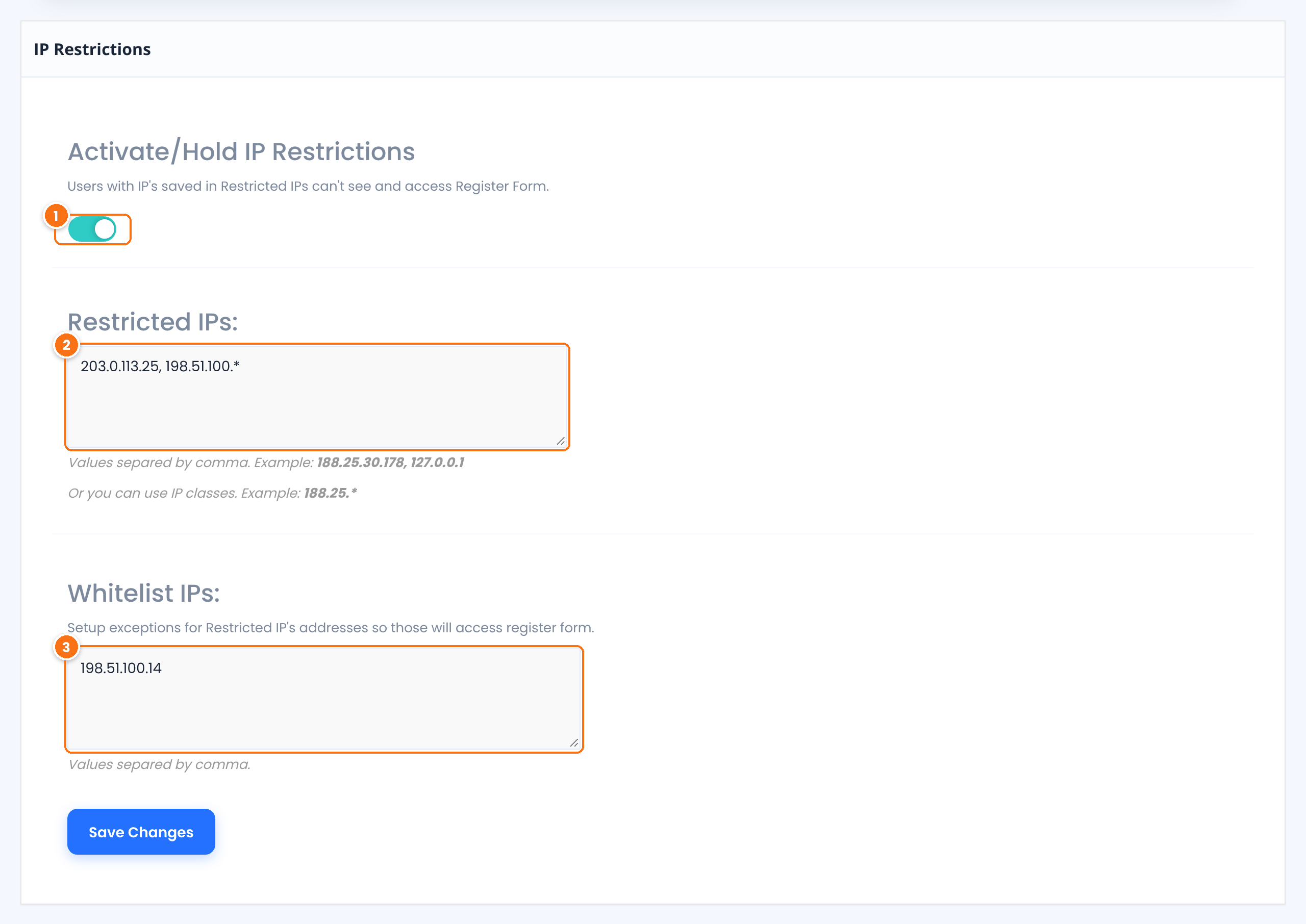
Turns the restriction on or off.
Default: Off
IP addresses that cannot see the registration form, separated by commas, for example 203.0.113.25, 198.51.100.*.
End an entry with * to block a whole range: 198.51.100.* matches every address that starts with 198.51.100.
Exceptions to the restricted list, separated by commas. An address listed here always sees the registration form, even if it matches a restricted range.
Click Save Changes.
- Restricted IPs:
203.0.113.25, 198.51.100.*- Whitelist IPs:
198.51.100.14- Result
- Visitors from 203.0.113.25 and from 198.51.100.0 to 198.51.100.255 do not see the form, except 198.51.100.14.
Test it #
- Find your own public IP address, for example by searching “what is my IP”.
- Add it to Restricted IPs: and save.
- Open your Become an Affiliate page in a private browser window. The page loads without the registration form.
- Remove your IP from the list and save again.
Frequently asked questions #
What does a restricted visitor see?
The registration page loads without the affiliate registration form. The rest of your site works as usual.
Does it block existing affiliates?
No. It only hides the registration form. Existing affiliates can still log in and use the Affiliate Portal.
Can I block a whole IP range?
Yes. End the entry with an asterisk, for example 188.25.*, to block every address that starts with 188.25.
Can I block countries?
IP Restrictions works with the addresses and ranges you enter. For country-wide blocking, use a security or firewall plugin together with it.


