WooCommerce Subscriptions affiliate tracking pays your affiliates for the first payment of a subscription and for every renewal after it. The WooCommerce Subscriptions Tracking add-on connects Ultimate Affiliate Pro to WooCommerce Subscriptions and lets you give renewals their own commission rate for each rank.
The first payment of a subscription is a normal WooCommerce order, so the WooCommerce integration records it as a referral for the affiliate who sent the customer. Each renewal order that WooCommerce Subscriptions creates later becomes a new referral for the same affiliate, even when the customer never clicks an affiliate link again. For the general idea of paying on renewals, see Recurring commissions for subscriptions.
Before you start
- WooCommerce and WooCommerce Subscriptions installed and active, with at least one subscription product.
- The WooCommerce Subscriptions Tracking add-on installed and active. See Pro add-ons: what they are and how to install them.
- The WooCommerce card turned on in Ultimate Affiliate Pro›Integrations.
- Ranks with commission rates for your affiliates. See Ranks: commission tiers for affiliates.
How subscription referrals are created #
Here is what happens when a referred customer buys a subscription:
- First payment. The customer arrives through an affiliate link, or uses an affiliate coupon, and buys the subscription. The WooCommerce integration creates a referral with the affiliate’s normal rank rate, and links the customer to that affiliate.
- Renewal. When WooCommerce Subscriptions creates a renewal order, the add-on finds the affiliate linked to the customer and creates a new referral for the renewal order, with the rate from Woo Subscription Amount.
- Status. Each referral follows its order, like any WooCommerce referral: Pending while the order is processing, Approved when the order is Completed, and Rejected when the order is cancelled, refunded or failed.
| Example: a $30 monthly plan | Emma is in the Gold rank: 20% default rate, 15% Woo Subscription Amount |
|---|---|
| First payment | 20% of $30 = $6.00 |
| Each renewal | 15% of $30 = $4.50 |
| After one year | $6.00 + 11 × $4.50 = $55.50 |
Turn on the WooCommerce Subscriptions integration #
Go to Ultimate Affiliate Pro›Integrations and find the WooCommerce Subscriptions card in the eCommerce group. The card shows Not Installed until WooCommerce Subscriptions is active on your site.

Turns subscription tracking on or off. The card shows Enabled while it is on.
Default: Off
Opens the WooCommerce Subscriptions Tracking settings, described in the next step.
Set up WooCommerce Subscriptions affiliate tracking #
Click Configure on the card, or go to Ultimate Affiliate Pro›Modules and open WooCommerce Subscriptions Tracking.
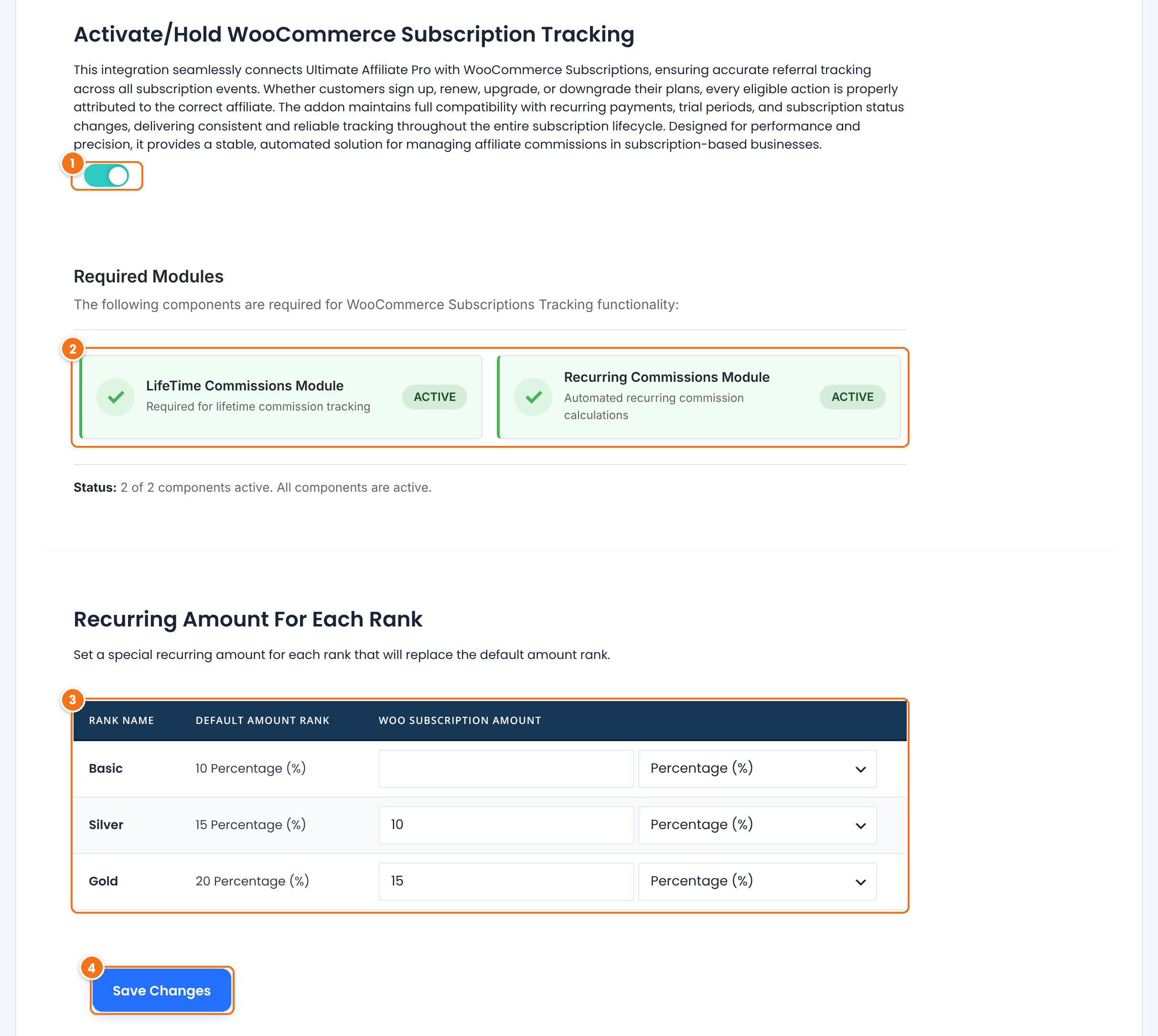
Turns the add-on on. Renewal orders create referrals only while this switch and the card switch on the Integrations screen are both on.
Default: Off
Shows whether the LifeTime Commissions Module and the Recurring Commissions Module are Active or Inactive. Both are needed: LifeTime Commissions keeps each customer linked to the affiliate who referred them, and Recurring Commissions pays on renewals. If one is inactive, click Enable Missing Components to turn both on. The page reloads and the status reads 2 of 2 components active.
One row for each rank. Default Amount Rank shows the rank’s normal rate. In Woo Subscription Amount, enter the rate for renewals and choose Percentage (%) or Flat Rate. Leave the field empty to pay renewals at the rank’s default amount.
Default: Empty
Saves the settings.
Where the renewal rate comes from
For WooCommerce Subscriptions, renewals use the Woo Subscription Amount on this screen. When it is empty, they use the rank’s normal rate. The Recurring Amount For Each Rank of the Recurring Commissions module and the Recurring Referrals value in the rank editor do not apply to WooCommerce Subscriptions renewals.
LifeTime Commissions also credits the affiliate for the customer’s later one-time orders. See Commissions on every future order of a referred customer.
What the renewal amount is based on #
The commission is calculated for each product in the renewal order, the same way as for other WooCommerce orders:
- Shipping and tax are added to the product price unless you exclude them in the commission settings. See How commissions are calculated.
- Products and categories you exclude from commissions earn nothing on renewal either.
- If the subscription uses a coupon linked to an affiliate, the renewal goes to that affiliate, with the coupon’s rate. See Affiliate coupon tracking.
- With MLM on, the affiliate’s parents earn their MLM commission on renewals too.
Test it #
- Open a private browser window and visit your site through an affiliate link, for example
yourstore.com/?ref=emma.collins. - Buy a subscription product with a test payment method, then complete the order in WooCommerce›Orders.
- In Ultimate Affiliate Pro›Referrals, check the referral for the first payment.
- Open the subscription in WooCommerce›Subscriptions and choose Process renewal in Subscription actions. WooCommerce Subscriptions creates a renewal order.
- Back in Ultimate Affiliate Pro›Referrals, check the new referral for the renewal order.
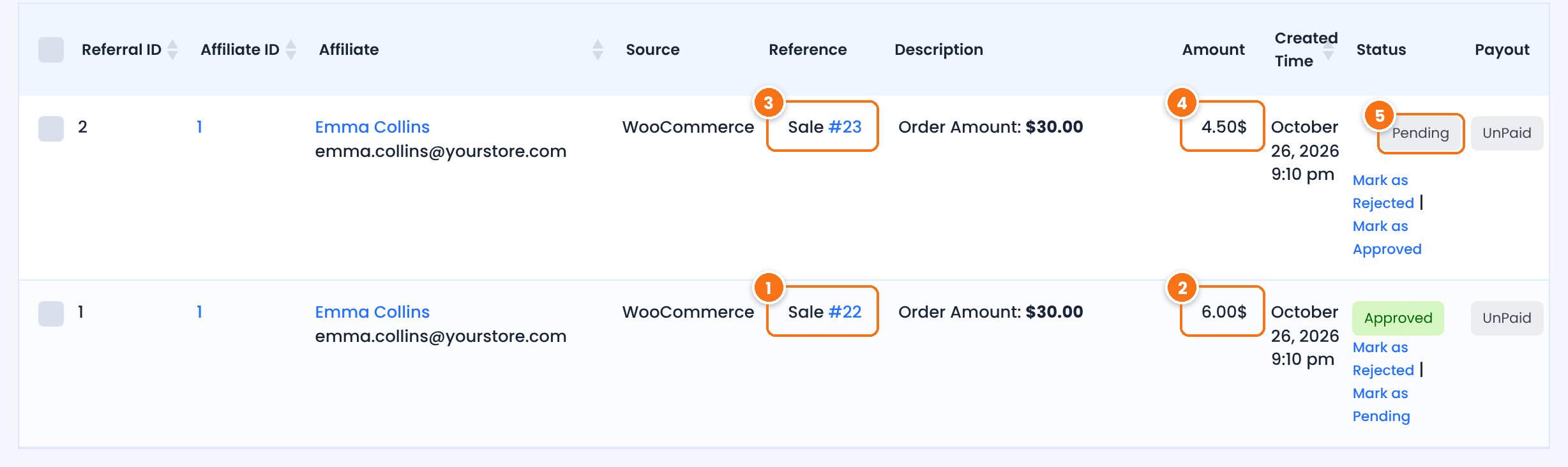
The WooCommerce order that started the subscription.
20% of $30, the Gold rank’s default rate.
The renewal order created by WooCommerce Subscriptions. Both referrals show WooCommerce as the source.
15% of $30, the Woo Subscription Amount set for Gold.
Pending until the renewal order is Completed. Use Mark as Approved or Mark as Rejected to change it yourself. See Manage referrals.
The Subscription Renewal Process guide from WooCommerce explains how and when renewal orders are created.
Frequently asked questions #
Do affiliates earn on WooCommerce Subscriptions renewals?
Yes. With the WooCommerce Subscriptions Tracking add-on on, every renewal order creates a new referral for the affiliate who referred the first payment.
Can renewals pay a different rate than the first payment?
Yes. Set a Woo Subscription Amount for each rank. The first payment uses the rank’s default rate and renewals use the Woo Subscription Amount. Leave it empty to pay renewals at the default rate.
Does the customer need the affiliate cookie when the subscription renews?
No. The first purchase links the customer’s account to the affiliate, and renewals are matched through that link. This is why the LifeTime Commissions module must be active.
When is a renewal referral approved?
When its renewal order is Completed. If the renewal order is cancelled, refunded or failed, the referral is rejected.
Why did a renewal not create a referral?
Check that both switches are on, the card on the Integrations screen and the one in the add-on settings, that Required Modules shows 2 of 2 components active, and that the first payment was referred by an affiliate. See Referrals or clicks are not recorded.


