The Formidable Forms affiliate integration pays your affiliates when a visitor they referred submits a Formidable form or completes a payment made through one. Each form has its own affiliate rate, set right in the Formidable form settings.
Use opt-in forms to pay affiliates for leads, such as quote requests and demo bookings, and payment forms to pay a commission on what the visitor paid. Visitors are linked to affiliates through affiliate referral links. A cookie remembers the affiliate, so the visitor can come back and submit the form later. See How affiliate tracking works.
Before you start
- Formidable Forms is installed and active, with at least one form. The free version from wordpress.org works.
- The Formidable Forms Tracking add-on is installed and active. See Pro Add-ons.
- Your affiliates have a rank with a commission rate. See Ranks.
Opt-In and Sale referrals #
Every form uses one of two referral types. You choose it per form in the next steps.
| Referral Rate | When the referral is created | Commission | Status |
|---|---|---|---|
| Opt-In | When a referred visitor submits the form | The flat Referral Value of the form, compared with the rank commission | Set by Referral Default Status |
| Sale | When the payment of a referred visitor’s entry is completed | A flat amount or a percentage of the payment, or the rank rate | Approved |
A Sale form needs a Collect a Payment action in Formidable, for example with Stripe, PayPal or Square.
Turn on Formidable Forms affiliate tracking #
Go to Ultimate Affiliate Pro›Integrations and find the Formidable Forms card in the Form Integrations group.

Turns tracking for Formidable Forms on or off. The card shows Enabled while it is on.
Default: Off
Opens the Formidable Forms Tracking settings.
Choose the referral status and source name #
Click Configure. The screen explains how the add-on works and has two options below.
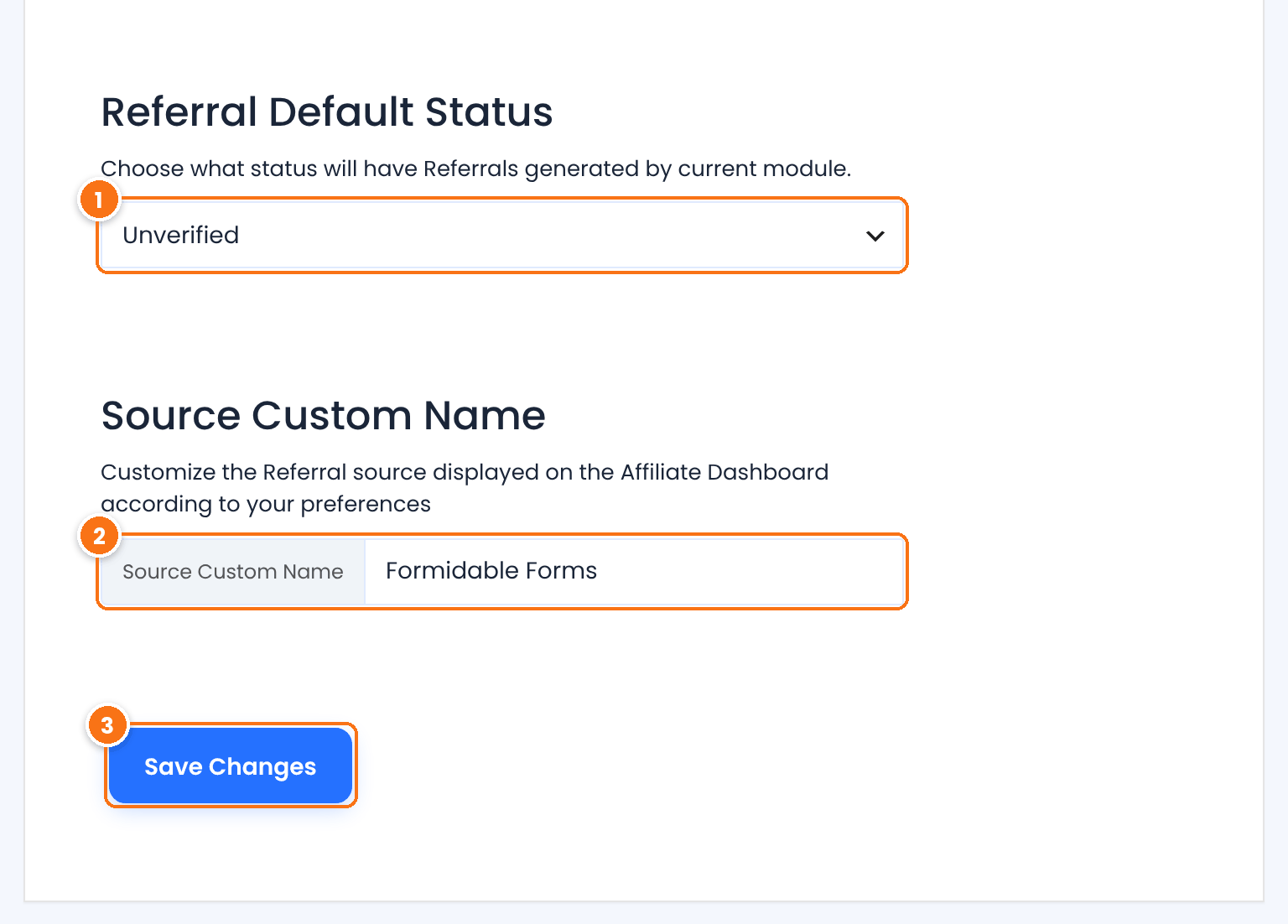
The status of new Opt-In referrals.
- Unverified: the referral is saved as Pending and you approve it yourself. Use it when you want to check each lead first.
- Verified: the referral is approved as soon as the form is submitted.
Default: Unverified
The source name of these referrals, shown in the Referrals list and in the affiliate’s Affiliate Portal.
Default: Formidable Forms
Saves the options.
Set the affiliate rate of each form #
Go to Formidable›Forms and edit a form. Open the form’s Settings tab and click Affiliate Rate in the left menu.
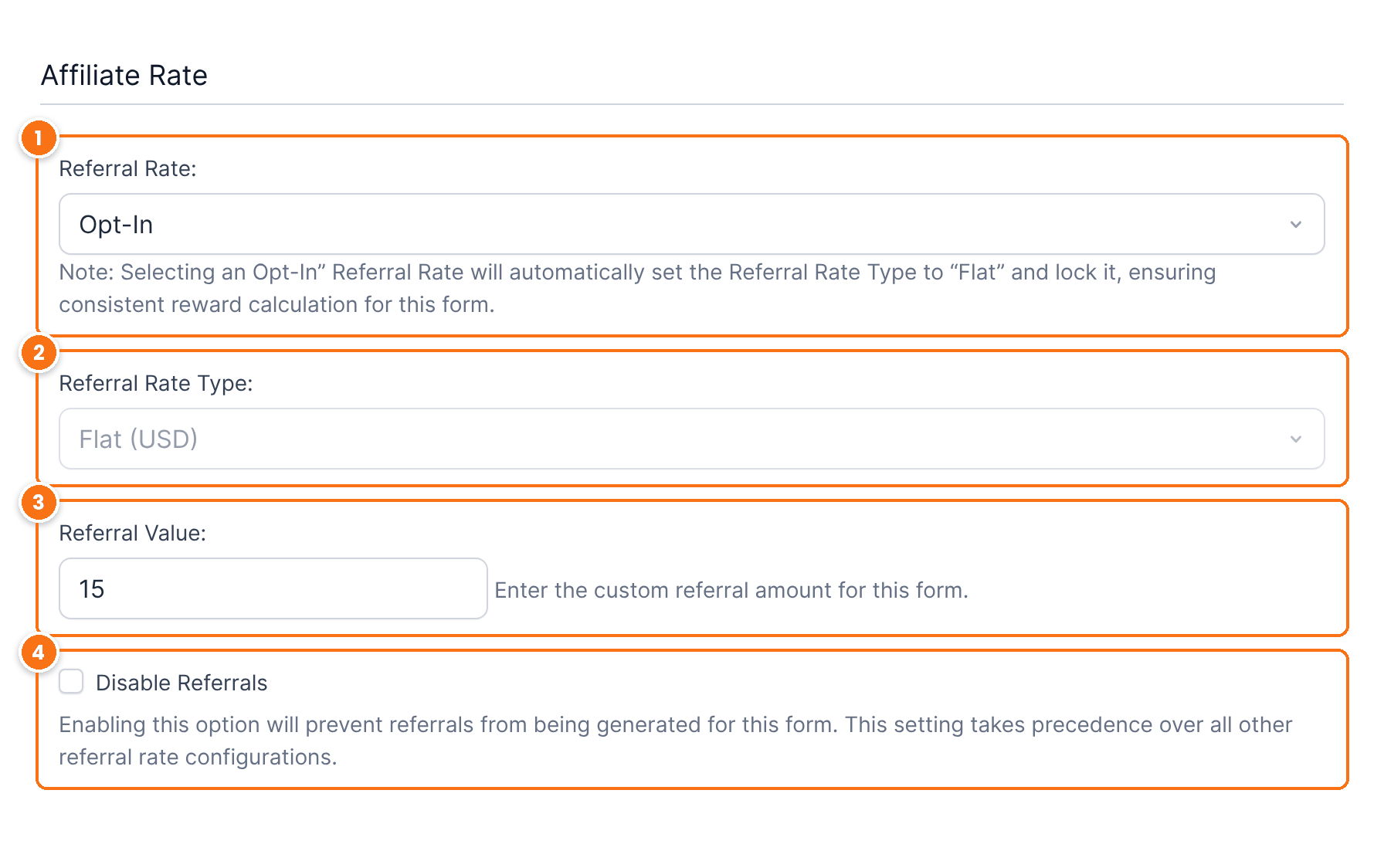
Default: Opt-In
How the Referral Value is used:
- Default Affiliate system Settings: the affiliate’s rank rate applies, with no form rate. Available for Sale forms.
- Flat (your currency): a fixed amount in your affiliate currency.
- Percentage (%): a percentage of the payment, for Sale forms.
With Opt-In, the type is set to Flat and locked, so every submission earns the same amount.
Default: Flat (locked with Opt-In). Default Affiliate system Settings is available for Sale forms.
The amount or the percentage for this form. It appears when the type is Flat or Percentage. Set it on every Opt-In form you want to pay for.
Stops this form from creating referrals. It takes precedence over all other rate settings. Use it for forms such as newsletter signups or support requests.
Default: Off
Click Update in Formidable to save the form.
When a form has its own rate, Ultimate Affiliate Pro compares it with the affiliate’s rank commission and keeps the one chosen in Which Rate should be used?, in Ultimate Affiliate Pro›Settings›General Settings. The default, Biggest Amount, pays the higher of the two.
For an Opt-In form, the rank commission is the affiliate’s rank rate applied to a base amount of 10 in your affiliate currency, for example $2 with a 20% rank. The form’s flat Referral Value is compared with it. To pay exactly what you want for each lead, set a Referral Value on every Opt-In form, and check Disable Referrals on forms that should not pay.
- Request a Quote, Opt-In, Flat $15
- $15 for each submission
- Order Form, Sale, Percentage 30%, $90 payment
- $27 for the sale
Pay commissions on Formidable payments #
To pay affiliates on what visitors pay through a form:
- In Formidable, add a Collect a Payment action to the form and connect your payment gateway. See the Formidable Forms knowledge base.
- In the form’s Affiliate Rate settings, set Referral Rate to Sale.
- Choose Flat or Percentage (%) and enter the Referral Value, or keep the default to use the rank rate.
When the visitor submits the form, the affiliate is saved with the entry. The referral is created when the payment is completed, with the payment amount as the base, and it is approved right away. Its description is the form ID followed by “Sale”, for example #5 Sale.
Review the referrals #
Go to Ultimate Affiliate Pro›Referrals to see the referrals from your forms.
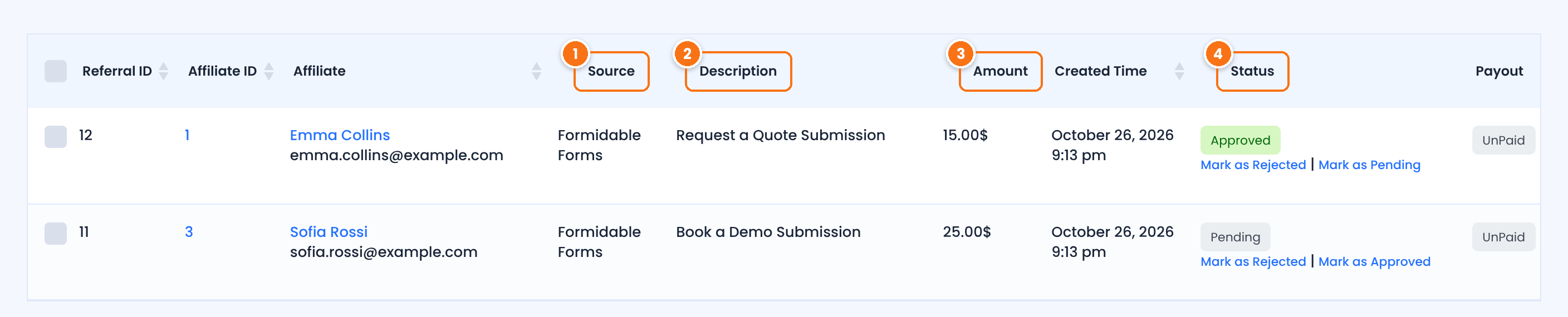
The Source Custom Name you set, Formidable Forms by default.
For Opt-In forms, the form name followed by “Submission”. For Sale forms, the form ID followed by “Sale”.
The commission for the submission or the sale.
Opt-In referrals are Pending with Unverified and Approved with Verified. Use Mark as Approved or Mark as Rejected to review a pending lead.
Approved referrals are paid like any other commission. See How affiliate payouts work.
Test it #
- Open a private browser window and visit your site through an affiliate link, for example
yourstore.com/?ref=emma.collins. - In the same window, open the page with your Formidable form, fill it in and submit it. For a Sale form, complete the payment in test mode.
- In Ultimate Affiliate Pro›Referrals, check that a new referral with source Formidable Forms was created for the affiliate.
For a full test routine, see Test your affiliate program.
Frequently asked questions #
Can I pay a different amount for each Formidable form?
Yes. Each form has its own Affiliate Rate settings in Formidable, under Settings, Affiliate Rate. Set the Referral Rate, the type and the Referral Value for every form you want to pay for, and check Disable Referrals on the others.
Can affiliates earn a percentage of a Formidable payment?
Yes. Set Referral Rate to Sale and Referral Rate Type to Percentage (%). The form needs a Collect a Payment action. The commission is calculated on the payment amount when the payment is completed.
How do I stop a form from creating referrals?
Open the form’s Affiliate Rate settings and check Disable Referrals. It overrides every other rate setting for that form.
Does every submission create a referral?
Yes, for Opt-In forms. Each submission from a visitor who arrived through an affiliate link creates a new referral, unless the form has Disable Referrals checked.
A submission did not create a referral. What should I check?
Check that the Formidable Forms card is enabled in Integrations, that the form does not have Disable Referrals checked, and that the visitor opened the affiliate link in the same browser before submitting. For Sale forms, check that the payment is completed. See Referrals or clicks are not recorded.


