Affiliate fraud prevention in Ultimate Affiliate Pro is a set of settings that keep fake accounts out of your program and stop fake clicks and referrals before you pay them. This page ties them together: what each one blocks, where to turn it on and which guide explains it in detail.
No single setting stops every kind of abuse. Spam bots fill in registration forms, some people sign up only to buy with their own link, and others send low-quality or paid traffic that never converts. Combine the layers below to match the risks of your program. For how the referral cookie works, see How affiliate tracking works.
Before you start
- Ultimate Affiliate Pro installed, with your license active.
- Your registration page set up. See Set up the registration, login and password pages.
- For the optional steps: the IP Restrictions and Fraud Protection add-ons. See Pro add-ons.
Affiliate fraud prevention checklist #
Use this table to pick the settings you need. Each row links to the step that sets it up.
| Risk | Setting | Where |
|---|---|---|
| Bots and affiliate spam signups | reCAPTCHA on the registration and login forms | Step 1 |
| Fake or low-quality applicants | Manual approval (Pending role) and email verification | Step 2 |
| Known abusers signing up again | IP Restrictions add-on | Step 3 |
| Affiliates buying through their own link | Allow Self Referrals kept off | Step 4 |
| Click flooding and repeated orders | Fraud Protection add-on | Step 5 |
| Coupon and spam sites taking the credit | First-click credit and Affiliate Link URL Blacklist | Step 6 |
| Commissions on orders that are later refunded | Keep Referral Status as Pending, Reject Commissions on Refund | Step 7 |
| Paying before the refund window closes | Referral Grace Period Days and Minimum Payout Amount | Step 8 |
Stop affiliate spam signups with reCAPTCHA #
Bots that fill in your registration form create fake affiliates and fill your list with spam. Google reCAPTCHA stops them before the account is created.
- Create reCAPTCHA keys in your Google account (v2 checkbox or v3 invisible).
- Paste them in Ultimate Affiliate Pro›Settings›reCaptcha Setup.
- In Ultimate Affiliate Pro›Showcases›Registration Form, open the Custom Fields tab and turn on On Register for the Capcha field.
- To protect the login form too, turn on Display ReCaptcha Verification box in Showcases›Login Form.
Full guide: Add reCAPTCHA to affiliate forms.
Approve affiliates and verify their email #
With manual approval, new affiliates get the Pending WordPress role and cannot log in until you review them. Email verification makes sure the address belongs to the applicant. For how roles work, see Roles and Capabilities on wordpress.org.
- In Showcases›Registration Form, set New Affiliate WordPress Role to Pending in Additional Settings.
- Review each application in Ultimate Affiliate Pro›Affiliates and choose Approve Affiliate in the row menu, or Remove to turn it down.
- Turn on the Email Verification module in Ultimate Affiliate Pro›Modules. Use Delete Unverified Accounts to delete accounts that are not verified within 1, 7, 14 or 30 days.
Ask applicants how they plan to promote you with the How will you promote us? field, so you can judge each application. Full guide: Approve affiliates and verify their email.
Block registrations from known IP addresses #
When you know the IP addresses of people who abused your program, the IP Restrictions add-on hides the registration form from them.
- Install and activate the IP Restrictions add-on.
- Go to Ultimate Affiliate Pro›Modules›IP Restrictions, turn it on and add the addresses to Restricted IPs:, separated by commas. End an entry with
*to block a range, for example188.25.*. - Add addresses that must always see the form, even inside a blocked range, to Whitelist IPs:.
Full guide: IP Restrictions.
Block self referrals #
A self referral is an order an affiliate places through their own referral link or coupon. Ultimate Affiliate Pro does not create a referral for it as long as the Allow Self Referrals module in Ultimate Affiliate Pro›Modules stays off, which is the default.
Turn it on, or install the Affiliate Own Referrals add-on, only when you want affiliates to earn on their own purchases, for example in an ambassador or reseller program. See Own referrals and Affiliate Own Referrals.
Limit repeated clicks and referrals #
The Fraud Protection add-on limits how many clicks and referrals Ultimate Affiliate Pro stores for the same affiliate from the same IP address in a time interval. Clicks and referrals over the limit are not stored, so they never reach your reports or payouts.
- Install and activate the Fraud Protection add-on.
- Go to Ultimate Affiliate Pro›Modules›Fraud Protection, turn it on and set Time Interval and Maximum Number To Store for Visits and Referrals.
Full guide with recommended values: Fraud Protection.
Keep first-click credit and block referring sites #
By default, the first affiliate who sends a customer keeps the credit: a later link from another affiliate does not replace the referral cookie. This stops coupon sites and other affiliates from taking a sale at the last moment. Leave the Credit Last Affiliate module off unless you want last-click attribution. See Fair checkout reward.
To ignore visits that come from specific websites, go to Ultimate Affiliate Pro›Settings›General Settings and fill in Affiliate Link URL Blacklist.
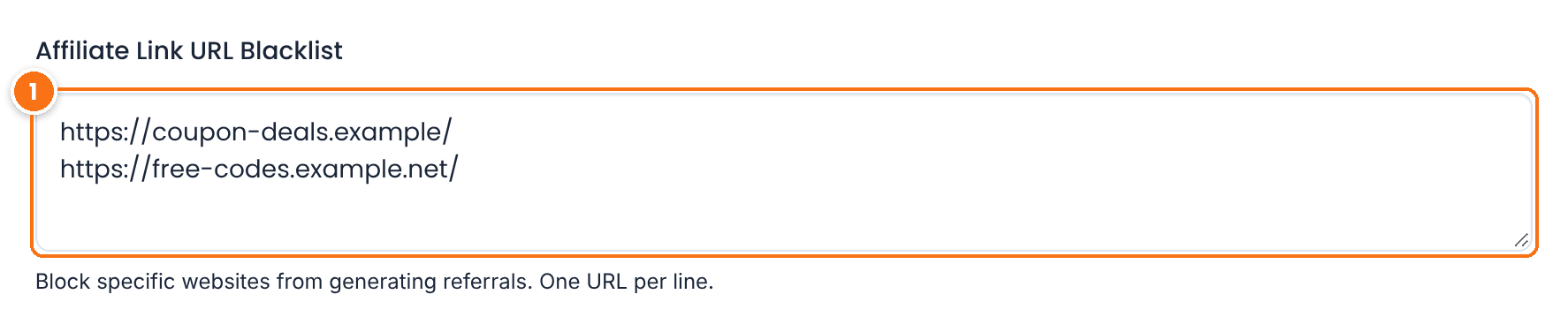
One address per line. When a visitor opens an affiliate link from a page listed here, Ultimate Affiliate Pro records no click and sets no referral cookie. Enter each address exactly as it appears as the referring URL of the click in Visits and source details, for example https://coupon-deals.example/.
Click Save Changes.
Review referrals before you approve them #
WooCommerce and the other integrations approve a referral automatically when the order is completed. To check every referral yourself first, go to Ultimate Affiliate Pro›Settings›Admin Workflow.
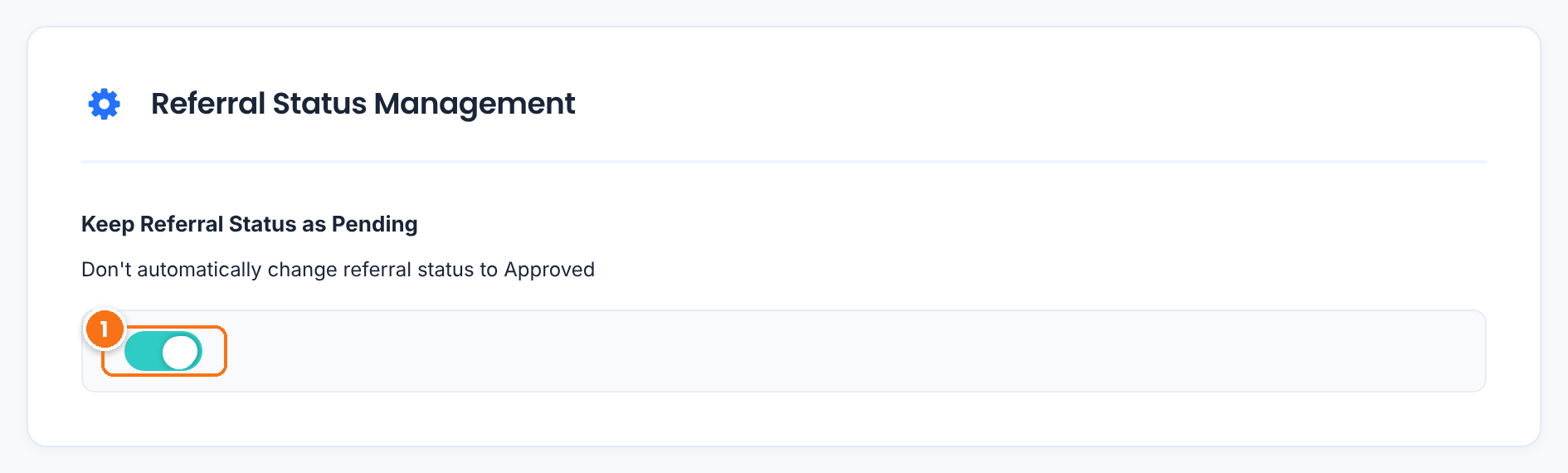
Referrals are no longer moved to Approved when the order is completed. Review them in Ultimate Affiliate Pro›Referrals and click Mark as Approved or Mark as Rejected. Only approved referrals are paid.
Default: Off
Click Save Changes. Then check these options in Settings›General Settings:
- Reject Commissions on Refund (on by default): unpaid referrals become Rejected when the order is refunded. See Refunds and cancelled orders.
- New Customer Commissions Only: pays commission only on a customer’s first order (WooCommerce, Easy Digital Downloads, Ultimate Membership Pro, Ultimate Learning Pro) or for newly registered customers, so affiliates do not earn on your existing buyers.
To cap the amount of a single referral, use the Maximum Amount Rate module. Statuses are explained in Referral and payout statuses, and the everyday actions in Manage referrals.
Pay after the refund window #
Go to Ultimate Affiliate Pro›Settings›Payout Settings. Two settings decide which referrals reach a payout.
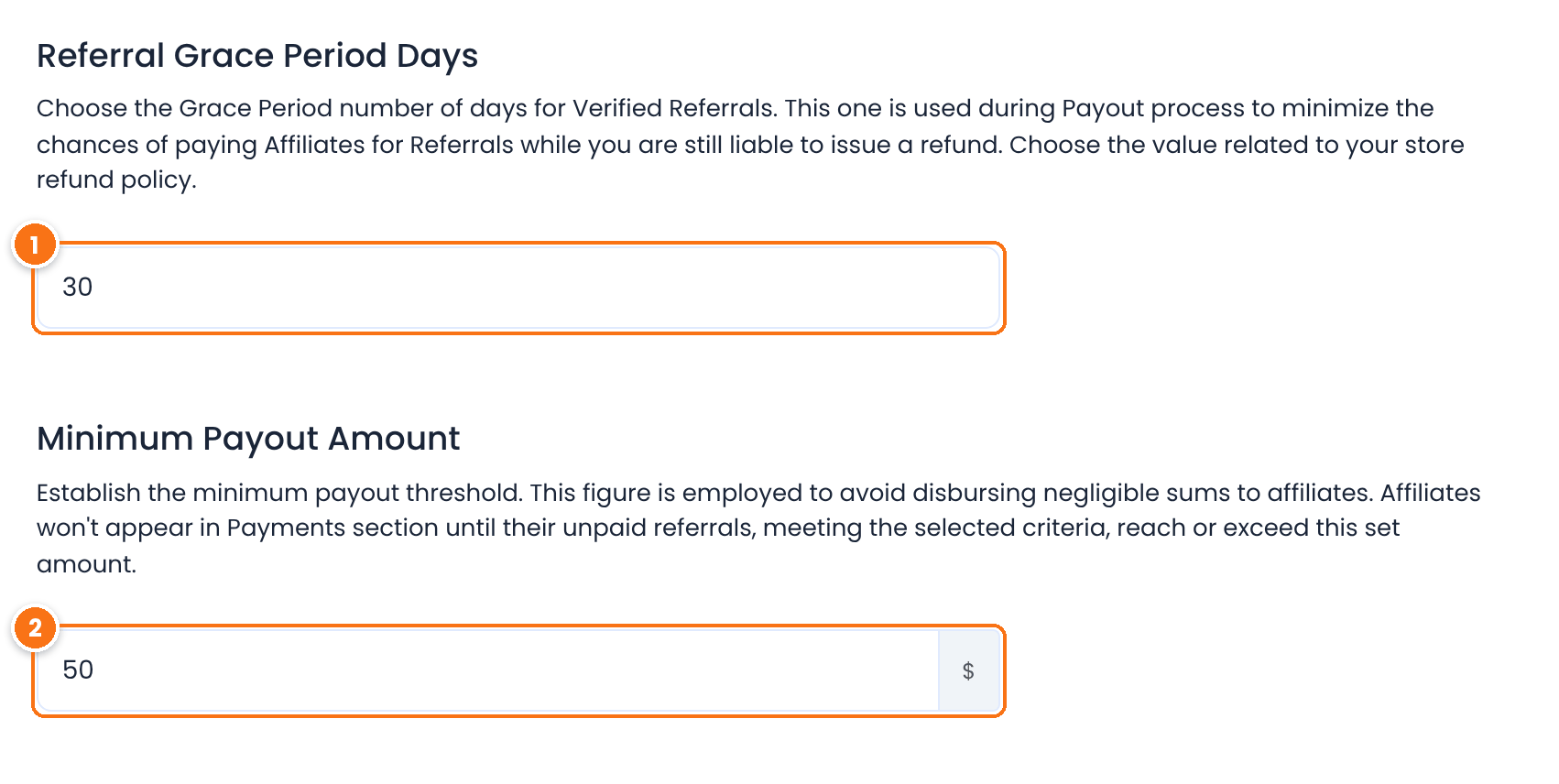
When you pay affiliates, the default selection is All Unpaid Referrals older than this number of days. Match it to your refund policy, so a refunded order is rejected before you pay its commission.
Default: 30
Affiliates appear in the payout only when their unpaid referrals reach this amount.
Default: 0
Click Save Changes. See How affiliate payouts work.
IP address logging and fraud checks
- Fraud Protection and the click details compare visitor IP addresses. If you turn on Disable IP Address Logging in Settings›Admin Workflow for privacy reasons, new clicks are saved without an IP address. Keep IP logging on if you use Fraud Protection. See Delete affiliates and referrals, personal data and GDPR.
Spot suspicious activity #
Check these signs when you review referrals and clicks:
- Many clicks for one affiliate from the same IP address in a short time.
- Referrals for orders that are refunded or cancelled soon after.
- Several referrals for the same customer or the same address, from a new affiliate.
- Clicks whose referring URL is a coupon site or a page the affiliate did not tell you about.
- A new affiliate with a very high or very low conversion rate compared with others.
Reject the referrals you do not want to pay, and remove the affiliate from Ultimate Affiliate Pro›Affiliates if needed.
Test it #
- Open your registration page in a private browser window and check that the reCAPTCHA appears.
- Register a test affiliate. With manual approval, the login shows the pending message.
- Approve the test affiliate, open their referral link and place a test order with another account.
- Complete the order. With Keep Referral Status as Pending on, the referral stays Pending in Ultimate Affiliate Pro›Referrals.
- Refund the order and check that the referral becomes Rejected.
Frequently asked questions #
How do I prevent affiliate fraud in Ultimate Affiliate Pro?
Combine several settings: reCAPTCHA and manual approval for registrations, Allow Self Referrals kept off, the Fraud Protection and IP Restrictions add-ons, Keep Referral Status as Pending to review referrals, and a payout grace period that matches your refund policy.
How do I stop affiliate spam signups?
Add reCAPTCHA to the registration form, set New Affiliate WordPress Role to Pending to approve each affiliate, and turn on Email Verification with Delete Unverified Accounts.
Can affiliates earn commission on their own orders?
Not by default. Orders an affiliate places through their own link or coupon create no referral while Allow Self Referrals is off.
Can I review every referral before it is approved?
Yes. Turn on Keep Referral Status as Pending in Settings, Admin Workflow. Referrals then stay Pending until you approve or reject them in Referrals.
How do I avoid paying commissions on refunded orders?
Keep Reject Commissions on Refund on, and set Referral Grace Period Days in Payout Settings to the length of your refund window, so you pay only referrals older than that.


