Affiliate program terms and conditions tell applicants how they may promote you, how and when you pay them and when you can end the partnership. Ultimate Affiliate Pro links your terms page from the registration form with an affiliate terms checkbox: nobody can join without ticking it.
You need three things: a page with your terms, that page selected as the TOS Page, and the terms checkbox turned on in the registration form. Ultimate Affiliate Pro creates the page and turns on the checkbox when you install it, so most of the work is writing the terms. For the other registration pages, see Set up the registration, login and password pages.
Before you start
- Ultimate Affiliate Pro installed, with your license active.
- A working registration page with the
[uap-register]shortcode. - The text of your terms, or a draft you will adapt with your legal advisor.
Write your affiliate program terms and conditions #
When you install Ultimate Affiliate Pro, it creates an empty page named Affiliate Program Terms. Open it in Pages›All Pages, add your terms and click Save. You can also use another page you already have.
Most affiliate program terms cover these topics:
| Section | What it usually says |
|---|---|
| Joining the program | Who can apply, that you approve applications and can refuse them. |
| Commissions | What earns a commission, the rate or where the rate is shown, and when a referral is not paid, for example refunded orders or purchases through the affiliate’s own link. |
| Referral tracking | How long the referral cookie lasts and which affiliate gets the credit when a customer uses several links. |
| Payouts | Payout methods, the minimum payout amount and how often you pay. |
| Allowed promotion | Where affiliates may promote you, and what is not allowed: spam, paid search ads on your brand name, coupon sites, misleading claims or fake reviews. |
| Disclosure | That affiliates must tell their audience they earn a commission. |
| Brand use | How affiliates may use your name, logo and the creatives you provide. |
| Ending the partnership | When you can suspend or close an account and what happens to unpaid commissions. |
| Changes to the terms | How you announce changes and from when they apply. |
For affiliate disclosures in the United States, see the FTC page FTC’s Endorsement Guides: What People Are Asking. Use the tables above as a checklist, not as legal text: rules differ between countries, so have your terms reviewed by a legal advisor.
Choose the TOS page #
Go to Ultimate Affiliate Pro›Settings›Pages Setup and scroll to the last field.
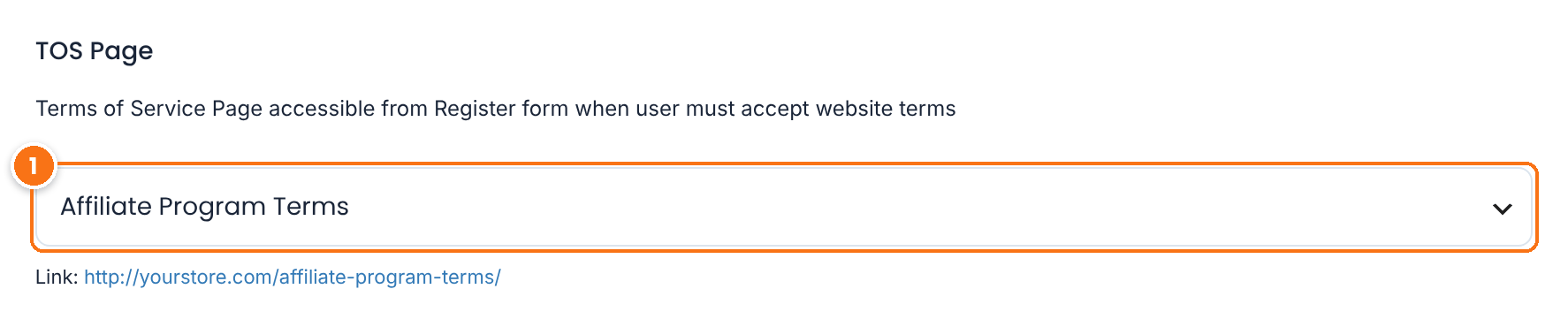
The page with your affiliate program terms. The Link: line below the field opens it. When no page is selected, the terms checkbox does not appear on the registration form.
Default: Affiliate Program Terms
Click Save Changes.
Set the affiliate terms checkbox label #
Go to Ultimate Affiliate Pro›Showcases›Registration Form. In the Register Showcase tab, scroll to Additional Settings.
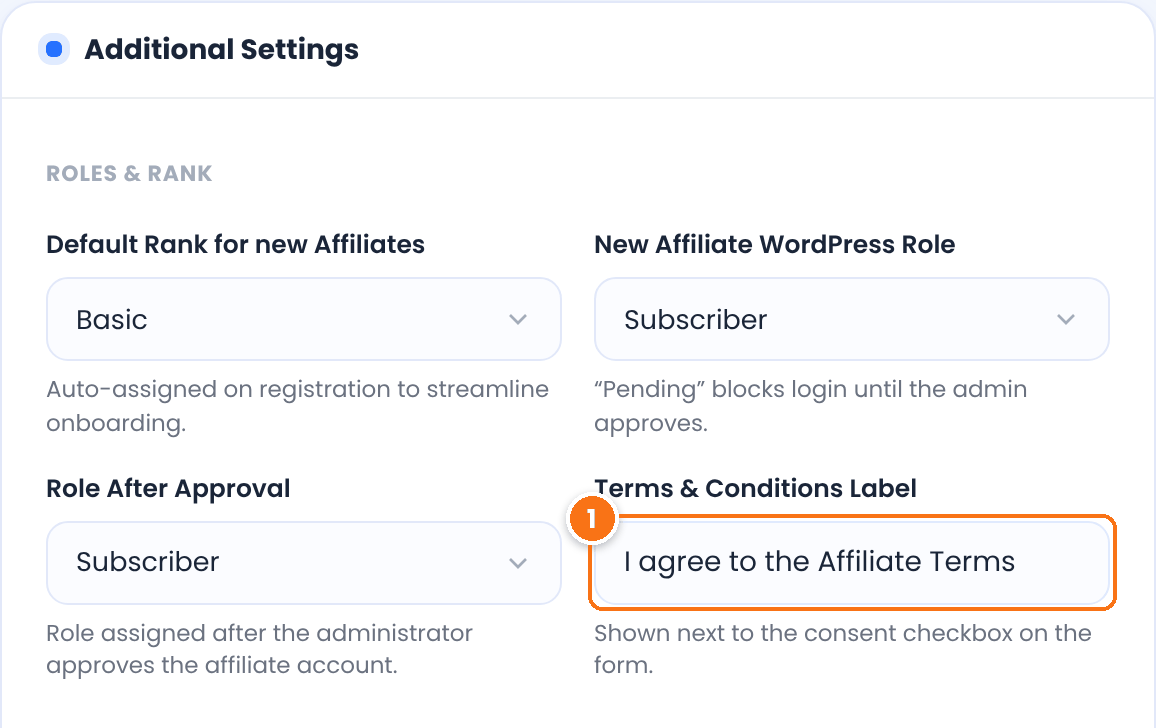
The text shown next to the checkbox. The whole text links to your TOS Page and opens it in a new tab, so write it as a short sentence that names the terms, for example I agree to the Affiliate Terms. When the field is empty, the checkbox does not appear.
Default: Accept our Terms&Conditions
Click Save Changes at the bottom of the screen.
Check the terms field in the form #
Open the Custom Fields tab on the same screen. The checkbox is the field named Accept.
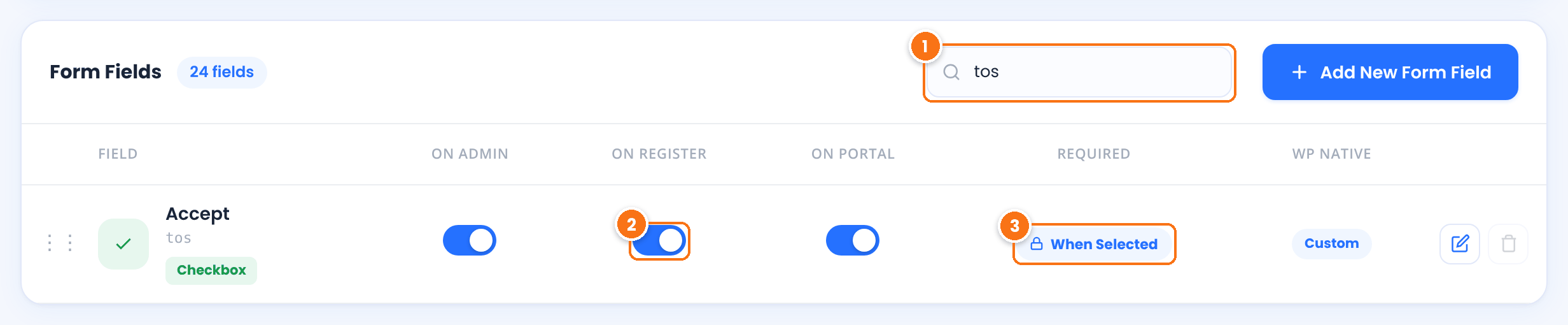
Type tos to show only the terms field.
Shows the checkbox on the registration form. Turn it off only if you do not want applicants to accept terms.
Default: On
While the checkbox is shown, applicants must tick it to register. The terms checkbox is always required while it is shown.
Drag the row by its handle to change where the checkbox appears on the form. Click Save Changes. For the other fields, see Customize the affiliate registration form.
Change the error message #
Open the Custom Messages tab. The field Terms of Services checkbox holds the message applicants see when they submit the form without ticking the box. The default is Please accept our Terms & Conditions to proceed. Change it if you like and click Save Changes.
Test it #
Open your registration page in a private browser window, fill in the form and click Register without ticking the checkbox.
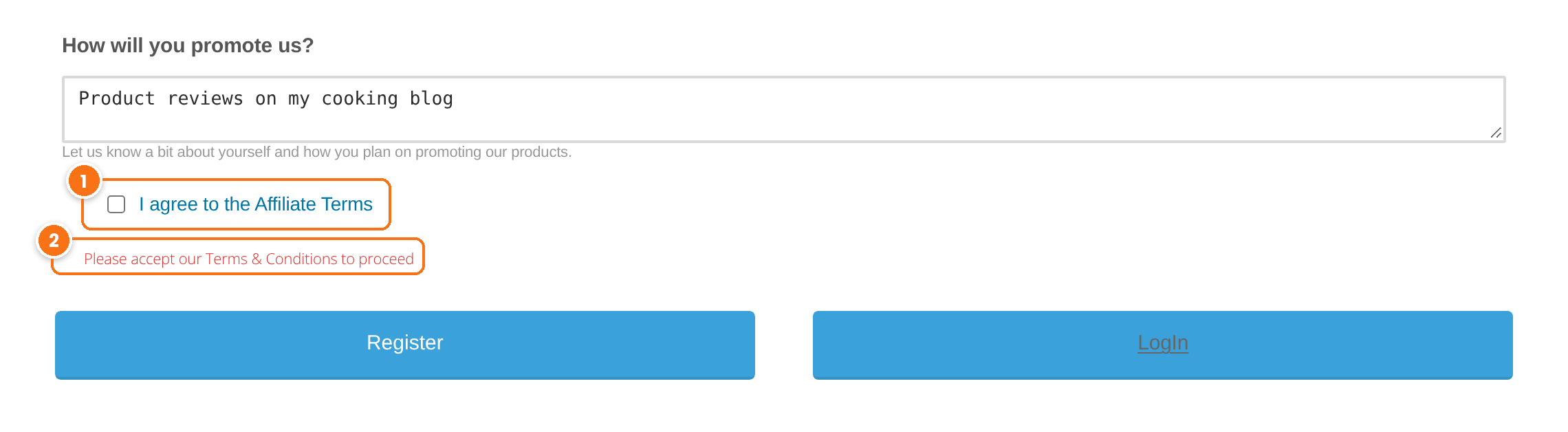
Your label, linked to the TOS Page. Click the text to check that your terms open in a new tab.
The message from Custom Messages. The account is not created.
- Tick the checkbox and click Register again. The registration completes.
- Check that the new affiliate appears in Ultimate Affiliate Pro›Affiliates.
- Remove the test affiliate when you are done.
Frequently asked questions #
How do I add terms and conditions to the affiliate registration form?
Write your terms on a WordPress page, select it as TOS Page in Ultimate Affiliate Pro, Settings, Pages Setup, and keep On Register on for the Accept field in Showcases, Registration Form, Custom Fields. The checkbox then appears on the form and is required.
Why does the terms checkbox not appear on my registration form?
Check that a TOS Page is selected in Pages Setup, that the Terms and Conditions Label is not empty, and that On Register is on for the Accept field. Open the page in a private window, because the form is hidden for logged-in affiliates.
Can applicants register without accepting the terms?
No. While the checkbox is shown it is always required. The form shows the Terms of Services checkbox message until the box is ticked.
How do I change the text next to the checkbox?
Edit Terms and Conditions Label in Showcases, Registration Form, Register Showcase tab, Additional Settings, and save.
What should my affiliate program terms include?
Usually who can join, how commissions and payouts work, cookie duration, allowed and forbidden promotion methods, disclosure rules, brand use and how either side can end the partnership. Have the final text reviewed by a legal advisor.


