Affiliate emails not sending? The email is either never created by Ultimate Affiliate Pro or it is created and lost on the way to the inbox. The Notifications Logs tell you which of the two it is. This guide shows you how to check, and how to fix each side.
Ultimate Affiliate Pro sends every email through wp_mail(), the standard WordPress mail function, so it uses the same mail setup as the rest of your site. Which emails are sent, and their text, is set in Ultimate Affiliate Pro›Email Notifications. See email notifications for how to create and edit them.
Before you start
- An email address you can check, outside your own domain if possible, such as a Gmail address.
- A test affiliate account that uses that address.
- Access to Ultimate Affiliate Pro›Email Notifications.
Affiliate emails not sending: check the logs #
Go to Ultimate Affiliate Pro›Email Notifications.
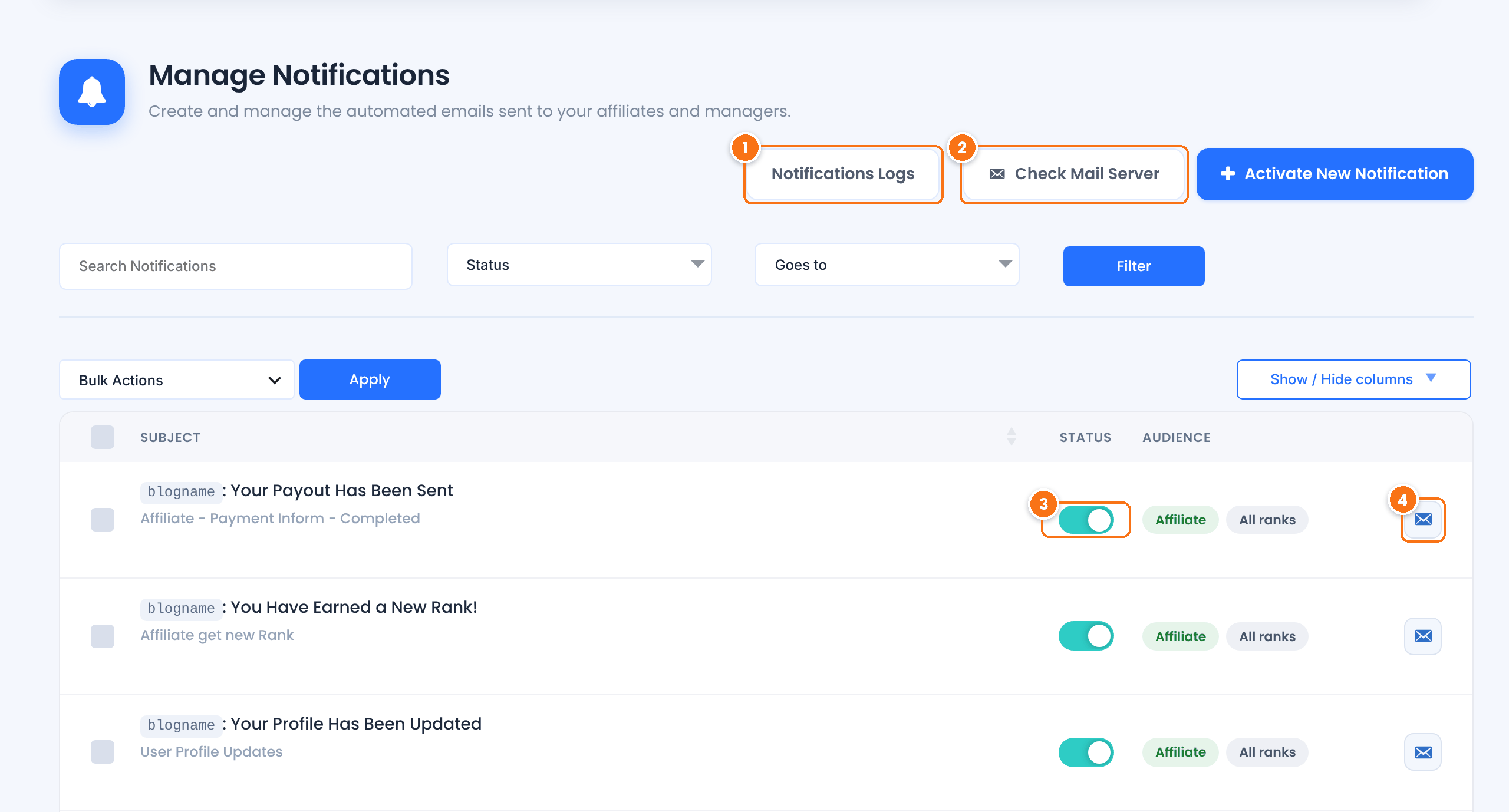
Emails from the notifications list, the referral modules, Periodic Reports and the mail tests are listed here once WordPress accepts them for sending, with their type, recipient and date. Reset password emails are logged without their content.
- The email is in the logs: Ultimate Affiliate Pro sent it. The problem is delivery: go to the delivery step below.
- The email is not in the logs: it was not sent. Check the notification itself in the next step.
Sends a test email to the Affiliate Manager Email Address, or to the WordPress admin email if that field is empty. If this email does not arrive, your site cannot send email at all: fix delivery first.
The notification is sent only when its switch is on.
Sends this notification to an address you choose, so you can check its content and design. Template tags such as {first_name} stay as they are in the test.
Check the notification #
If the email is missing from the logs, check these settings.
Ultimate Affiliate Pro sends an email only for the events that have a notification in the list. A few are created when you install the plugin. For any other event, such as payouts or account approval, click Activate New Notification and choose the event in Trigger Event.
Turn on the switch in the Status column.
A notification with a Target Rank is sent only to affiliates of that rank. Choose All, or create one notification per rank.
Some emails are set up in their module, not in the notifications list: Referral Notifications (new referral emails for affiliates), Admin Referral Notifications, Periodic Reports and Weekly Email Summary, in Ultimate Affiliate Pro›Modules. With Referral Notifications, each affiliate also chooses which referrals to be notified about, in the Notifications tab of the Affiliate Portal.
Periodic Reports and Weekly Email Summary are sent by WP-Cron at the hour or day you set. WP-Cron runs when someone visits your site. On a site with few visits, or with WP-Cron turned off, ask your host to run it with a real cron job. The WordPress handbook explains how to hook WP-Cron into the system scheduler.
Set the sender details #
Go to Ultimate Affiliate Pro›Settings›Notifications Settings.
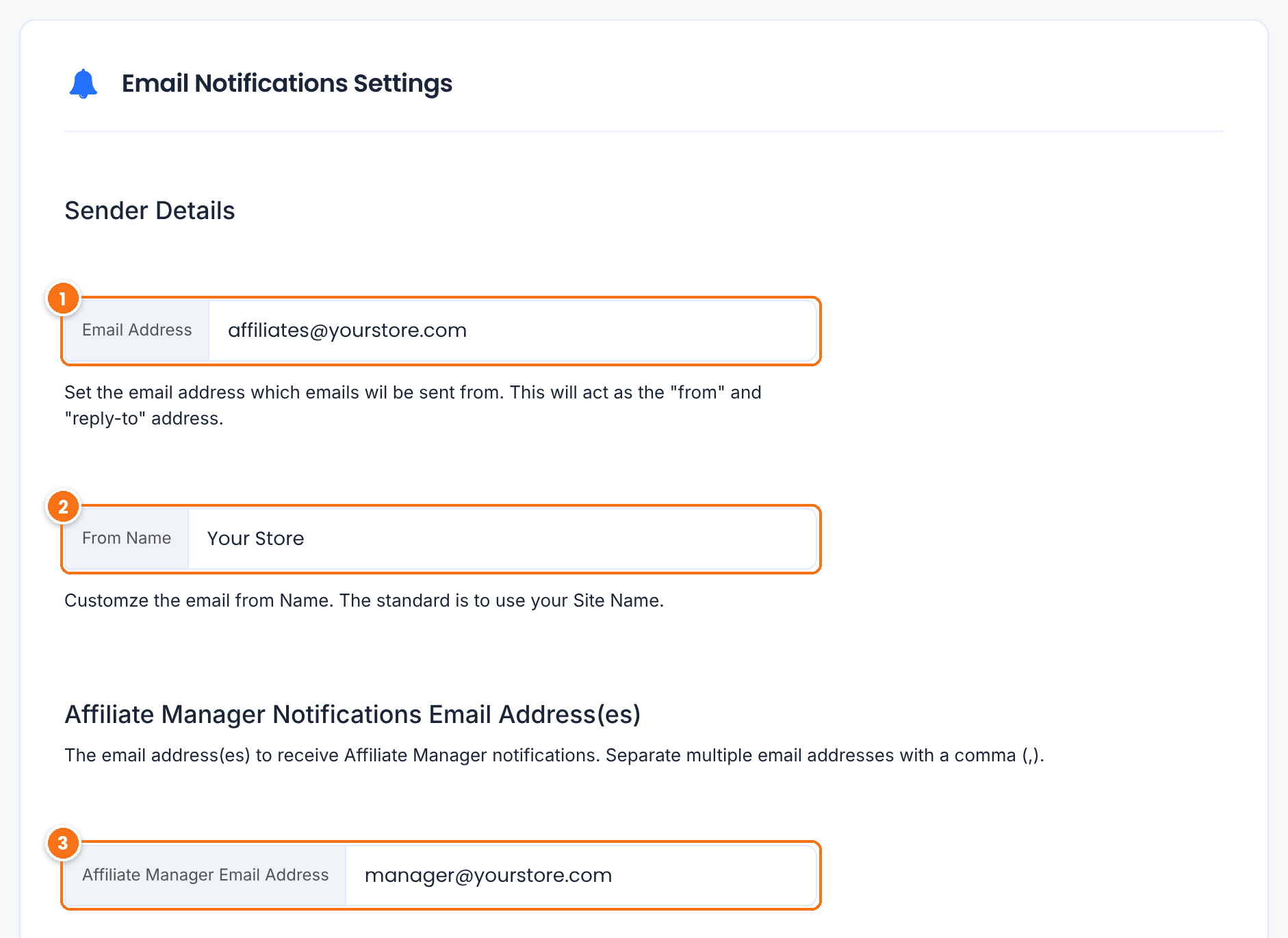
The From and Reply-To address of every affiliate email. Use an address on your own domain, such as affiliates@yourstore.com. Free addresses like Gmail or Yahoo as sender are often rejected or sent to spam.
Default: your WordPress admin email
The sender name affiliates see.
Default: your site title
Where emails for the affiliate manager go, such as new affiliate registrations. Separate several addresses with a comma.
Default: your WordPress admin email
Click Save Changes.
Fix email delivery #
If the email is in the Notifications Logs but never reaches the inbox, the problem is between your server and the recipient. It affects every email of your site, including WordPress password emails.
- Ask the affiliate to check the spam and promotions folders.
- Install an SMTP plugin, such as WP Mail SMTP, FluentSMTP or Post SMTP, and send through a mail service: your host mail server, Google Workspace, Microsoft 365 or a sending service such as SendGrid, Mailgun or Amazon SES. Many hosts block or limit email sent directly from PHP.
- Add SPF and DKIM records for your domain, and a DMARC record, as your mail service explains. Without them, many inboxes reject the email.
- Use the same domain in the sender Email Address as in your SMTP account.
- Check that your domain or server IP is not on a blocklist, with a tool such as MXToolbox.
- If your SMTP plugin has an email log, check it for errors after you send a test.
Tip
Links with tracking or unusual words can trigger spam filters at some mail servers. If only one notification is filtered, simplify its content and send a test email again.
Test it #
- Click Check Mail Server and confirm that the test email arrives.
- Use Send Test Email on one notification and check the result.
- Trigger a real event, for example reset the password of the test affiliate from the Lost your password? link.
- Check that the email appears in Notifications Logs and in the inbox.
Frequently asked questions #
Why does the email appear in Notifications Logs but never arrive?
The log only shows that WordPress handed the email to your mail system. Delivery after that depends on your server or SMTP service. Set up an SMTP plugin and SPF, DKIM and DMARC records for your domain.
Who receives the new affiliate registration email?
The Affiliate Manager Email Address in Settings, Notifications Settings. When it is empty, the WordPress admin email receives it. You can also turn the Administrator Notification switch on or off in the Registration Form showcase.
Can I send emails in other languages?
Yes. Notifications support WPML string translation, so each affiliate gets the email in the language of their account.
Affiliates do not get an email for new referrals. Why?
New referral emails come from the Referral Notifications module. Turn it on in Modules, and ask affiliates to choose the referral types they want in the Notifications tab of their Affiliate Portal.
How do I clean up old logs?
In Settings, Notifications Settings, choose a period under Notification Logs and click Clean Up.


