Affiliate coupon tracking credits an affiliate whenever a customer uses the affiliate’s coupon code at checkout, with no referral link and no cookie needed. In Ultimate Affiliate Pro you link an existing WooCommerce, Easy Digital Downloads or Ultimate Membership Pro coupon to an affiliate with the Static Coupons module.
Coupons work where links do not: podcasts, videos, printed flyers, events and word of mouth. Customers like them too, because they get a discount. Coupons complement affiliate referral links, and both can run at the same time. To see how coupons fit with cookies, read how affiliate tracking works.
Before you start
- WooCommerce, Easy Digital Downloads or Ultimate Membership Pro active and enabled in Ultimate Affiliate Pro›Integrations.
- The coupon already created in that plugin, for example a WooCommerce coupon
emma15for 15% off. Ultimate Affiliate Pro links coupons to affiliates; the discount itself is set in your store. - An approved affiliate to give the coupon to.
Turn on Static Coupons #
Go to Ultimate Affiliate Pro›Modules, open Static Coupons, turn on Activate/Hold Static Coupons and click Save Changes. This also adds the Coupons tab to the Affiliate Portal.
Assign a coupon to an affiliate #
On the same page, below the activation box, click Add new Coupon.
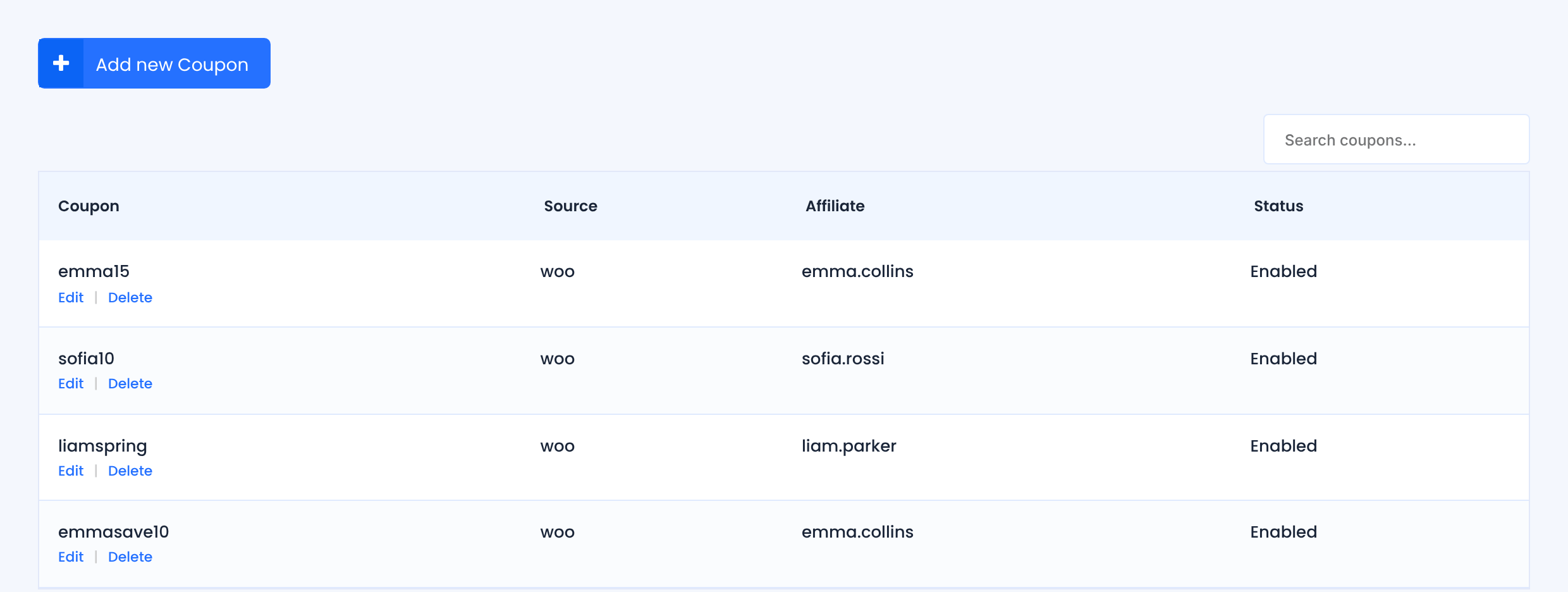
Fill in the Coupon Assignment form:
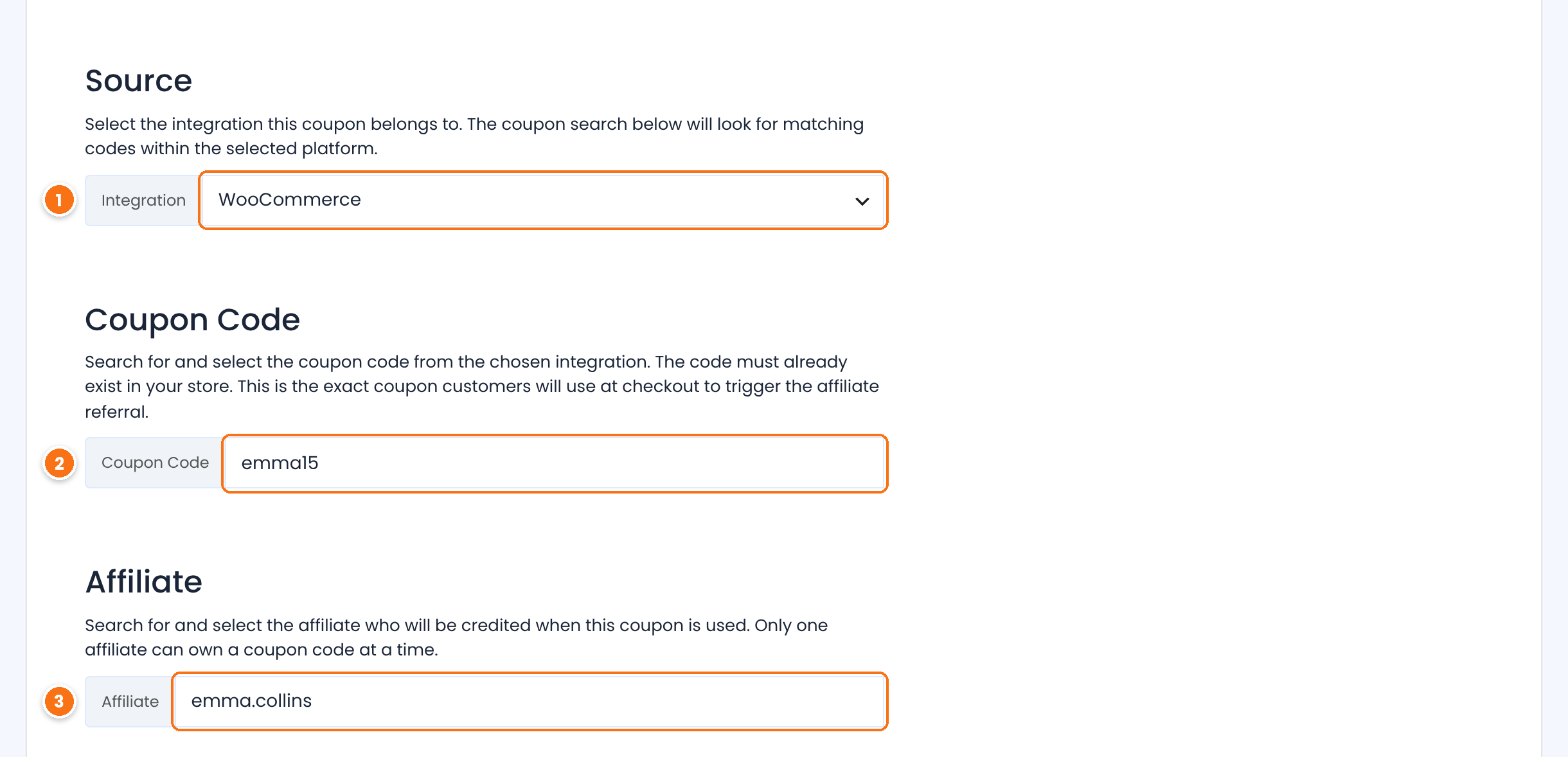
The plugin the coupon belongs to: WooCommerce, Easy Digital Downloads or Ultimate Membership Pro. Only active integrations are listed.
Start typing and pick the code from the list. It must already exist in the selected plugin.
Start typing the affiliate’s username and pick them. Each coupon code belongs to one affiliate; an affiliate can have several coupons.
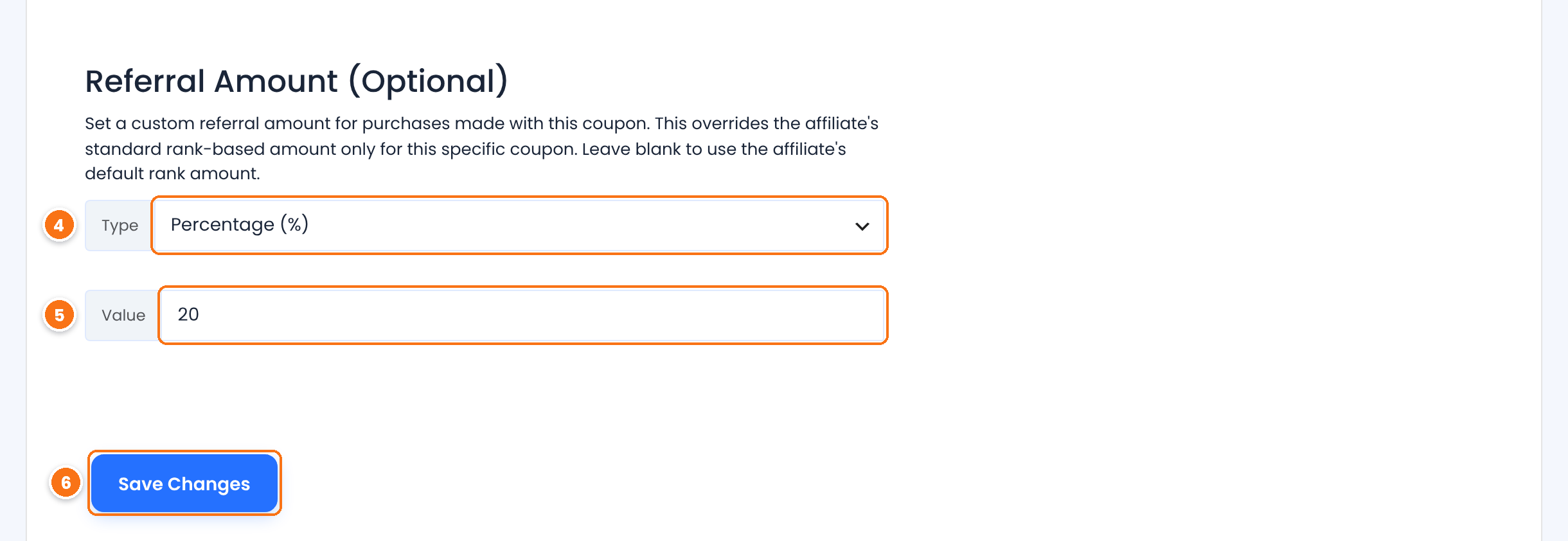
How the commission for this coupon is calculated.
- Percentage (%): a percentage of what the customer pays for each product in the order, after the coupon discount.
- Flat Rate: a fixed amount in your store currency, paid once per order.
The percentage or the amount. Leave it empty to pay the affiliate their usual rank rate. See how commissions are calculated.
Default: empty (rank rate)
Saves the assignment. The coupon appears in the list with its source and affiliate.
Or assign it from the WooCommerce coupon #
For WooCommerce coupons you can also link the affiliate while you create or edit the coupon. Go to Marketing›Coupons in WordPress, open the coupon and find Affiliate Program – Static Coupon in the General tab of the Coupon data box.
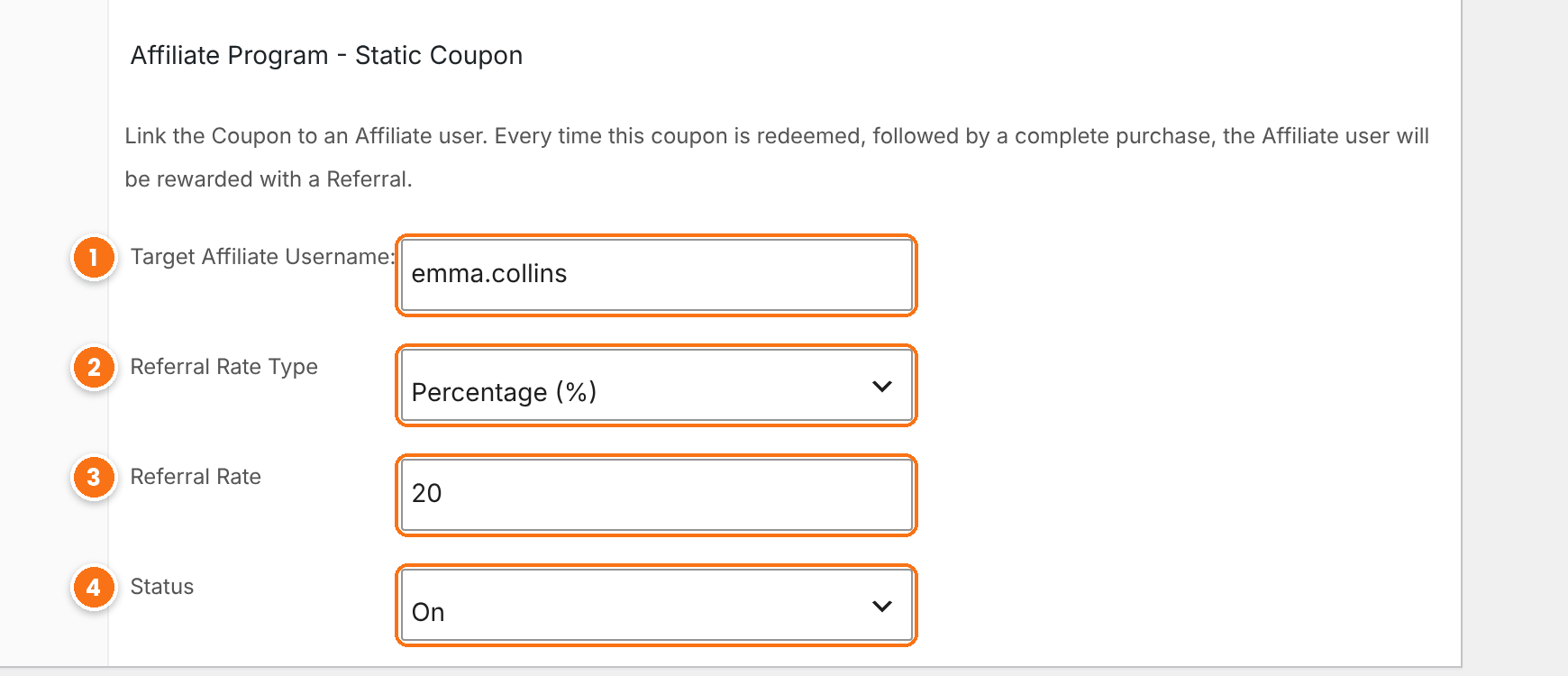
- In Target Affiliate Username, type the affiliate’s WordPress username.
- Optionally, choose a Referral Rate Type.
- Optionally, set the Referral Rate. Leave it empty to use the rank rate.
- Set Status to On and update the coupon. The assignment also shows in the Static Coupons list.
Affiliates share their coupons #
Affiliates find their codes in the Affiliate Portal, under Marketing›Coupons, with the discount the customer gets and the reward they earn.
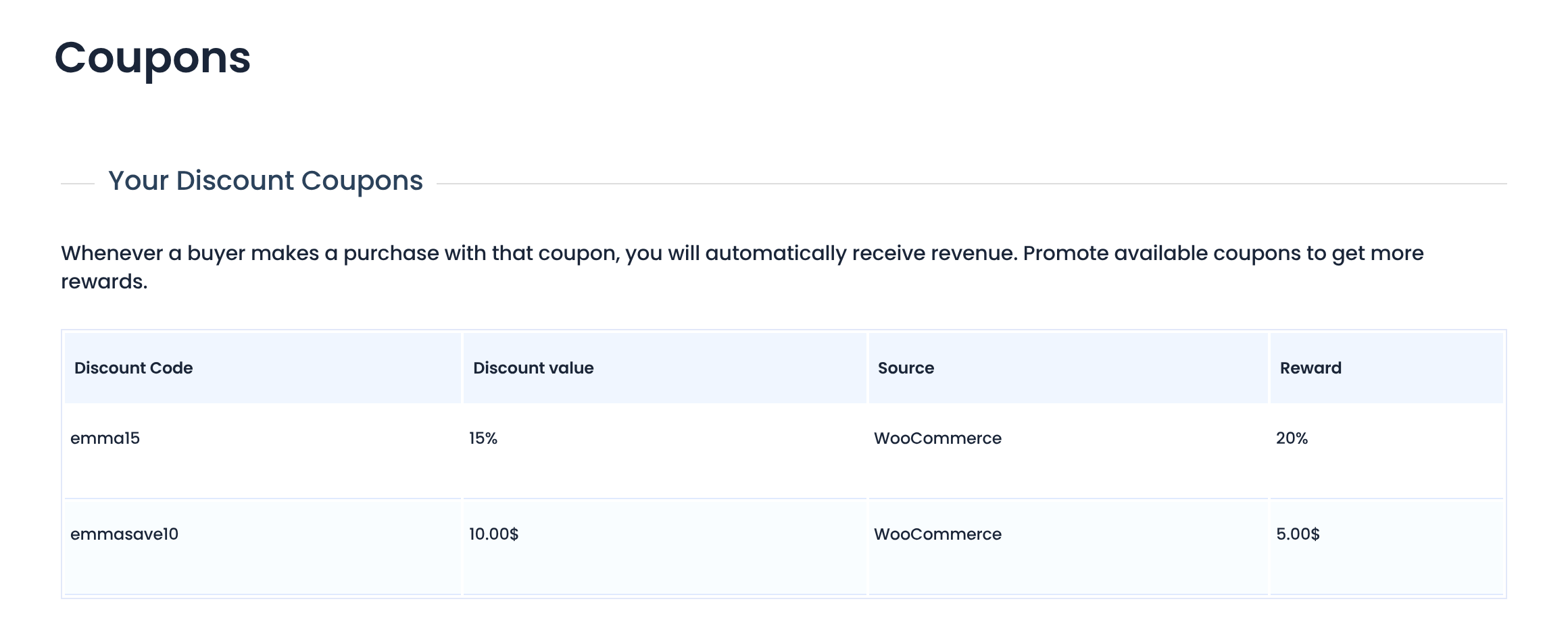
How affiliate coupon tracking credits referrals #
- Coupon first. When an order contains an affiliate coupon, the coupon takes priority over the referral link cookie, so the coupon’s affiliate gets the referral even if the customer clicked another affiliate’s link before.
- No cookie needed. The coupon works on any device and in any browser, without a prior click.
- Discounted amount. Percentage commissions are calculated on what the customer paid for each product, after the discount.
- Own coupons. An affiliate who uses their own coupon does not earn a referral, unless you turn on the Allow Self Referrals module.
Test it #
- Open your store in a private browser window, without any referral link.
- Add a product to the cart and apply the affiliate’s coupon, for example
emma15. - Complete the order, then check Ultimate Affiliate Pro›Referrals: the referral is credited to the coupon’s affiliate.
Tip
Name coupons after the affiliate, such as EMMA15, so customers remember them and you can spot them in orders. WooCommerce settings such as usage limits and expiry dates still apply. See the WooCommerce coupon management guide. To create a coupon for every affiliate automatically, use the Dynamic Coupons add-on.
Frequently asked questions #
Does Ultimate Affiliate Pro create the coupon codes?
Static Coupons links coupons you already created in WooCommerce, Easy Digital Downloads or Ultimate Membership Pro. The discount, limits and expiry are set in that plugin.
Does the customer need to click a referral link first?
No. The coupon alone credits the affiliate, on any device and without a cookie.
What if the customer clicked another affiliate’s link and then used a coupon?
The affiliate who owns the coupon gets the referral.
Can two affiliates share one coupon code?
No. Each coupon code belongs to one affiliate. Create a separate coupon for each affiliate; one affiliate can have as many coupons as you like.
Can a coupon pay a different commission than the affiliate’s rank?
Yes. Set a Type and Value in the Referral Amount (Optional) section of the coupon. Leave them empty to use the rank rate.


